Last updated: September 2nd, 2024 at 19:44 UTC+02:00
SamMobile has affiliate and sponsored partnerships, we may earn a commission.
Reading time: 3 minutes
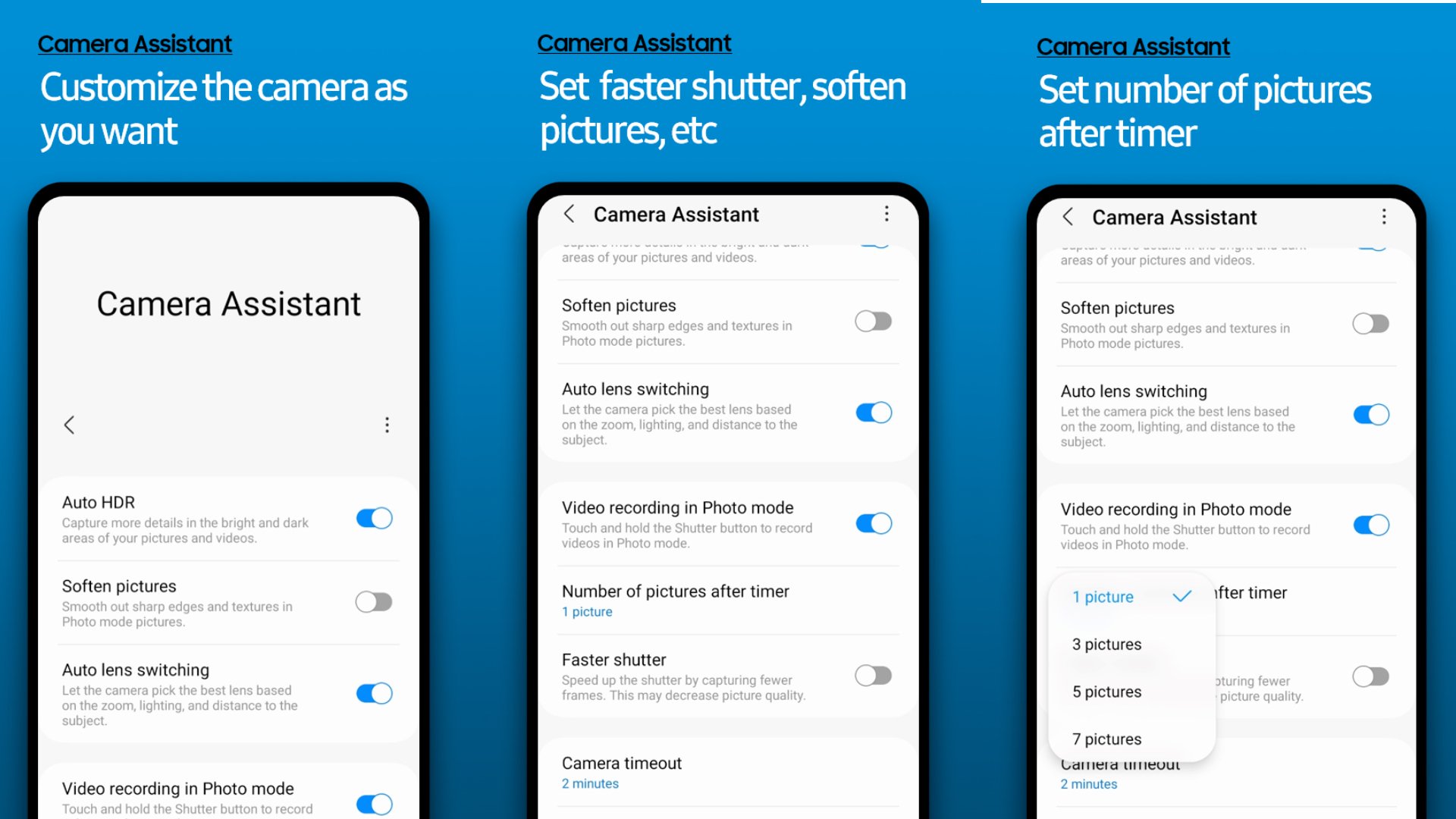
Camera Assistant lets you tweak the behavior of some of the stock camera app's features. For example, Galaxy phones that have dedicated zoom cameras tend to use digital zoom from the primary camera in tough lighting conditions as telephoto lenses have smaller apertures, but with Camera Assistant, you can force your phone to always use the zoom lens no matter how dark it may be.
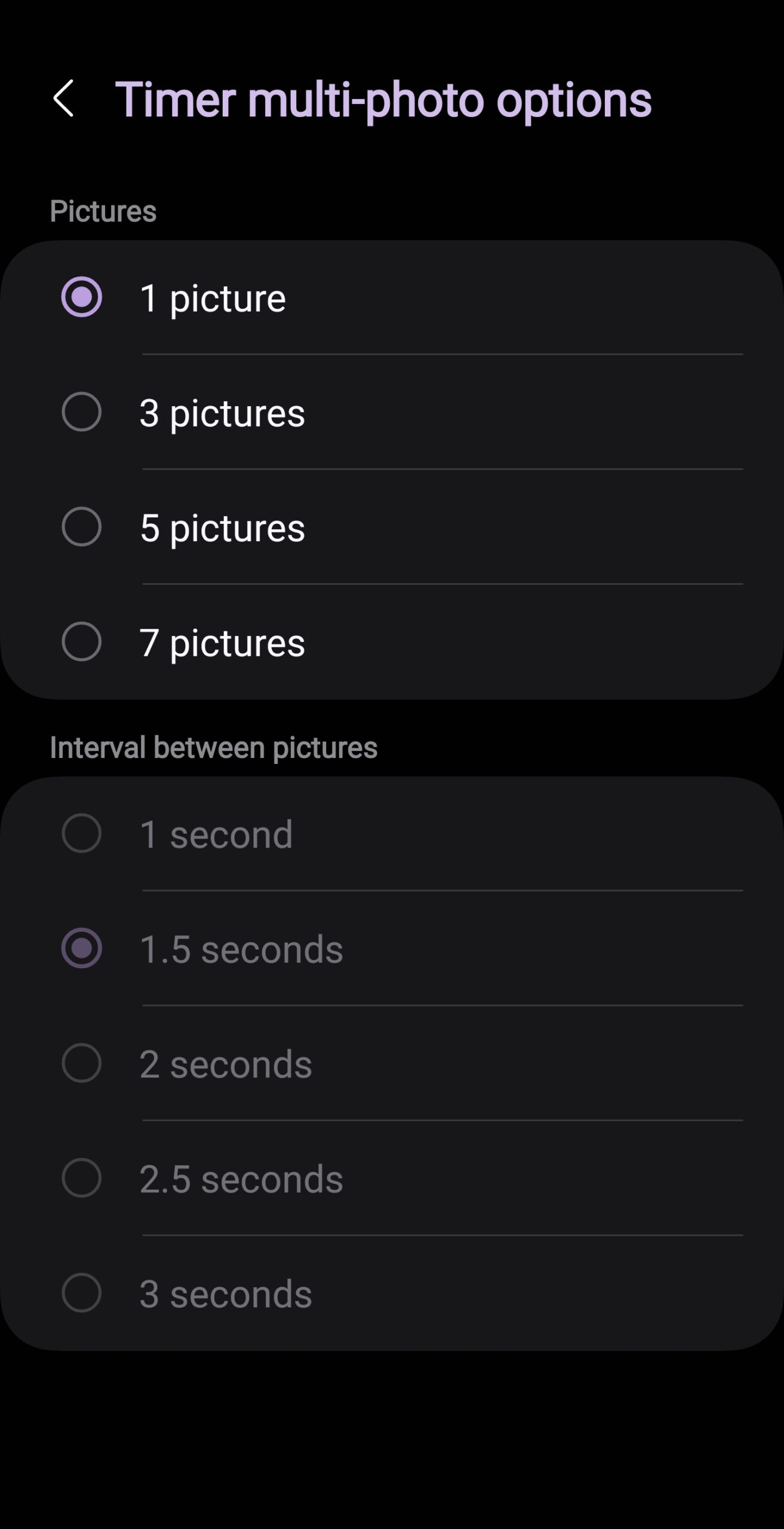
You can also customize things like how many photos are taken when you use the timer function to take timed photos, how long the camera app should stay open without any user input, whether the camera app should automatically shoot HDR pictures when it detects the necessary lighting conditions, and how much softening is applied to pictures after they are captured.

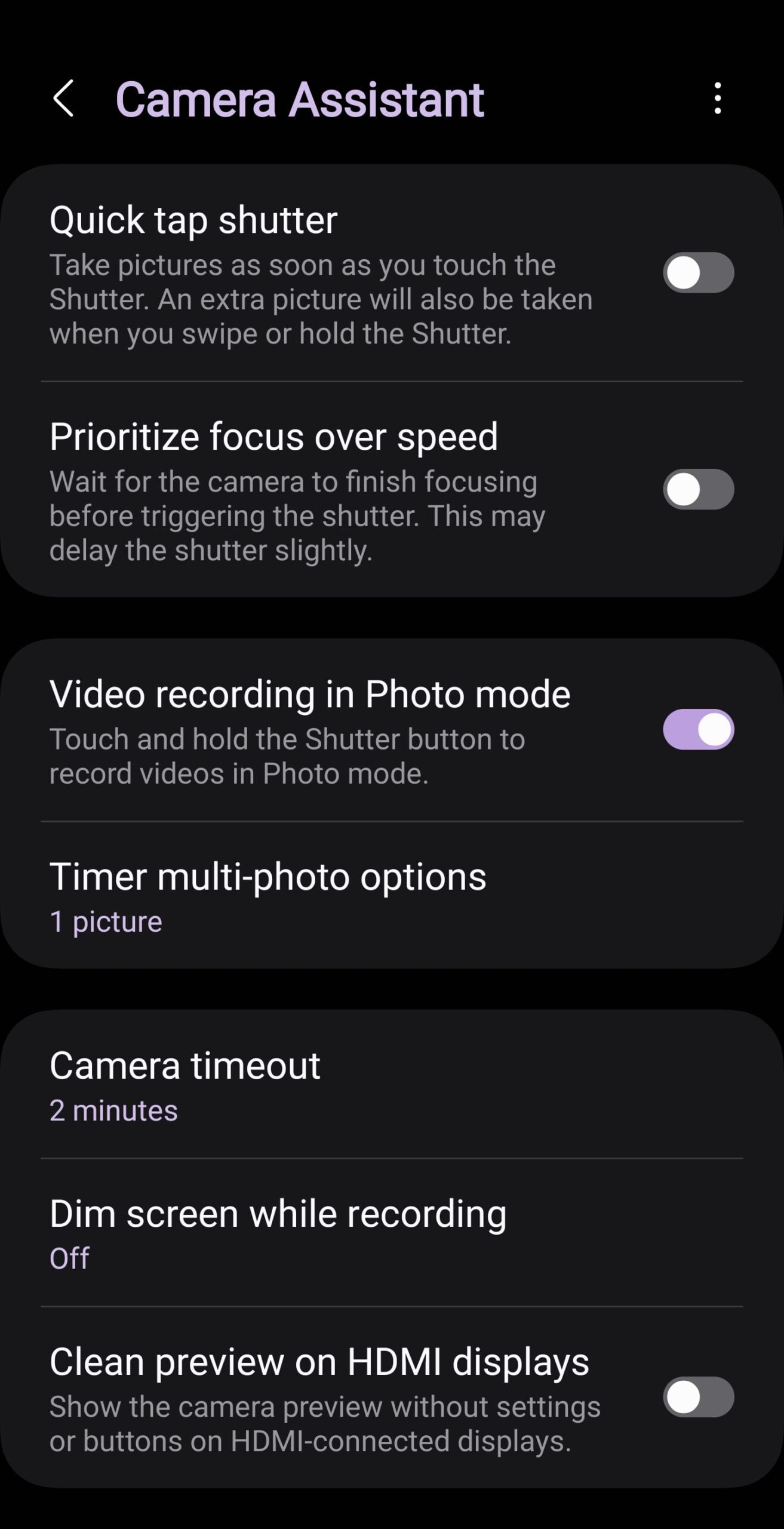
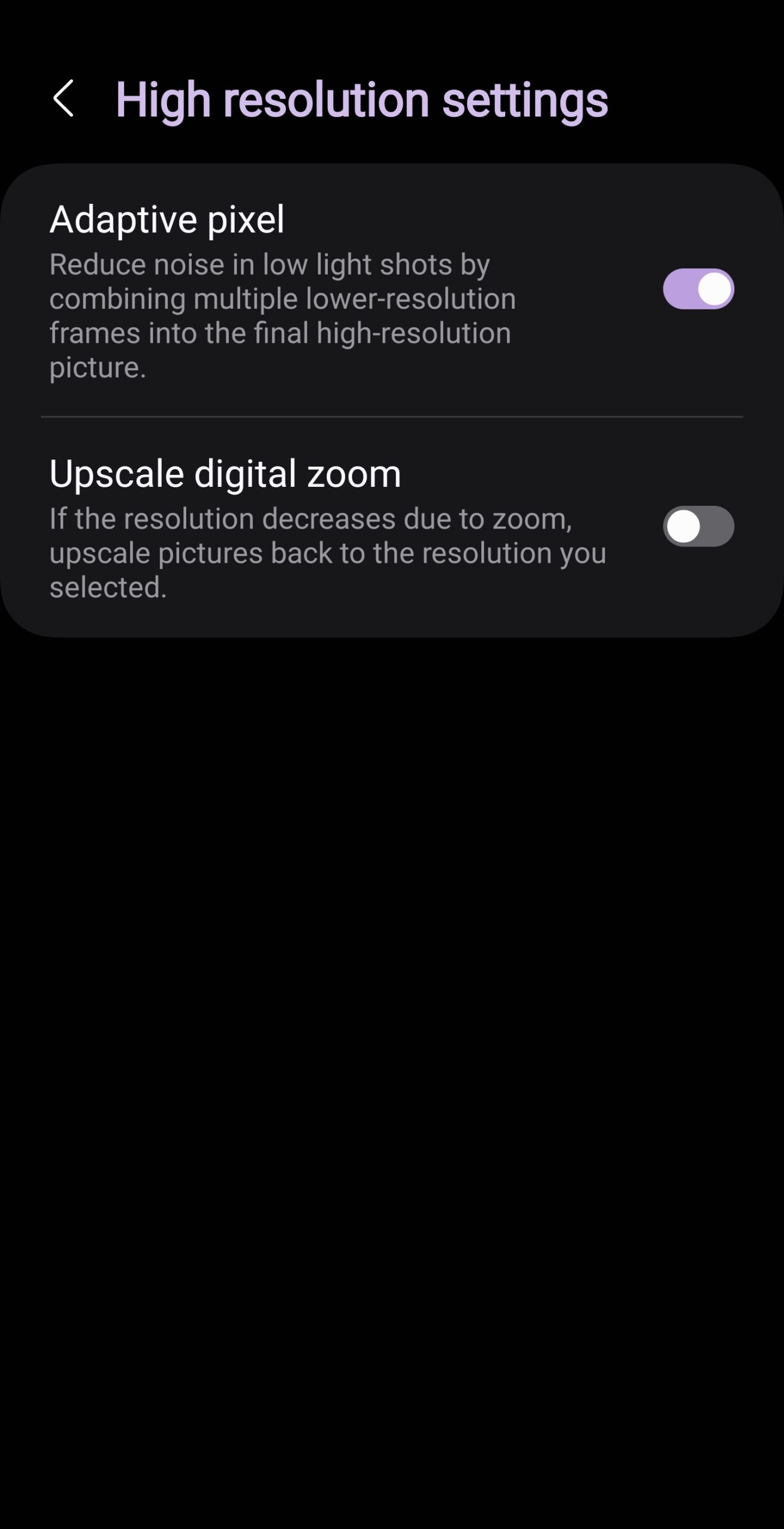
On some flagship Galaxy phones, Camera Assistant can add additional features, like a 2x zoom option to Portrait mode and a regular 2x zoom option that uses in-sensor cropping instead of digital zoom for higher-quality 2x pictures. Last but not least, you have features like distortion correction and the option to make the camera prioritize focus over capture speed (and vice versa).
Camera Assistant started out being compatible with only a few Galaxy smartphones, but Samsung has consistently made the list of eligible devices bigger over the past few months along with adding new features.
You can find the full list of supported devices below. The list will be updated every time a new device gets support for Camera Assistant, so be sure to bookmark this page.
Not all Camera Assistant features are available on every device, even if the devices belong to the same lineup. For example, the Galaxy S22 Ultra and Galaxy S23 Ultra have a couple of additional options that take advantage of their 200-megapixel primary cameras. The best way to check which features are available on your device is to try the app for yourself.
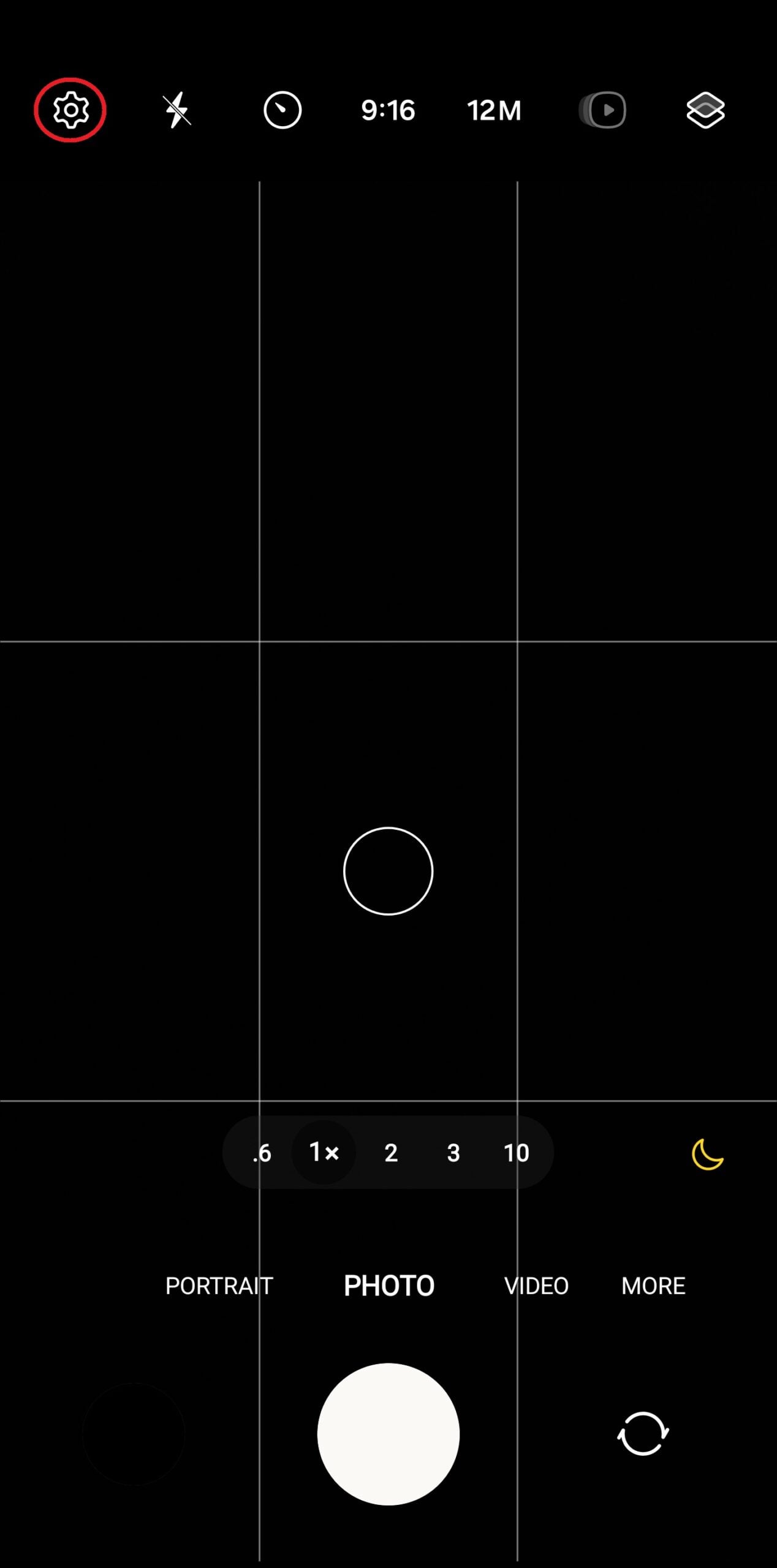
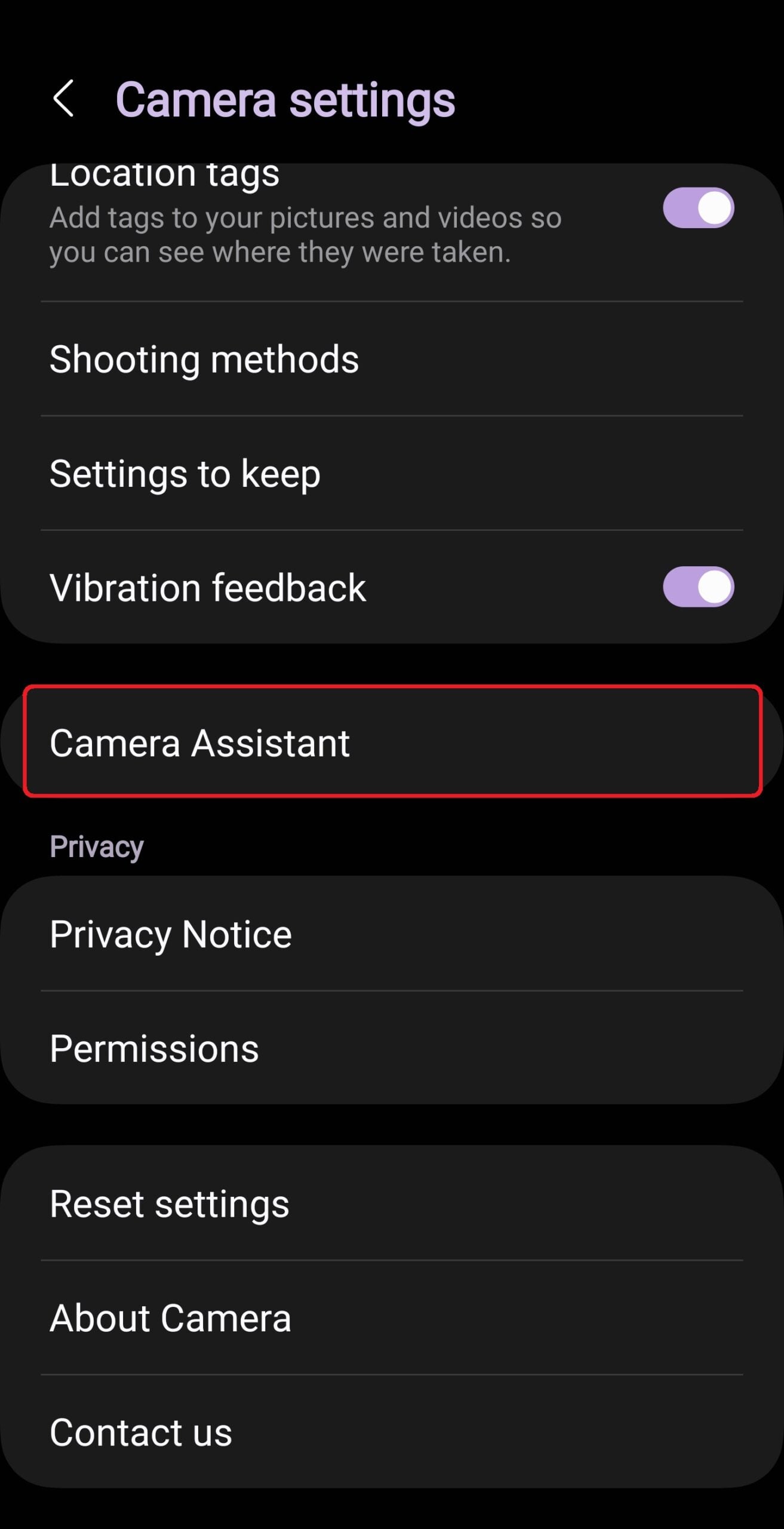
You can download Camera Assistant from the Galaxy Store. Search for it in the Galaxy Store or tap this link on your phone to directly go to its store page. Once installed, you can access it by opening the Camera app on your phone, tapping the settings icon to open the camera's settings, scrolling down to the bottom, and selecting Camera Assistant.
Note: Camera Assistant only runs on Android 13 and One UI 5 and above

Abhijeet's writing career started with guides for custom firmware for Samsung devices (including the original Galaxy S), and he moved to SamMobile in mid-2013 and worked up the ranks to Editor-in-chief. In addition to phones and mobile devices, his interests include gaming on both PC and console, PC hardware, and spending countless hours on YouTube watching videos on tech, movies, games, politics, and internet dramas.














