Cyber week deals! Galaxy Watch8 Classic, Fold 7, S25 Ultra. Follow us on YouTube, TikTok, or LinkedIn
Last updated: August 24th, 2023 at 16:25 UTC+02:00
SamMobile has affiliate and sponsored partnerships, we may earn a commission.
Reading time: 3 minutes
Despite its capabilities, the Galaxy Wearable app is simple to navigate. Even though it's a hub for all your wearables, the app keeps settings and features separated for each device. And as it turns out, the same principle applies to notifications. Here's all you need to know to manage per-device notifications through Galaxy Wearable.
Story continues after the video
Instead of cramming all the possible notification settings for all your devices in one section, each of your Galaxy wearables gets independent per-device notification settings.
This approach gives users a surprising amount of freedom on how and/or which notifications should pop up. For example, you can set your Galaxy Buds notifications to trigger sounds and vibrations while keeping notifications related to your Galaxy Watch silent. Or you can choose to show earbud notifications on the lock screen while hiding smartwatch notifications. The list goes on.
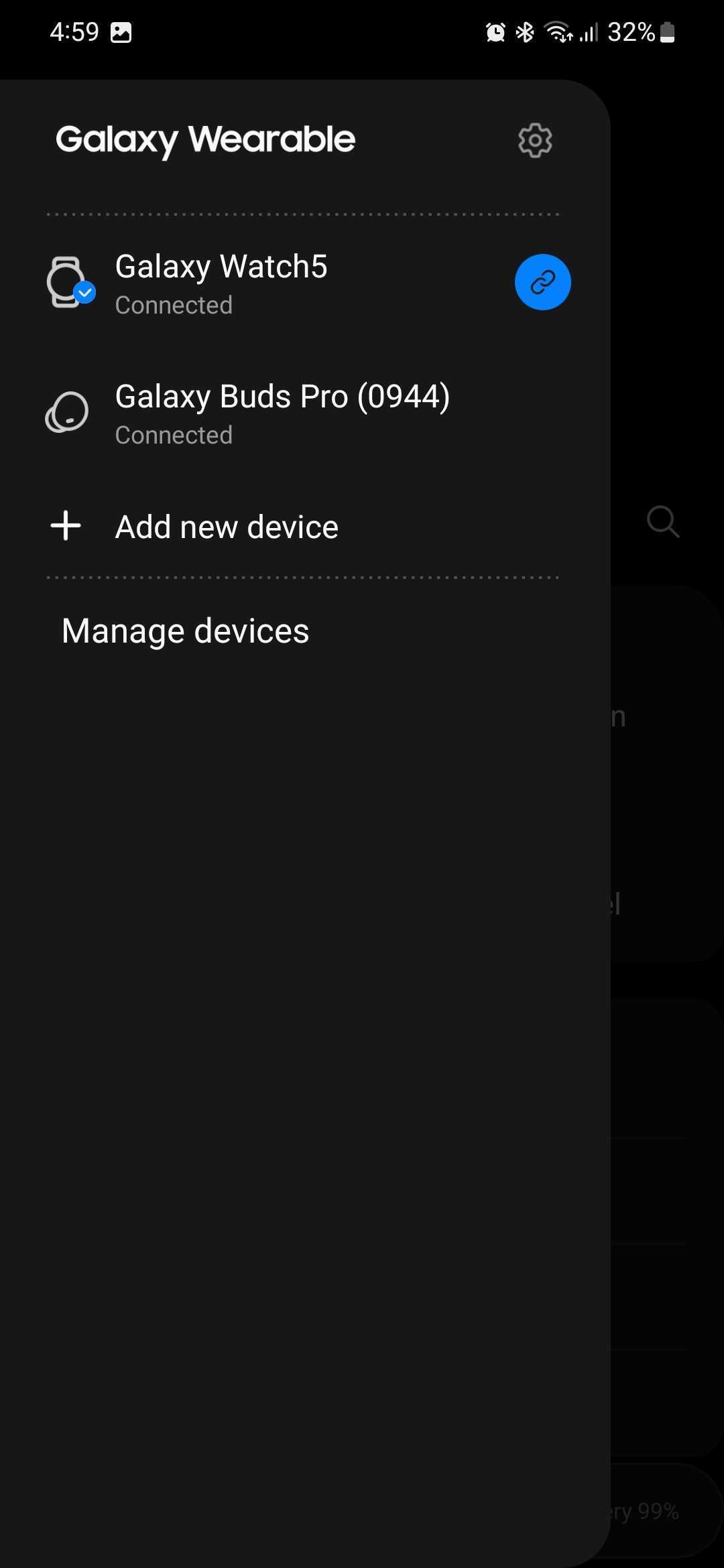
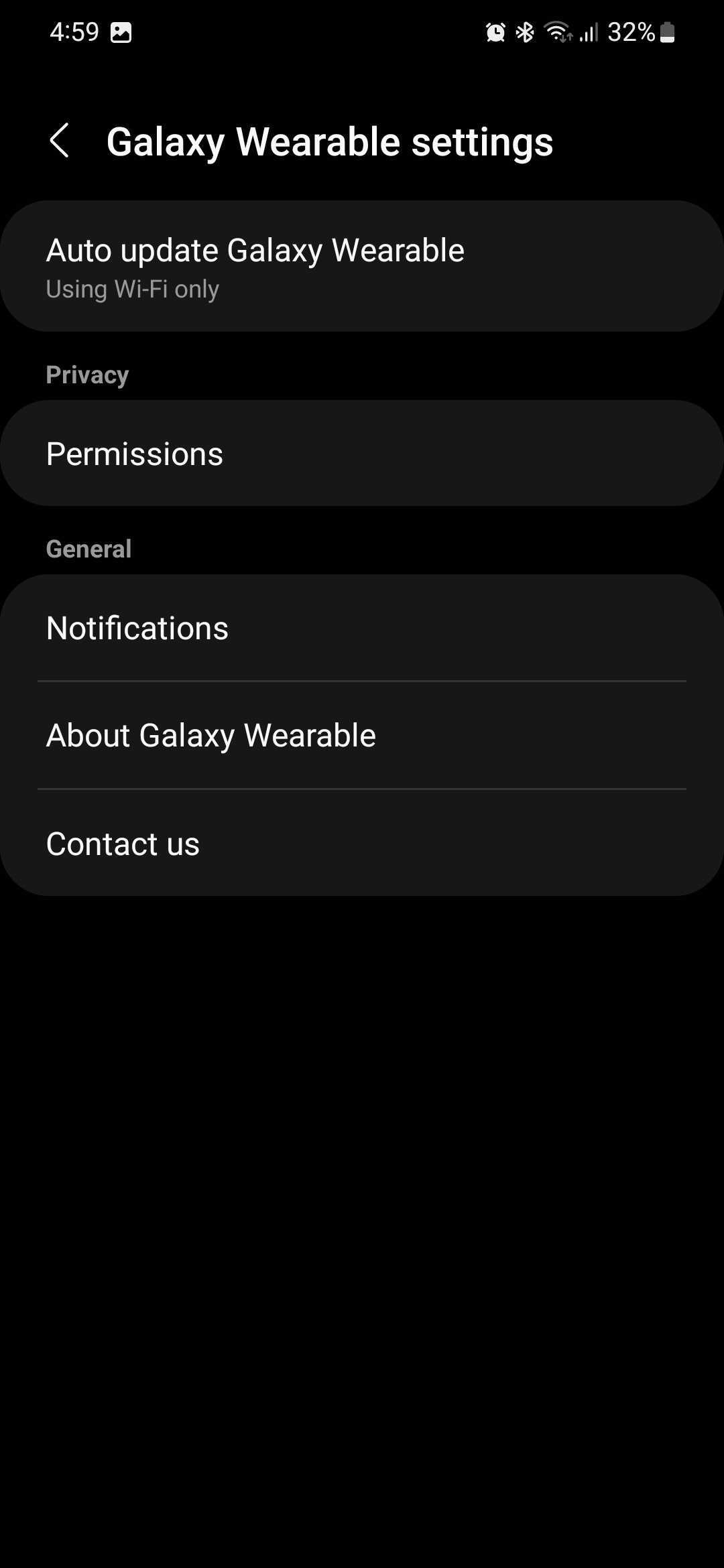
To manage per-device notifications in Galaxy Wearable, launch the app, and via the hamburger menu, access the device whose notification settings you want to change. Then, open the hamburger menu again and tap the cog-shaped settings icon at the top. Lastly, tap “Notifications.”
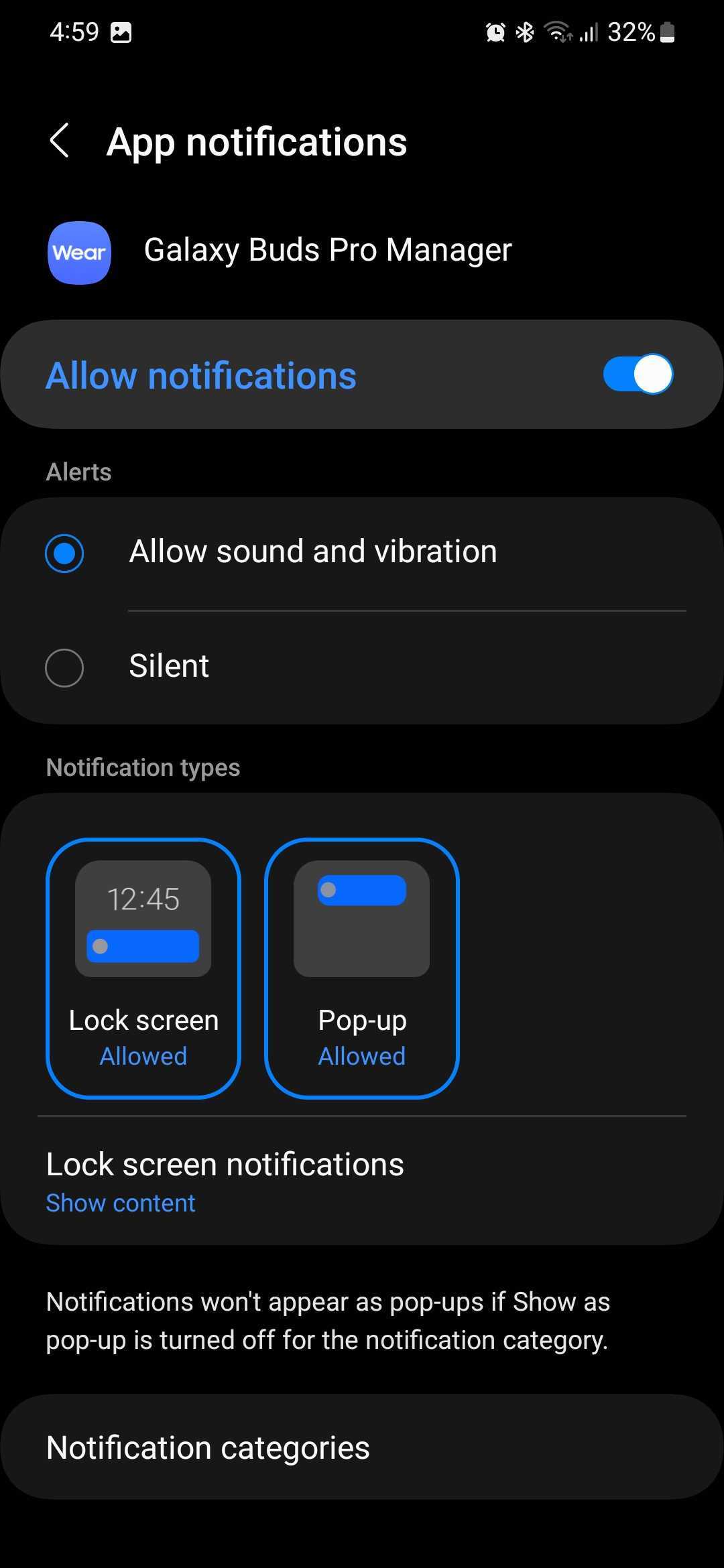
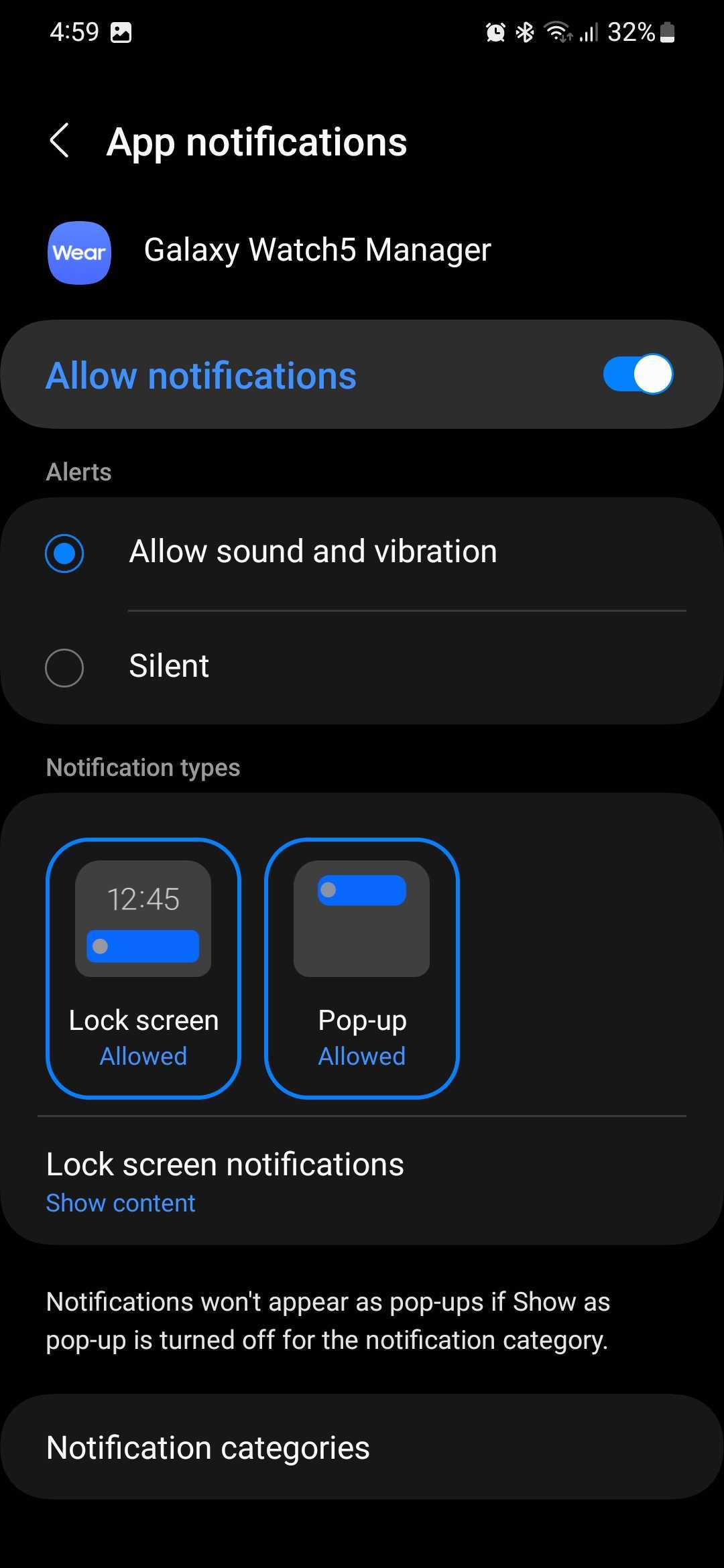
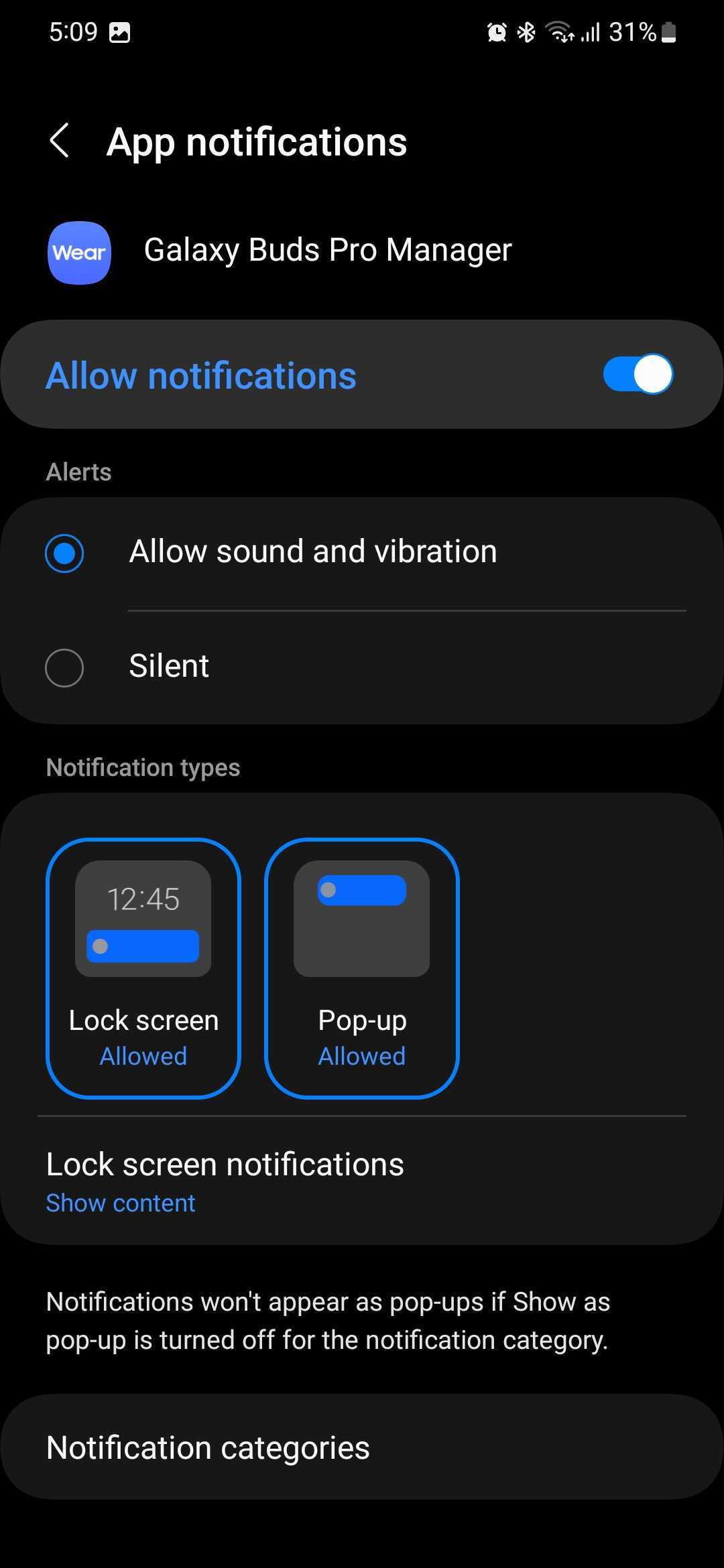
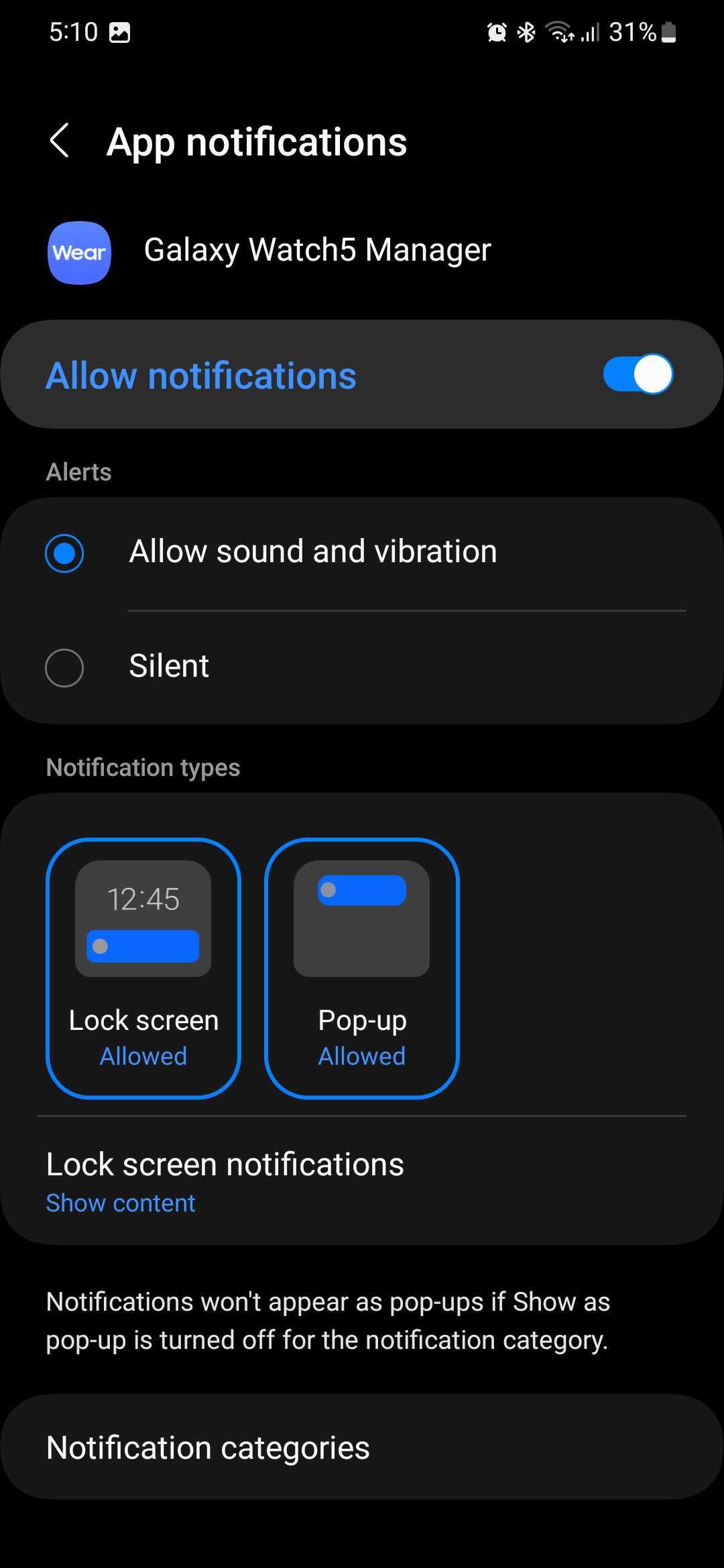
You should now notice how the name of the Galaxy device you picked earlier is shown at the top of the notification settings screen. And from here on out, whatever notification settings you change, those modifications will apply only to that particular device.
Therefore, if you change notification settings for your Galaxy Buds, those changes will not apply to your Galaxy Watch and vice versa.
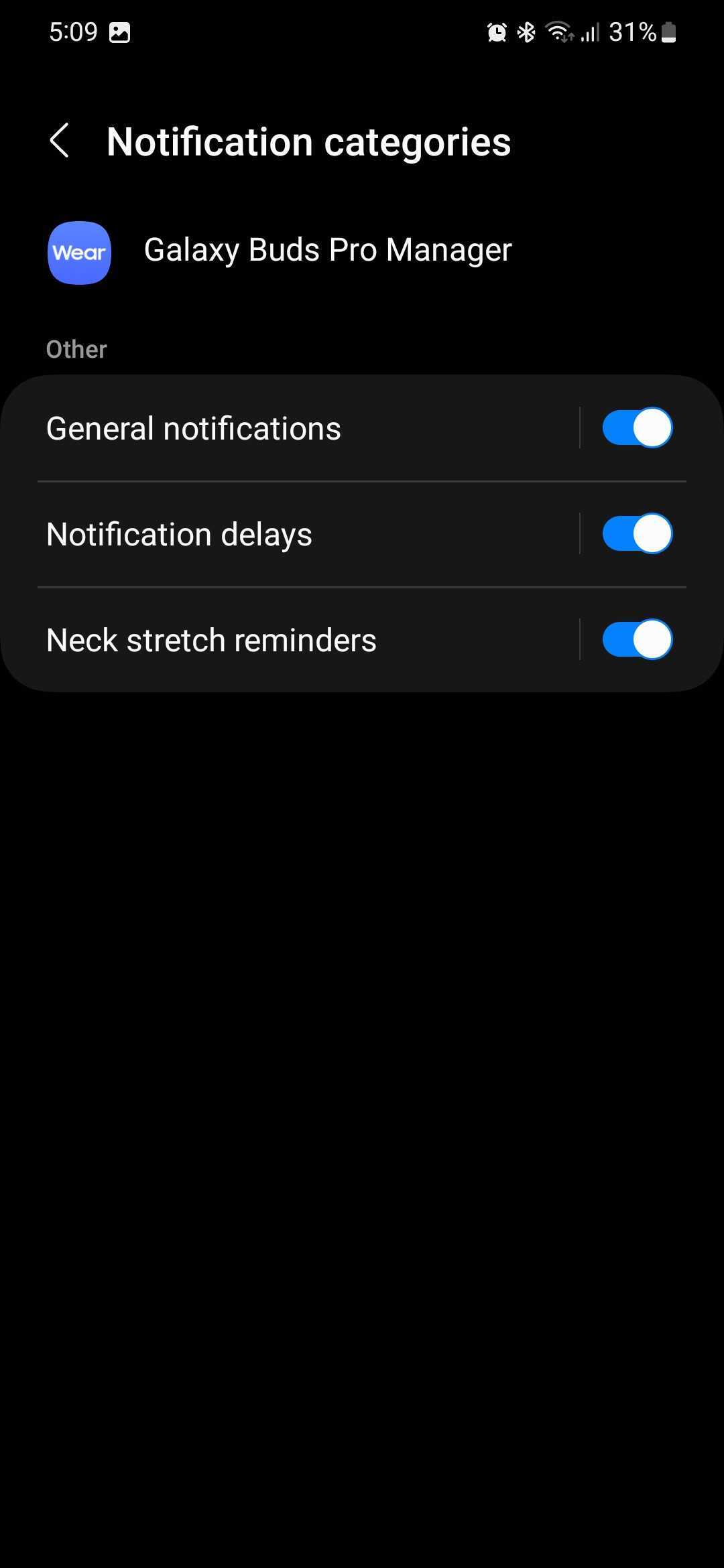
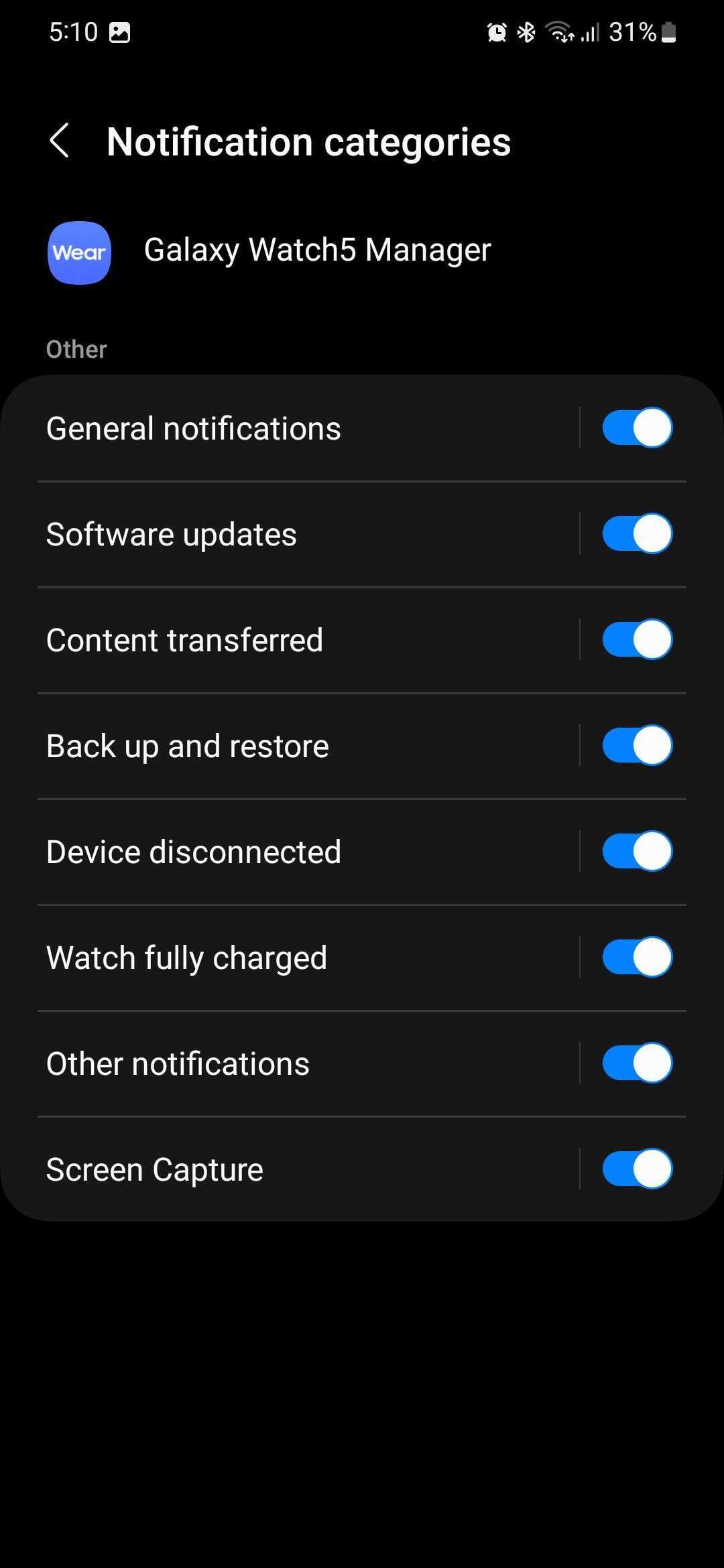
For even more settings, you can tap “notification categories.” And once again, you should notice that the available notification toggles and what they do differs depending on which device you're managing.
As exemplified in the screenshots below, Galaxy Buds Pro notification categories include:
Whereas the same “notification categories” section for the Galaxy Watch 5 includes options like:
Because Samsung organizes notifications per device through the Galaxy Wearable app, users have incredible freedom on how notifications behave. Even though the Galaxy Wearable app is the hub for all wearables, notification settings aren't thrown into the same pot. Samsung's approach is one reason why using multiple Galaxy wearable devices is a joy and often a seamless experience.
Mihai is a blogger and column writer at SamMobile. His first Samsung phone was an A800 which took a lot of beating, and a part of him still misses the novelty of the clamshell design. In his free time, he enjoys watching shows, documentaries, and stand-up comedy; listening to music, taking walks, and occasionally playing old(er) video games.