Samsung's One UI 9.5 beta arrived a little earlier than last year's mid-cycle update, giving us a chance to start comparing it with One UI 9. Some differences are immediately visible, while others become clearer when you put the two versions side by side.
We've done just that, looking at changes to the interface along with the new features. There are smoother animations, controls that are easier to reach, a more useful Samsung DeX desktop, and several additions to Samsung's apps.
Finder naming is more consistent, and quick panel gets search
The first change is a small one in the app drawer. The search field is now labeled Finder, matching the name used for the search bar on the home screen.
This makes the naming more consistent, but it doesn't change what the search tool does. Tapping it still opens the same search experience.
Daniel Scuteri / SamMobile
Search in app drawer renamed to Finder (right) in One UI 9.5
Opening Finder from the home screen does feel different, however. In One UI 9, the transition is fairly abrupt, with the search view largely appearing in a flash. One UI 9.5 expands the home screen search bar into the search interface with a smoother animation.
Samsung has also made searching possible in another part of the interface: the Quick Panel editor. The main editing screen is pretty much the same, but choosing Add a control now gives you a search field so you can quickly find the option you're looking for instead of scrolling through the list.
Daniel Scuteri / SamMobile
Quick Panel editor gets search in One UI 9.5 (right)
App Lock protects individual apps
One of the most useful additions is App Lock, a feature Galaxy fans have been requesting for years.
Samsung's Secure Folder has long been an option for keeping apps separate and protected, but One UI 9.5 lets you protect individual apps without having to use Secure Folder.
To lock an app, long press its icon on the home screen or app drawer, tap the padlock, and confirm that you want to lock the app.
Abhijeet Mishra / SamMobile
Locking an app
The app's notification content will be hidden once it's locked. Its home screen widgets will also be removed, and you will have to add them again if you decide to remove the lock from the app.
The Galaxy S26 Ultra gets an extra benefit from App Lock. You can set Privacy Display to activate automatically whenever you open a locked app, making it harder for someone next to you to read the screen after you've authenticated.
Privacy Display could already turn on for selected apps. One UI 9.5 adds conditions for secure features, including locked apps, Samsung Browser's Secret mode, private Gallery albums, and locked notes in Samsung Notes.
Abhijeet Mishra / SamMobile
Privacy Display app lock settings
Protection also extends to the notification panel and Recents previews for apps configured to activate Privacy Display automatically. When you're using a locked app, pulling down the notification shade or Quick Panel keeps the protection active.
These improvements currently apply to the Galaxy S26 Ultra, which has the necessary Privacy Display hardware.
Quick Share's Tap to Share is available in the beta
The Galaxy S26 beta also includes Tap to Share in Quick Share, letting you begin sharing by bringing compatible phones together.
Both phones need to be unlocked, with NFC, Bluetooth, and Wi-Fi enabled. Depending on where the NFC antennas are placed, you tap the backs or tops of the phones together, then accept the transfer on the receiving phone.
Samsung apps put search within easier reach
Abhijeet Mishra / SamMobile
One UI 9.5 (right) puts search button at the bottom
Samsung is making it easier to reach for the search button in many of its first-party apps. Apps like Phone, Notes, and Calendar now have the search button at the bottom instead of the top.
The whole point of the original One UI design was effortless one-handed use, something Samsung forgot to focus on along the way. But it appears to be trying to go back to that design philosophy with One UI 9.5.
Facial recognition and fingerprint authentication work together
Abhijeet Mishra / SamMobile
One UI 9.5 biometric authentication popup
One UI 9.5 removes an extra step from biometric authentication on Galaxy phones. Previously, when an authentication window appeared, you had to choose between fingerprint and face recognition using separate tabs.
Samsung has now combined both methods into a single pop-up, letting you authenticate without selecting one first. When you've registered your fingerprint and face and a feature or app supports both, the phone starts scanning your face immediately while keeping fingerprint authentication available.
Unlocking and fingerprint registration get new animations
Unlocking the phone brings a different transition to the home screen. In One UI 9, the interface appears to expand outward from the middle. One UI 9.5 uses a more gradual scaling animation, giving the transition a smoother, somewhat iOS-like feel.
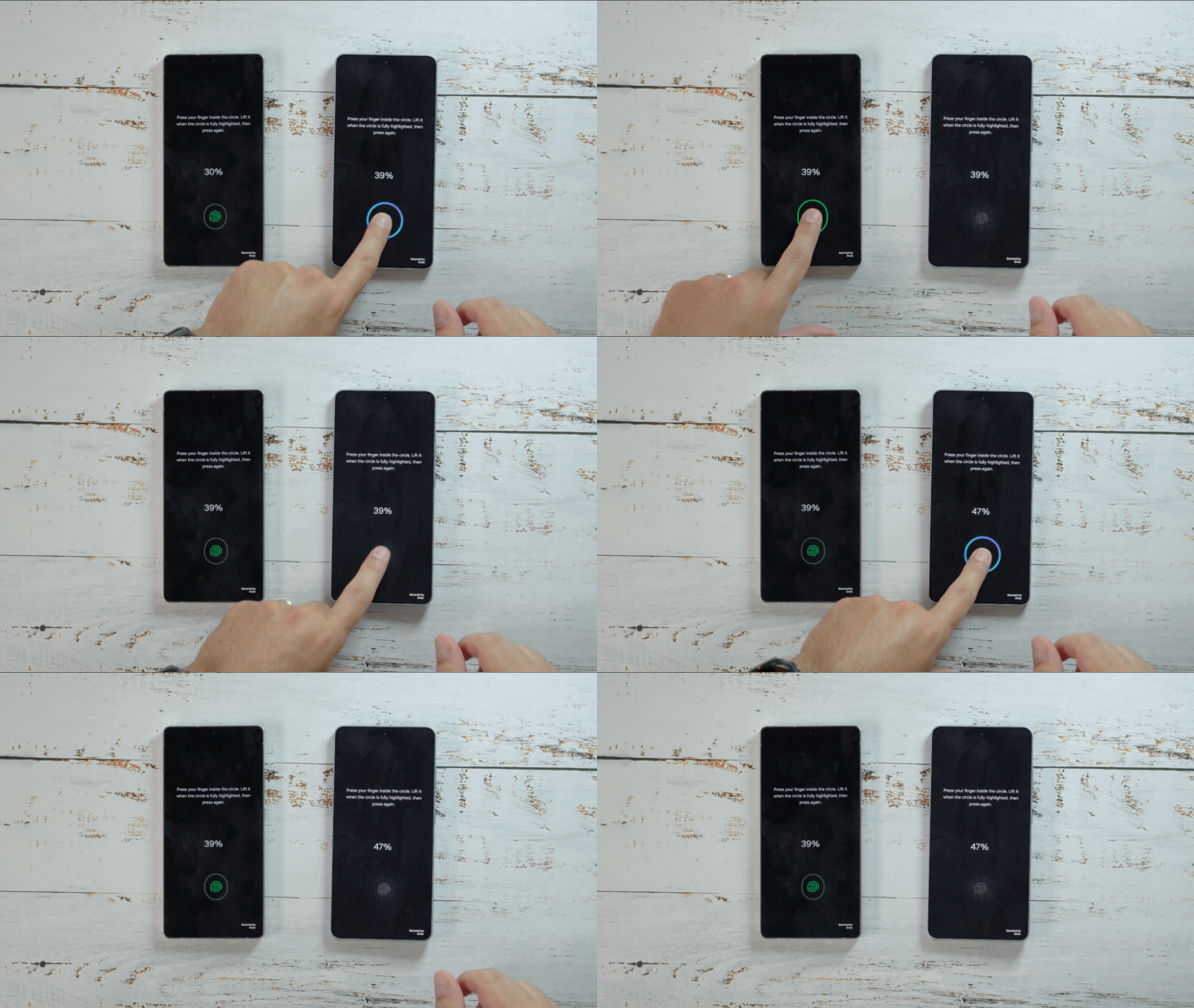
Fingerprint registration also gets a visual refresh. The previous plain green circle is replaced by a more elaborate animated effect around the fingerprint sensor as you scan your finger.
Abhijeet Mishra / SamMobile
Fingerprint registration icon in One UI 9
Abhijeet Mishra / SamMobile
Fingerprint registration icon in One UI 9.5
The registration process itself remains familiar. You still place your finger on the sensor repeatedly, and we didn't notice an obvious difference in how long registration took in our side-by-side comparison. This is essentially just a change to the presentation.
Abhijeet Mishra / SamMobile
One UI 9 vs One UI 9.5 fingerprint registration animation
Samsung has refreshed the face registration screens as well, bringing both biometric setup experiences in line with the updated design.
Auto Blocker stays protected during voice calls
One UI 9.5 also makes a useful security change to Auto Blocker. You can no longer turn it off while a voice call is active. The option becomes available again once the call ends.
This adds a hurdle for scammers who try to talk people into disabling their phone's security protections and installing a malicious app during a call. Auto Blocker itself isn't new; the restriction during calls is.
Asif Iqbal Shaik / SamMobile
Auto Blocker when calls are inactive in One uI 9.5
Asif Iqbal Shaik / SamMobile
Auto Blocker can't be turned off during calls in One UI 9.5
Camera quick controls are larger and easier to navigate
Samsung retains the Camera app's four-dot quick-controls button, but changes what happens when you open it.
In One UI 9, the controls appear in a narrow strip, leaving other parts of the camera interface visible. The smaller controls can require scrolling to find the setting you want.
One UI 9.5 opens a larger panel with more space between the controls. Everything is presented together, making the options easier to see and giving you bigger targets to tap.
SamMobile
Camera quick controls in One UI 9
SamMobile
Camera quick controls in One UI 9.5
The surrounding interface also clears away while the panel is open. That includes the shutter button, which remains visible in the older layout. Whether you prefer that particular change will depend on how you use the camera, but it gives the settings panel a less crowded appearance.
Opening and closing the menu still involves an animation, with the controls contracting back toward the four-dot button when dismissed.
The 24MP camera option no longer needs Camera Assistant
On the Galaxy S26 series, 24MP is now a built-in choice in the Camera app's Photo mode. You could already shoot 24MP photos before One UI 9.5, but you had to install Camera Assistant and enable the option there to see it in Photo mode.
One UI 9.5 removes that requirement. However, this is unlikely to be available on devices launched before the Galaxy S26 series, as they do not have the option to add the 24MP resolution to the stock Camera app.
Pro presets and custom buttons are built into the Camera app
You can save a combination of settings, give it a name, and return to it later. The preset panel lists settings such as shutter speed, ISO, exposure compensation, focus, and white balance. Touching and holding a preset lets you edit or share it.
Abhijeet Mishra / SamMobile
Pro and Pro video mode custom presets in One UI 9.5
Two customizable buttons beside the shutter let you keep frequently used controls within reach. Pro mode's choices include exposure lock, metering, histogram, focus peaking, and autofocus area. Pro Video offers a different selection that includes Smooth zoom.
Lens and zoom readouts can also appear as focal lengths, such as 23mm and 115mm, giving photographers another way to identify their framing.
Abhijeet Mishra / SamMobile
Pro mode custom buttons in One UI 9.5
Samsung DeX gets a more complete desktop interface
DeX is one of the more substantial upgrades in this comparison, starting with the way its interface is arranged.
In One UI 9, navigation buttons sit at the bottom left, the app drawer, search, and taskbar occupy the middle, and screenshot, notification, and Quick panel controls sit at the bottom right. The Quick panel also offers a relatively limited set of controls.
One UI 9.5 moves navigation to the bottom right and puts status information, screenshots, notifications, and the Quick panel at the top right.
Abhijeet Mishra / SamMobile
One UI 9 arrangement
Abhijeet Mishra / SamMobile
One UI 9.5 arrangement
The Quick panel is much more useful, too. It provides the phone's fuller set of quick controls and can be expanded to reveal more toggles, reducing the need to reach for the phone to change a setting.
Abhijeet Mishra / SamMobile
More functional DeX Quick Panel on One UI 9.5
At the top left, the time and date open a calendar when clicked. Meanwhile, DeX settings now have separate toggles for automatically hiding the status bar and taskbar, giving you independent control over the two.
The improvements become more useful when you start opening apps. One UI 9 offers full-screen windows and basic snapping to the left, right, top, or bottom.
In One UI 9.5, hovering over the maximize button reveals more ways to arrange windows across the screen. Taking an app full screen also adjusts the top bar to accommodate its window controls, while the app's background extends behind the taskbar.
You can now snap windows to any of the four corners, in addition to the existing top, bottom, left, and right positions. Automatic arrangement can organize running apps into two, three, or four windows at once, reducing the work involved in setting up a workspace.
Support for moving an app to another virtual desktop remains available from the same area when you have multiple desktops open.
Digital Wellbeing adds a pause before opening apps
Digital Wellbeing's app timer setup offers more options, including a toggle called Pause before app launch.
When enabled, opening an affected app introduces a ten second wait before it launches. That pause gives you a moment to decide whether you really want to open it.
Abhijeet Mishra / SamMobile
Pause before app launch
It could be particularly useful when you find yourself opening a social media app out of habit and scrolling without having intended to spend time there.
Samsung Health adds a place to write down your thoughts
You can write freely or choose prompts about yourself, relationships, work, and other topics. You can also attach photos to your entries and, after saving, record your mood, select specific emotions, and note factors like sleep, work, or family.
Abhijeet Mishra / SamMobile
Samsung Health Mindful note
Your entries are organized by date, with options to edit or delete them later. Samsung Health may also suggest breathing exercises after you've written a note.
Samsung Health gives you more control over its cards
Samsung Health also lets you rearrange cards within the Activity, Sleep, Vitals, Mindfulness, and Nutrition tabs. Dragging the cards into a different order puts the information you use most closer to the top.
This extends customization within those individual sections, beyond arranging the main Home screen. This is not possible on One UI 9 and older.
Samsung is also expanding the Medications tracker to more markets. The tracker itself already existed, but medication reminders and intake tracking are now available more widely.
You could already apply a Live effect to an image in Gallery and use the resulting animation as a lock screen wallpaper, but that played as a moving video. The new wallpaper effect responds to how you move the phone.
Samsung lists support for Galaxy S models, including FE phones, Galaxy Z models, and tablets.
Now Bar adds celebrations for sporting moments
One UI 9.5 adds downloadable sports animations to Now Bar, with effects for your favorite team's scores and wins. In the build used for our comparison, these are grouped under Moment effects.
Support is limited to selected sports covered by Google Sports. When a supported sporting moment occurs, the idea is that the Now Bar can accompany it with an effect, though we haven't seen one trigger during our testing yet.
Audio Brief provided spoken summaries of briefing information, while Moments brought together highlights such as photos, videos, and events from your day. Neither remains available after upgrading, and Samsung hasn't explained why.
The Moments feature being removed from Now Brief is separate from the sports effects in Now Bar.
My Files opens Office documents and improves storage cleanup
My Files can now display Word documents and PowerPoint presentations without sending you to a separate Office app.
There is a button at the top for opening it in another app if you prefer, so the built-in viewer doesn't remove that choice. The viewer also has a three-dot options menu, including a full-screen mode.
Storage management gets a small improvement as well. My Files now offers deletion options for uncategorized and in-use files listed under the Other category, giving you more control over that part of your storage.
Messaging apps can use more mobile data to maintain quality
Samsung's Intelligent Wi-Fi settings gain an option allowing selected messaging apps to use more mobile data when needed, helping maintain call and message quality when Wi-Fi is struggling.
The option currently appears for WhatsApp and Messenger, including copies installed inside Secure Folder.
One UI 9 already allowed general and per-app switching from Wi-Fi to mobile data. Samsung has just added the option to use more cellular data to improve quality, rather than the introduction of mobile data fallback itself.
Asif Iqbal Shaik / SamMobile
Switch to mobile data option in One UI 9.5
Asif Iqbal Shaik / SamMobile
Allow individual apps to switch to mobile data in One UI 9.5


 Samsung's new mobile chief has to make young buyers want a Galaxy
 I'm trying something unusual to extend my Galaxy Z Fold 8's lifespan and stop those sticky sounds when unfolding
 The Galaxy Z Fold 8 is making me question my allegiance to Samsung’s best phone lineup
 While EU iPhone users wait for Siri AI, the Galaxy Z Fold 8 is getting things done
 I'm glad the Galaxy S Ultra's most predictable spec is finally changing
 Galaxy S27 Pro is how Samsung raises prices while giving an illusion of choice
 The iPhone Duo suffers because Apple mistook blind arrogance for fierce leadership
 Three reasons I’d pick the Galaxy Z Fold 8 Ultra over the Fold 8