Last updated: November 19th, 2026 at 04:18 UTC+01:00


One UI 9.5 brings App lock support to the Galaxy S26 Ultra’s Privacy Display

Privacy Display can now switch on automatically whenever you open an app protected by the new App lock feature.

Abhijeet Mishra

Reading time: 3 minutes

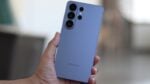
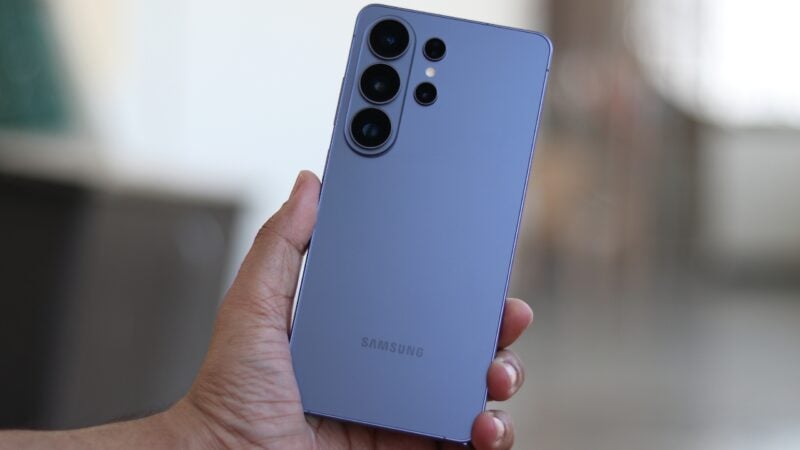
Galaxy S26 Ultra Privacy Display feature

Abhijeet Mishra / SamMobile

Phone

Galaxy S26 Ultra Privacy Display

TL;DR

  • One UI 9.5 adds support for linking Privacy Display to Samsung’s new App lock feature on the Galaxy S26 Ultra.
  • When you open a locked app, Privacy Display can turn on automatically and stay active while you use the app, including in the notification shade and Quick panel.
  • The setting applies to all App lock-protected apps and can be enabled in Privacy Display conditions after turning on Locked apps.

Samsung introduced Privacy Display with the Galaxy S26 Ultra, making it harder for people nearby to read your screen. From day one, it also offered several ways to turn on automatically, including when opening selected apps, entering your PIN or password, and receiving notification pop-ups.

You can also set up custom routines for Privacy Display, and with One UI 9.5, Samsung is adding another useful option. Privacy Display can now switch on automatically whenever you open an app protected by the new App lock feature.

App lock gets an extra privacy benefit on the Galaxy S26 Ultra

App lock is something Samsung fans have wanted for years, and One UI 9.5 finally brings it to Galaxy devices. It lets you protect individual apps with biometrics or your screen lock PIN, pattern, or password, so they require authentication even when the phone itself is already unlocked.

On the Galaxy S26 Ultra, Samsung has also connected App lock to Privacy Display. Privacy Display can turn on as soon as you authenticate and a locked app opens. It turns off when you leave the app and stays active if you pull down the notification shade or open the Quick panel while using it.

That’s a useful combination when opening a private chat on your commute, for example. App lock requires you to verify your identity before the conversation opens, and Privacy Display then makes it harder for the person next to you to read along.

The setting applies to all apps secured with Samsung’s App lock, saving you from selecting each one separately in Privacy Display’s app list.

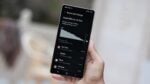
To enable it, go to Settings → Display → Privacy display → Conditions for turning on and make sure the switch at the top is enabled. Then open Secure features and turn on Locked apps.

Privacy Display app lock settings

Abhijeet Mishra / SamMobile

Privacy Display app lock settings

You can also set Privacy Display to activate automatically when you use Samsung Browser’s Secret mode, open private albums in Gallery, or access locked notes in Samsung Notes.

Samsung launched the One UI 9.5 beta on November 18 for the Galaxy S26 series in selected markets. Eligible users can sign up through Samsung Members, with the Privacy Display additions available on the Galaxy S26 Ultra.

More devices should join the beta program in the coming months, with the stable version expected to debut after the launch of the Galaxy S27 series in 2027. The S27 lineup is expected to expand Privacy Display to two models, the Galaxy S27 Pro and Galaxy S27 Ultra.