Samsung has spent seven years developing foldable phones and the software that runs on them. Apple is making its first attempt with the iPhone Duo, and comparing the two reveals some very different ideas about how a folding phone should work.
The biggest differences appear on the inner screen. Samsung gives you plenty of control over the layout, multitasking, and what happens when you close the phone. Apple keeps things much simpler, sometimes to the point of making the larger screen less useful than it could be.
Neither gets everything right. The Galaxy Z Fold 8’s missing Flex Mode is a particularly frustrating omission. But across most of the software experience, Samsung’s head start shows.
Samsung lets you set up each screen separately
We found the iPhone Duo’s fingerprint unlocking frustrating during testing. Apple has added a delay between pressing the power button and the phone unlocking so that users have time to check out the lock screen, but if you don't want it, you cannot turn off the delay.
Daniel Scuteri / SamMobile
Apple iPhone Duo
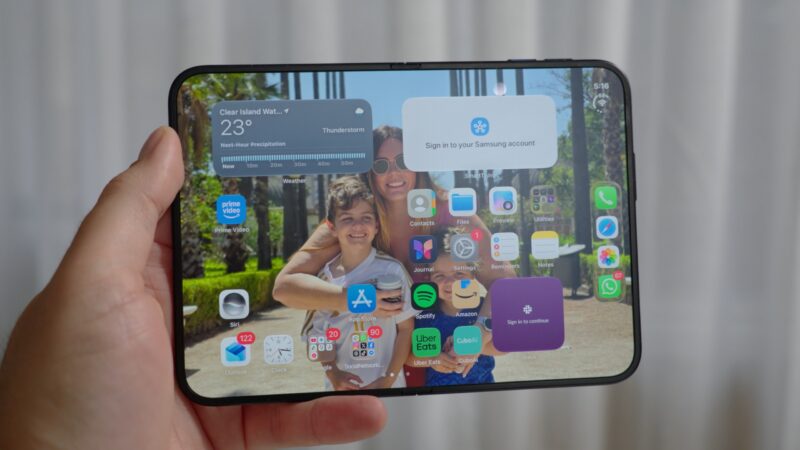
Once you get past that, its Home screen layout gives you another reason to wish for more options. The arrangement on the cover screen is mirrored on the inner display. You can’t give the two screens separate layouts, even though you may use them for different things.
Apple also limits each Home screen section to four app icons across, while the dock holds four apps. We couldn’t find settings to change those limits.
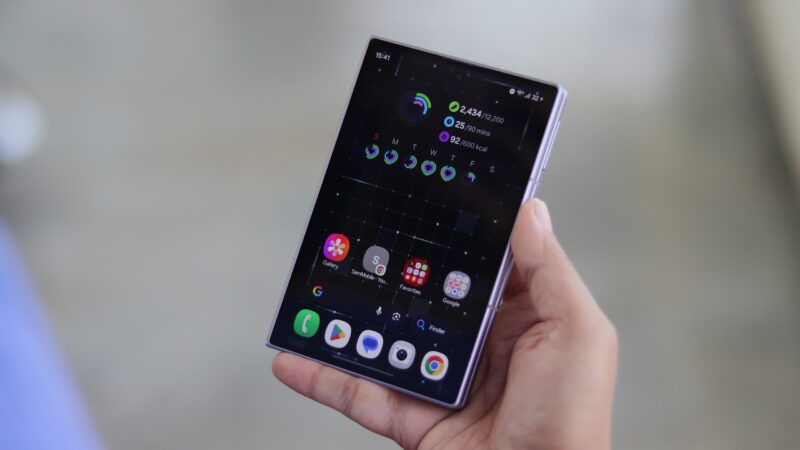
The Galaxy Z Fold 8 (and Samsung foldables in general) gives you a choice. You can enable cover screen mirroring if you want a consistent layout across both displays, or turn it off and arrange each screen separately.
That means you can keep the cover screen simple while putting more apps and widgets on the larger inner display.
Abhijeet Mishra / SamMobile
Galaxy Z Fold 8 cover screen
Samsung’s regular Home screen settings let you adjust the Home and Apps screen grids. Good Lock’s Home Up module takes this further, with more control over grid density and how many apps you can fit into the dock.
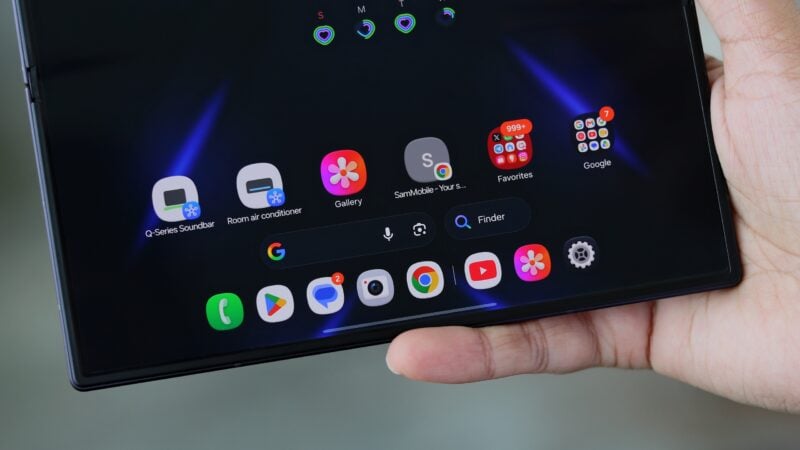
You also get more flexibility over the taskbar arrangement. Samsung lets you make better use of the extra space instead of sticking to the same layout you use outside.
Some people will prefer mirroring. The Samsung advantage is that you get to decide.
Samsung’s taskbar is always accessible
Abhijeet Mishra / SamMobile
Taskbar on Galaxy foldables
The Fold 8’s taskbar makes its inner screen feel more like a tablet. You can bring it up while an app is open and use it to switch apps or start multitasking. There’s no need to return to the Home screen whenever you want to pick something from it.
The iPhone Duo puts its dock on the right side of the unfolded Home screen. It holds four apps, but opening an app makes the dock disappear.
We couldn’t bring it back over the app, so accessing those dock shortcuts meant returning home. That makes the dock less useful than its position on the big screen might suggest.
It’s also a surprising limitation from Apple. The company already has years of iPad software development to draw on, including a dock that works while you’re using apps. That experience hasn’t fully carried over to the Duo.
The iPhone Duo’s multitasking has strict limits
Abhijeet Mishra / SamMobile
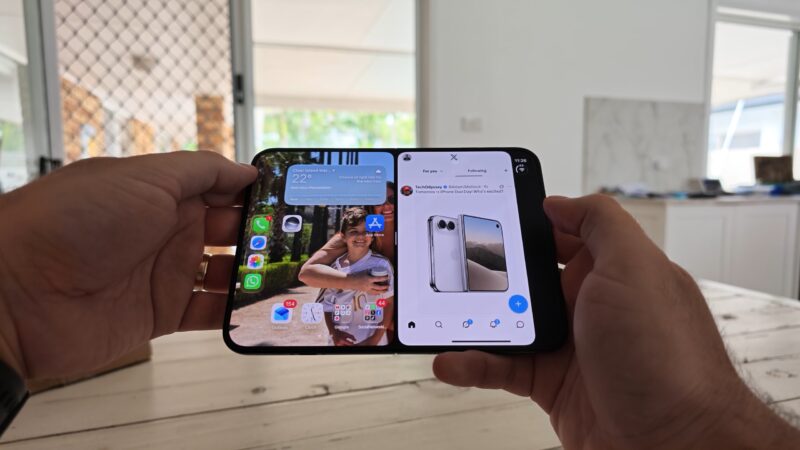
iPhone Duo can run two apps at the same time
Getting two apps next to each other on the Duo is simple enough. Move an app to one side, then open another in the space beside it.
The result feels a little like having an iPhone app on each half of the screen. That’s easy to understand, but you soon run into restrictions.
We opened X and Notes together to try it. Once both were in place, we couldn’t give either app more room. Dragging the divider made it snap back to the middle, leaving an equal split.
You can swap the apps around, but you can’t freely change their proportions.
Rotating that app pair into portrait was another problem. The split-screen arrangement disappeared instead of adapting to the new orientation.
There also wasn’t a dedicated multitasking or productivity settings menu where we could change this behavior. Apple gives you a basic two-app layout, with little control over how it works.
For quick tasks, that may be enough. For anyone hoping to use the inner screen as a more flexible workspace, it feels limited.
The Fold 8 gives you more ways to multitask
Daniel Scuteri / SamMobile
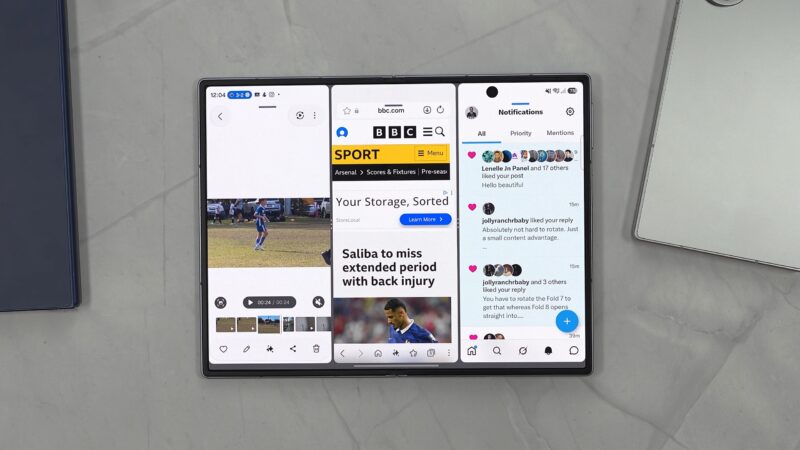
Galaxy Z Fold 8 supports three app split-screen
Samsung gives you more control over how multitasking works.
The Labs settings in Settings > Advanced features include controls for app aspect ratios and an option to allow Multi Window for apps that don’t officially support it. There’s also a dedicated Multi Window menu for choosing how you launch and use the feature.
You can start app combinations through the taskbar or Edge panels. The Fold 8 supports three apps together, and you can drag the dividers to give each one more or less space.
You can also open a fourth app in a pop-up window that you can move around the screen.
Samsung provides controls for moving apps around and changing the split-screen layout, too. You don’t have to close everything and start again just to rearrange your workspace.
Rotating into portrait keeps the multitasking arrangement active. The apps remain available, and you can continue adjusting their positions.
Good Lock adds more options through MultiStar. Its Multi Focus feature can keep two videos playing at once, something the Duo didn’t offer in our testing.
Then there’s Samsung DeX, which gives the Fold 8 another way to provide a more desktop-like workspace when connected to an external screen. You won’t necessarily use every option, but Samsung gives you the freedom to find a setup that works for you.
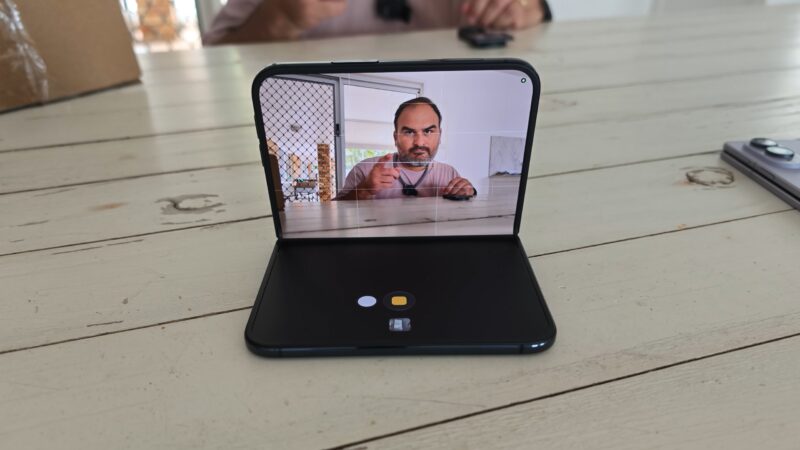
Its hinge can hold the phone partly open at certain positions, but the software doesn’t provide the expected half-folded experience.
Daniel Scuteri
iPhone Duo officially supports half-folded functionality
For example, opening Netflix and bending the phone doesn’t automatically move the video to the upper half and put controls below it.
There is a workaround. We opened Netflix in the upper part of a split-screen layout, then put Gallery underneath it with a plain black photo displayed.
At a position where the hinge could hold itself up, this gave us something resembling Flex Mode viewing. But there were no playback controls on the lower half. It was an improvised way to position the video.
The iPhone Duo supports partially folded layouts, although its behavior was inconsistent in our testing.
Bending it while YouTube was already playing full screen didn’t always produce the layout we wanted. We could get the video into the upper portion, but YouTube didn’t provide a proper set of controls underneath.
Small changes to the folding angle could also make the Duo switch to its cover screen. We then had to reopen it and return to what we were doing.
Samsung has a useful fallback for apps without their own half-folded layout: the Flex Mode panel. The Flex Mode panel offers a touchpad, along with shortcuts for things like screenshots, screen recorder, display brightness, volume, and Multi Window model. You can enable it for individual apps or bring it up through an onscreen button.
However, Flex Mode panel is only available on the Fold 8 Ultra and previous Galaxy Z Fold models. It doesn’t solve the standard Fold 8’s missing native support, and Apple doesn’t offer an equivalent general-purpose panel.
Closing the phone works very differently
Apple has put some effort into making the move between screens look interesting. The Duo uses a glass-like animation when an app moves from the cover screen to the inner display or back again.
It looks good when it works. Our first attempts didn’t trigger the expected transition, although it worked after we switched to a different app.
The bigger issue is the lack of control over what closing the phone does. You may want an app to continue on the cover screen. At other times, closing the phone means you’re finished and want it to lock. We couldn’t find a built-in setting on the Duo to choose between those behaviors.
Daniel Scuteri
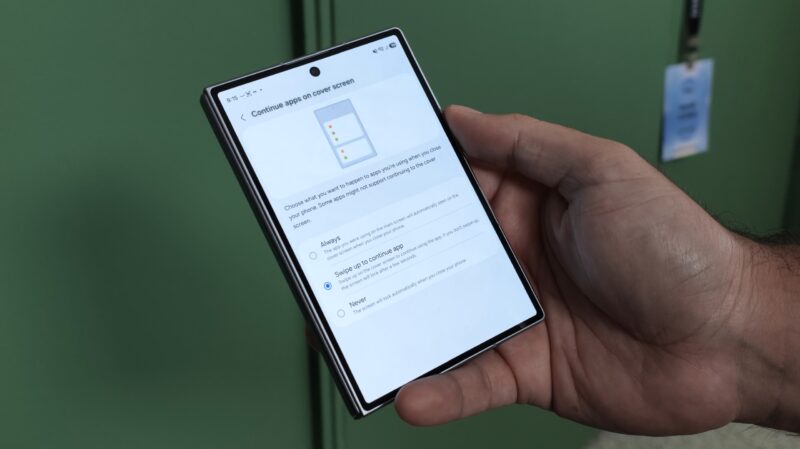
Samsung lets you choose what happens when folding the phone
There are workarounds using the Shortcuts app, Apple's equivalent of Samsung's Modes and Routines feature, but you have to set up that behavior yourself.
Samsung doesn’t have Apple’s flashy transition animation. But it does have a straightforward Settings > Display > Continue apps on cover screen menu with three choices:
Always: Keep using the app on the cover screen after closing the phone.
Swipe up to continue: Close the phone, then swipe up on the cover screen if you want to resume the app.
Never: Closing the phone ends the interaction and locks it.
The iPhone Duo has some attractive software touches, but its restrictions become obvious when you compare it with the Fold 8.
Separate Home screen layouts, an accessible taskbar, adjustable app sizes when running multiple apps at once, portrait multitasking, and simple closing behavior all make Samsung’s larger screen more useful. Good Lock and DeX add even more options.
Apple’s limitations are especially surprising given how much work it has already done on iPad multitasking and productivity.
Samsung still deserves criticism for leaving native Flex Mode off the Fold 8. That’s a significant gap in an otherwise much more flexible software experience.
For iPhone owners considering their first foldable, the Duo offers a familiar way to try one. But if getting more out of the folding screen is the priority, the Fold 8 gives them plenty of reasons to consider switching.






 Samsung is doing too little with the golden opportunity the iPhone Duo handed it
 Was Samsung right? The iPhone Duo’s hidden camera gives off 2016 vibes
 Samsung has found a way to cut Galaxy prices without cutting them
 Amid the Galaxy Z Fold 8 and iPhone Duo hype, I went back to the S26 Ultra
 The Galaxy Z Fold 8 makes better use of its big screen than the iPhone Duo
 A magnetic battery pack could make the Galaxy Z Fold 8 an even better tablet
 Samsung built the foldable market Apple is now claiming to revolutionize
 Expectations vs reality: What does the Galaxy Z Fold 8's foldable screen actually feel like?
 Is Samsung building the Galaxy S27 Pro with everyone else’s features?