Samsung’s Second Screen lets compatible Galaxy tablets work as an extra or duplicate display for a Windows PC, with touch and S Pen input supported.
It works with many Tab S models, some Tab Active devices, and the Tab A11+, and does not require a Samsung computer or Samsung account.
Wireless setup uses Windows Cast or Samsung’s app, while USB support is experimental and needs One UI 7.0+ and Windows 11 24H2+.
A Galaxy tablet can do more than run its own apps. With Samsung's Second Screen feature, it can also become an extra display for your Windows computer.
You can move a browser window onto the tablet, keep a document open while you work, or give a video its own screen. The feature also supports touch and S Pen input, and Windows lets you adjust the tablet's resolution, refresh rate, and position alongside your other monitors.
Here's how Second Screen works, which devices support it, and how to get the most out of it.
What is Samsung Second Screen?
Second Screen lets a compatible Galaxy tablet act as a display for a Windows PC. It can show a copy of the computer's screen or extend its desktop, giving you more room for apps and windows.
The computer still runs the Windows apps. The tablet receives the desktop image and, when input is enabled, sends your touch and pen actions back to the PC. You don't need an Android version of an app to display its Windows version on the tablet.
For example, you can write on your main monitor while keeping research on the tablet. You can also move a video or messaging app to it while leaving your other screens available.
Which Galaxy tablets support Second Screen?
Second Screen is available on Samsung's flagship Galaxy Tab S tablets from the Tab S7 generation onward, including several FE and Lite models. It is also supported on selected Tab Active models and the Galaxy Tab A11+.
Tablet family
Supported models
Galaxy Tab S7
Tab S7, S7+, S7 FE
Galaxy Tab S8
Tab S8, S8+, S8 Ultra
Galaxy Tab S9
Tab S9, S9+, S9 Ultra, S9 FE, S9 FE+
Galaxy Tab S10
Tab S10+, S10 Ultra, S10 FE, S10 FE+, S10 Lite
Galaxy Tab S11
Tab S11, S11 Ultra
Galaxy Tab S12
Tab S12+, S12 Ultra
Galaxy Tab Active
Tab Active4 Pro, Active5, Active5 Pro
Galaxy Tab A
Tab A11+
Second Screen is available on One UI 5.1.1 or later, while USB connections require One UI 7.0 or later. Be sure to update your tablet and the PC app before setting it up.
Do you need a Samsung computer?
No. Second Screen can work with a compatible Windows desktop or laptop from another manufacturer.
For a wireless connection, the PC needs working Miracast/Wireless Display support through its Wi-Fi hardware, graphics hardware, and drivers. Having a Wi-Fi adapter alone does not guarantee that the whole setup supports it.
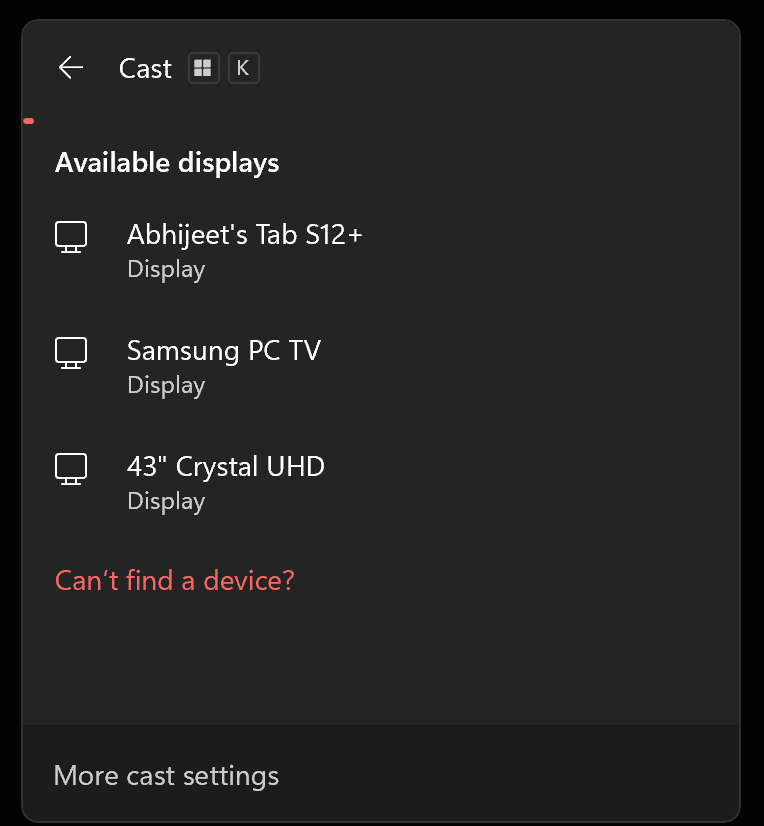
Press Windows key + K to open Cast. Windows may tell you if the computer does not support Miracast. Wi-Fi must be enabled on the PC and tablet.
This guide uses Windows 11. The USB connection option requires Windows 11 version 24H2 or later.
Do you need the Second Screen PC app or a Samsung account?
You can make a basic wireless connection through Windows' built-in Cast menu using Windows + K. Samsung also offers a Second Screen app in the Microsoft Store, which brings connection and display controls together, but it isn't required.
A Samsung account is not required either. However, using a Samsung account and the Second Screen PC app can make connections more convenient on supported setups. For example, compatible Galaxy Books can launch a connection without requiring you to open Second Screen on the tablet first.
Abhijeet Mishra / SamMobile
Samsung Second Screen app
How do you connect a Galaxy tablet to your PC?
To connect wirelessly:
Turn on Wi-Fi on your PC and tablet.
On the tablet, open the quick settings panel and tap Second screen.
Press Windows + K on the PC.
Select your tablet from the list and accept any connection prompts.
Abhijeet Mishra / SamMobile
Select the tablet from the Windows Cast menu
Once you're connected, you can choose the display mode you need (more details about this in the next section) from the Windows + K menu:
Choose Extend if you want additional desktop space.
If you selected Extend, open Settings > System > Display on the PC to arrange the displays.
Select Identify to check which numbered display is the tablet.
Drag the display rectangles to match the screens' positions on your desk. For example, if the tablet is to the left of your monitor, place its rectangle to the left in Windows.
Select Apply, then move the pointer between the screens to check that the layout feels right.
If you want to use Samsung's PC app, install Second Screen from the Microsoft Store, open Second Screen from the quick panel on the tablet, then launch the PC app and select the tablet. You can change the display mode from the Second Screen app as well.
What do Extend, Duplicate, and Second screen only mean?
The display mode determines what Windows shows on the tablet.
Mode
What it does
Extend
Adds desktop space so you can put different windows on the PC and tablet.
Duplicate
Shows the same desktop content on both displays.
Second screen only
Uses the external display instead of the PC's own screen.
Choose Extend when you want the tablet to work alongside your PC's main screen. Duplicate is useful when someone else needs to see what you are doing.
You can change the mode from Samsung's PC app or by opening Windows' projection controls with Windows + P or by going to Windows' Settings > System > Display menu.
Can you use a Galaxy tablet as a third monitor?
Yes. Second Screen can add the tablet to a setup that already has multiple displays, at least on modern Galaxy tablets like the Tab S12+ and Tab S12 Ultra.
After connecting, arrange the displays to match their positions on your desk:
Open Settings > System > Display on the PC.
Select Identify if you need to check which numbered display is the tablet.
Drag its display rectangle to the appropriate position.
Select Apply and check how the pointer moves between screens.
Samsung's app also provides a layout you can drag to rearrange the displays.
Abhijeet Mishra
Adjusting display position in Windows 11 settings
Abhijeet Mishra
Adjusting display position in Second Screen app
If the tablet sits to the left of your monitor but Windows places it on the right, the pointer will cross the wrong edge. Matching the layout makes moving between screens easier.
Can you control Windows with the tablet's touchscreen and S Pen?
Yes. Second Screen supports touch and pen input.
In Samsung's PC app, select Allow touch, keyboard, and pen input on tablet. This opens Windows' Cast controls, where you can enable the option allowing input from that device.
If you're not using the Second Screen app, you can reach those controls with Windows + K.
Once enabled, you can interact with Windows from the tablet's touchscreen and use the S Pen in compatible applications. The S Pen's pressure sensitivity and tilt work too. Samsung notes that pen latency can vary between apps.
A tablet's keyboard attachment, like Samsung's Book Cover Keyboard, also works, alongside the keyboard and mouse connected to the PC. You can use the PC's controls to move between displays and use the tablet's input devices when working directly on its screen.
If you have an S Pen with Bluetooth connectivity, the button on the stylus can be used to launch apps and tasks with a single press, double press, or press and hold. What the different types of button presses do can be customized in Windows' Settings > Bluetooth & devices > Pen & Windows Ink menu.
Can you use Android apps while Second Screen is connected?
Yes. Pressing Home minimizes Second Screen without disconnecting it. A floating Second screen icon appears, and tapping it returns you to the Windows display.
While Second Screen is minimized, you can open Android apps and use the tablet normally. Heavy use of other apps may eventually end the connection, though.
Abhijeet Mishra / SamMobile
Second Screen as a floating pop-up icon
Second Screen cannot be used alongside another app in Android split screen. Android apps also cannot appear in pop-up windows over the active Windows display. You can still open notifications and the quick settings panel and bring up the One UI taskbar.
How do you change the resolution and text size?
Samsung's PC app includes separate Display resolution and Scale controls. You can also open Settings > System > Display, select the tablet, and adjust them under Scale & layout.
Abhijeet Mishra
Adjusting Samsung Second Screen resolution and scale in Windows settings
Resolution controls the number of pixels in the desktop image. Scaling controls how large text, buttons, and other interface elements appear.
Abhijeet Mishra
Adjusting Second Screen resolution and scale in Samsung app
If text looks too small, try increasing scaling before lowering the resolution. That can make the interface easier to read while preserving the selected desktop resolution.
On the Galaxy Tab S12+ and Galaxy Tab S12 Ultra, the app offers these resolutions:
2560 × 1600
2560 × 1440
1920 × 1200
1920 × 1080
1680 × 1050
1600 × 900
These are the options from our tested connection, rather than a universal list for every tablet and PC. The resolution you choose also affects the available refresh rate.
Why is Second Screen refresh rate so low, and how do you increase it?
A tablet's normal refresh rate does not guarantee the same refresh rate when it is acting as a PC display. Refresh rates above 60Hz are not supported on tablets launched in 2026 and earlier.
On our Galaxy Tab S12+/Ultra and PC, the available refresh rates depended on both the resolution and whether we used Wi-Fi Direct or USB:
Connection
Selected resolution
Maximum available refresh rate on a Tab S12+/Ultra
Wi-Fi Direct
1920 × 1200 or below
60Hz
Wi-Fi Direct
Above 1920 × 1200
30Hz
USB
2560 × 1440 or below
60Hz
USB
2560 × 1600
30Hz
For a wireless connection, 1920 × 1200 at 60Hz gave us the highest tested resolution with the smoother refresh rate. USB also offered 2560 × 1440 at 60Hz, but 2560 × 1600 remained limited to 30Hz.
To change the refresh rate:
Open Settings > System > Display > Advanced display on the PC. (Refresh rate cannot be changed in the Second Screen app.)
Select the tablet from the display selector.
Open Choose a refresh rate.
Select 60Hz if available.
Abhijeet Mishra
Refresh rate configuration menu in Windows 11
If 60Hz is missing, lower the tablet's resolution and check again. Windows displays the rates supported by the selected display mode; some rates require a resolution change.
These results come from the Tab S12+ and Tab S12 Ultra and a Windows PC. Other Samsung tablets may offer different options.
How can you improve Second screen’s wireless performance?
Samsung's PC app shows a Disconnect tablet Wi-Fi for faster connection link below the connected devices list. This disconnects the tablet from its Wi-Fi network while leaving Wi-Fi enabled for the wireless connection to the PC.
Wireless Second Screen sends the desktop directly between the computer and tablet using Wi-Fi Direct. The screen image does not have to travel through your router or internet connection.
Abhijeet Mishra
Disconnect tablet Wi-Fi for faster connection option in Samsung Second Screen
Maintaining the tablet's router connection at the same time can introduce delay, particularly when the connections use different wireless channels. Samsung recommends disconnecting the tablet from the router when using it only as a PC display.
On our Tab S12+ and Tab S12 Ultra, accepting the prompt made a noticeable difference to mouse movement, which became smoother.
The PC can keep its own internet connection. A browser running on the PC still uses the PC's connection even when its window is displayed on the tablet. The tablet's own Android apps lose that particular Wi-Fi internet connection until it reconnects.
Can you use Second Screen with a USB cable?
Yes. Samsung provides an experimental USB connection option in the PC app.
You need a compatible tablet running One UI 7.0 or later, a PC running Windows 11 24H2 or later, and a USB cable that supports data transfer.
To enable USB and check which connection is being used:
Update the tablet and Second Screen PC app.
In the PC app, open Menu > Settings > Labs.
Turn on USB connection.
Connect the unlocked tablet to the PC with a USB data cable.
On the tablet, open the USB notification and select the option for Transferring files / Android Auto if it is set to charging only.
Open Second Screen on the tablet and connect through the PC app.
Check the connection type shown under the tablet's name in the PC app.
Abhijeet Mishra
USB connection option in Samsung Second Screen Labs menu
The app reports Connected via USB cable when it is using the wired connection. If the necessary USB driver does not install automatically, Samsung advises installing its USB driver. The simplest way to do that is to install Samsung Smart Switch on Windows, which installs its USB drivers automatically.
On our Tab S12+ and Tab S12 Ultra, we had to turn Wi-Fi off completely on the tablet to force a USB connection. With Wi-Fi enabled, the app continued to report Wi-Fi Direct, even with the cable connected. Turning off the tablet's Wi-Fi made it connect through USB.
For this wired setup, turning off the tablet's Wi-Fi is a different action from using Disconnect tablet Wi-Fi for faster connection. That link keeps the wireless PC connection available. For USB, check the reported connection type instead of assuming that attaching a cable automatically uses a wired connection.
Can you use the tablet vertically?
Yes. Enable Tablet rotation in the Second Screen PC app under Menu > Settings > Labs.
With this option enabled, rotating the tablet switches the Windows display between portrait and landscape. The setting affects Second Screen rather than rotation in other apps.
Abhijeet Mishra
Tablet rotation option in Second Screen Labs menu
You can also set orientation manually through Settings > System > Display > Display orientation on the PC. A vertical display can be useful for documents, long webpages, and messaging apps.
Does Second Screen remember your display settings?
Yes. The display settings are remembered when you disconnect and reconnect, including the arrangement, scaling, resolution, refresh rate, and orientation.
Can you charge the tablet while using Second Screen?
Yes. Your tablet will charge normally while Second Screen is running. You do not need to end the display session to charge the tablet.
Can sound play through the tablet's speakers?
Yes. Windows lets you select the tablet as an audio output separately from where a window appears. However, moving a video window onto the tablet does not automatically make its sound follow.
To play audio on the tablet, click the sound button in the Windows taskbar, hit the button on the right of the volume slider, and select the tablet under Output device. It should be named something to the tune of Digital output, followed by the tablet's name.
Abhijeet Mishra
Sound output selector in Windows 11
Can you watch videos and play games through Second Screen?
Second Screen can display anything that you can run on your PC, including video players and games . How suitable it feels depends on the connection, refresh rate, and how sensitive the task is to delay.
For videos, messaging, or documents, Second Screen is fine. Games or precise pen input are more demanding. A 120Hz tablet display alone does not guarantee a 120Hz or equally responsive PC connection.
Protected streaming video is another consideration. A PC without the required HDCP content protection support can still use Second Screen for ordinary desktop content but cannot display protected content such as Netflix through that connection.
What should you do if the tablet does not appear or the connection feels laggy?
For connection problems:
Check that your tablet supports Second Screen and that its connection screen is open.
For a wireless connection, make sure Wi-Fi is enabled on both devices.
Update Windows, the PC's graphics and Wi-Fi drivers, the tablet software, and Samsung's PC app.
Restart both devices.
If an old pairing keeps failing, remove the tablet under Settings > Bluetooth & devices > Devices, then reconnect. Wireless displays may appear under Wireless displays & docks.
For an established connection that feels slow:
Check whether the tablet is running at 30Hz and try a resolution that offers 60Hz.
Accept the option to disconnect the tablet from its Wi-Fi network in the Second Screen PC app.
Keep the devices close together. If you try USB, confirm the app reports a USB connection; on our Tab S12+ and Tab S12 Ultra, we had to turn off the tablet's Wi-Fi to force it.
If problems occur while recording the PC screen, close the recording application and test again. Samsung says a possible conflict between Second Screen and NVIDIA ShadowPlay can occur because both use hardware video encoding.
How do you disconnect Second Screen?
Press Windows + K on the PC, select the connected tablet, and choose Disconnect. You can also disconnect through Samsung's PC app by selecting the connected tablet again.
Does Second Screen work with a Mac?
Samsung's built-in Second Screen feature does not support a Mac. The feature relies on Miracast support available in Windows, which MacBook does not provide.
Is Second Screen the same as Samsung DeX or Multi Control?
No. Second Screen displays the Windows computer's desktop on the tablet.
Samsung DeX provides a desktop-style interface powered by the Galaxy device, using its apps. It does not turn the tablet into a Windows computer.
Multi Control shares mouse and keyboard controls between devices while they continue running their own environments. With Second Screen, the tablet becomes display space for the PC's environment.






 "It's first-gen" iPhone Duo apologists make the phone look even worse
 Galaxy S27's biggest threat is a cheaper iPhone crashing its party
 Samsung is doing too little with the golden opportunity the iPhone Duo handed it
 Was Samsung right? The iPhone Duo’s hidden camera gives off 2016 vibes
 Samsung has found a way to cut Galaxy prices without cutting them
 Amid the Galaxy Z Fold 8 and iPhone Duo hype, I went back to the S26 Ultra
 The Galaxy Z Fold 8 makes better use of its big screen than the iPhone Duo
 A magnetic battery pack could make the Galaxy Z Fold 8 an even better tablet
 Samsung built the foldable market Apple is now claiming to revolutionize