Cyber week deals! Galaxy Watch8 Classic, Fold 7, S25 Ultra. Follow us on YouTube, TikTok, or LinkedIn
Last updated: February 14th, 2023 at 17:37 UTC+01:00
SamMobile has affiliate and sponsored partnerships, we may earn a commission.
Reading time: 3 minutes
Samsung is now rolling out One UI 5.1, and once again, the company has paid more attention to its software's unique mobile multitasking capabilities. One UI 5.1 improves upon the existing Split-Screen and Pop-Up View gestures even further, trying to make mobile productivity an even more comfortable, “at your fingertips” experience. And it looks like Samsung succeeded in doing precisely that. Here's our deeper dive into the latest changes.
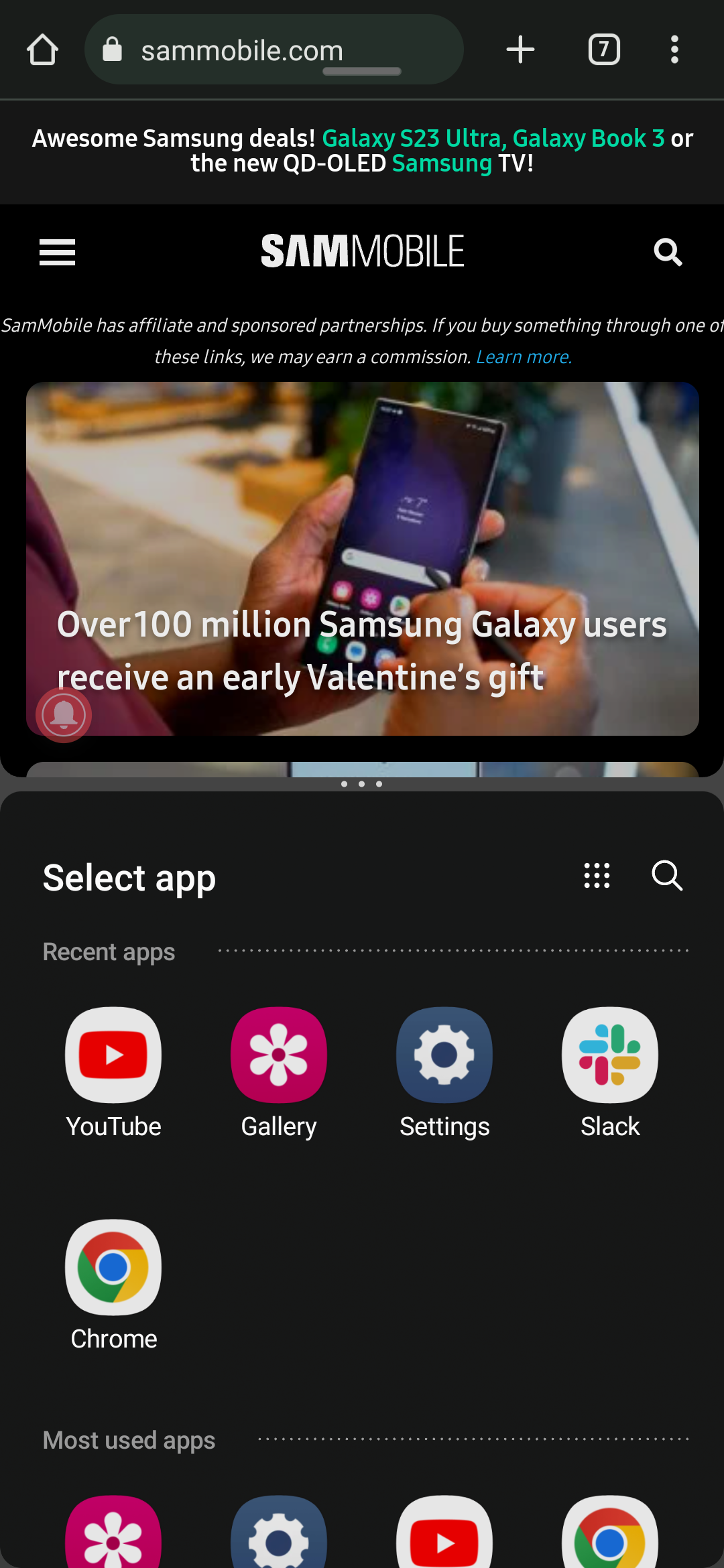
Before One UI 5.1, summoning the list of Split-Screen apps through the dedicated two-finger gesture revealed a list of “Recent apps,” followed by a full list of apps that offer multi-window compatibility. Now, through One UI 5.1, Samsung added a new section containing your “Most used apps,” just below the “Recent apps” category.
On the surface, this new category may seem like a minor addition, and it is. But it's also one of those minor additions that can make a big difference if you're using Split-Screen View apps regularly. It's supposed to speed up multitasking, and it does.
Perhaps a more meaningful improvement for multitasking is how Pop-Up View works in One UI 5.1. Thanks to this new firmware update, users can now drag a Pop-Up window's frame outward toward the edge or corner of the screen to switch back to full-screen. Here's a quick demonstration:
Up to now, users could only swipe inward from the corner of an app to activate Pop-Up View. But to switch back to full-screen, they had to tap the top-bar handle to access a small menu and select the “full-screen” option. Here is an example demonstrating this gesture (or lack thereof) in One UI 5.0.
Needless to say, this refinement makes switching back and forth between full-screen and Pop-Up View a lot more convenient. It may even be the missing component to making Pop-Up View a more central piece of the multitasking user experience on Samsung mobile devices. There's a lot more coherence to the design, as users no longer have to switch between gestures and sub-menu taps to enable or disable Pop-Up View.
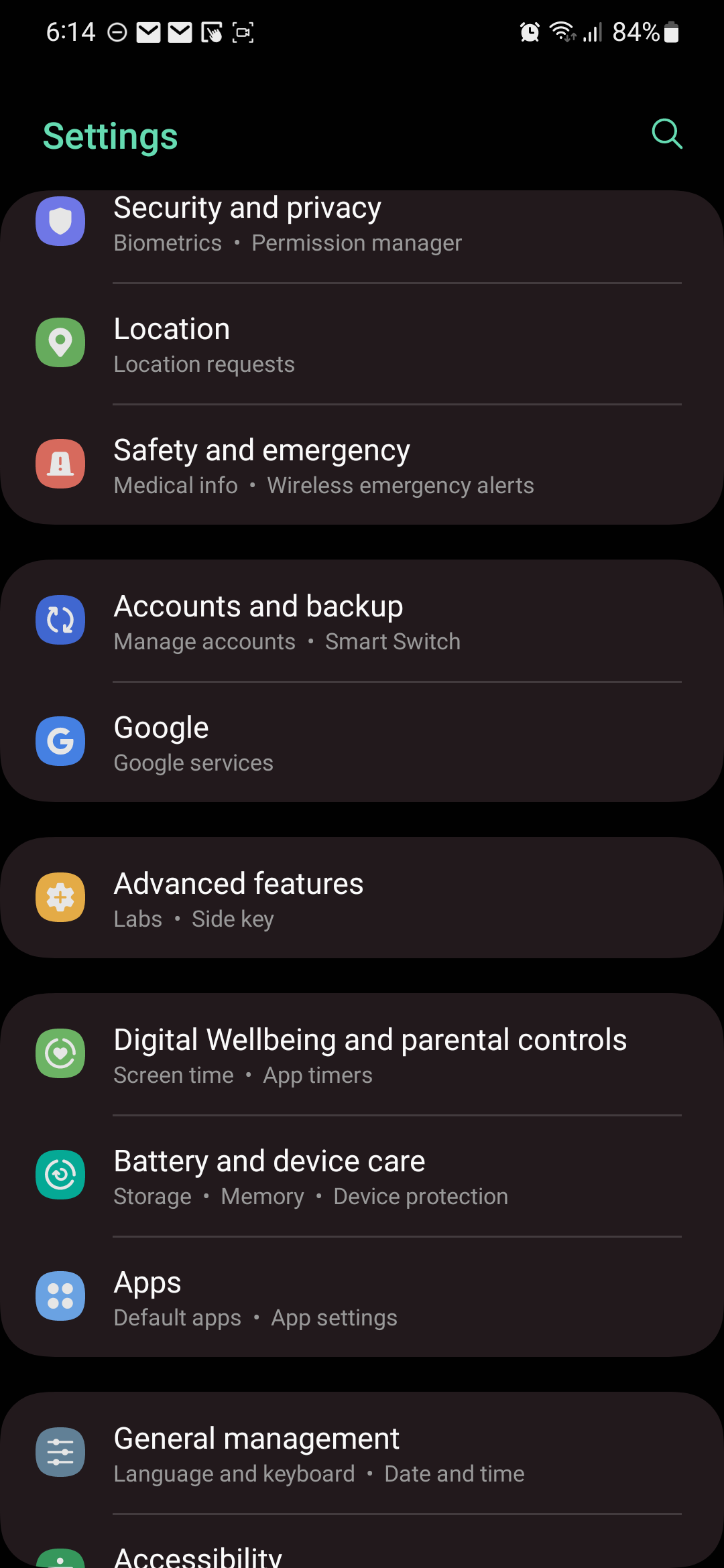
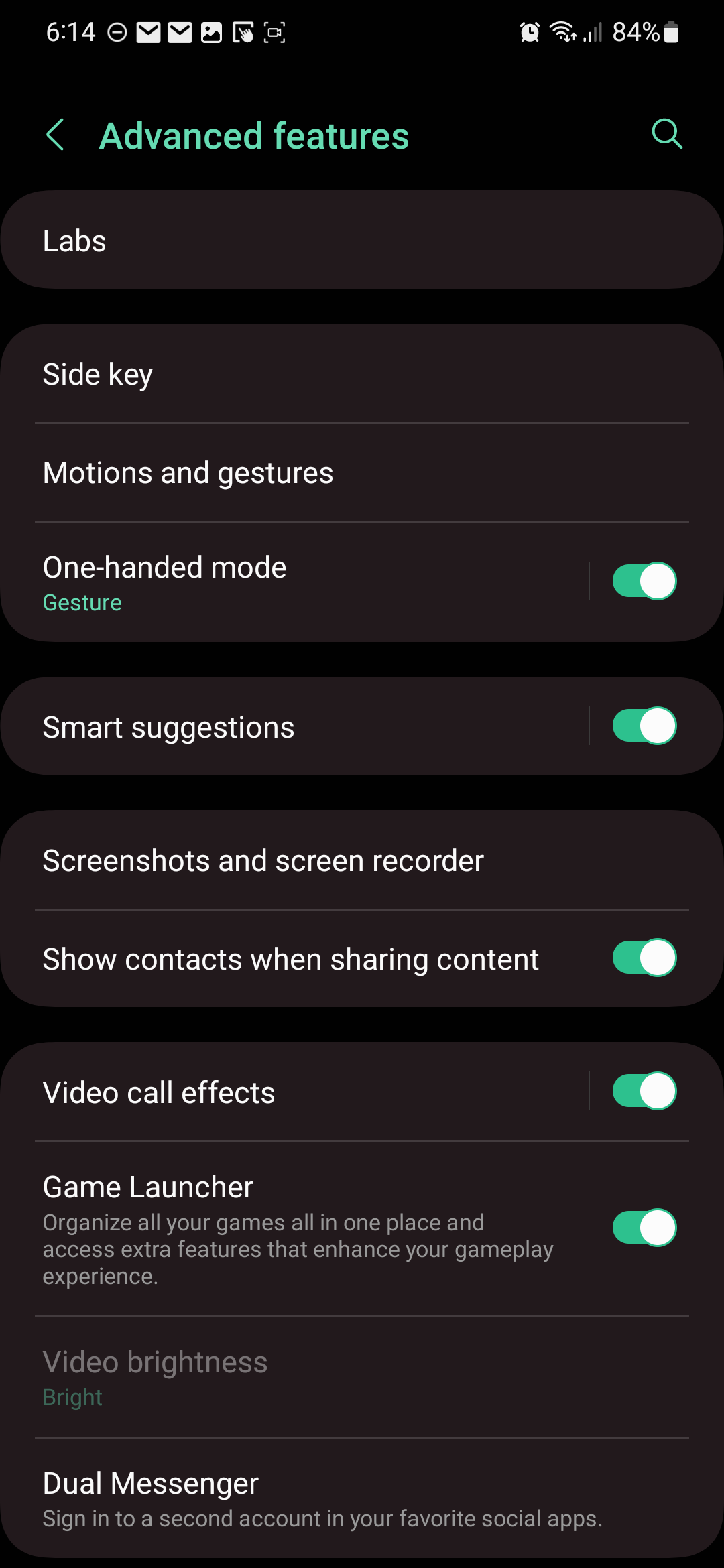
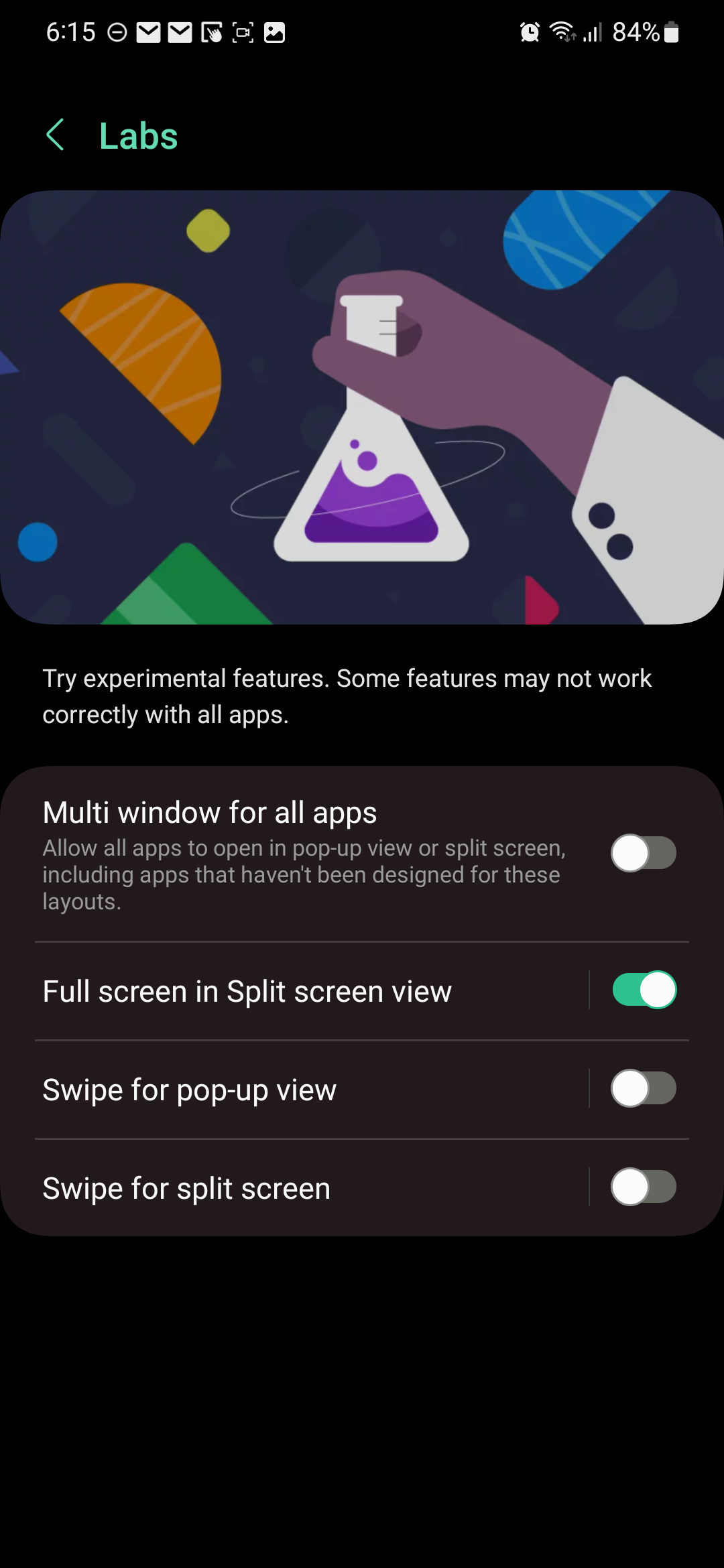
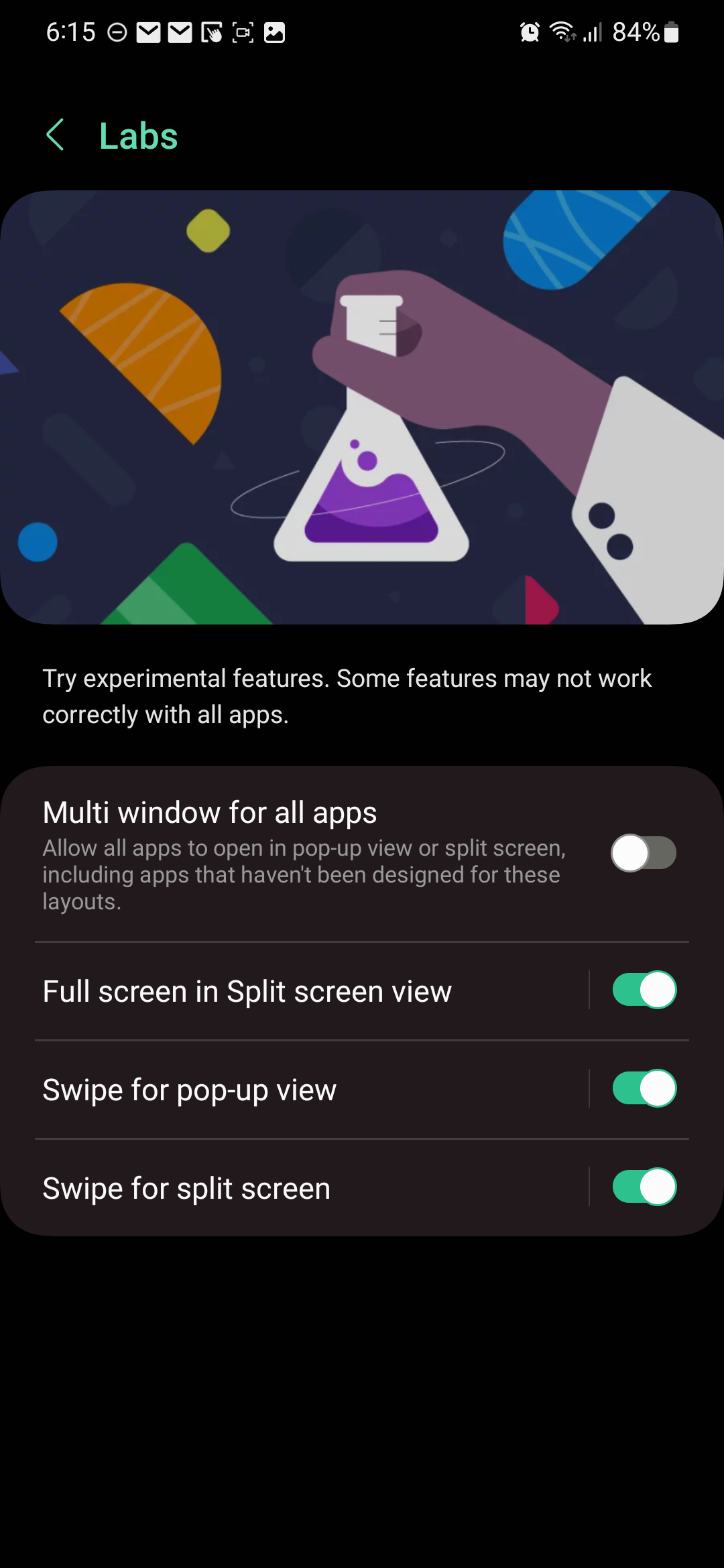
If you want to activate these Split-Screen and Pop-Up View gestures in One UI 4.1.1, One UI 5.0, or One UI 5.1, you can do so by opening the Settings app on your device, accessing “Advanced Features,” followed by “Labs,” and enabling the “Swipe for pop-up view” and the “Swipe for split screen” toggles.
You can also check out our detailed guide on maximizing multitasking on Galaxy phones and tablets, or watch our One UI 5.1 hands-on video below for a demonstration of more features Samsung added with its latest update.
Mihai is a blogger and column writer at SamMobile. His first Samsung phone was an A800 which took a lot of beating, and a part of him still misses the novelty of the clamshell design. In his free time, he enjoys watching shows, documentaries, and stand-up comedy; listening to music, taking walks, and occasionally playing old(er) video games.