Cyber week deals! Galaxy Watch8 Classic, Fold 7, S25 Ultra. Follow us on YouTube, TikTok, or LinkedIn
Last updated: October 13th, 2023 at 15:18 UTC+02:00
SamMobile has affiliate and sponsored partnerships, we may earn a commission.
Reading time: 2 minutes
Samsung's proprietary mobile browser has an offline reading mode that lets users save webpages for later and access them whenever they don't have an internet connection.
Today's the last day of Samsung Internet Week, and closing the series with an overview of the offline mode seems appropriate. But first, here's a quick recap of this week:
Story continues after the Galaxy Buds FE review video
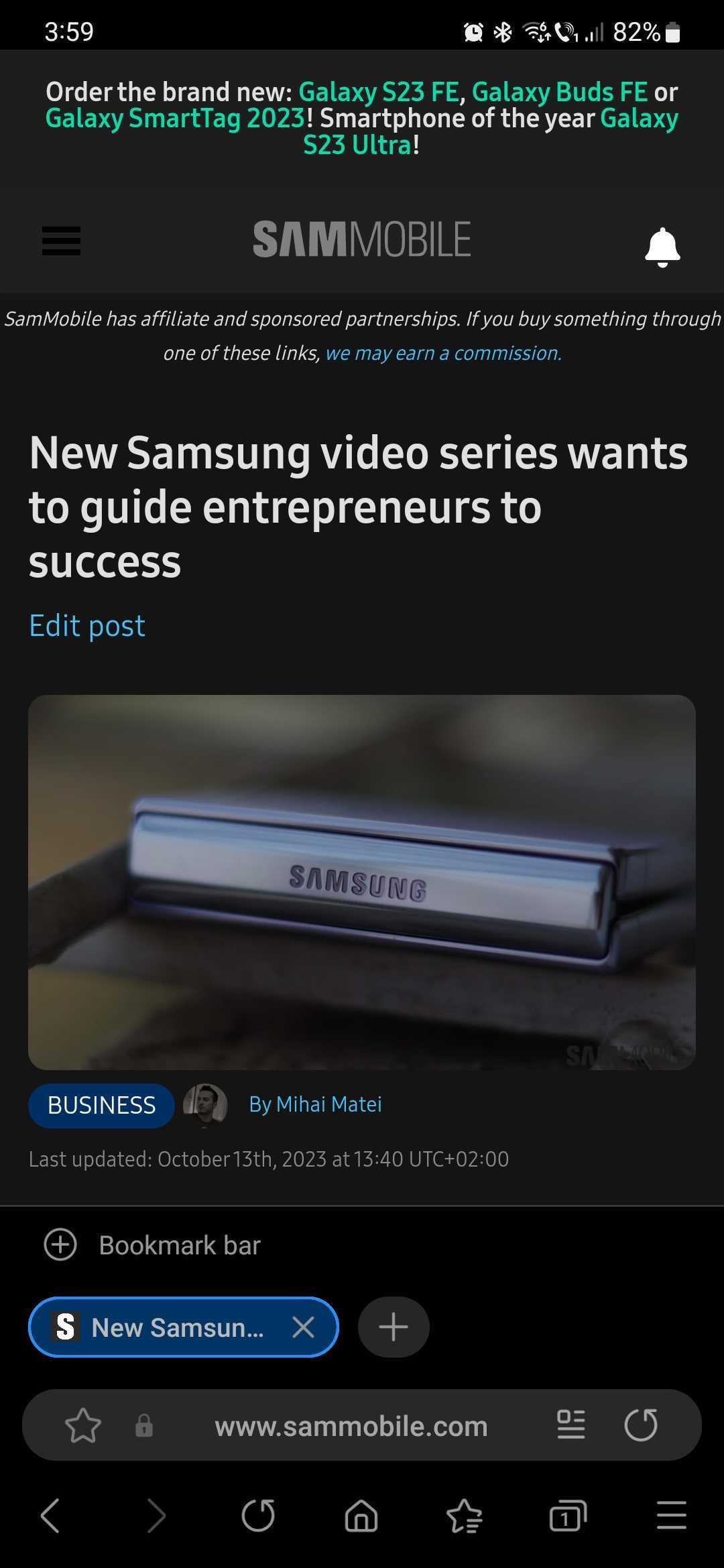
To save a page for offline use, evidently, you'll first have to visit it using Samsung Internet while your device is connected to the internet.
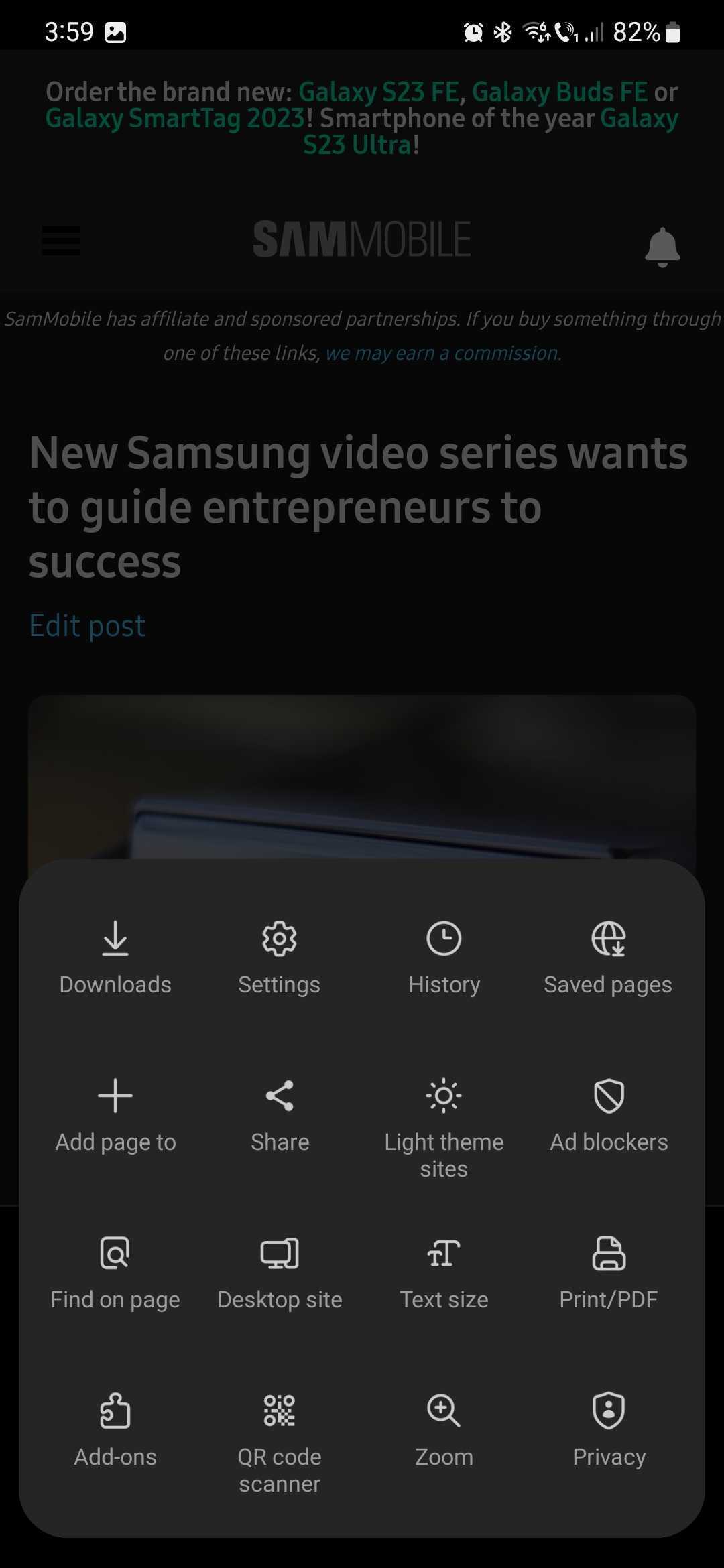
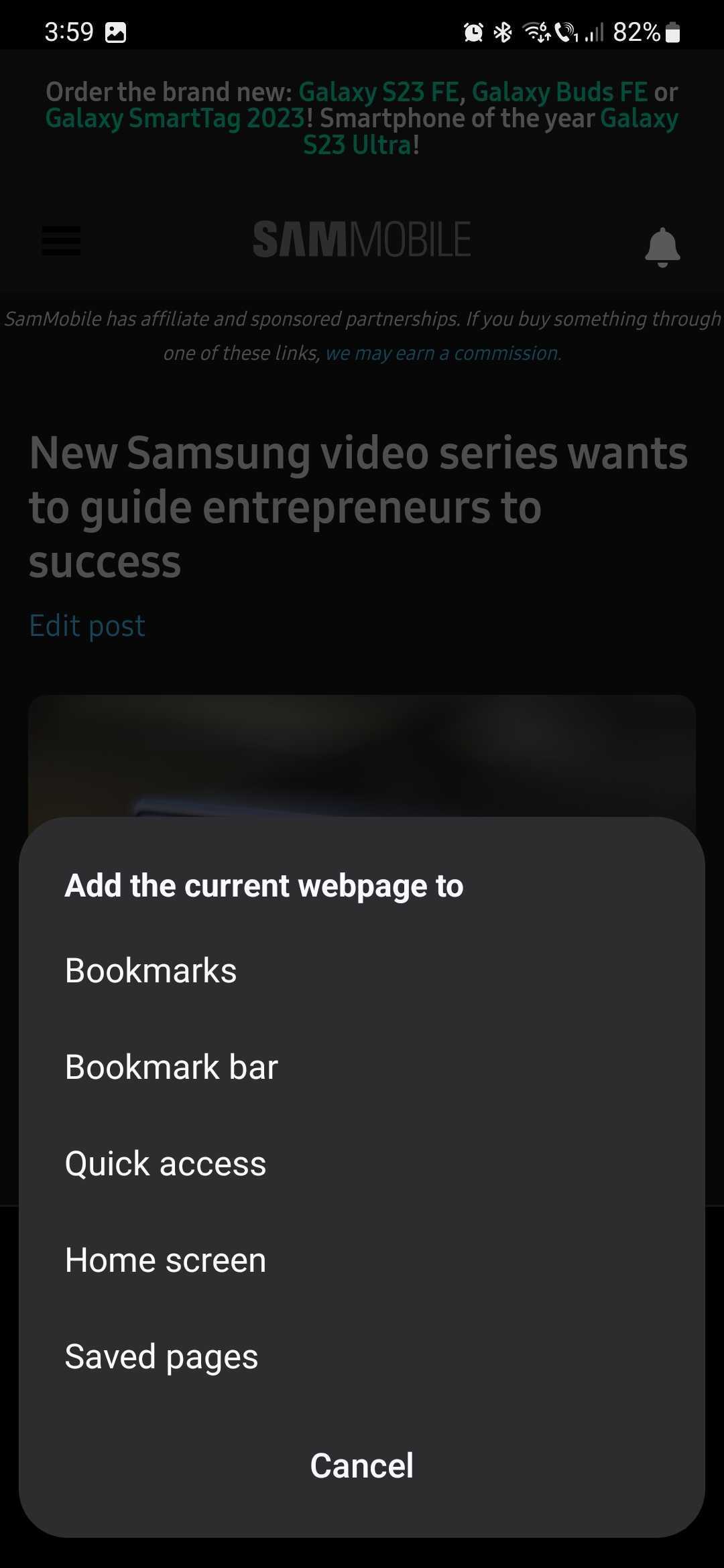
Once you're viewing the desired page in Samsung Internet, tap the menu button, then tap “Add page to,” and select “Saved pages.”
To access your offline pages, simply tap the menu button in Samsung Internet and select “Saved pages.” Here, you will access a list of all your saved pages for offline reading.
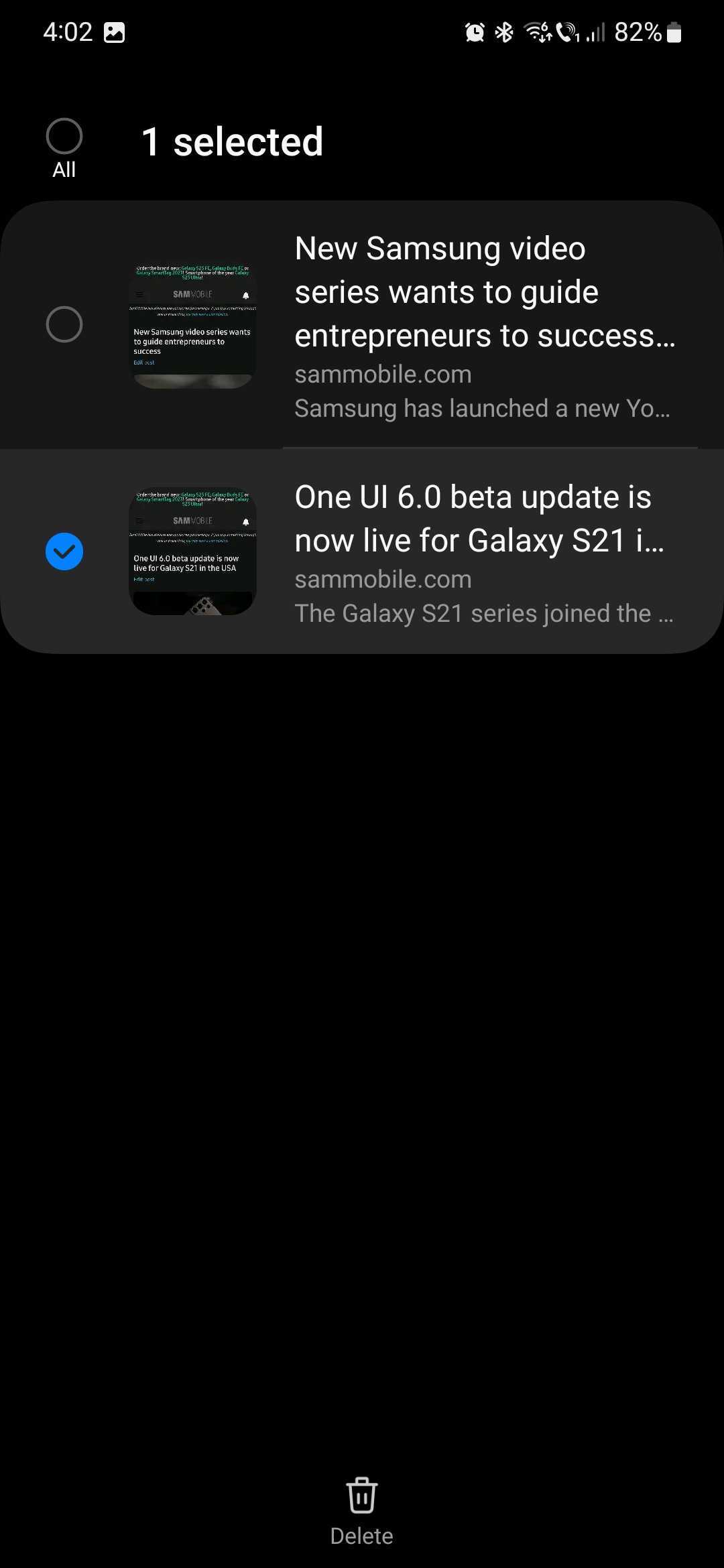
If you want to remove saved pages, tap the dotted button in the upper right corner of the Saved pages list, tap “Delete,” select the pages you want to remove, and tap the trash can button in the lower area of the screen.
Mihai is a blogger and column writer at SamMobile. His first Samsung phone was an A800 which took a lot of beating, and a part of him still misses the novelty of the clamshell design. In his free time, he enjoys watching shows, documentaries, and stand-up comedy; listening to music, taking walks, and occasionally playing old(er) video games.