9 days until XMAS. Massive discount Galaxy Z Fold7, Watch8, S25 Ultra and S95F OLED TV
Last updated: January 8th, 2018 at 15:42 UTC+01:00
SamMobile has affiliate and sponsored partnerships, we may earn a commission.
Reading time: 2 minutes
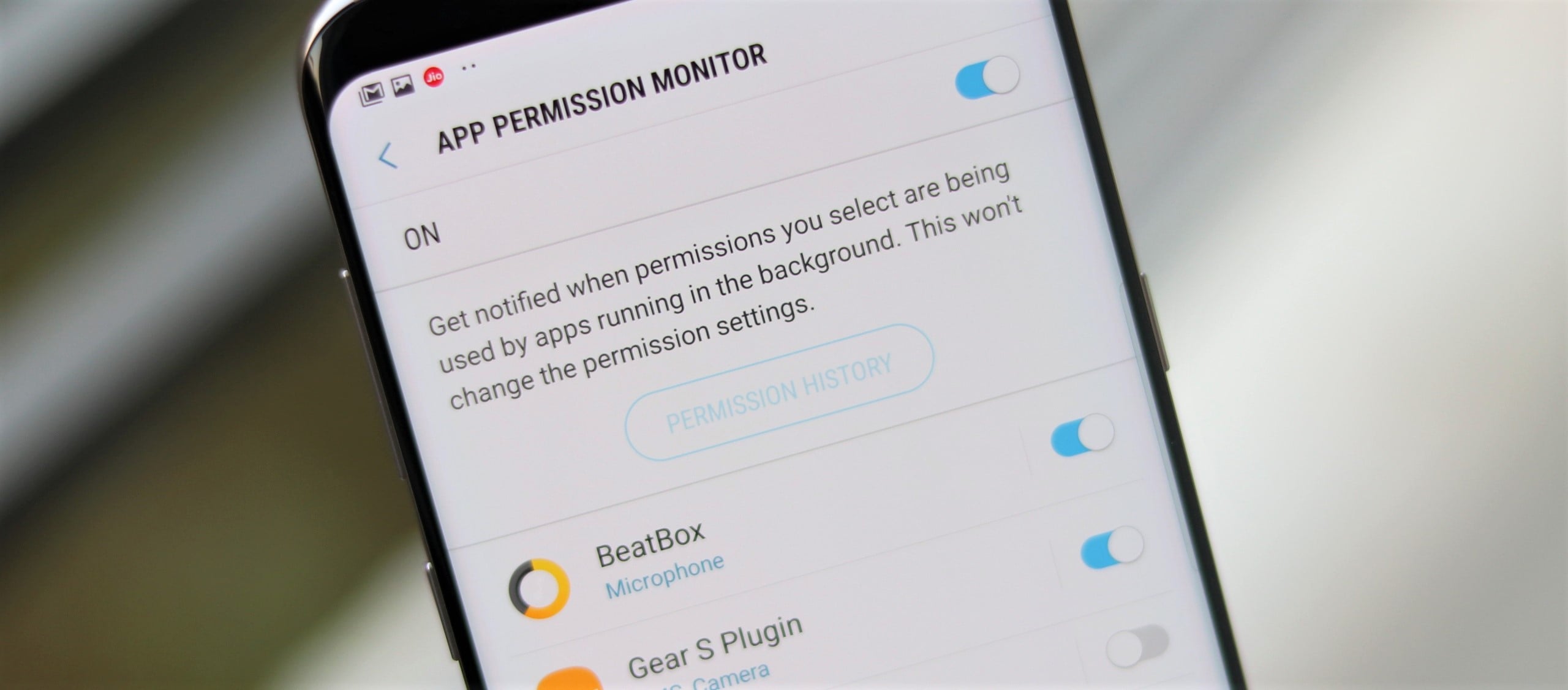
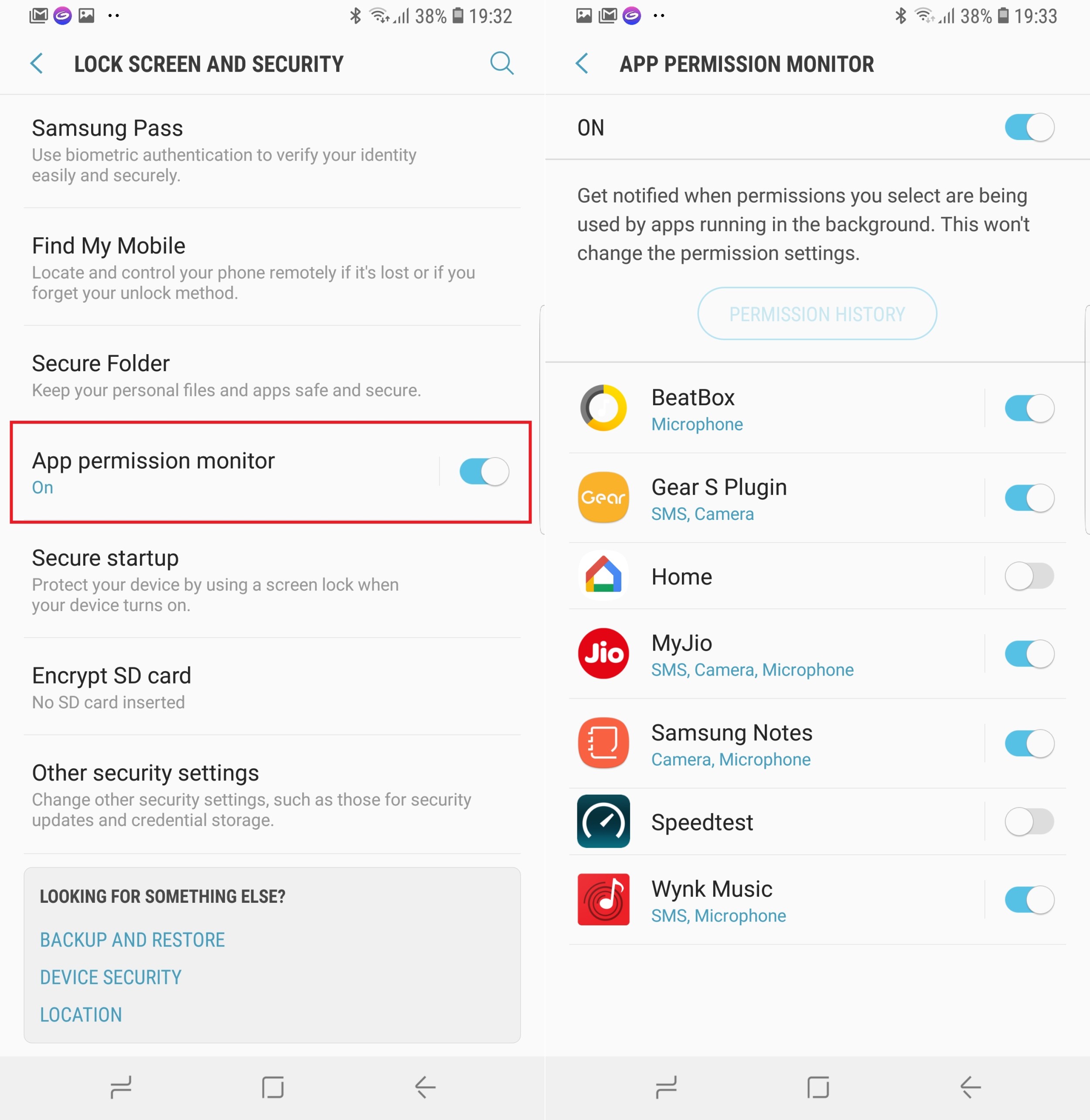
With App permission monitor, Samsung allows the user to know exactly what permission an app is using when it's running in the background. It's not exactly a useful feature if you already trust an app with a few permissions, but its main objective is to let you know if an app accesses some data when it's not being actively used, so we guess Samsung's heart was in the right place when implementing the permission monitor. You can modify which apps get monitored, and also select what permissions are monitored within each app. Modifying permissions for apps remains a separate feature, accessible from the Apps section of the device settings.
To access the permission monitor on a Galaxy S8 running the Oreo beta (or a Galaxy Note 8), open the phone's settings, go into Lock screen and security, then scroll down to find and tap the App permission monitor option. Enable the app permission monitor by using the toggle at the top of the screen. By default, all apps that have been granted a permission are monitored, but you can control which apps and what permissions within an app get monitored.
Danny is the proud founder of SamMobile.com. His first Samsung phone was the SGH-D900, which he considers to be the best slider phone ever. He likes football (Ajax/FC Barcelona) and Formula 1 (Red Bull).