Cyber week deals! Galaxy Watch8 Classic, Fold 7, S25 Ultra. Follow us on YouTube, TikTok, or LinkedIn
Last updated: May 19th, 2025 at 15:04 UTC+02:00
SamMobile has affiliate and sponsored partnerships, we may earn a commission.
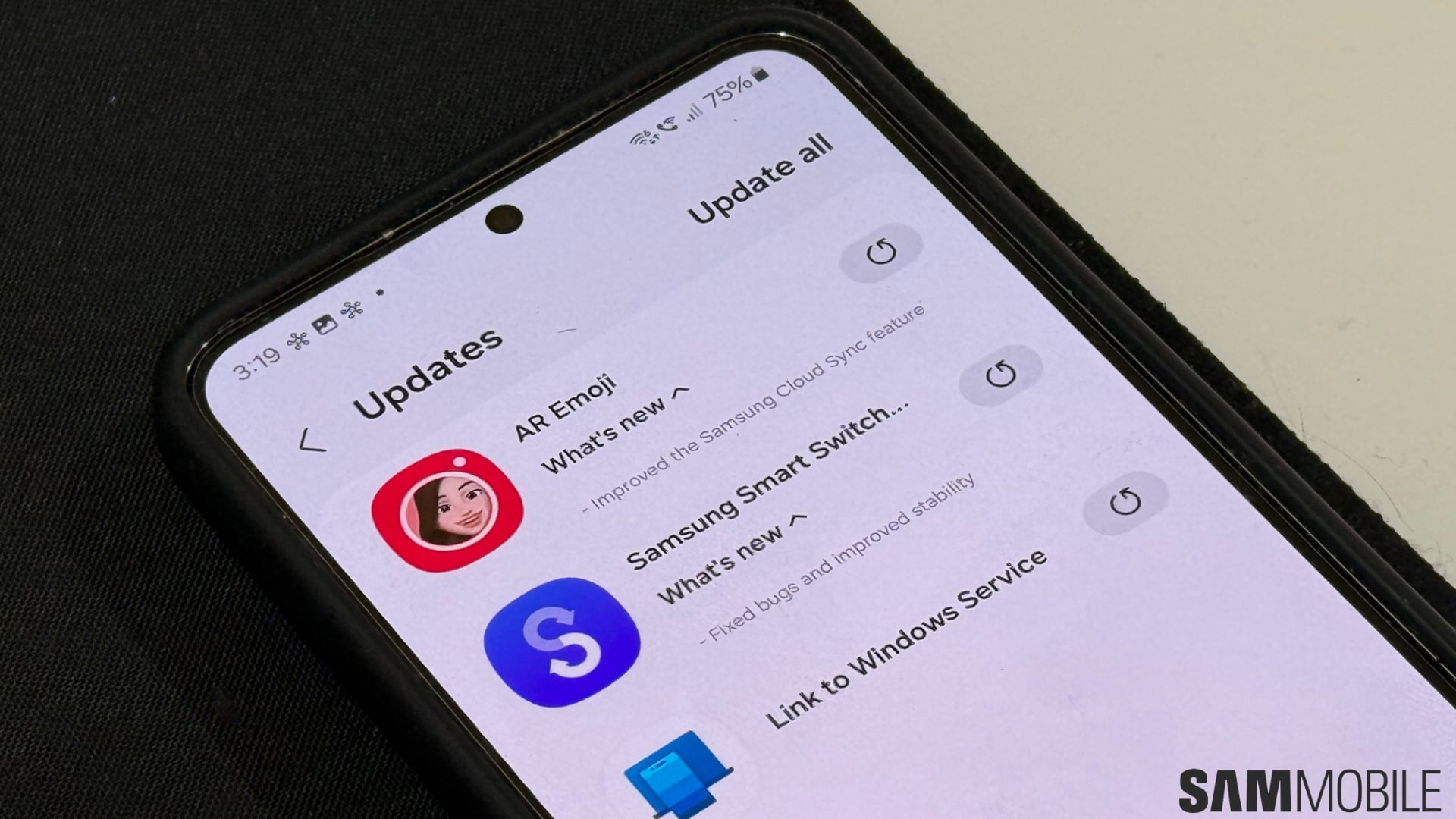
You can manage store-wide and per-app auto updates in the Samsung Galaxy Store. Here's how.
Reading time: 2 minutes
It's safe to say that every Galaxy device owner uses a mix of apps acquired from the Samsung Galaxy Store and Google's Play Store. You might prefer one store over the other, and even though most Samsung apps are available through both platforms, chances are that some apps on your device get Galaxy Store updates.
Samsung allows Galaxy Store users to turn automatic app updates on or off for all Galaxy Store apps at once or for individual apps. Here's how you can manage these options.
To turn auto app updates on or off for all Galaxy Store apps at once, you need to follow these steps:
Samsung's Galaxy Store also allows users to turn auto updates on or off for each app. The best way to do this is to:
It's worth noting that some third-party apps downloaded from the Galaxy Store don't offer this option for auto updates.
Furthermore, some pre-loaded Samsung apps (such as Contacts) are missing the App details in store option. Other Samsung apps, such as Phone, may have this option present, but selecting it will lead to the Galaxy Store home page rather than the app's store page.
In closing, turning per-app Galaxy Store auto updates on or off isn't an option for every app on your Galaxy phone or tablet.