Last updated: January 5th, 2024 at 11:39 UTC+01:00
SamMobile has affiliate and sponsored partnerships, we may earn a commission.
Reading time: 1 minutes
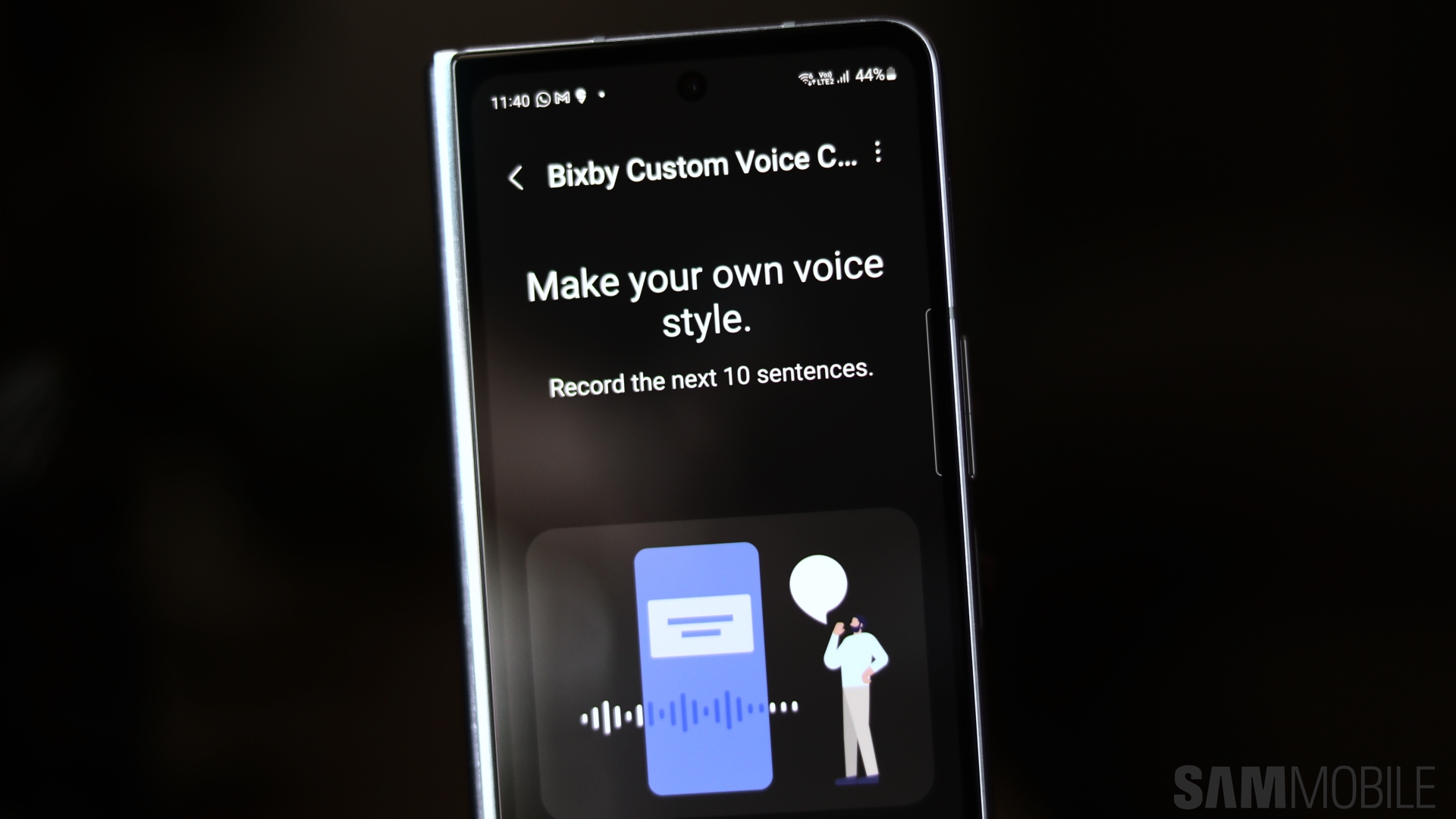
For more complex tasks, Bixby needs an internet connection. However, Galaxy users can also run Bixby on-device with a few limitations. Here's all you need to know.
To set up Bixby on-device, first, open the Settings app on your phone or tablet. Then, access “Advanced features,” followed by “Bixby,” and “On-device mode.”
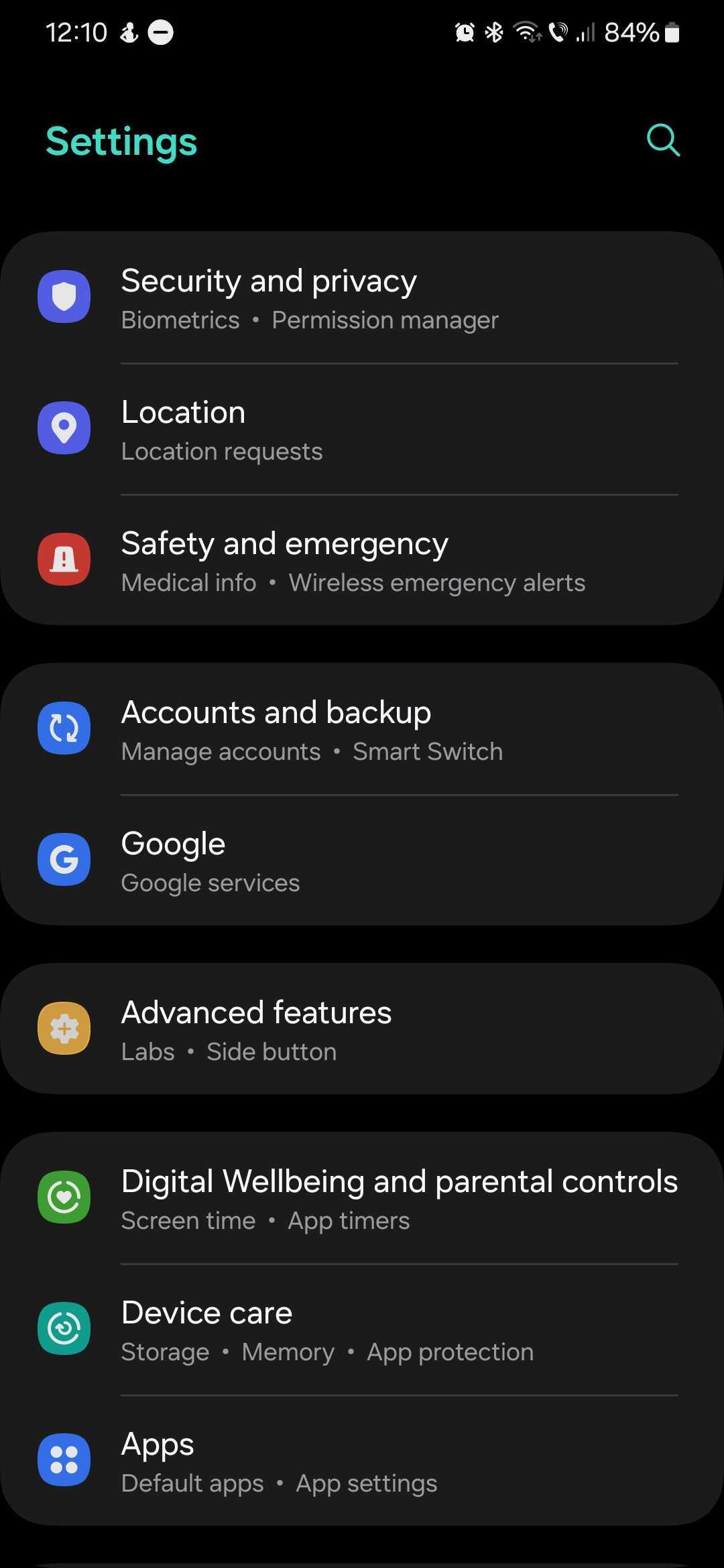
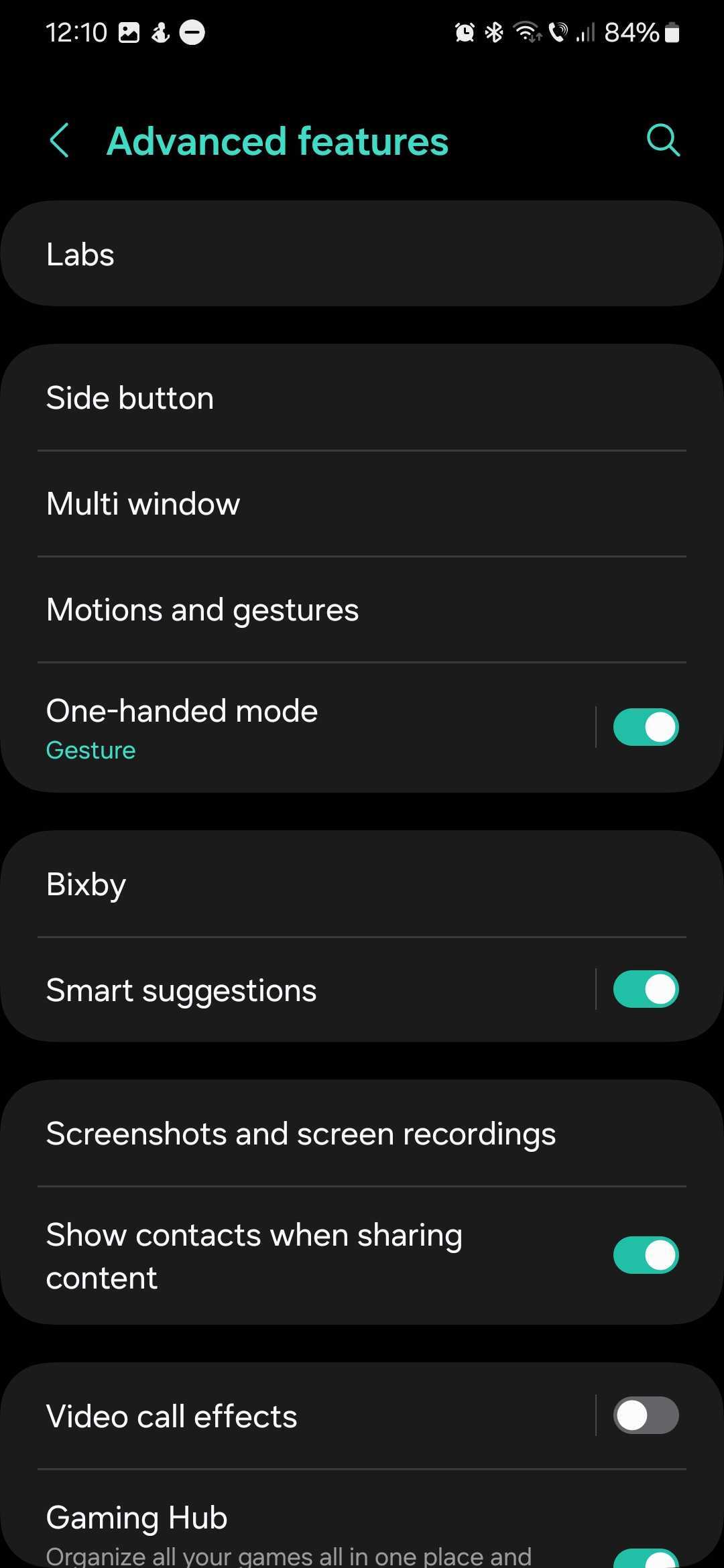
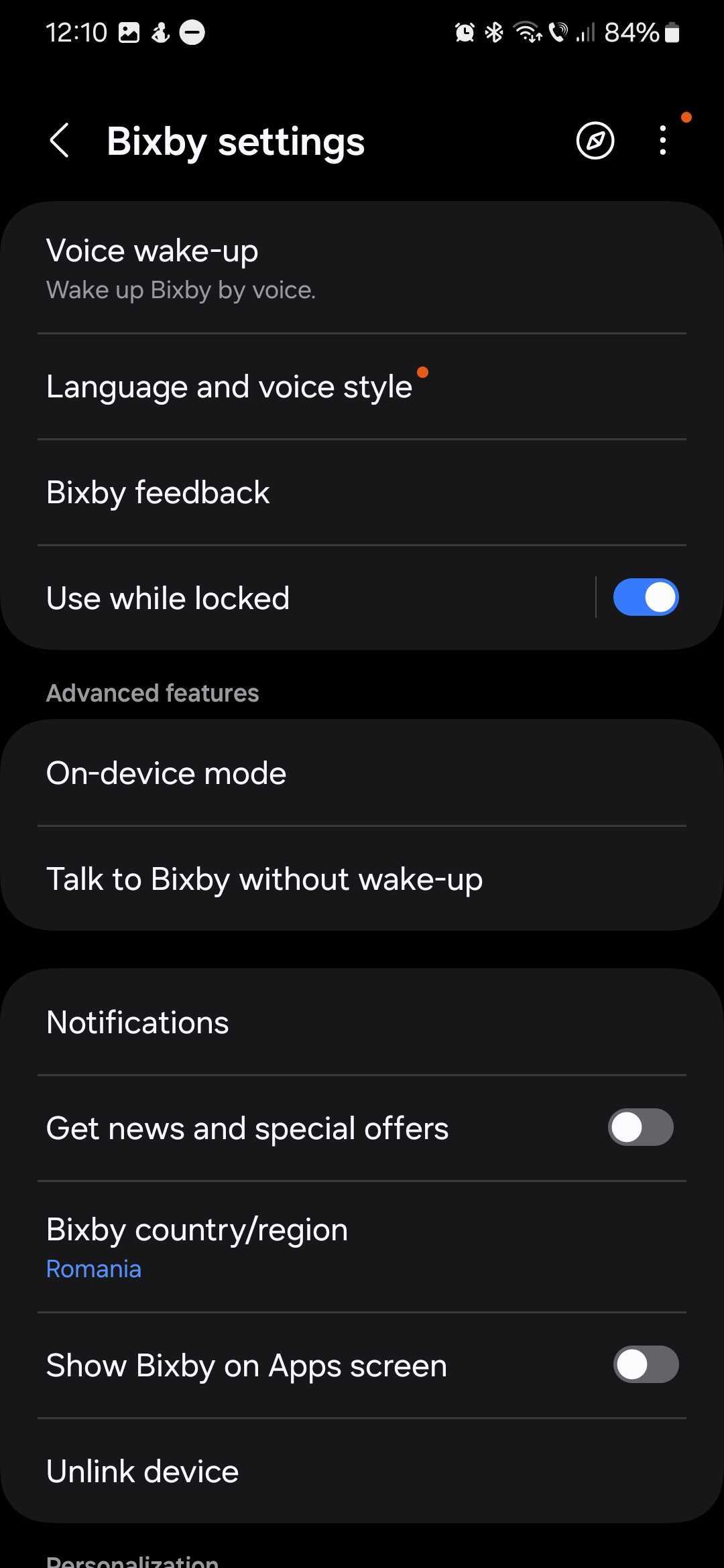
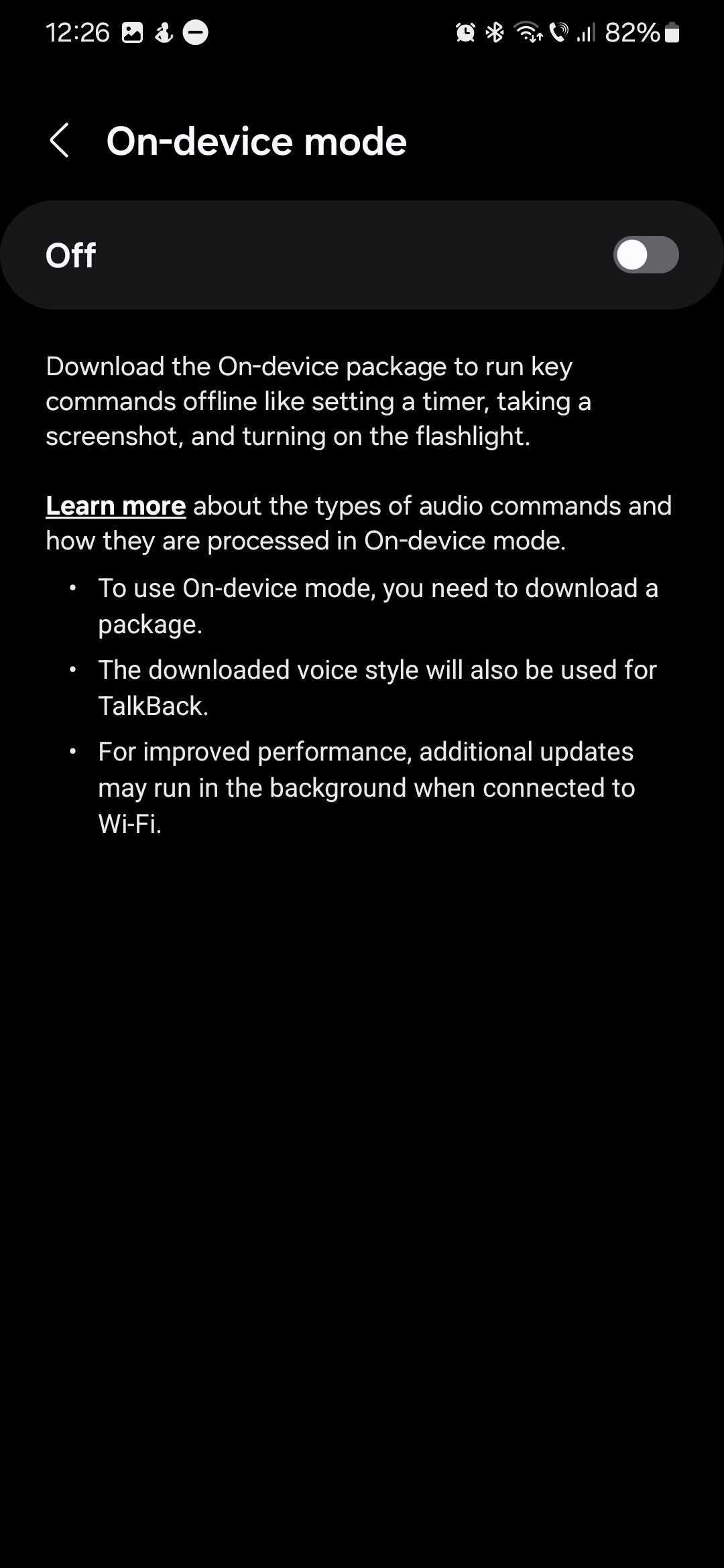
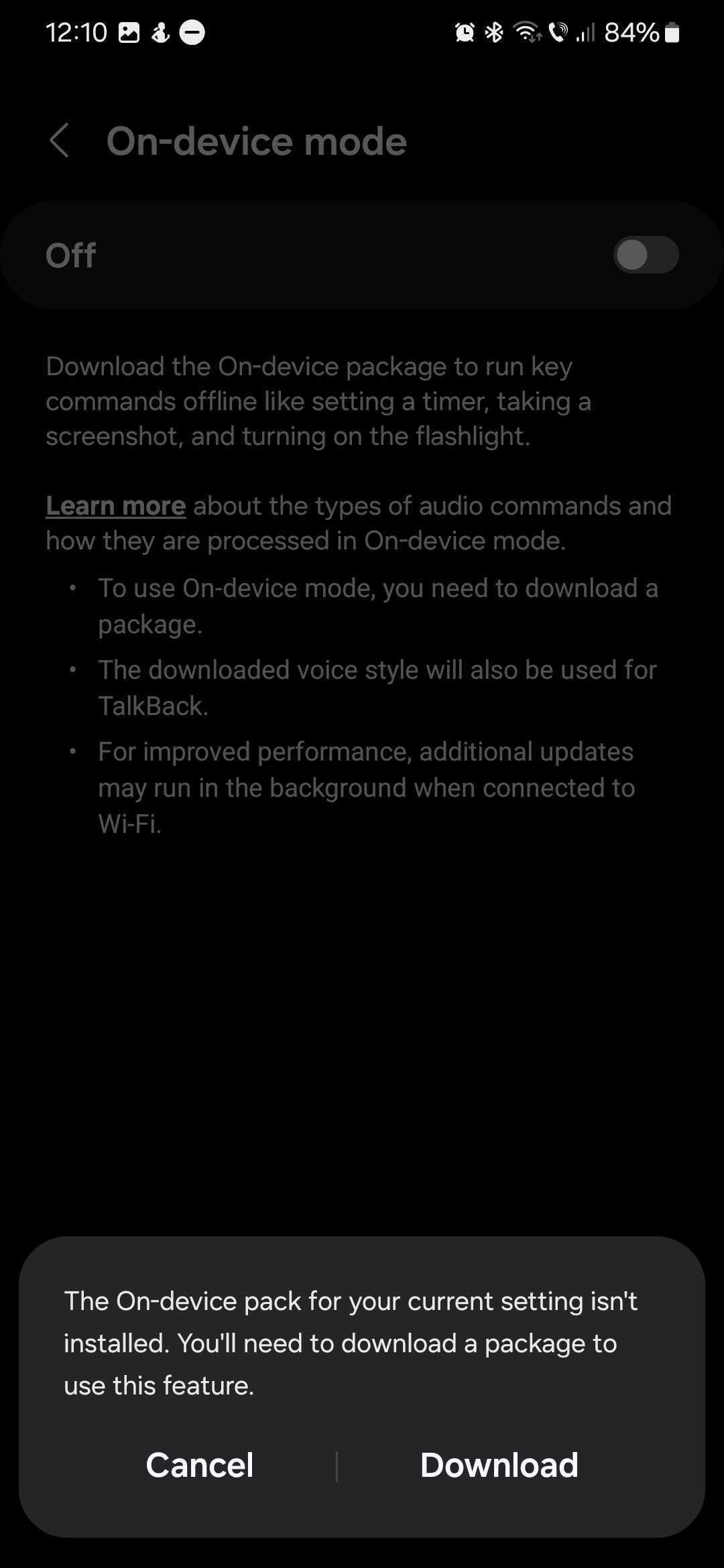
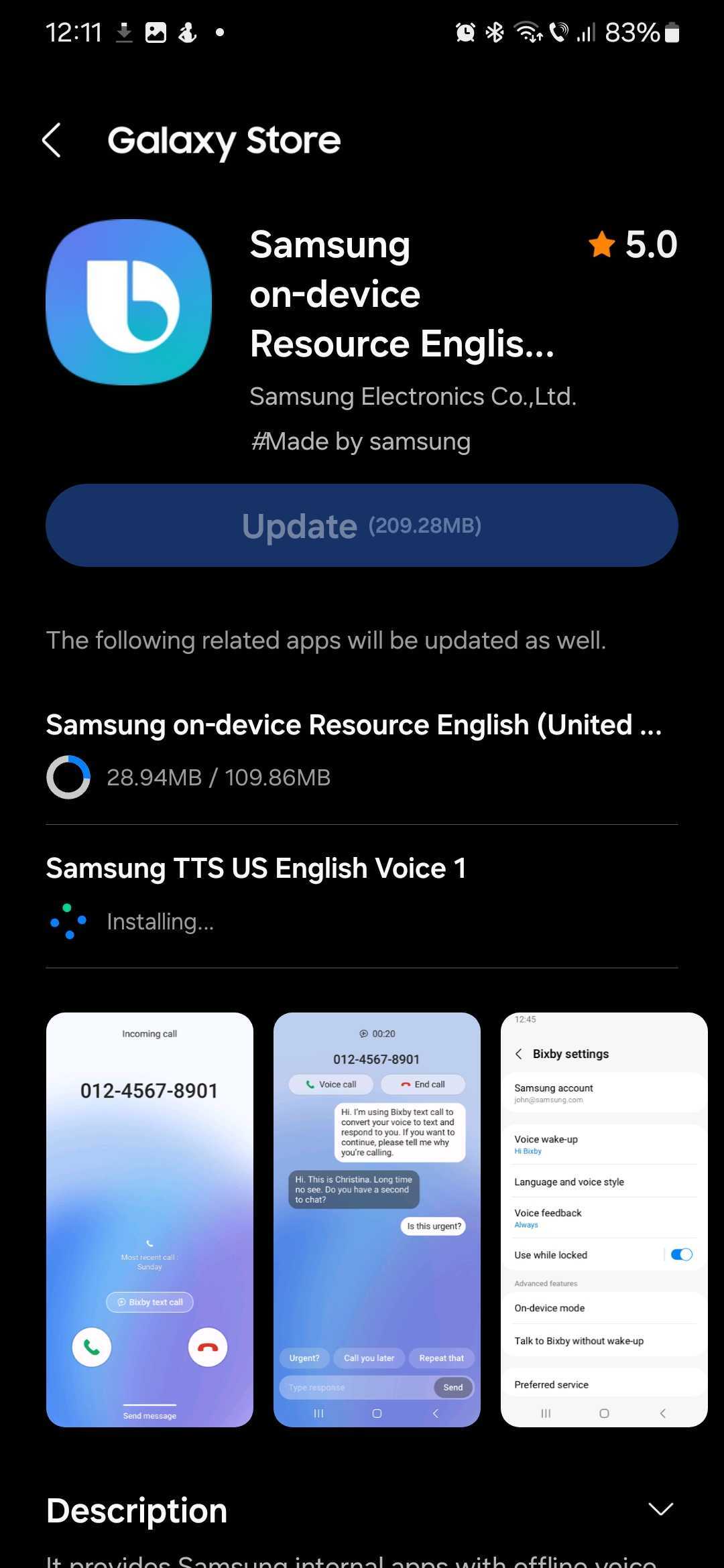
Before you can use On-device mode for Boxby, you will have to download the On-device pack from the Galaxy Store. If you haven't downloaded it already, tap the ON/OFF switch ON and tap the “Download” button at the prompt.
Note that On-device Bixby works for simpler commands such as taking a screenshot, setting a timer, or turning the flashlight ON or OFF.
For more complex commands, Bixby will convert your audio commands to text on the device and then send the text to the server for further processing to maintain accuracy.

Mihai is a blogger and column writer at SamMobile. His first Samsung phone was an A800 which took a lot of beating, and a part of him still misses the novelty of the clamshell design. In his free time, he enjoys watching shows, documentaries, and stand-up comedy; listening to music, taking walks, and occasionally playing old(er) video games.












