Last updated: May 7th, 2025 at 13:04 UTC+02:00
SamMobile has affiliate and sponsored partnerships, we may earn a commission.
One UI 7 modernizes the Samsung Clock app and adds new features, including separate volume options for each alarm. Here's how to set this up.
Reading time: 2 minutes
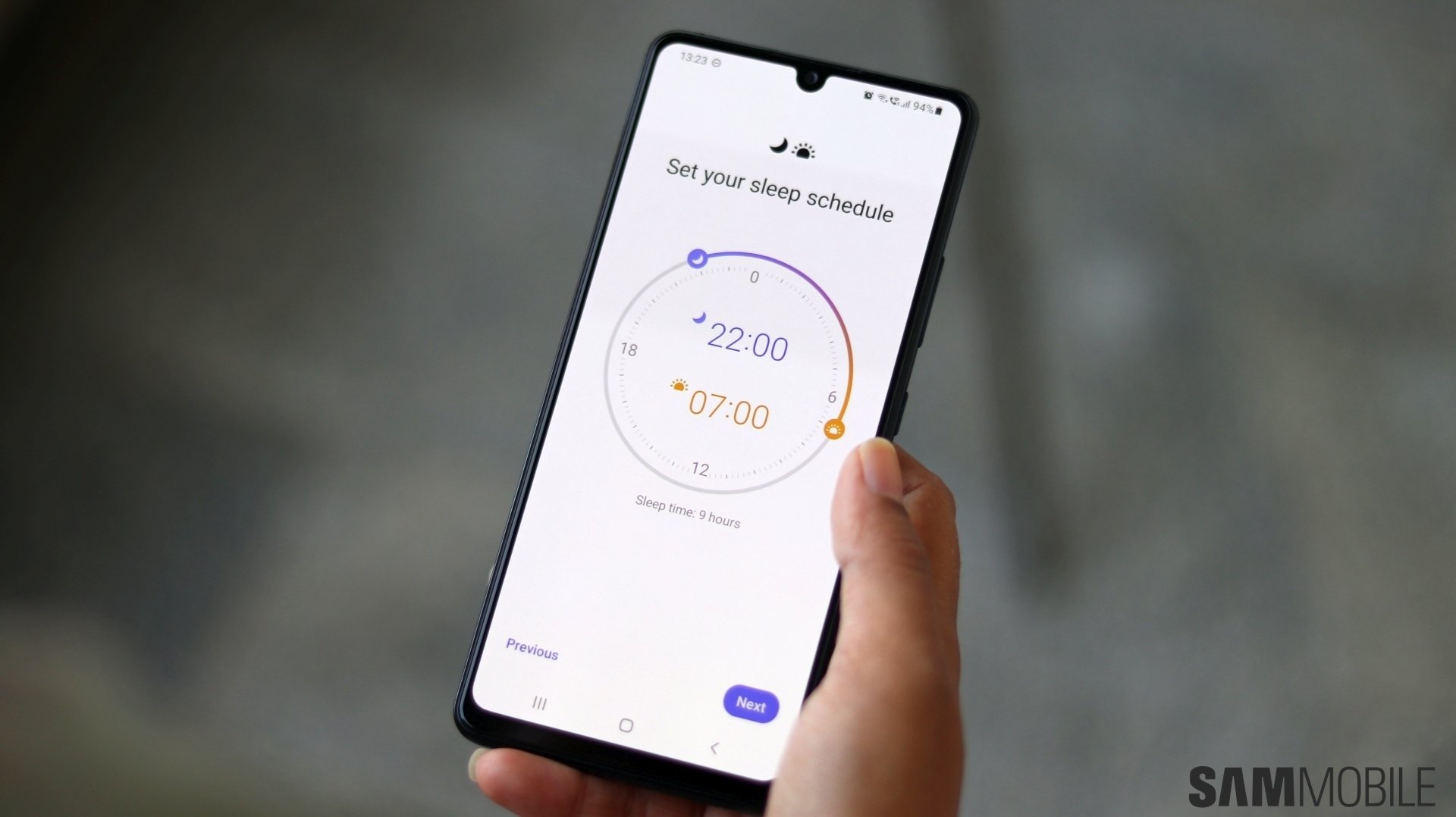
Samsung's overly ambitious One UI 7 update isn't just about modernizing and streamlining the proprietary Android 15 skin itself but also updating and improving Samsung's first-party apps.
There's something to look forward to in many Samsung apps in One UI 7, and even the Clock app presents a handful of new features. One addition to the Clock app in the latest update allows Galaxy device users to set a different volume for each alarm. Here's how you can do it.
By default, the Clock app in One UI 7 follows the old style of one volume for all alarms. So, to use this new feature, you'll first have to follow these steps:


With this feature enabled, it is now very easy to set a different volume for each of your alarms. There's no special volume slider. All you have to do is tap the desired alarm and then press the volume up/down buttons on your Galaxy phone or tablet to set the desired alarm volume.


You can do this for each alarm separately and notice that the volume slider will remember a different level for each. This feature works with standard alarms and the dynamic Sleep mode alarm.

Mihai is a blogger and column writer at SamMobile. His first Samsung phone was an A800 which took a lot of beating, and a part of him still misses the novelty of the clamshell design. In his free time, he enjoys watching shows, documentaries, and stand-up comedy; listening to music, taking walks, and occasionally playing old(er) video games.












