Cyber week deals! Galaxy Watch8 Classic, Fold 7, S25 Ultra. Follow us on YouTube, TikTok, or LinkedIn
Last updated: June 16th, 2022 at 02:08 UTC+02:00
SamMobile has affiliate and sponsored partnerships, we may earn a commission.
Reading time: 2 minutes
When the home screen layout is locked in One UI, items on the home screen stay in place and can't be moved around or removed from the home screen, neither willingly nor by accident. All the on-screen elements, including icons, widgets, and web shortcuts, will retain their position until you unlock the home screen.
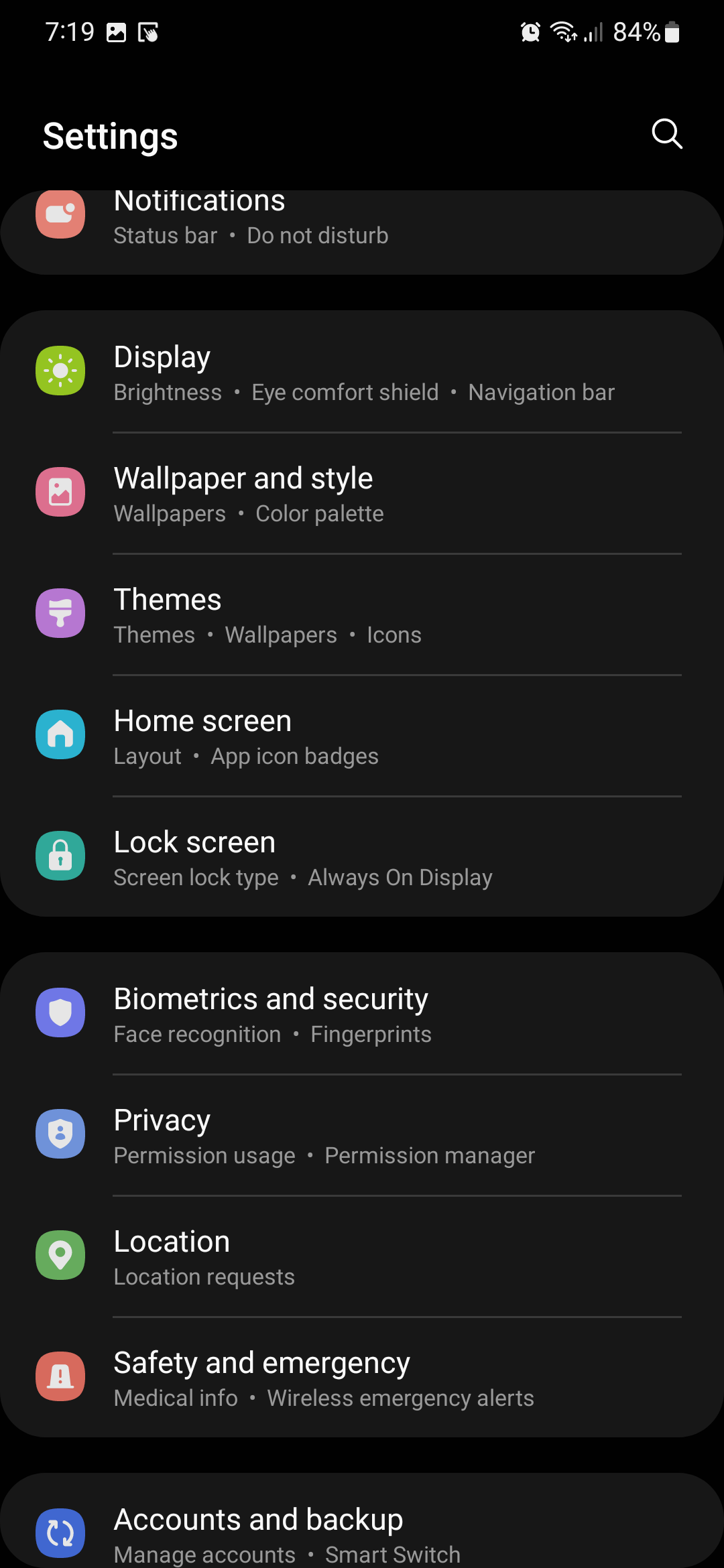
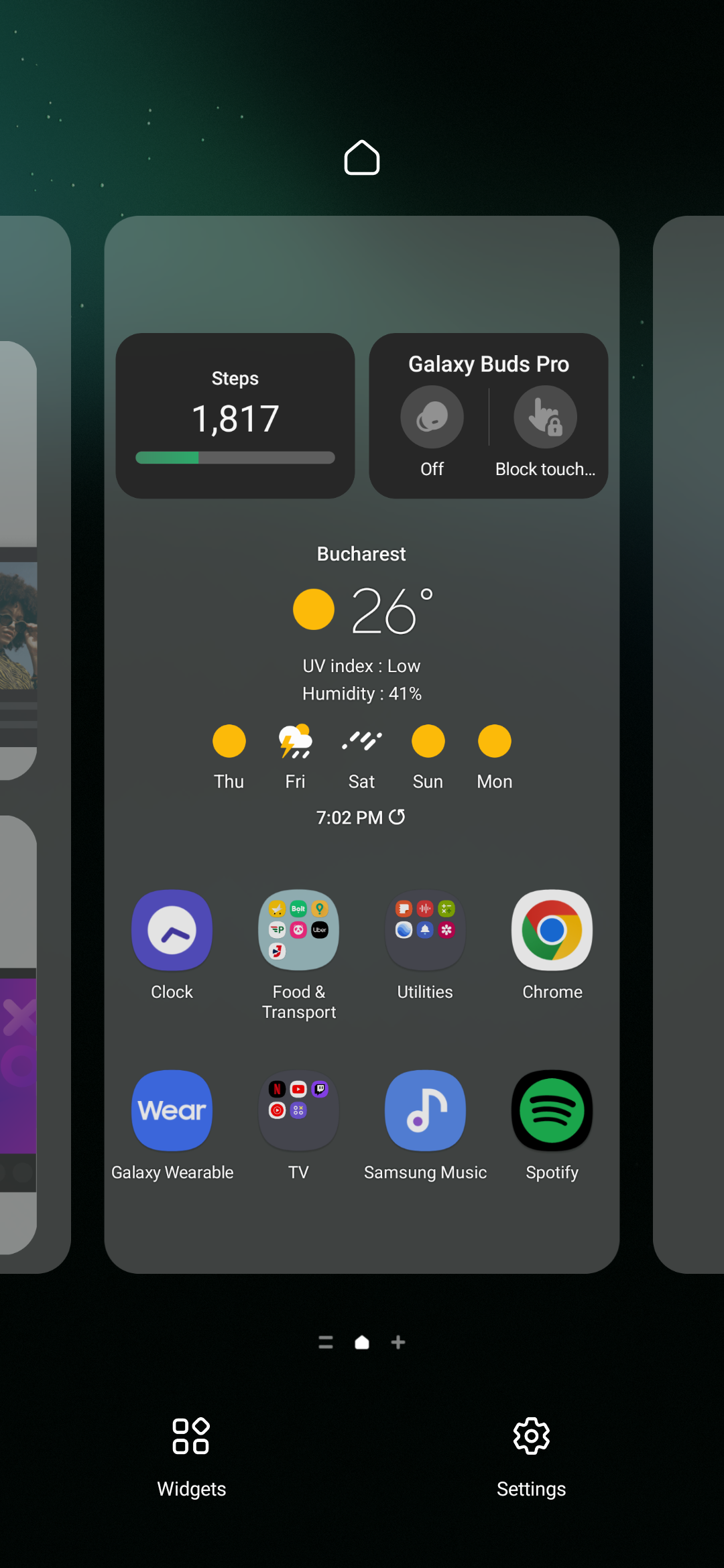
To lock your home screen layout in One UI, first, you need to access home screen settings. There are two ways of doing this. One is by opening the Settings app on your Samsung phone or tablet and accessing “Home screen.” The other method is pinching the home screen and tapping the cog-shaped settings icon.
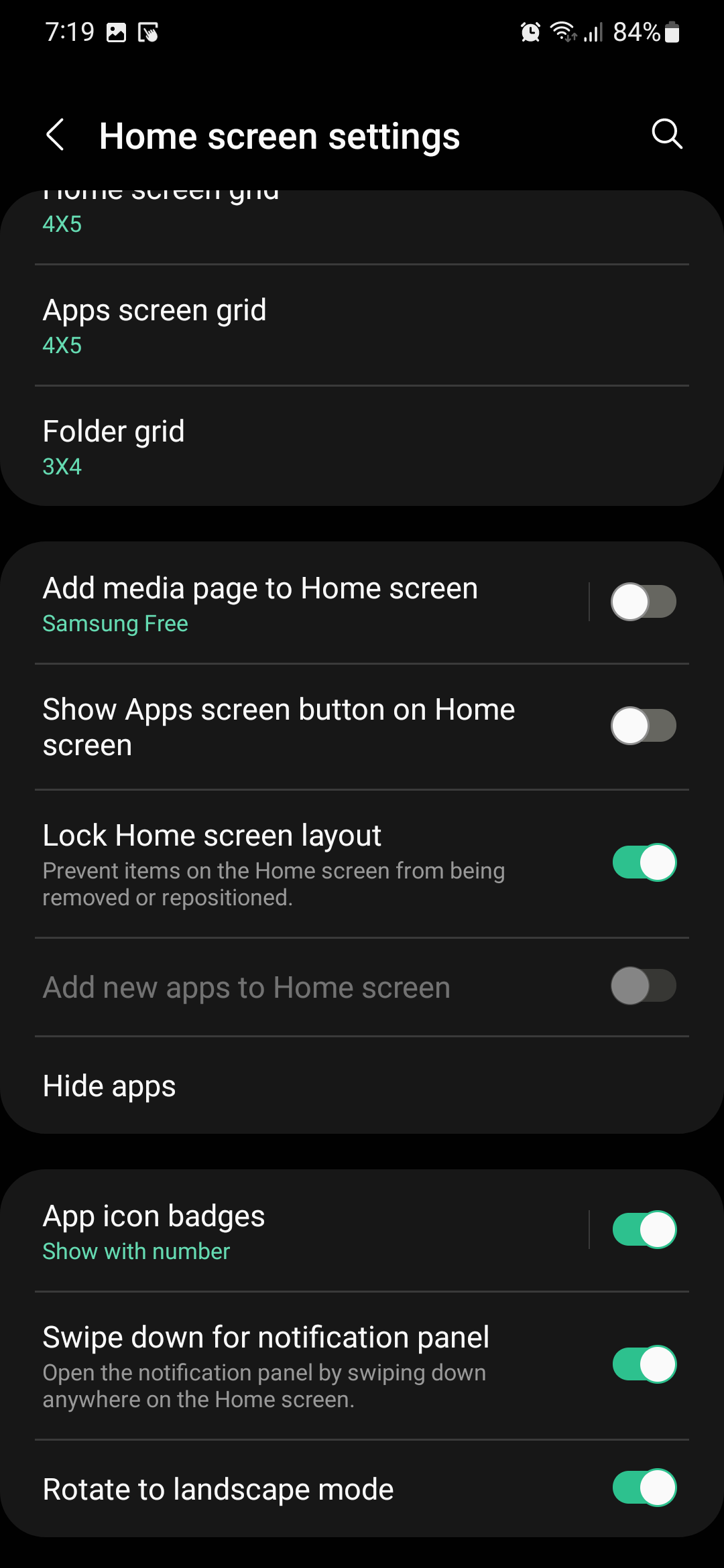
Once in the Home screen settings menu, tap the “Lock Home screen layout” toggle to enable this feature. Your home screen icons and widgets are now locked in place.
There is one exception to this. Namely, if your home screen doesn't have any empty spaces left, a shortcut will be created on a new home screen upon installing an app. To get rid of the shortcut, you'll have to repeat the steps above to unlock your home screen layout first, remove the app shortcut, and then lock the home screen layout again.
Join SamMobile’s Telegram group and subscribe to our YouTube channel to get instant news updates and in-depth reviews of Samsung devices. You can also subscribe to get updates from us on Google News and follow us on Twitter.
Mihai is a blogger and column writer at SamMobile. His first Samsung phone was an A800 which took a lot of beating, and a part of him still misses the novelty of the clamshell design. In his free time, he enjoys watching shows, documentaries, and stand-up comedy; listening to music, taking walks, and occasionally playing old(er) video games.