Cyber week deals! Galaxy Watch8 Classic, Fold 7, S25 Ultra. Follow us on YouTube, TikTok, or Instagram
Last updated: October 19th, 2023 at 12:41 UTC+02:00
SamMobile has affiliate and sponsored partnerships, we may earn a commission.
Reading time: 3 minutes
But what if you've already missed the opportunity to create a time-lapse video on your travels? Can you turn your existing landscape photos into time lapses? Indeed, you can! Samsung Gallery has a 24-hour time-lapse feature just for that. Here's all you need to know.
Story continues after the video
As we detailed in our time-lapse guide earlier this year, the Gallery app's 24-hour time-lapse feature is available for mid-range to high-end Galaxy phones and tablets running Android 12 and One UI 4.1 or later.
Beyond these requirements, all you need to create a 24-hour time-lapse video is a landscape photo. Compatibility is detected automatically, and most landscape photos will work. Samsung's guidelines say the time-lapse feature is compatible with “pictures of scenery, including the sky, bodies of water, mountains, or cities.”
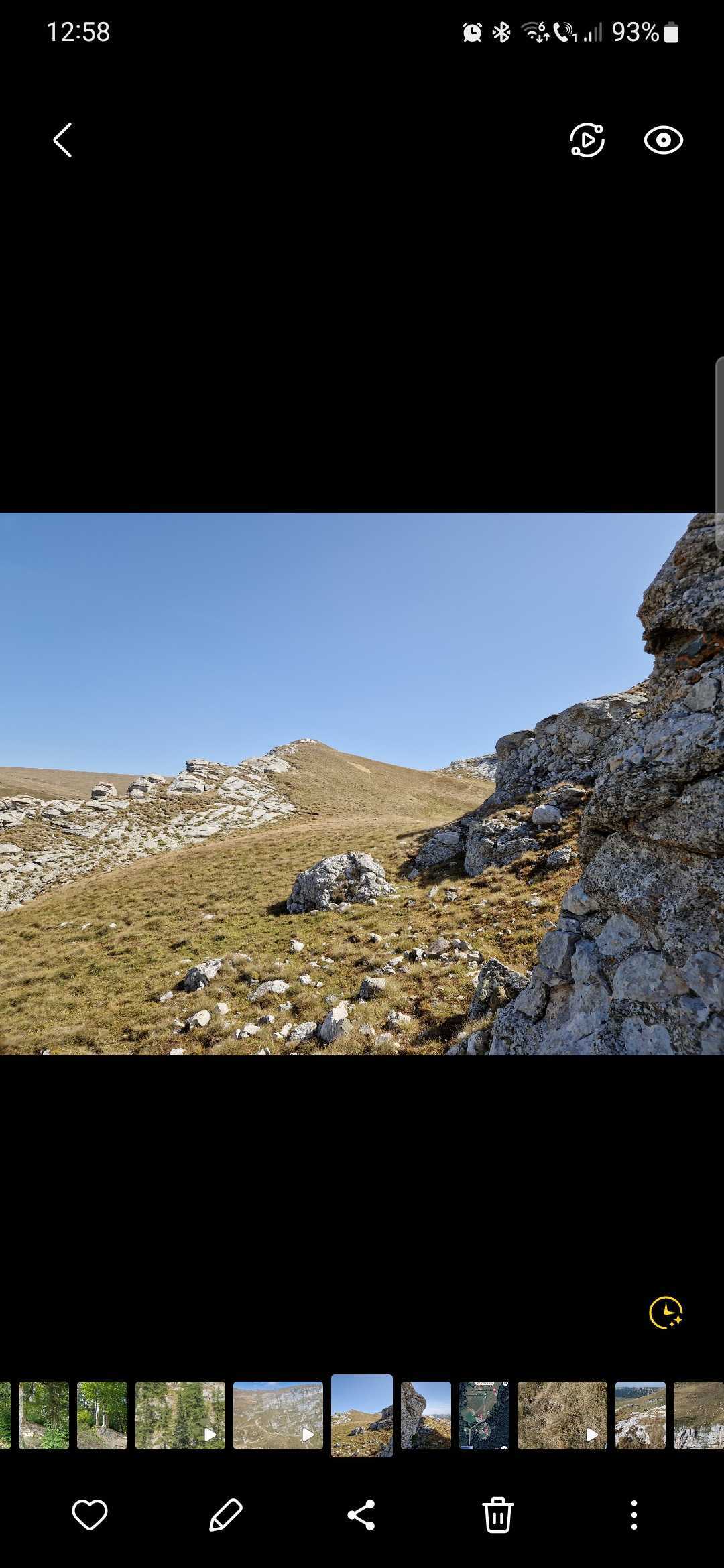
To create a 24-hour time-lapse video, browse the Gallery app for a landscape photo and tap it to view it in full screen. If the photo is compatible with the time-lapse feature, a clock-like icon will appear in the lower-right corner of the screen.
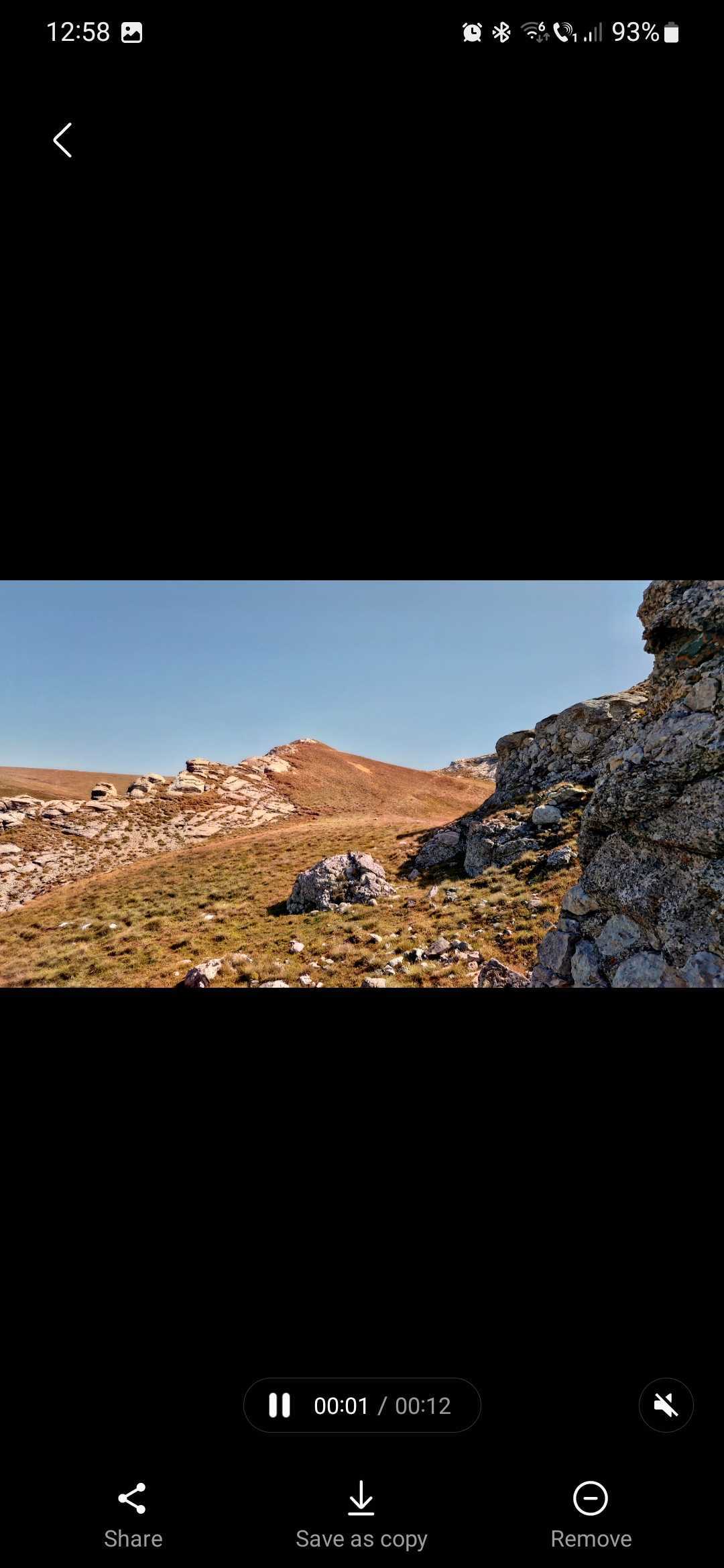
Tap this icon, and the Gallery app will automatically create a 12-second time-lapse video of a simulated 24-hour cycle based on your photo. Once the time-lapse is processed, you can save it, share it, or remove the time-lapse suggestion for the selected photo.
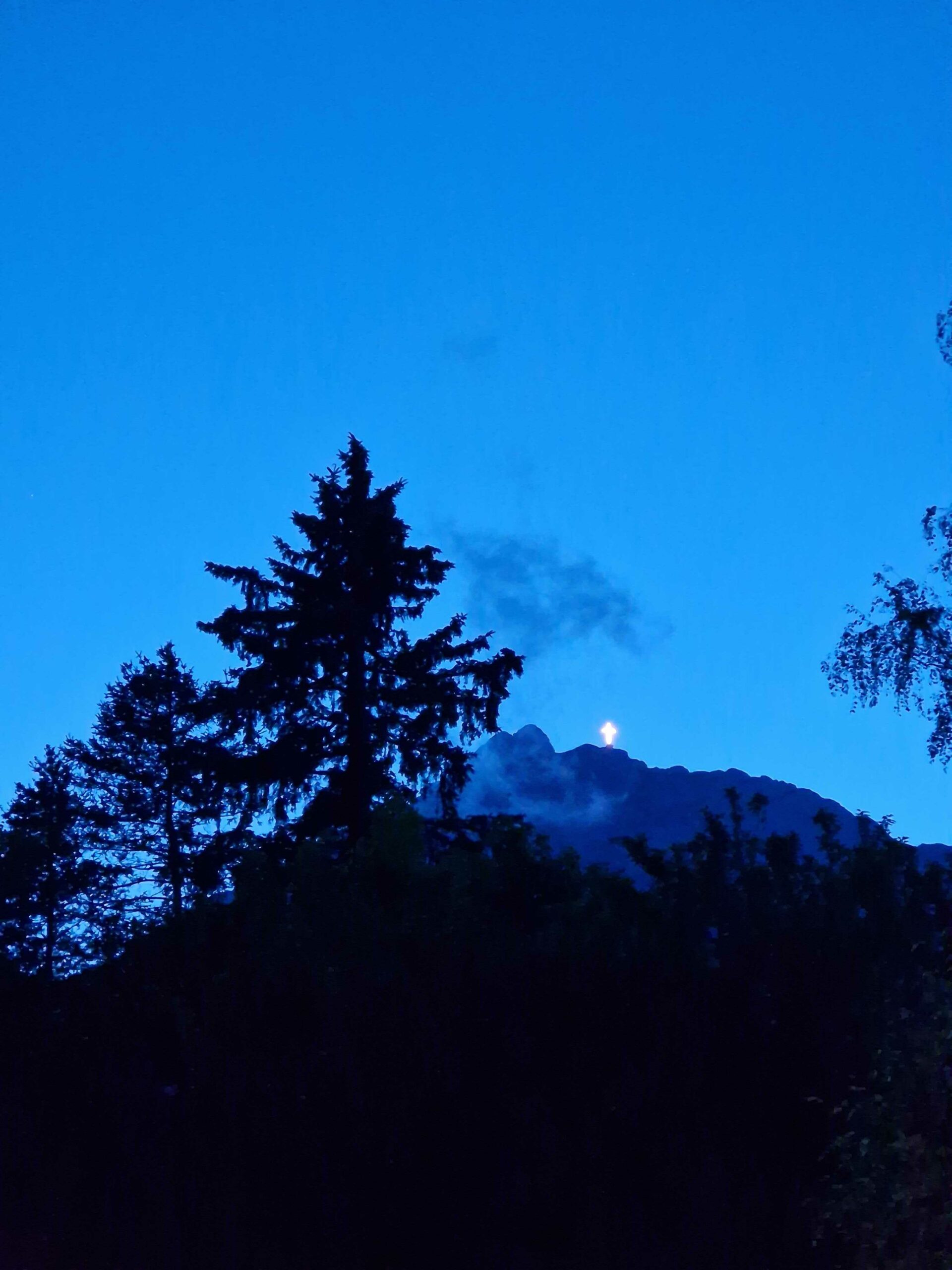
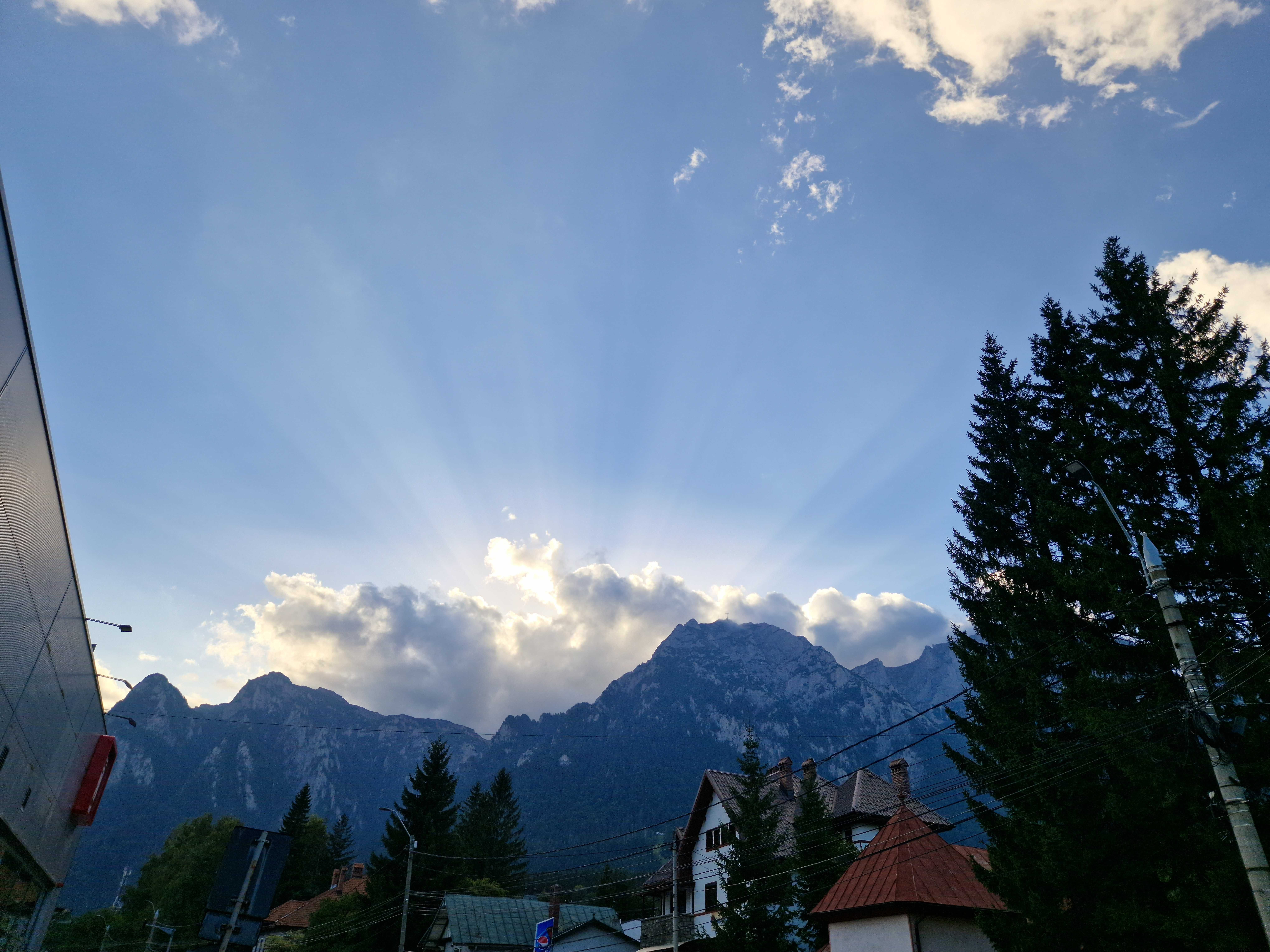
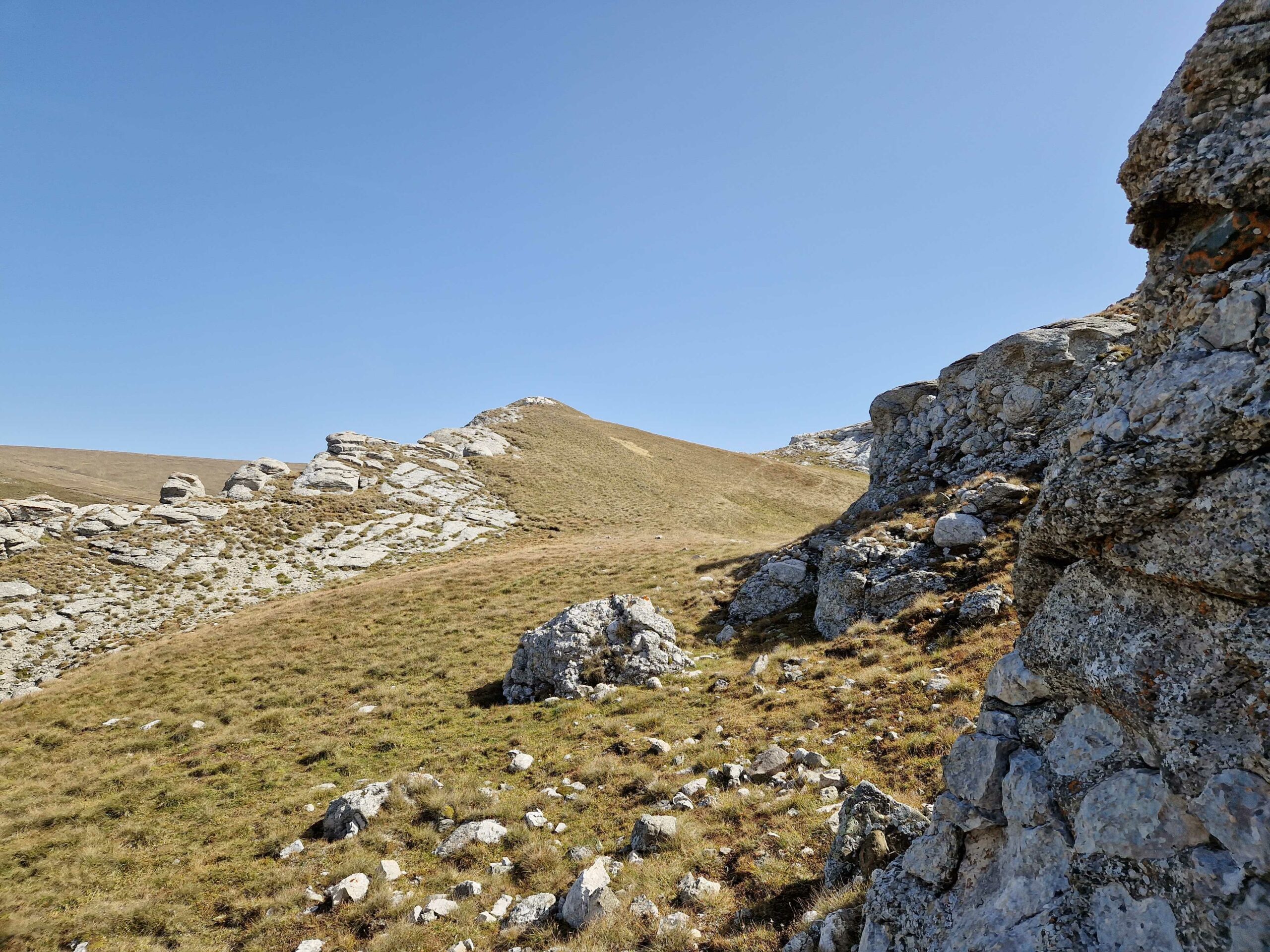
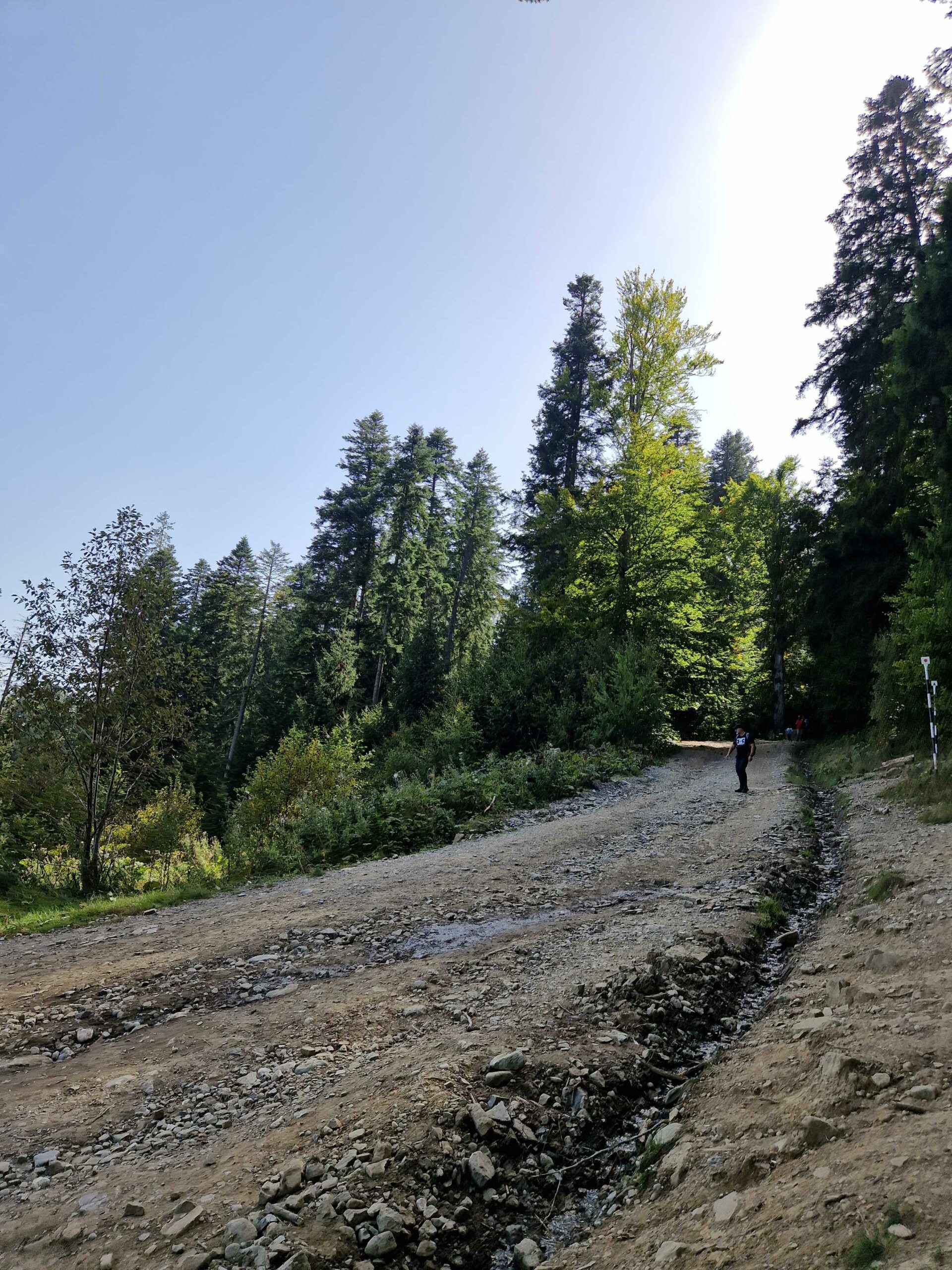
Here are more 24-hour time-lapse examples:
Mihai is a blogger and column writer at SamMobile. His first Samsung phone was an A800 which took a lot of beating, and a part of him still misses the novelty of the clamshell design. In his free time, he enjoys watching shows, documentaries, and stand-up comedy; listening to music, taking walks, and occasionally playing old(er) video games.