Last updated: December 12th, 2023 at 22:02 UTC+01:00
SamMobile has affiliate and sponsored partnerships, we may earn a commission.
Reading time: 3 minutes
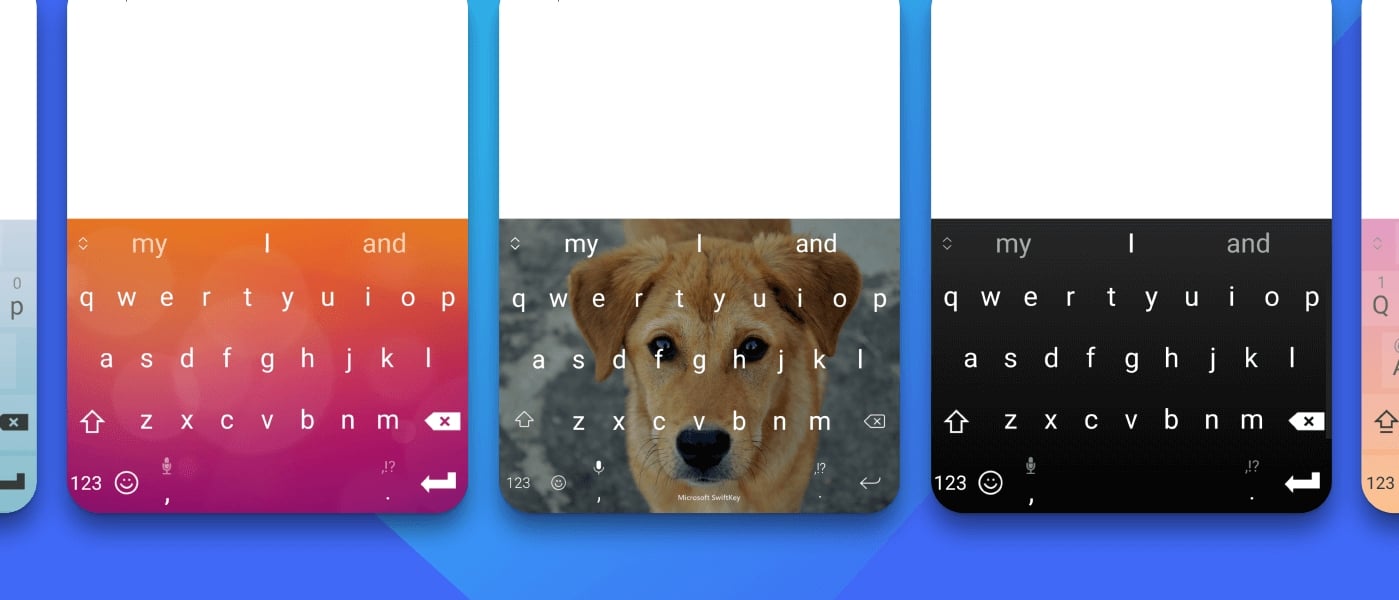
But did you know Galaxy smartphones are also preloaded with SwiftKey Keyboard? SwiftKey is an immensely popular keyboard app for Android that has been around since 2010. Samsung has been pre-installing it on Galaxy devices for almost a decade at this point, but as other keyboard apps, including Samsung Keyboard and Google's Gboard, got better, SwiftKey's popularity has taken a nosedive over the years.
SwiftKey, which has been owned by Microsoft since 2016, still comes preloaded on Galaxy smartphones, and it's an app you should try out if you have never done so before. Samsung Keyboard, which is the default keyboard on Galaxy devices, does the job well, but it's far from perfect, and you may find SwiftKey provides a better typing experience.
SwiftKey has many excellent features, including support for automatically drafting texts with Bing AI using parameters set by the user (which is why the app is officially called Microsoft SwiftKey AI Keyboard). It supports over 700 languages and lets you have up to five languages enabled at the same time.
SwiftKey is particularly good with predictions, and it has both tap and swipe typing. It also offers a ton of customization. You can choose from many different themes, customize the look manually, and adjust the keyboard size and layout. Last but not least, it can sync your dictionary and other data across devices, something Samsung Keyboard unfortunately lacks.
To set SwiftKey as the default keyboard on your Galaxy device, follow the steps below.
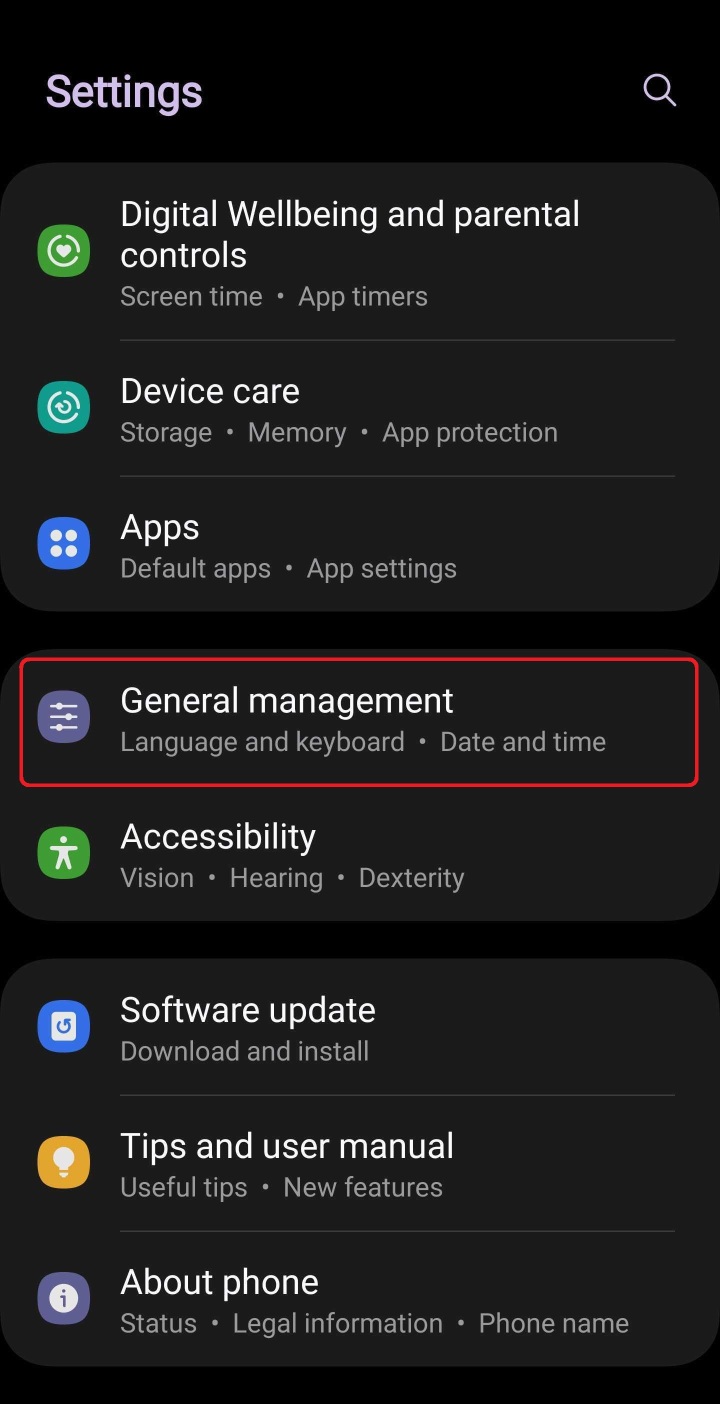
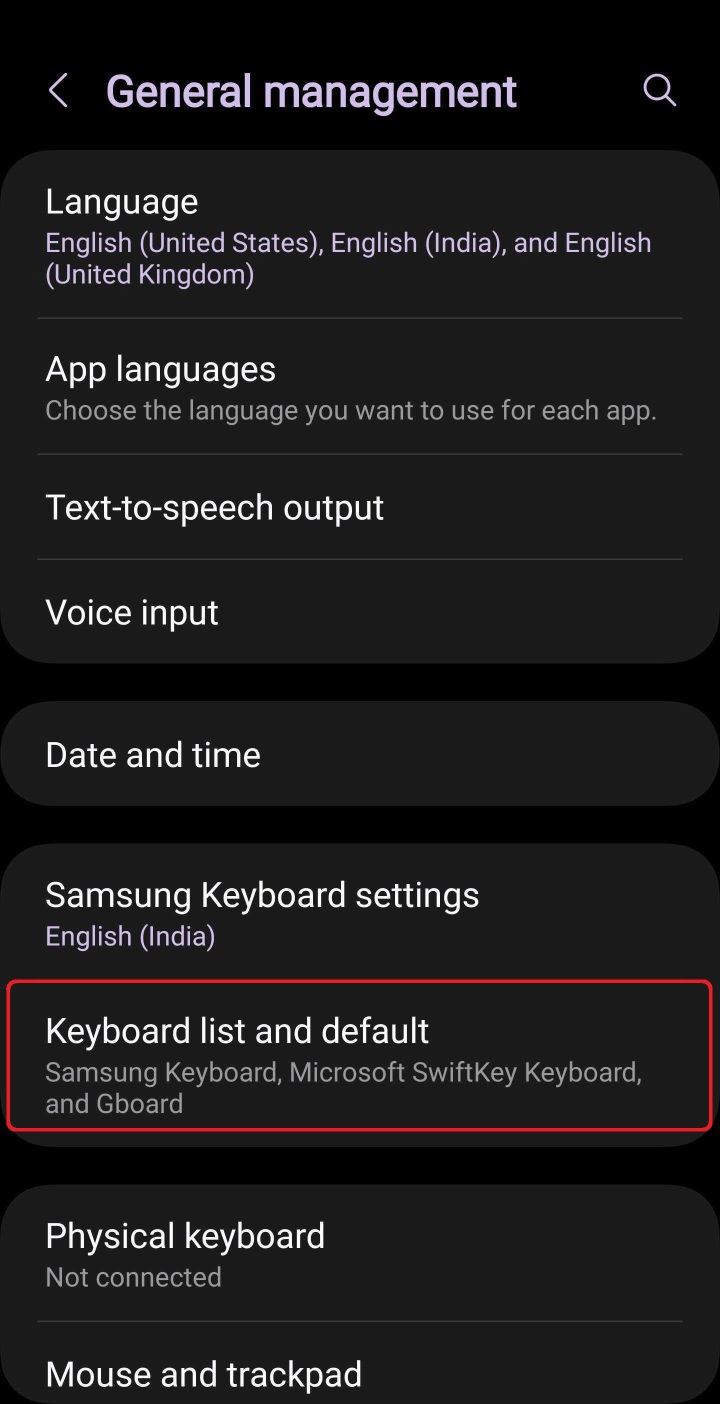
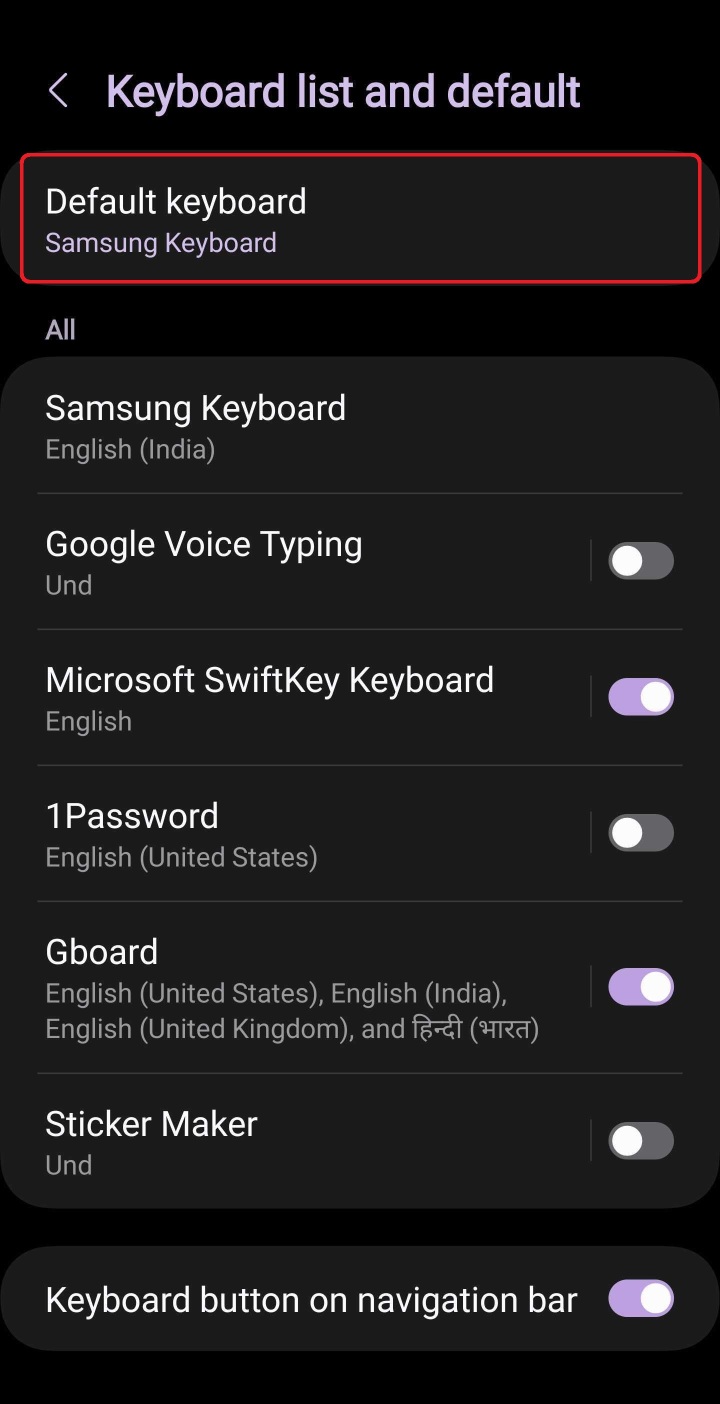
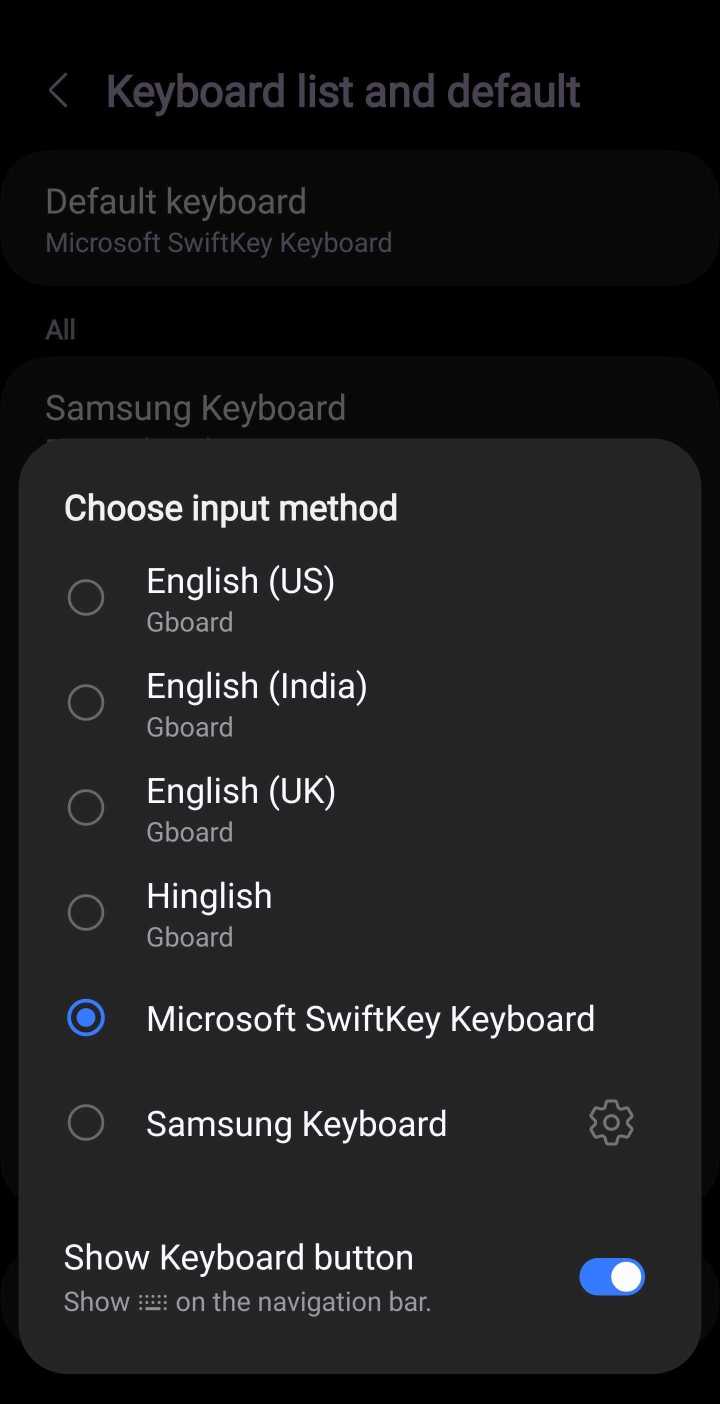
SwiftKey is now the default keyboard on your device. If you wish to customize it and check out all the features it offers, you can do so by going to the Settings » General management menu and tapping the Microsoft SwiftKey Keyboard settings button, right above the Keyboard list and default option.
To switch back to Samsung Keyboard or any other keyboard app that you were using previously, repeat the four steps list above and just select the relevant keyboard in the final step.

Abhijeet's writing career started with guides for custom firmware for Samsung devices (including the original Galaxy S), and he moved to SamMobile in mid-2013 and worked up the ranks to Editor-in-chief. In addition to phones and mobile devices, his interests include gaming on both PC and console, PC hardware, and spending countless hours on YouTube watching videos on tech, movies, games, politics, and internet dramas.













