






Latest opinions
-
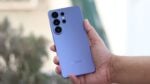 Amid the Galaxy Z Fold 8 and iPhone Duo hype, I went back to the S26 Ultra
 -
 The Galaxy Z Fold 8 makes better use of its big screen than the iPhone Duo
 -
 A magnetic battery pack could make the Galaxy Z Fold 8 an even better tablet
 -
 Samsung built the foldable market Apple is now claiming to revolutionize
 -
 Expectations vs reality: What does the Galaxy Z Fold 8's foldable screen actually feel like?
 -
 Is Samsung building the Galaxy S27 Pro with everyone else’s features?
 -
 A critical piece is missing from Samsung's smart home ecosystem
 -
 Samsung could crush Apple with the Galaxy Z Fold 8 and Fold 9
 -
 iPhone Duo pre-orders show Apple users are watching Samsung’s innovations closely



