Last updated: November 20th, 2023 at 14:49 UTC+01:00
SamMobile has affiliate and sponsored partnerships, we may earn a commission.
Reading time: 2 minutes
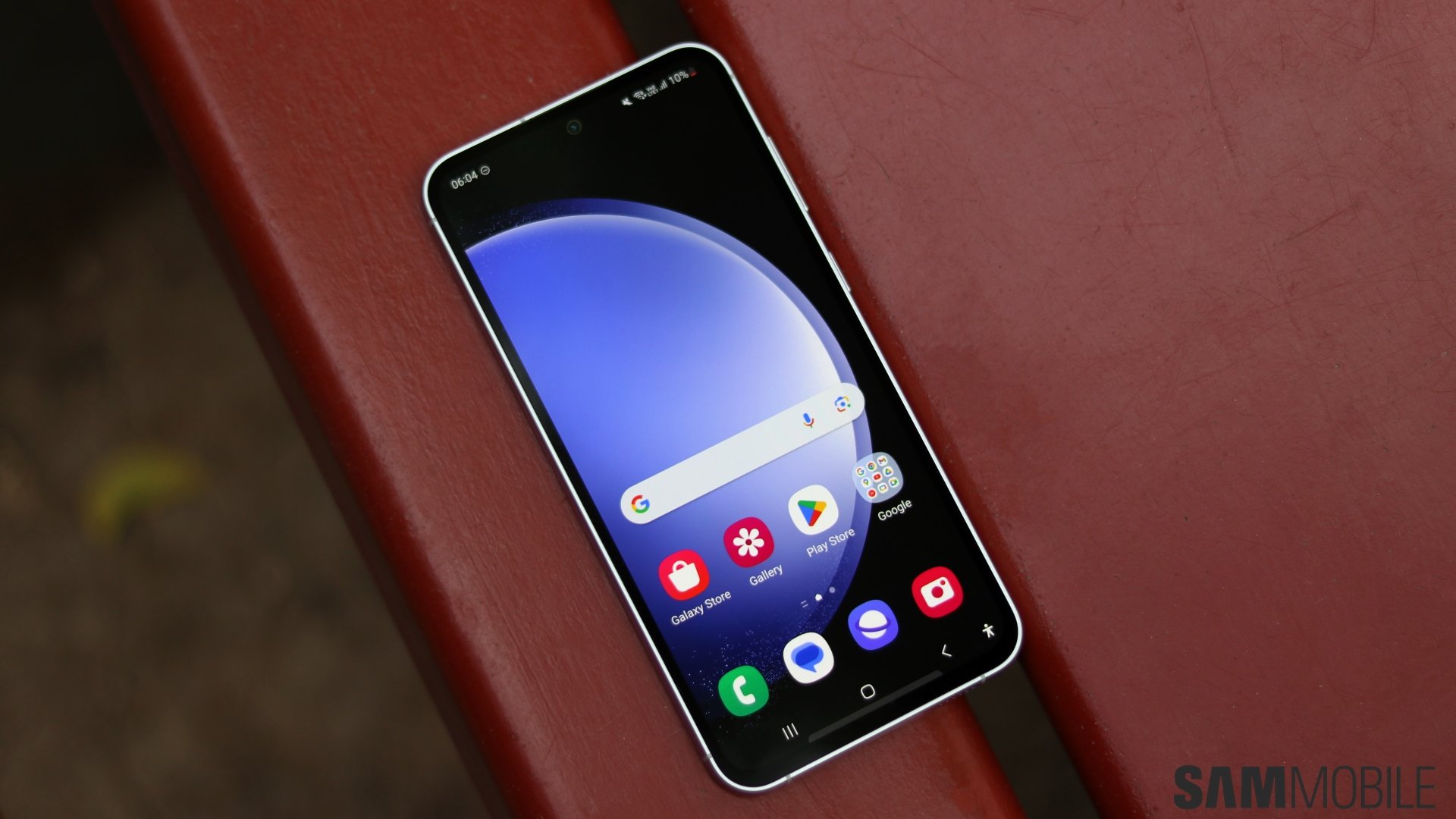
If you want to avoid this from happening, or if you want to make sure the system doesn't close an app for you, regardless of whether or not you tap “Close all,” One UI offers a solution. You can prevent these situations and force an app to stay open in just a few taps.
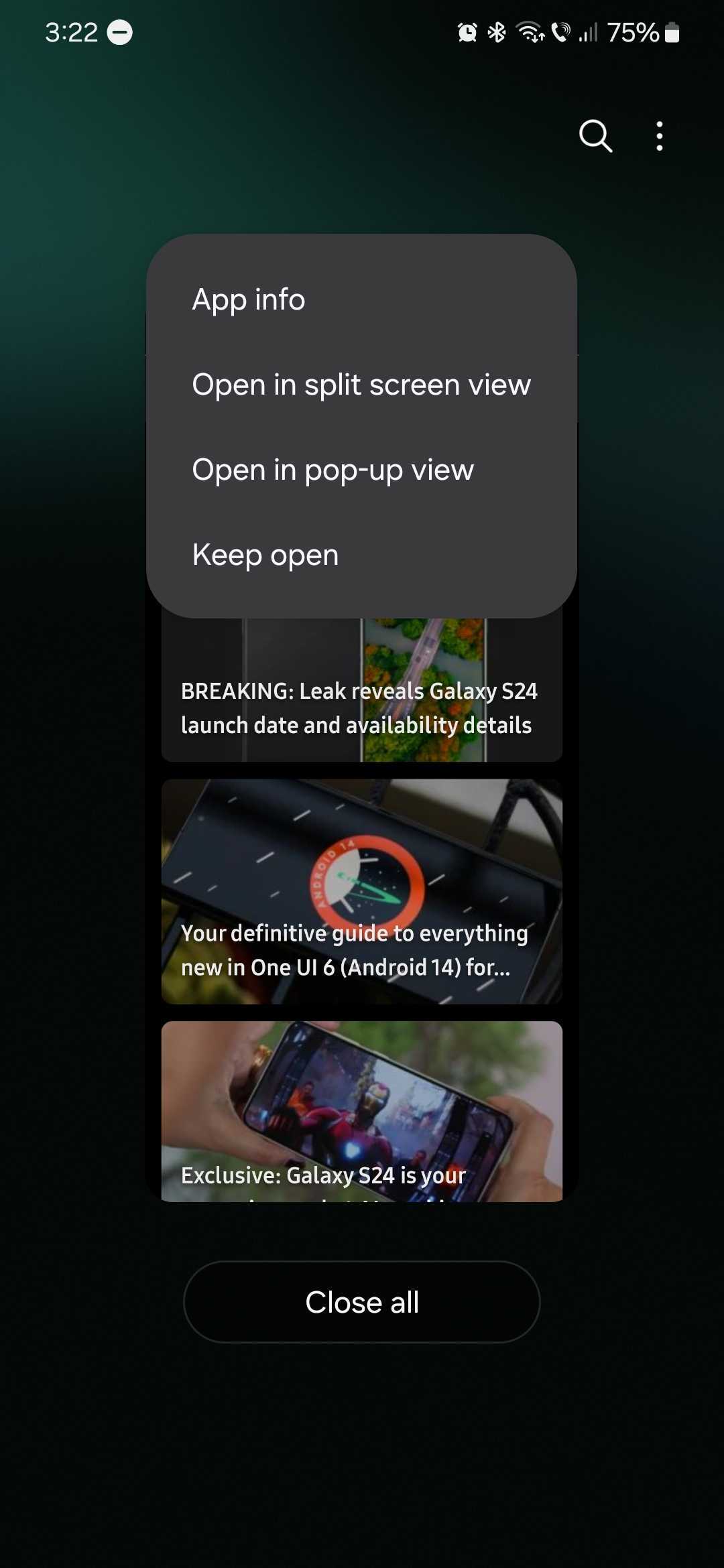
All you need is to open the Recent Apps screen, tap the app icon above the app you want to prevent from closing and tap “Keep open.”
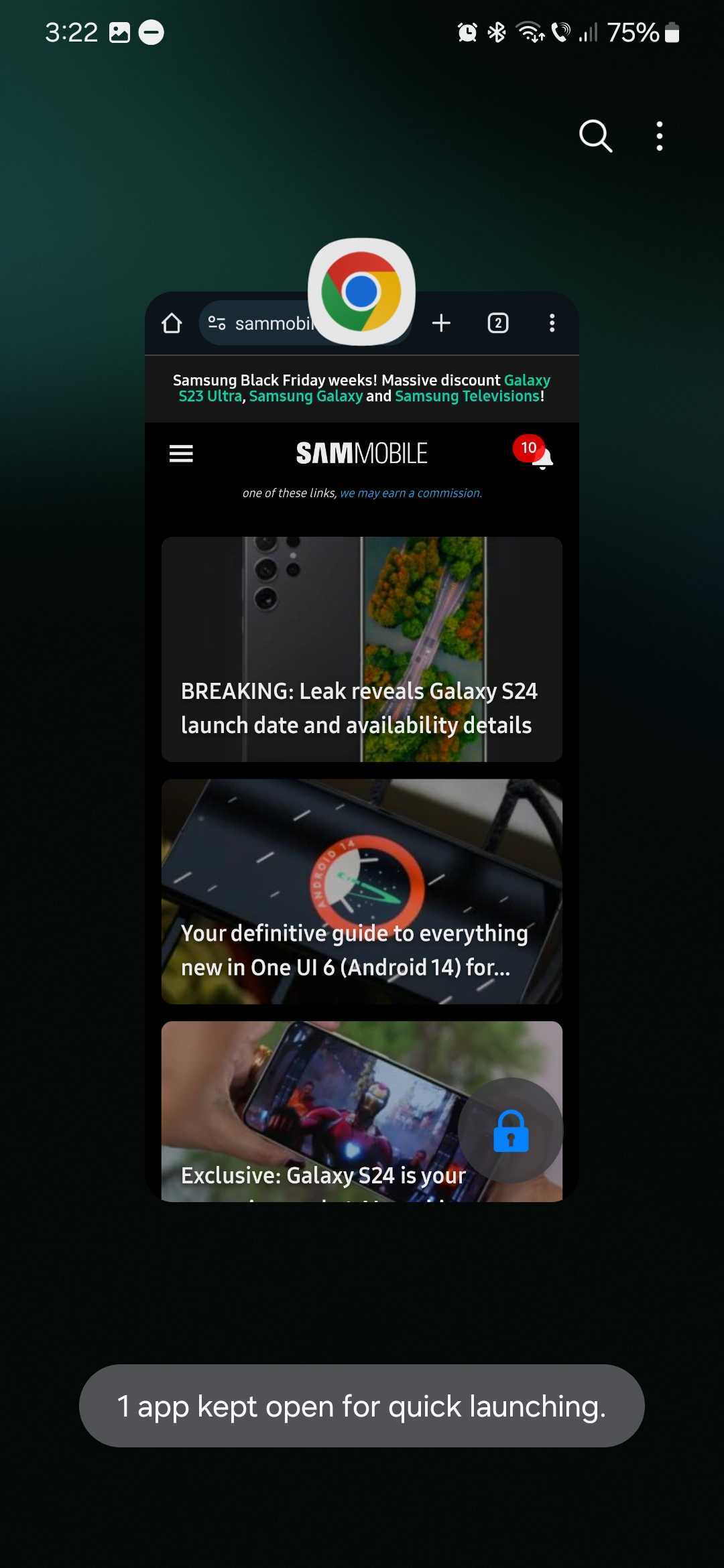
When you do this, you'll see an “app kept open for quick launching” message pop up. You'll also notice a lock icon in the lower-right corner of the app in Recent Apps.
With this little feature enabled, the locked app will always be ready to access quickly and won't close even if you press the “Close all” button.
Lastly, if you want to unlock the app, all you need is to tap the lock icon associated with the app in the Recent Apps screen.

Mihai is a blogger and column writer at SamMobile. His first Samsung phone was an A800 which took a lot of beating, and a part of him still misses the novelty of the clamshell design. In his free time, he enjoys watching shows, documentaries, and stand-up comedy; listening to music, taking walks, and occasionally playing old(er) video games.












