Last updated: June 1st, 2022 at 23:10 UTC+02:00
SamMobile has affiliate and sponsored partnerships, we may earn a commission.
Reading time: 2 minutes
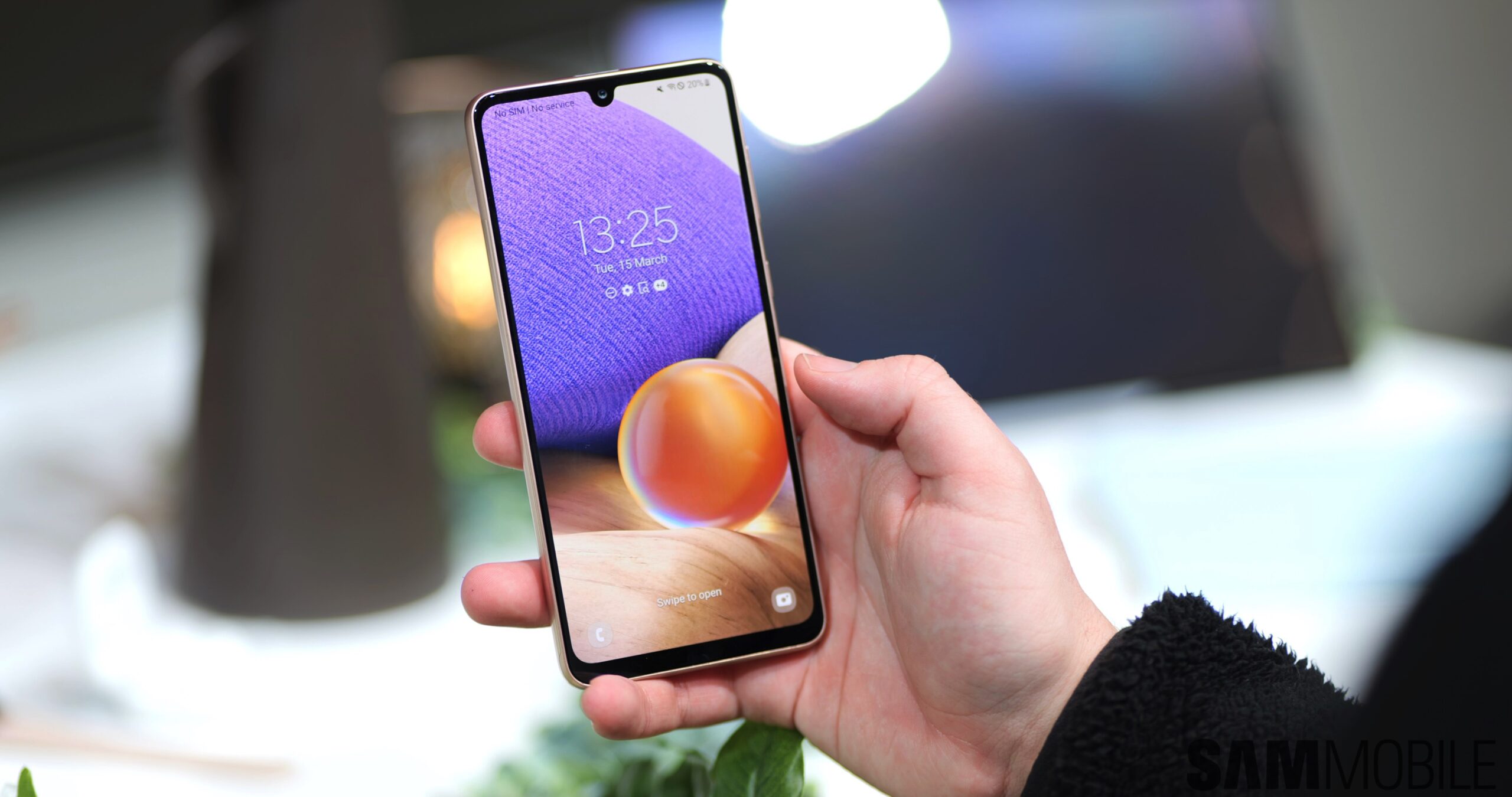
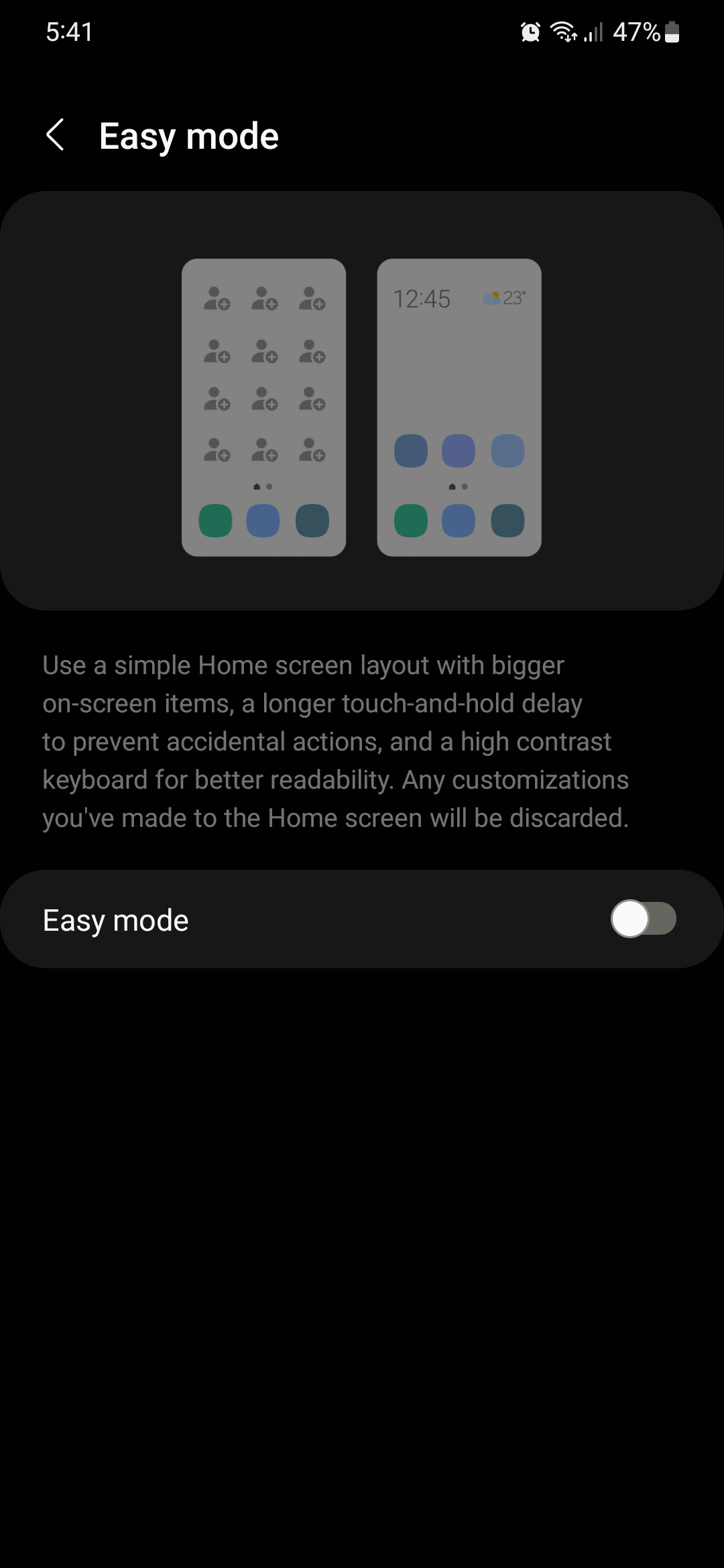
What is Easy Mode? In a few words, it's a feature built into One UI that allows customers to simplify the user experience. This mode can prevent accidental screen touches and makes text and icons bigger. It also enables the high contrast mode for Samsung Keyboard and disables more advanced UI elements such as the Edge panel.
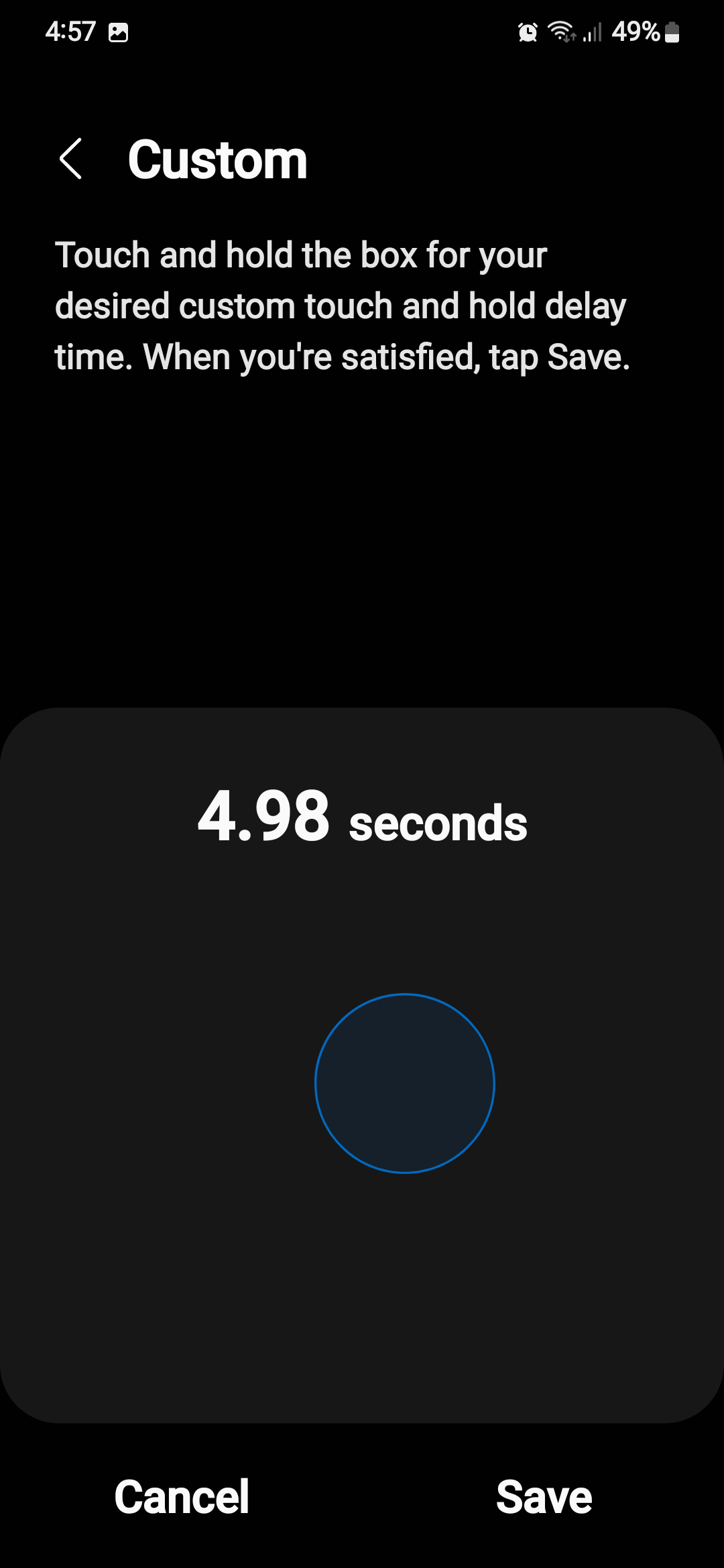
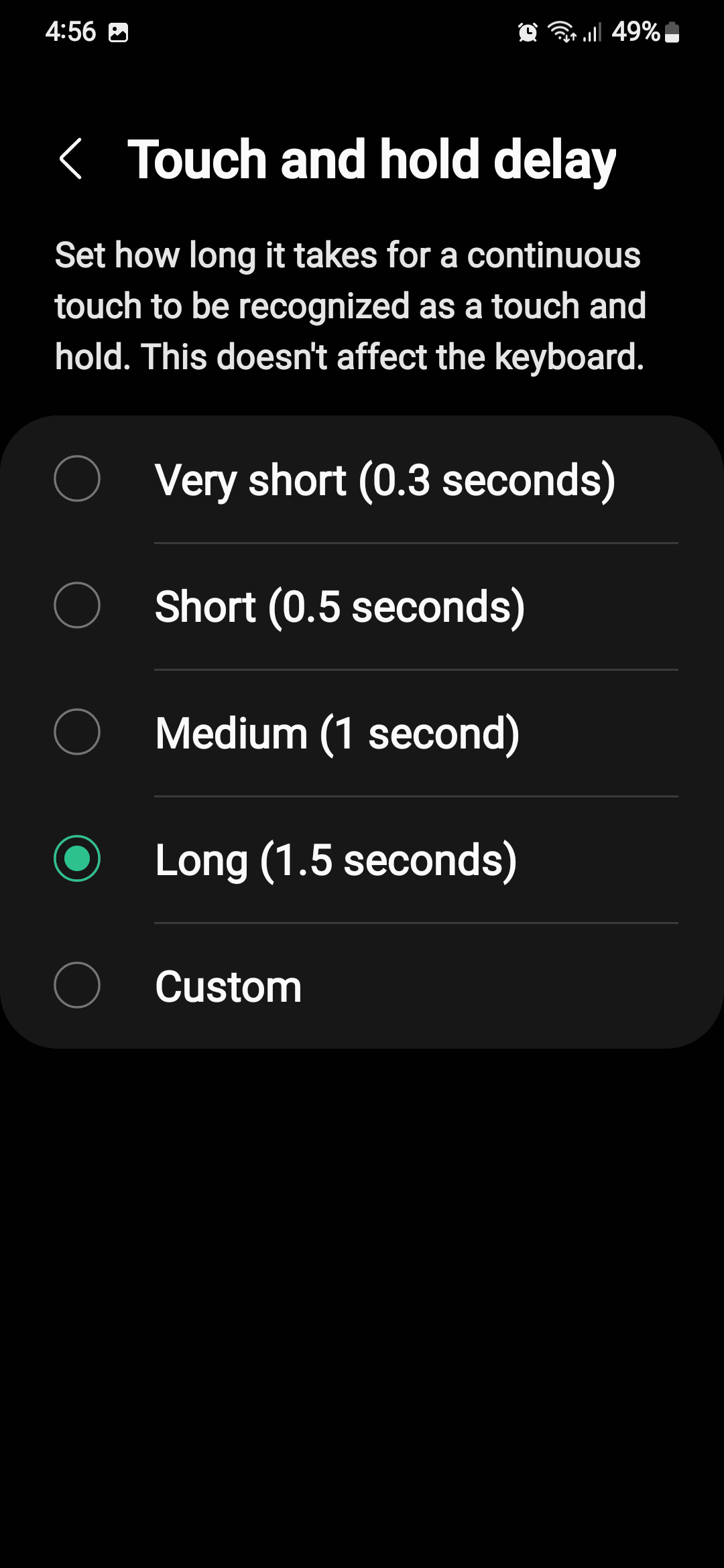
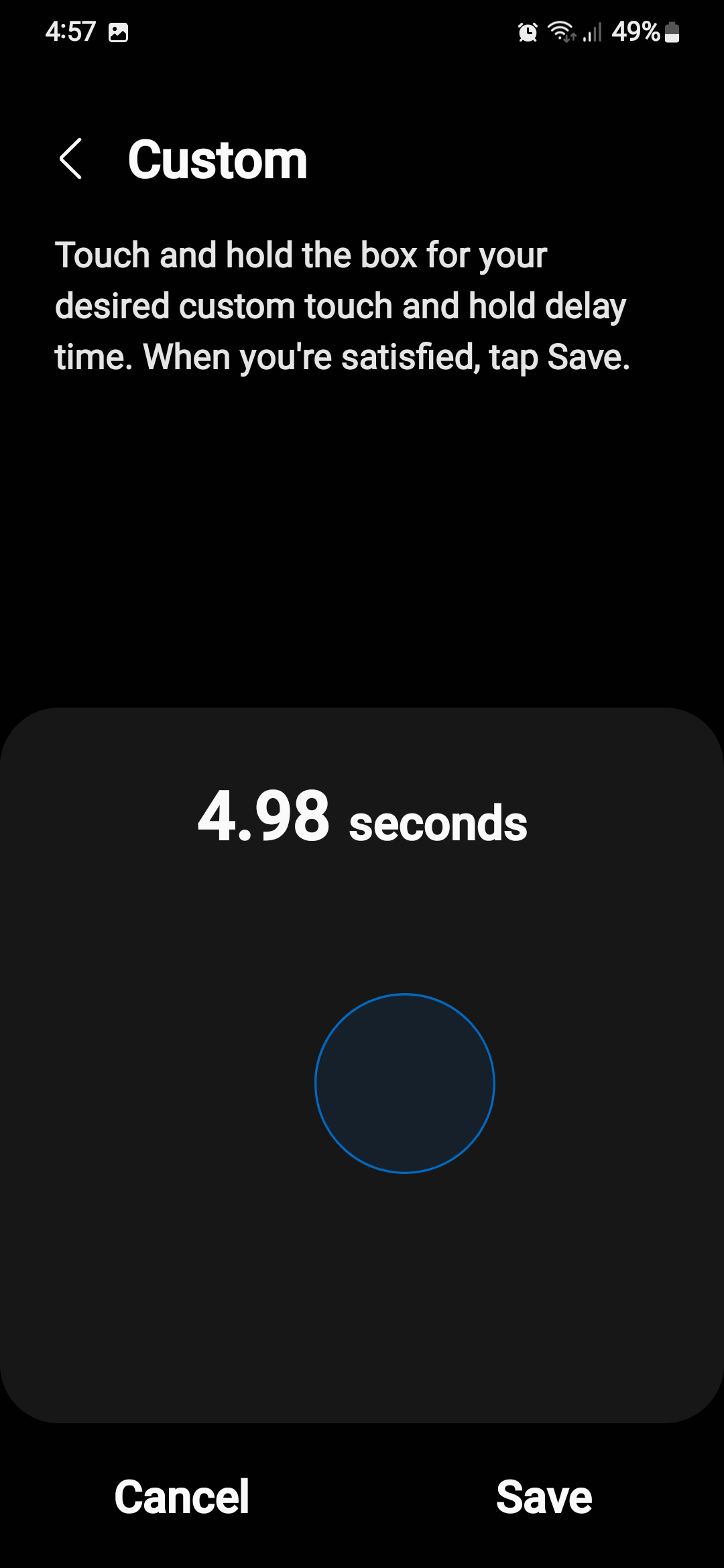
Furthermore, Easy Mode allows users to set a custom duration for the “tap and hold” command.
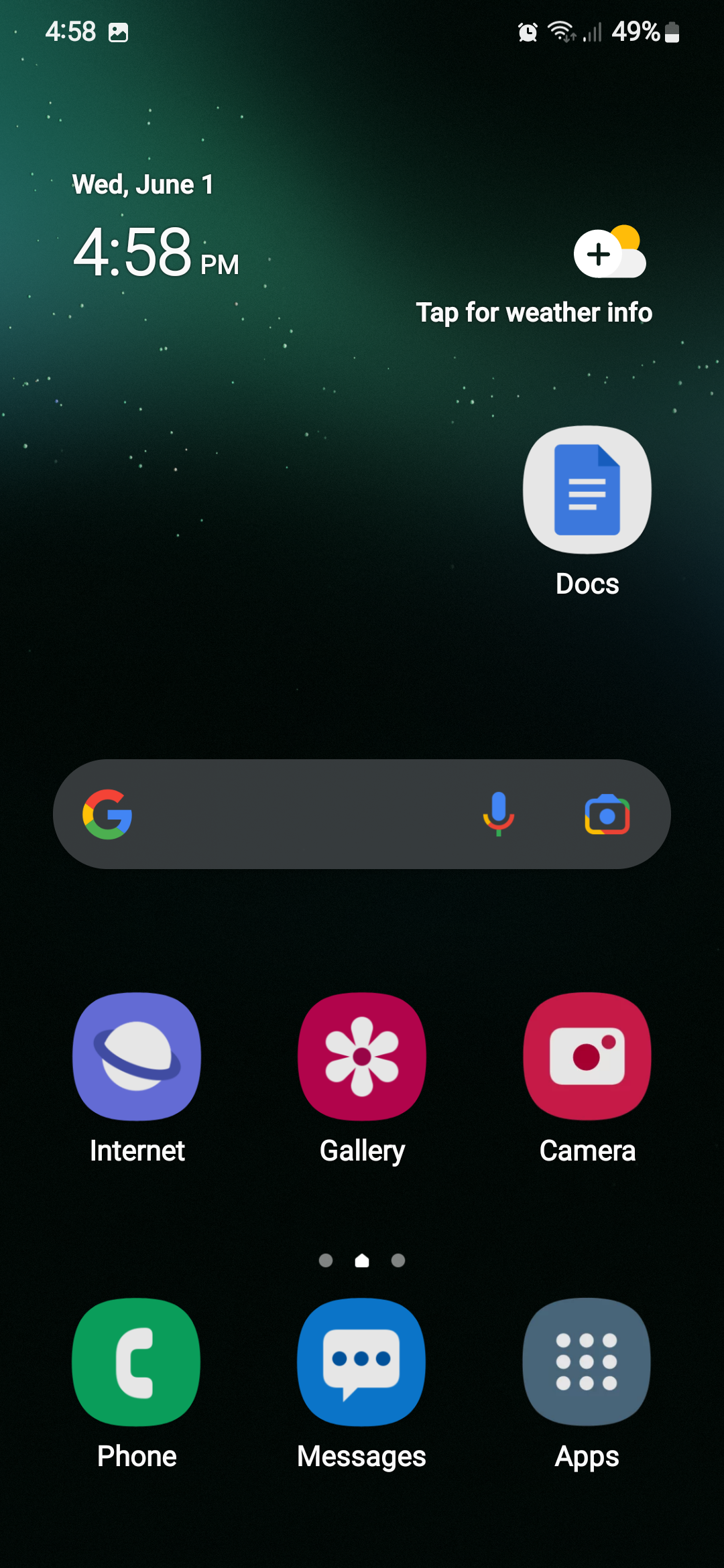
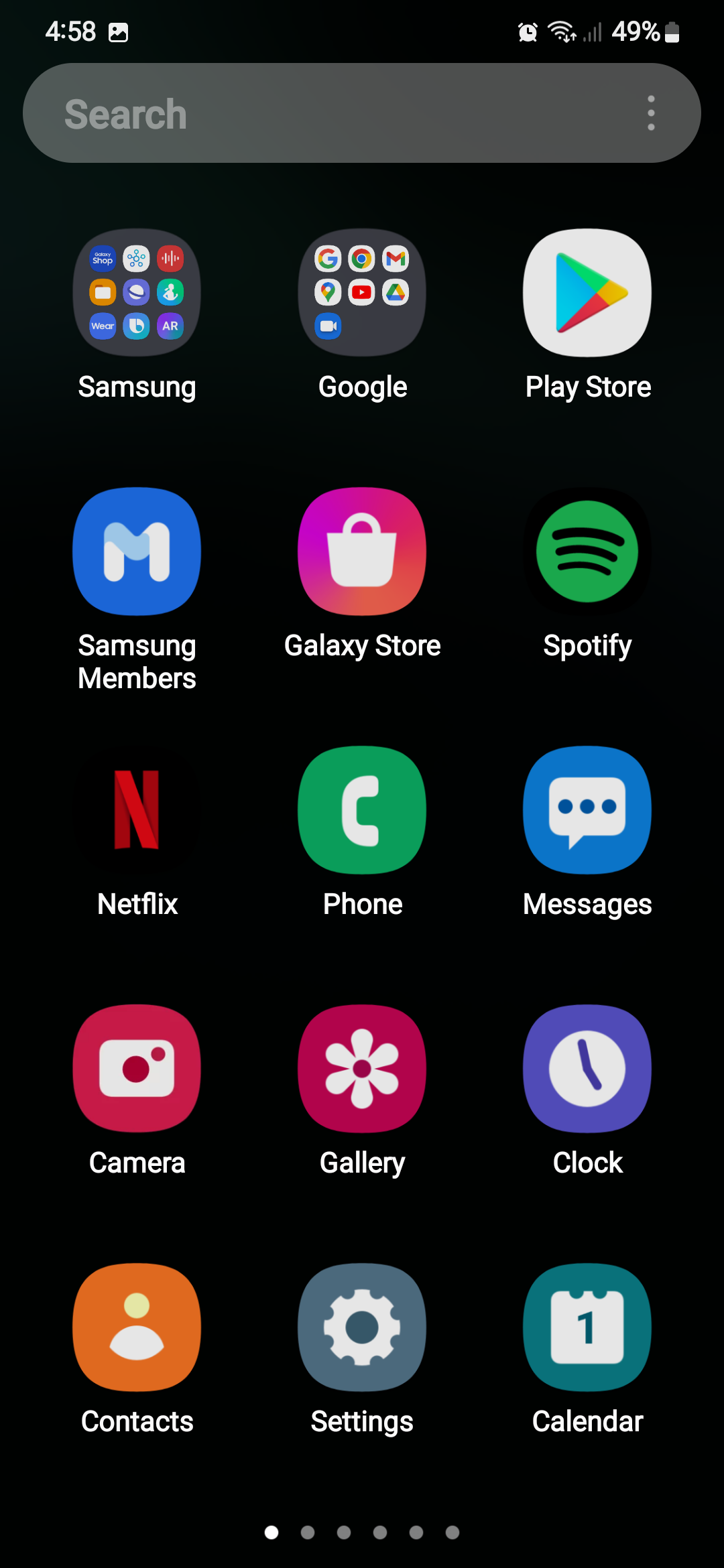
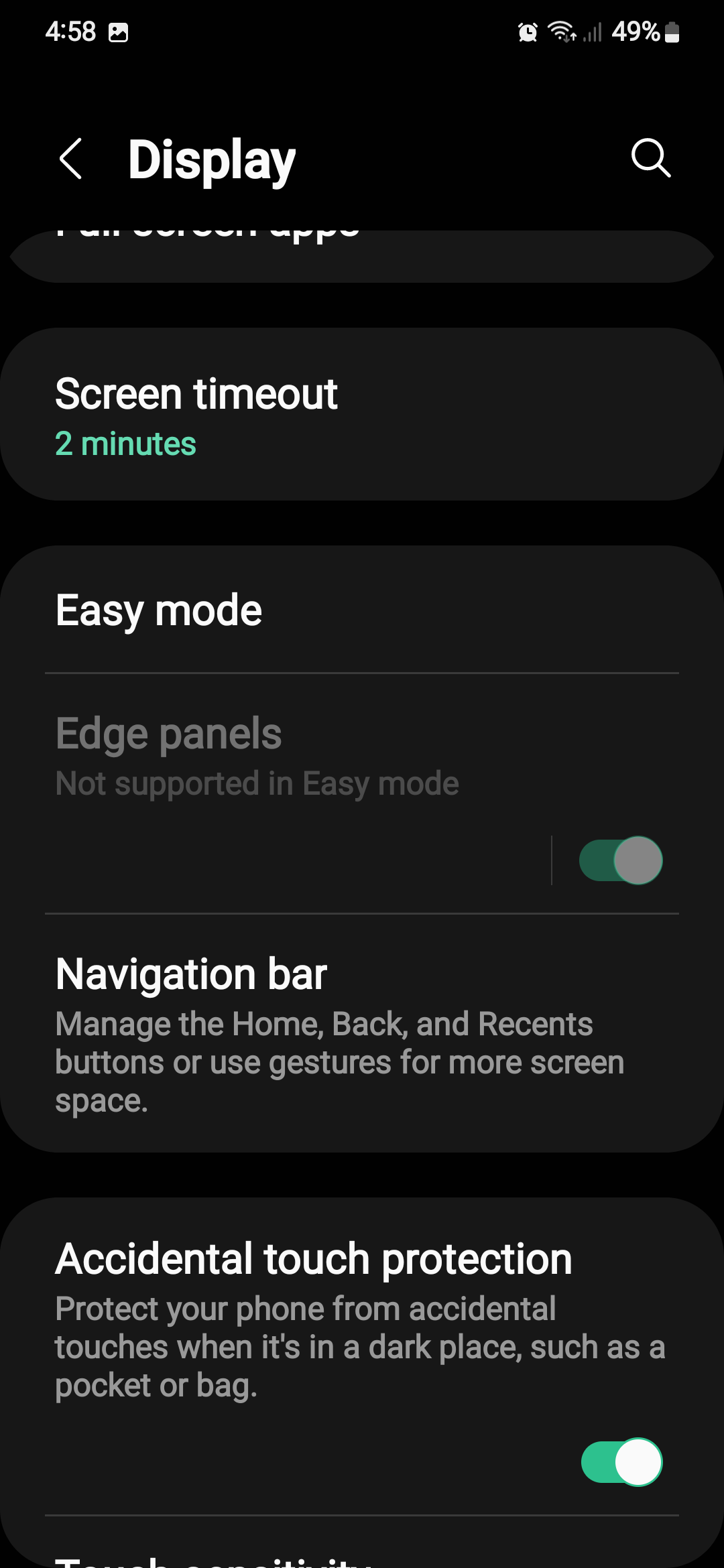
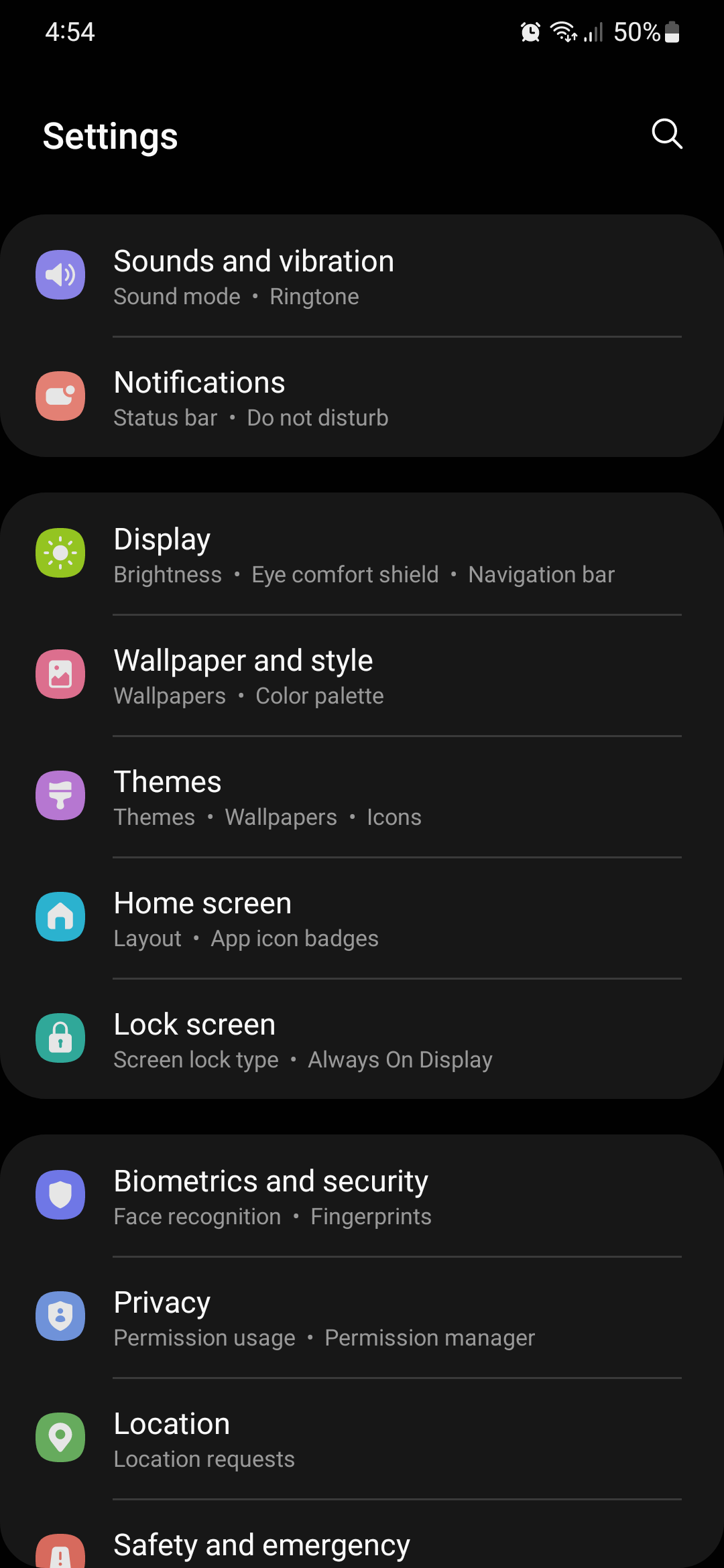
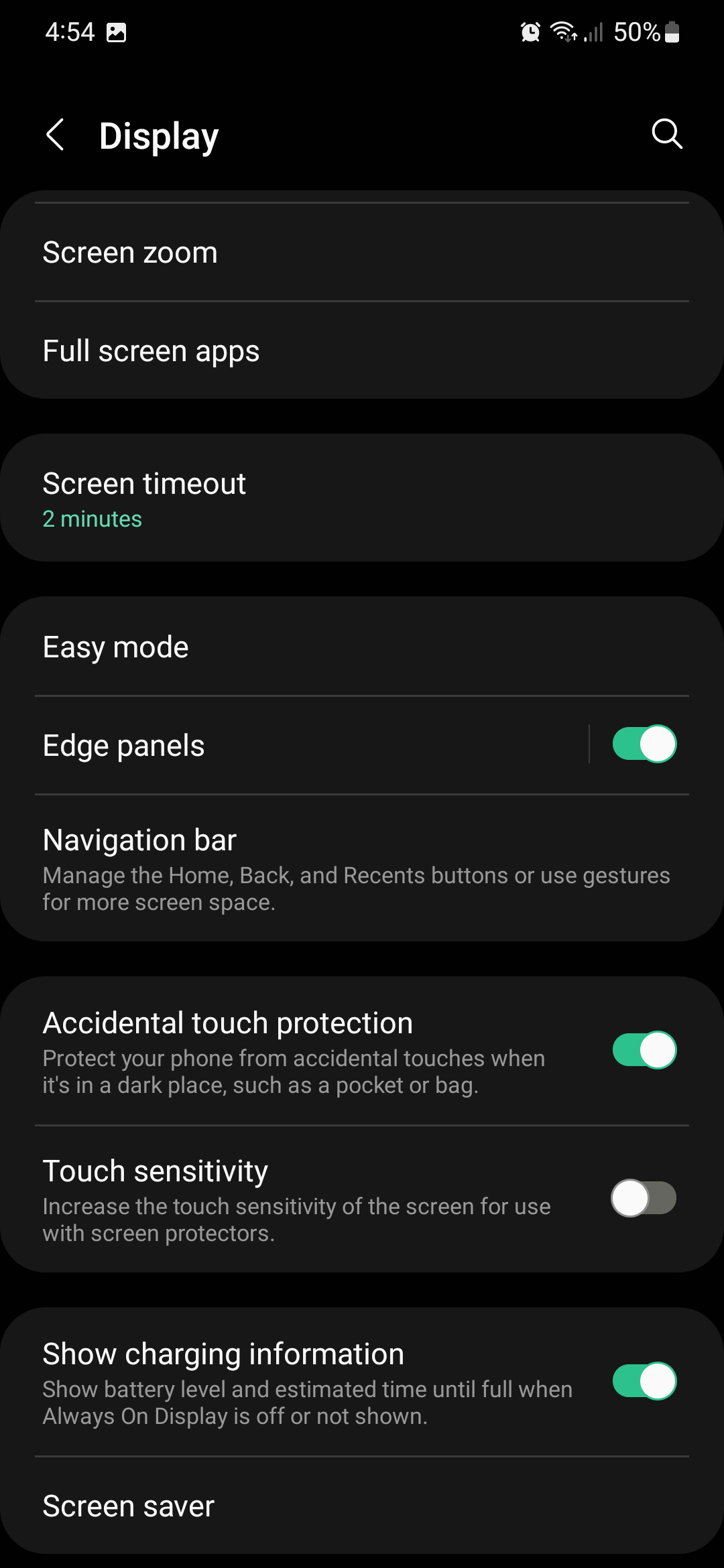
Easy Mode is only a couple of taps away from the home screen, conveniently enough. To enable it, open the Settings app, access “Display,” tap “Easy mode,” and switch the toggle ON.
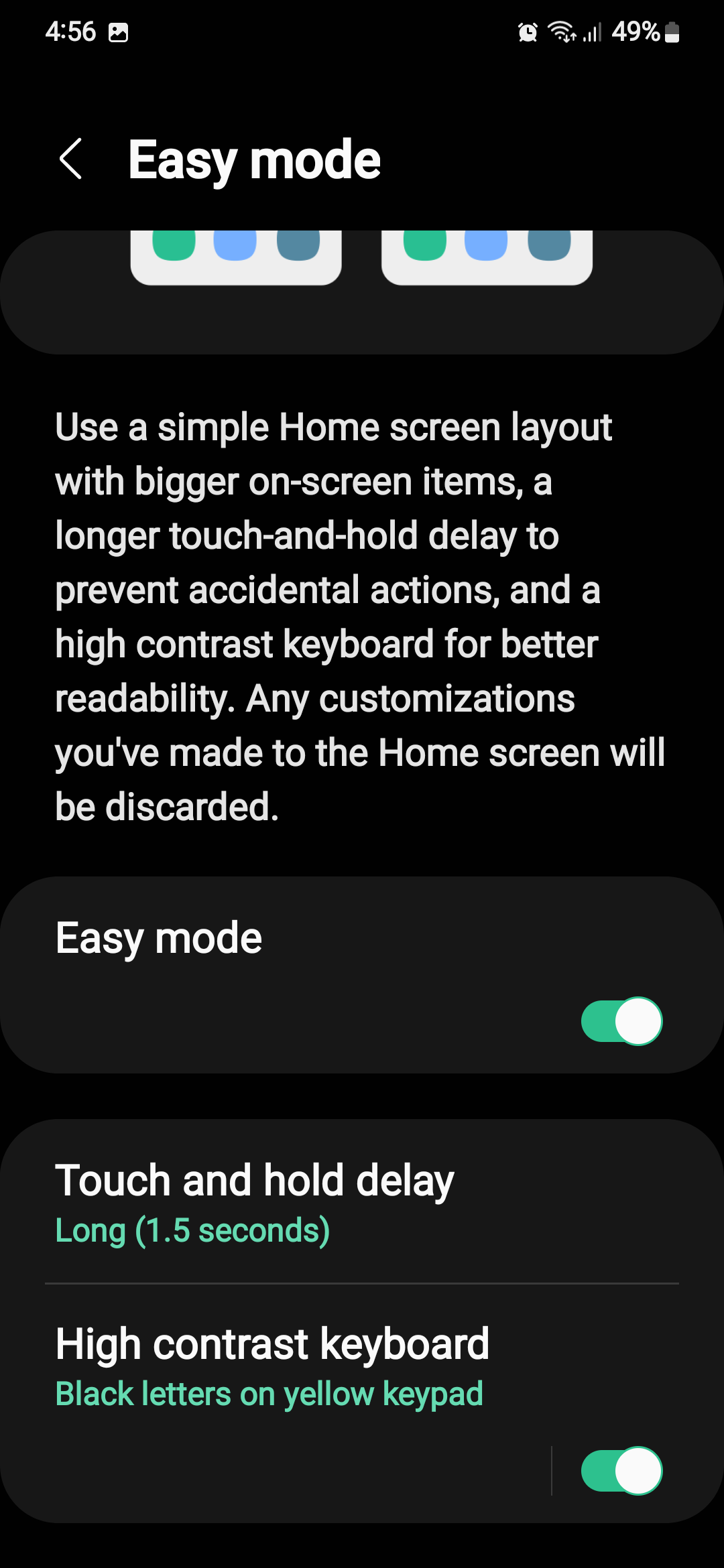
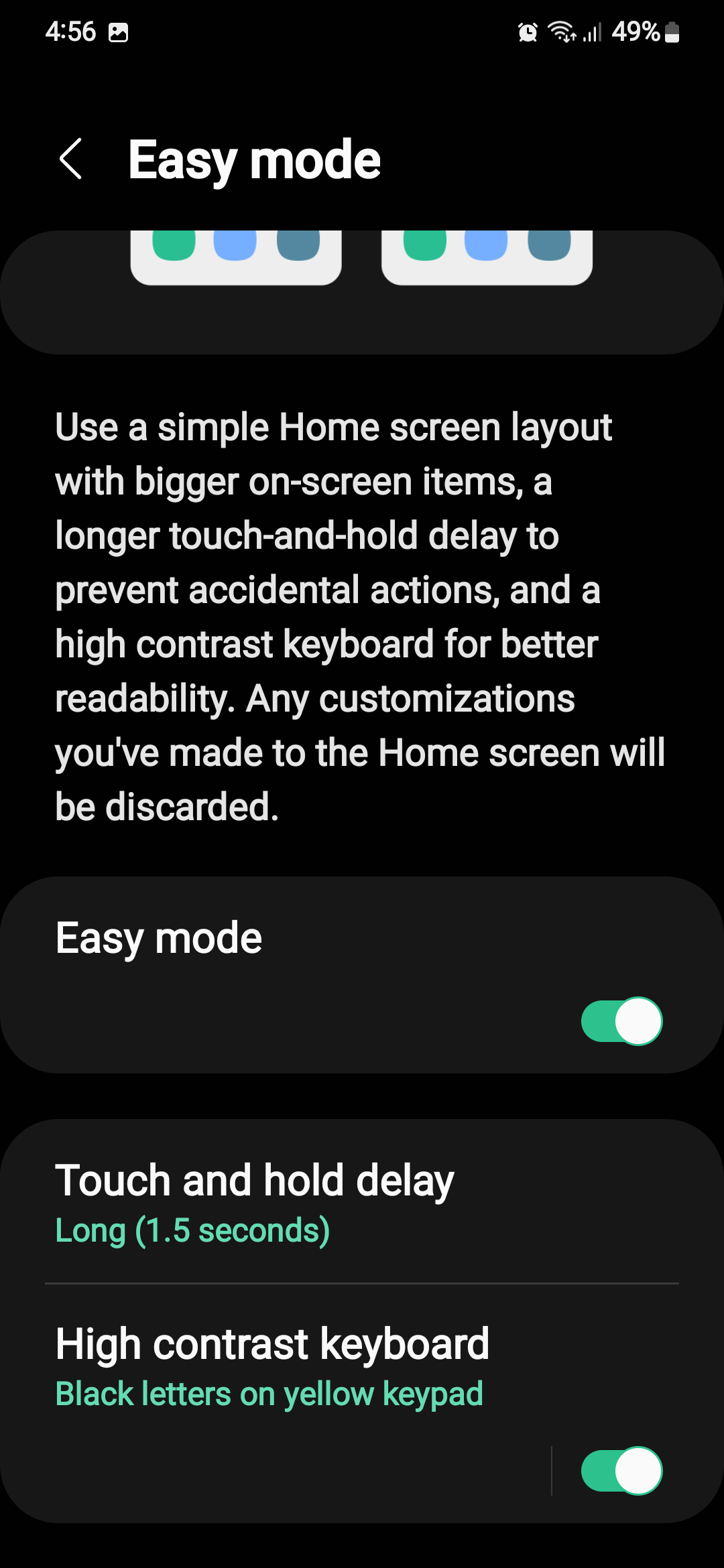
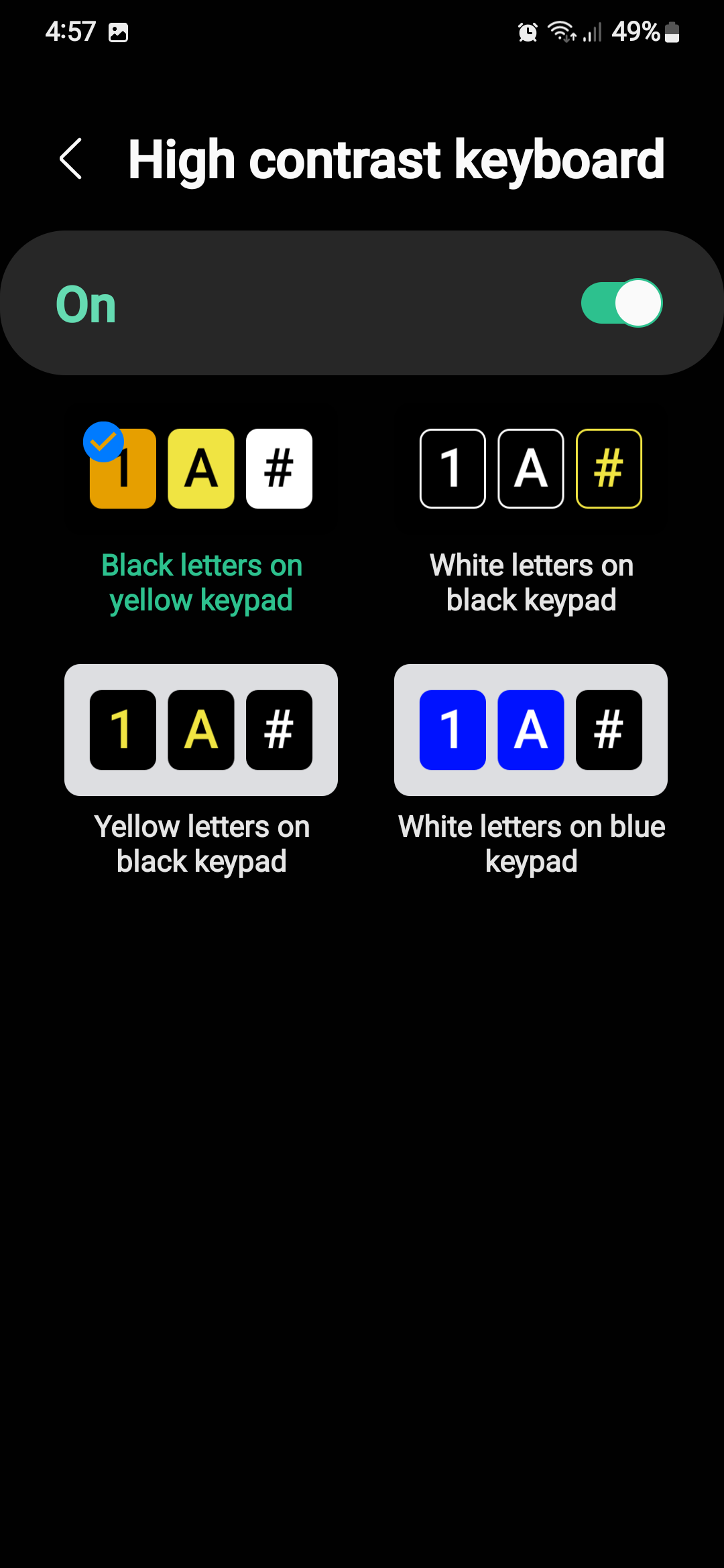
A few extra options are presented to the user once Easy Mode is enabled. Users can select a preset “tap and hold” duration or set a custom one. They can also choose one of four high contrast Samsung Keyboards.
NOTE: All of our home screen settings were restored after disabling Easy Mode on our One UI 4.x devices, despite the warning that “any customizations you've made to the home screen will be discarded” when the mode is enabled. However, your mileage might vary, and you may experience a different behavior on older versions of One UI or other Galaxy devices.
Join SamMobile’s Telegram group and subscribe to our YouTube channel to get instant news updates and in-depth reviews of Samsung devices. You can also subscribe to get updates from us on Google News and follow us on Twitter.

Mihai is a blogger and column writer at SamMobile. His first Samsung phone was an A800 which took a lot of beating, and a part of him still misses the novelty of the clamshell design. In his free time, he enjoys watching shows, documentaries, and stand-up comedy; listening to music, taking walks, and occasionally playing old(er) video games.













