Last updated: July 3rd, 2024 at 16:50 UTC+02:00
SamMobile has affiliate and sponsored partnerships, we may earn a commission.
Reading time: 3 minutes
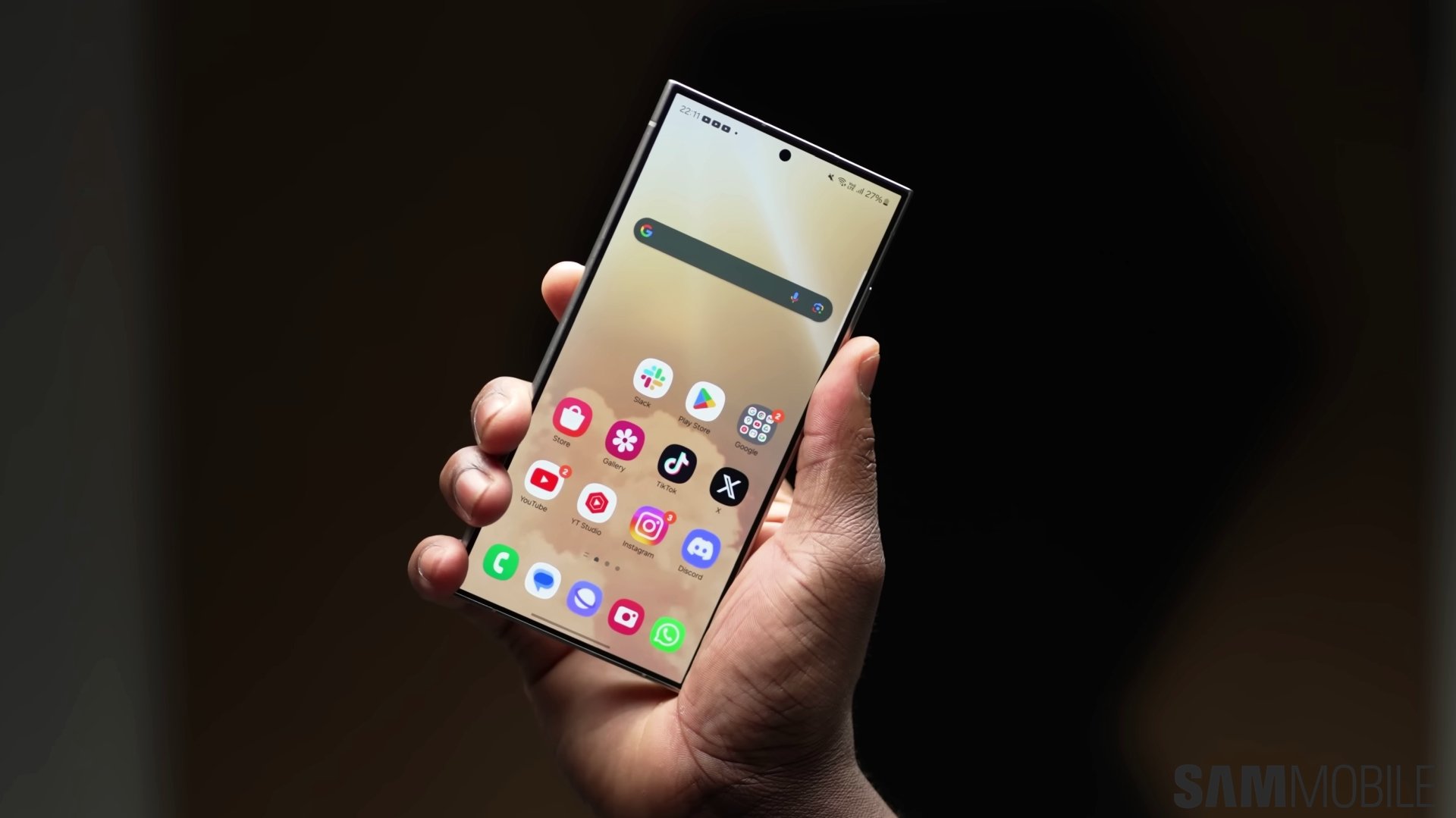
Another great thing about these quick-access icons is that One UI users can turn them into home screen shortcuts. Doing so can simplify the user experience and, in some cases, may even completely change how you interact with some of your apps.
The YouTube mobile app is a perfect example of this. As you may know, the YouTube mobile app always opens on the “Home” tab, and there is no option to change this.
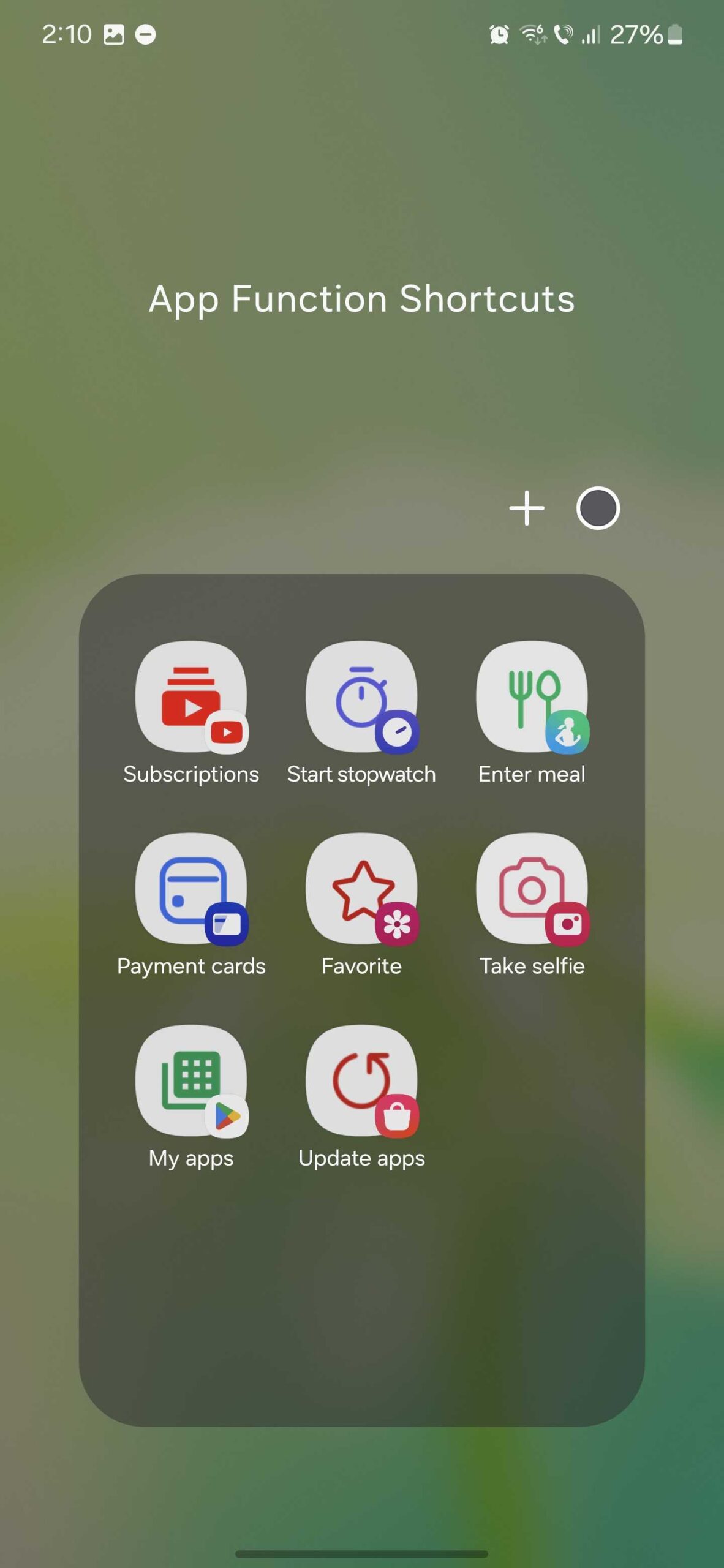
However, thanks to this One UI feature that lets you access select app functions directly, you can, for example, create a custom shortcut to YouTube's “Subscription” tab. Or create a YouTube shortcut that always opens the app on the “Shorts” tab. You can then use this shortcut to open the app instead of the standard YouTube app shortcut.
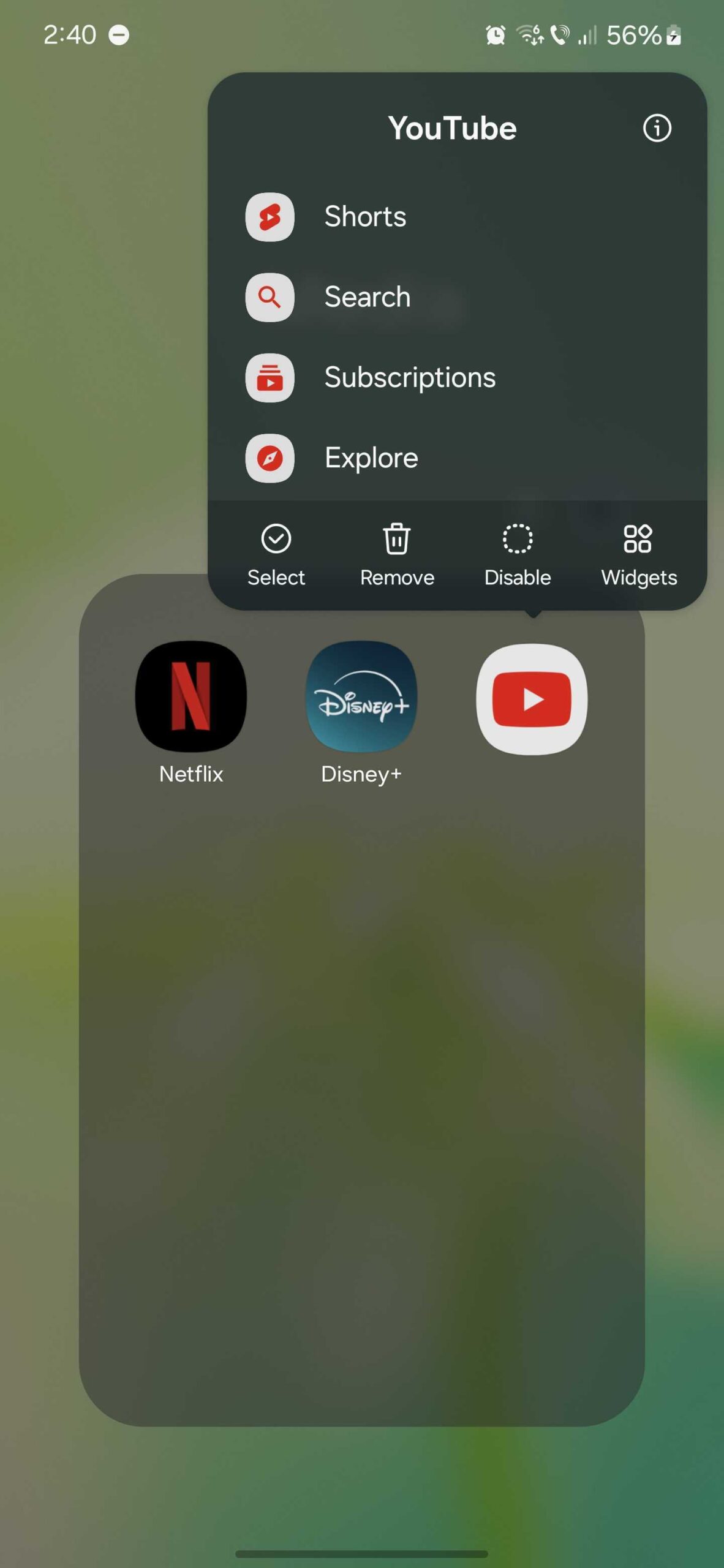
Another example of how you can simplify your user experience is creating quick-access shortcuts to the Galaxy Store and Play Store's “Update apps” and “My apps” features, allowing you to quickly check for app updates without having to go through various menus or close pop-ups. You don't like the Instant Play pop-up you always get when you open the Galaxy Store? This can solve the issue.
As mentioned before, the way you access this pop-up menu is by tapping and holding an app's shortcut. Once you open the pop-up menu, tap and hold one of the app's functions from the menu and then drag and drop it on the home screen or inside a folder to create a shortcut. That's it!
Here are some app function shortcut examples we found useful:
You can place these app function shortcuts on the home screen or organize them in folders, just like you would regular app shortcuts.
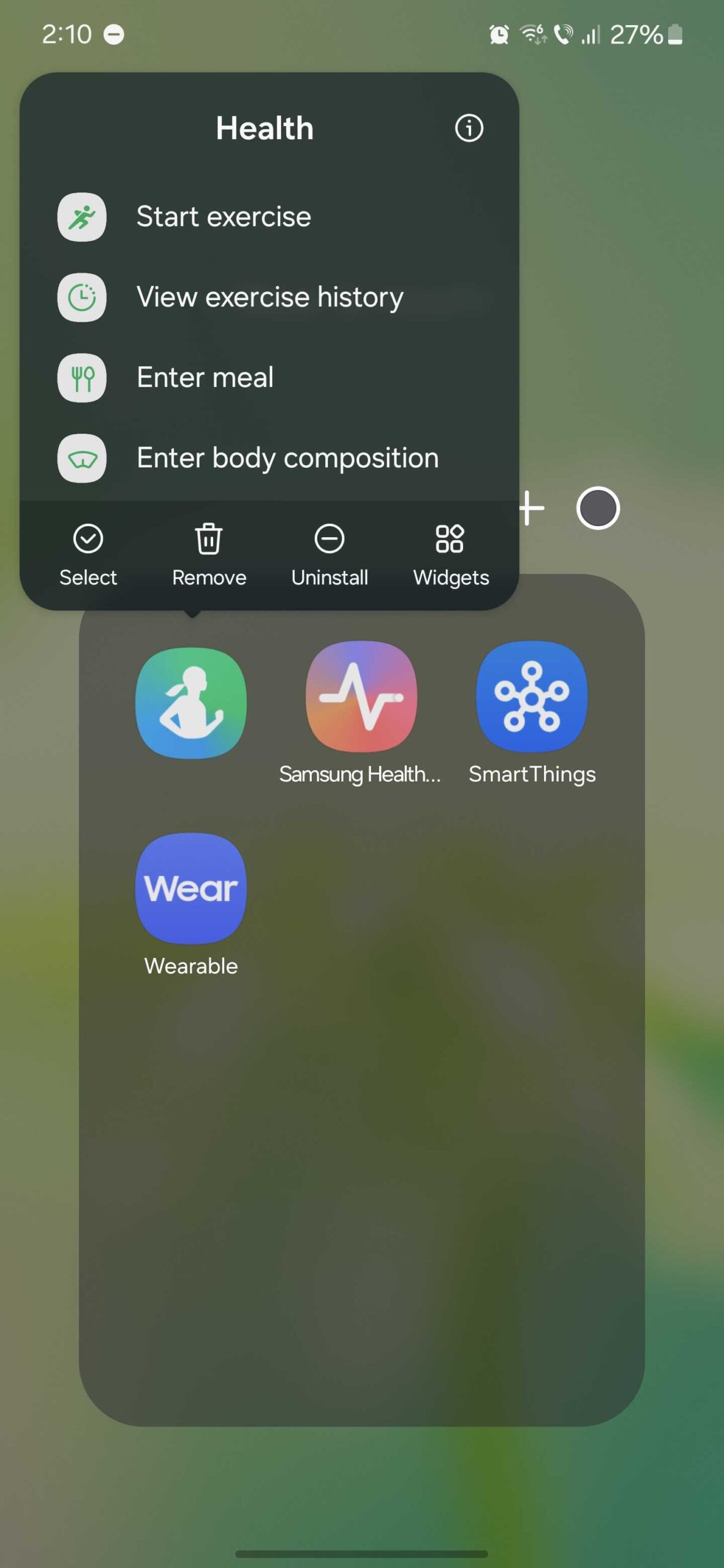
It's important to keep in mind that some apps have a hidden pop-up menu with extra functions, but others do not. And there is no way to tell which do and don't. You will have to tap and hold app shortcuts on your own to find out.
Remember that any app can have a pop-up quick access menu, whether it's developed by Samsung, Google, or a different company. Try them out and see for yourself. You never know what useful function shortcuts you might find.

Mihai is a blogger and column writer at SamMobile. His first Samsung phone was an A800 which took a lot of beating, and a part of him still misses the novelty of the clamshell design. In his free time, he enjoys watching shows, documentaries, and stand-up comedy; listening to music, taking walks, and occasionally playing old(er) video games.













