Exceptional gifting. Our Samsung Galaxy gift guide features smartphones and wearables.
Last updated: December 2nd, 2024 at 15:58 UTC+01:00
SamMobile has affiliate and sponsored partnerships, we may earn a commission.
Reading time: 2 minutes
These per-app trash cans / recycle bins are quite handy, as they allow users to restore files they may have accidentally deleted. They also come with an auto-empty functionality, so you don't have to worry about losing free storage over time.
However, if you want to keep track of what you may or may not have sent to each trash can, that can turn into a bit of a headache.
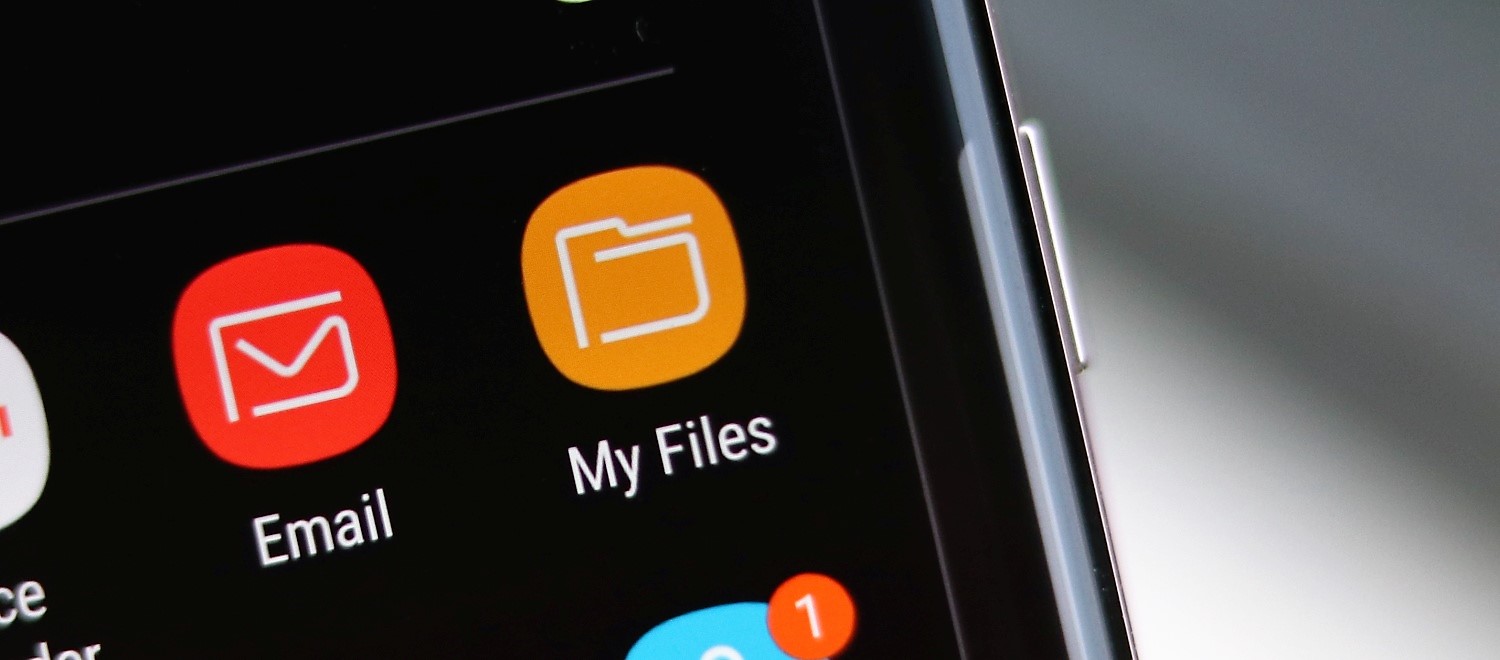
Thankfully, with the release of One UI 6.1.1, Samsung updated the My Files app with a new trash can that works a lot more like the recycle bin in Windows OS or the Trash can in macOS.
Essentially, in One UI 6.1.1, you can delete every file from every Samsung app trash can in one go by opening the My Files app, scrolling down to “Utilities,” and accessing “Trash” / “Recycle bin.”
In One UI 6.1.1, the My Files trash can is unique in that it contains all the files you've sent to all the trash bins. This includes files you may have deleted using My Files or any other app. It's a universal trash can that can come in handy.
Not only that, but this new functionality almost makes One UI 6.1.1 feel closer to a full-fledged desktop OS. And it doesn't change the way the in-app trash cans work, either. It's a win-win solution.
Check out our short TikTok video below for a quick demonstration of how it all works. Don't forget to subscribe for more.
@sammobileofficial HIDDEN Recycle Bin trick in One UI! #samsungtips #sammobile #tecktok #fyp #foryourpage
Mihai is a blogger and column writer at SamMobile. His first Samsung phone was an A800 which took a lot of beating, and a part of him still misses the novelty of the clamshell design. In his free time, he enjoys watching shows, documentaries, and stand-up comedy; listening to music, taking walks, and occasionally playing old(er) video games.