Last updated: February 27th, 2023 at 18:21 UTC+01:00
SamMobile has affiliate and sponsored partnerships, we may earn a commission.
Reading time: 3 minutes
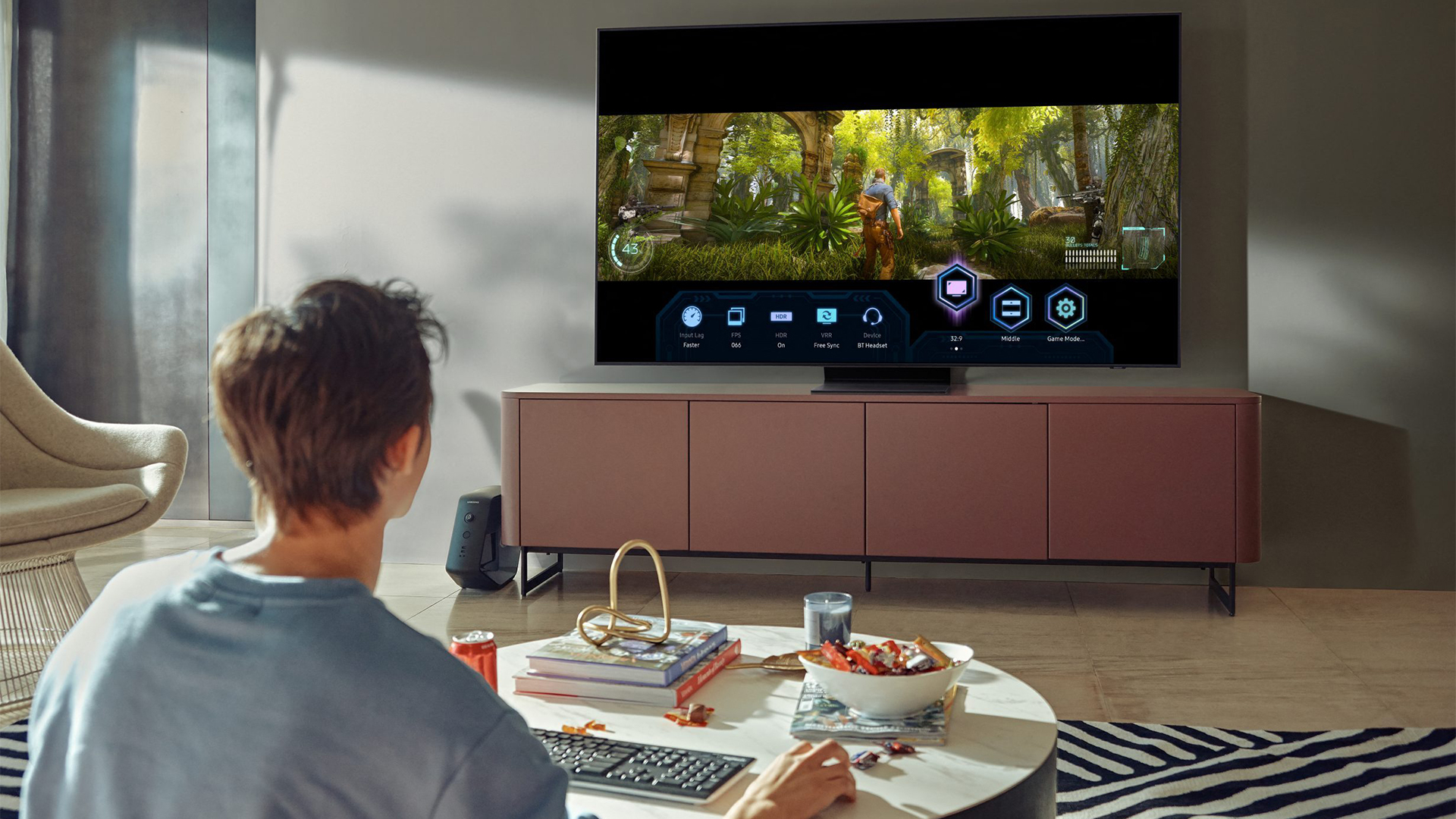
For a wired connection, however, Samsung DeX needs an HDMI-USB hub, and DeX can be a bit picky as to which hubs it accepts. Now that Samsung no longer manufactures DeX Stations, choosing the right HDMI hub can be challenging.
Because of this unfortunate reality, the cheapest and most hassle-free way to try Samsung DeX without an HDMI-USB hub is via a wireless connection to a compatible TV or monitor. And as is usually the case with wired versus wireless connections, there are pros and cons to this method:
Samsung wireless DeX pros:
Samsung wireless DeX cons:
Input lag is one of the greatest disadvantages of using Samsung DeX wirelessly, but thankfully, there is a simple solution to minimizing this issue. And that is by connecting your mouse and keyboard directly to your TV via USB, rather than connecting these peripherals to your Galaxy smartphone or tablet when using wireless DeX.
A delay specific to the Wi-Fi Direct connection between your Galaxy phone or tablet and the TV or monitor will still exist. But the input lag will be gone almost entirely if you connect your keyboard and mouse to your TV rather than your smartphone or tablet. It won't solve the delay issue entirely or make DeX more powerful, but it will give the sensation that wireless DeX is more responsive.
So, there you have it. If you always wanted to try Samsung DeX without spending extra on an HDMI hub, and if you have a monitor or a TV with Miracast (preferably a Samsung smart TV released in 2019 or later), remember to always connect your peripherals directly to your screen via USB rather than connecting them to your smartphone or tablet. And if your TV has only one USB port, you can use a simple USB hub.
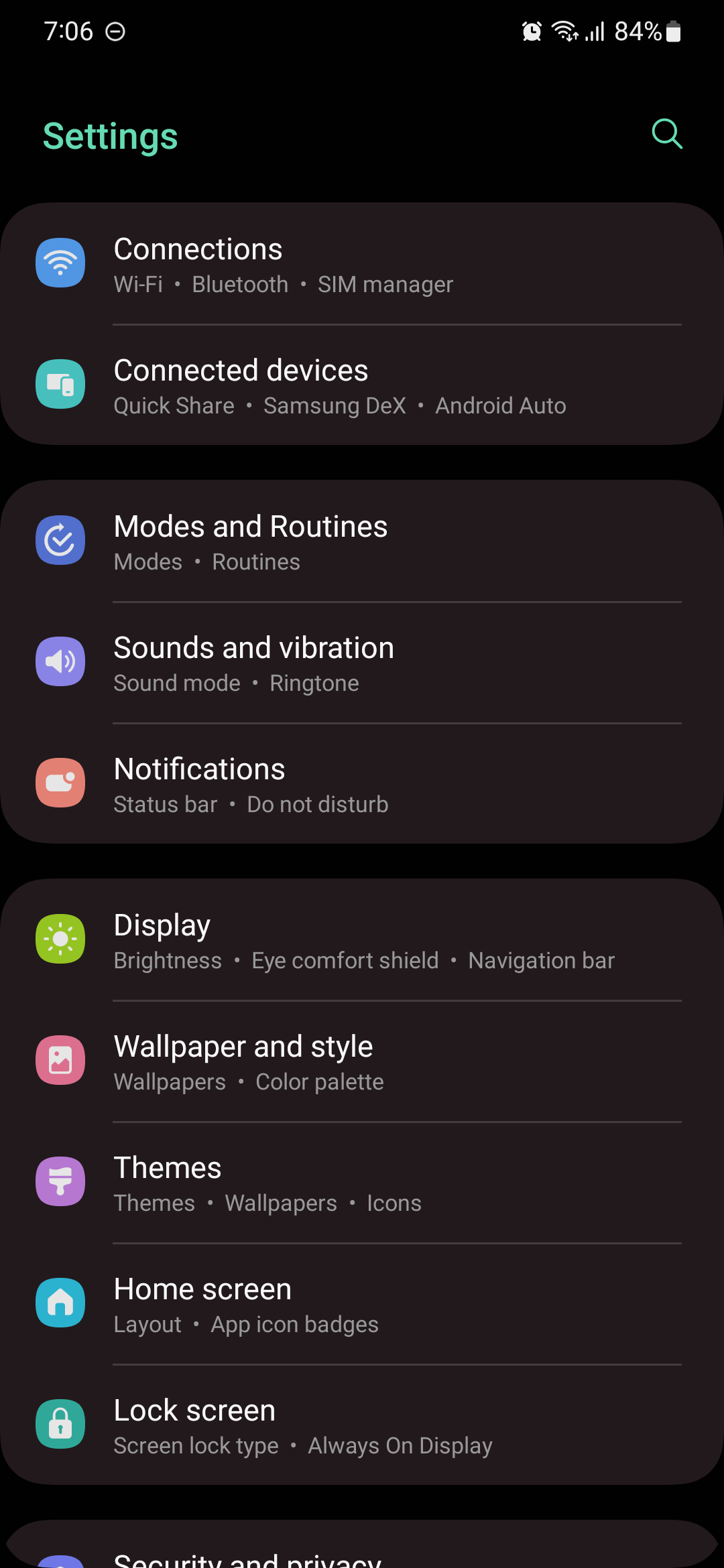
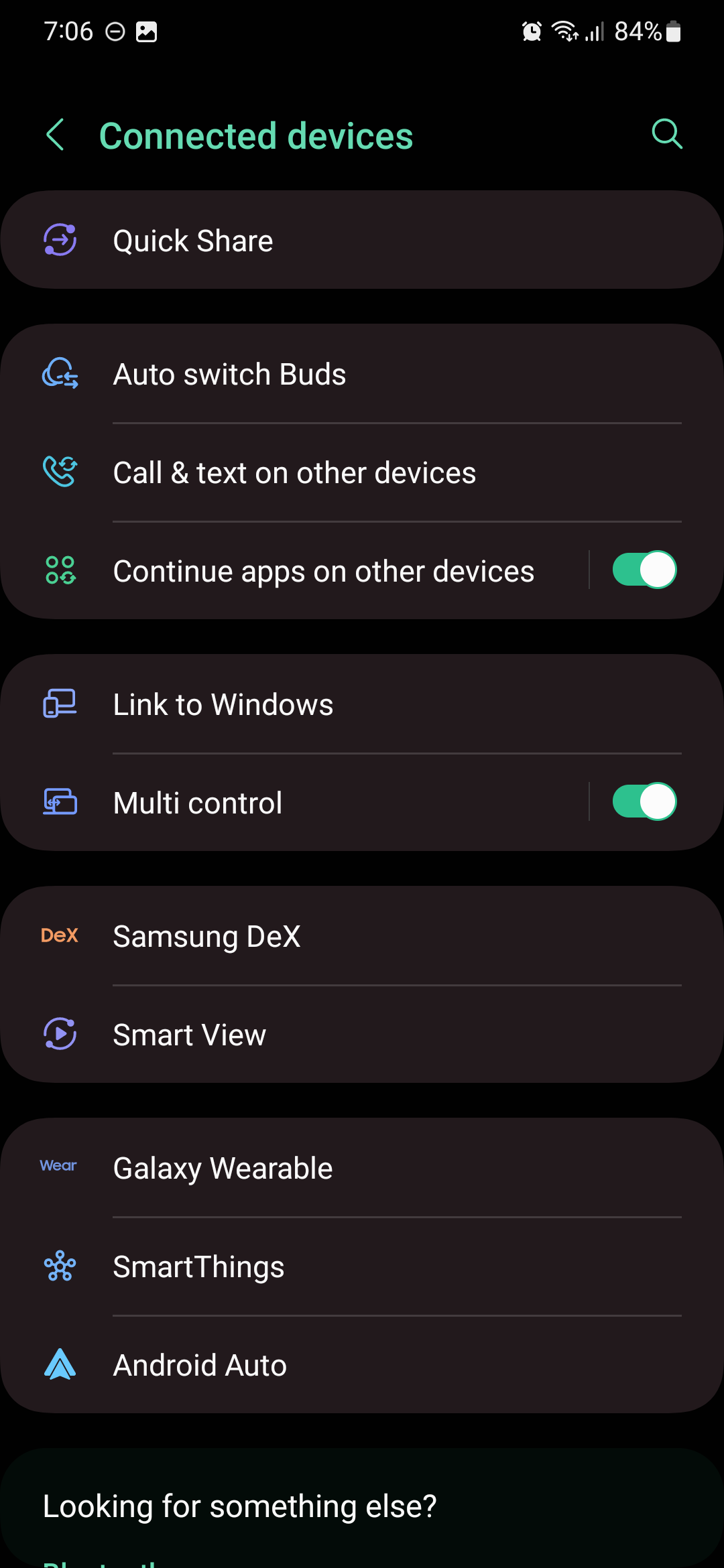
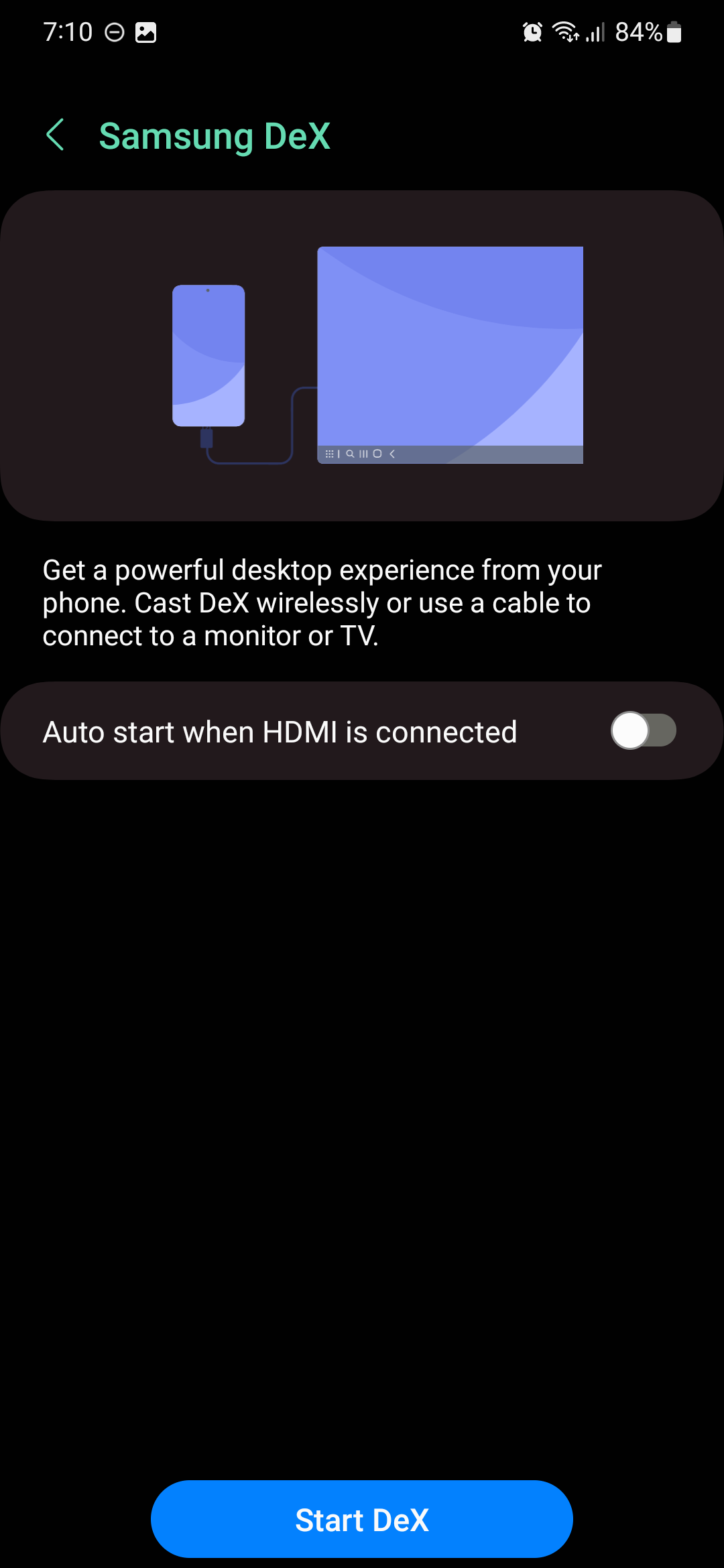
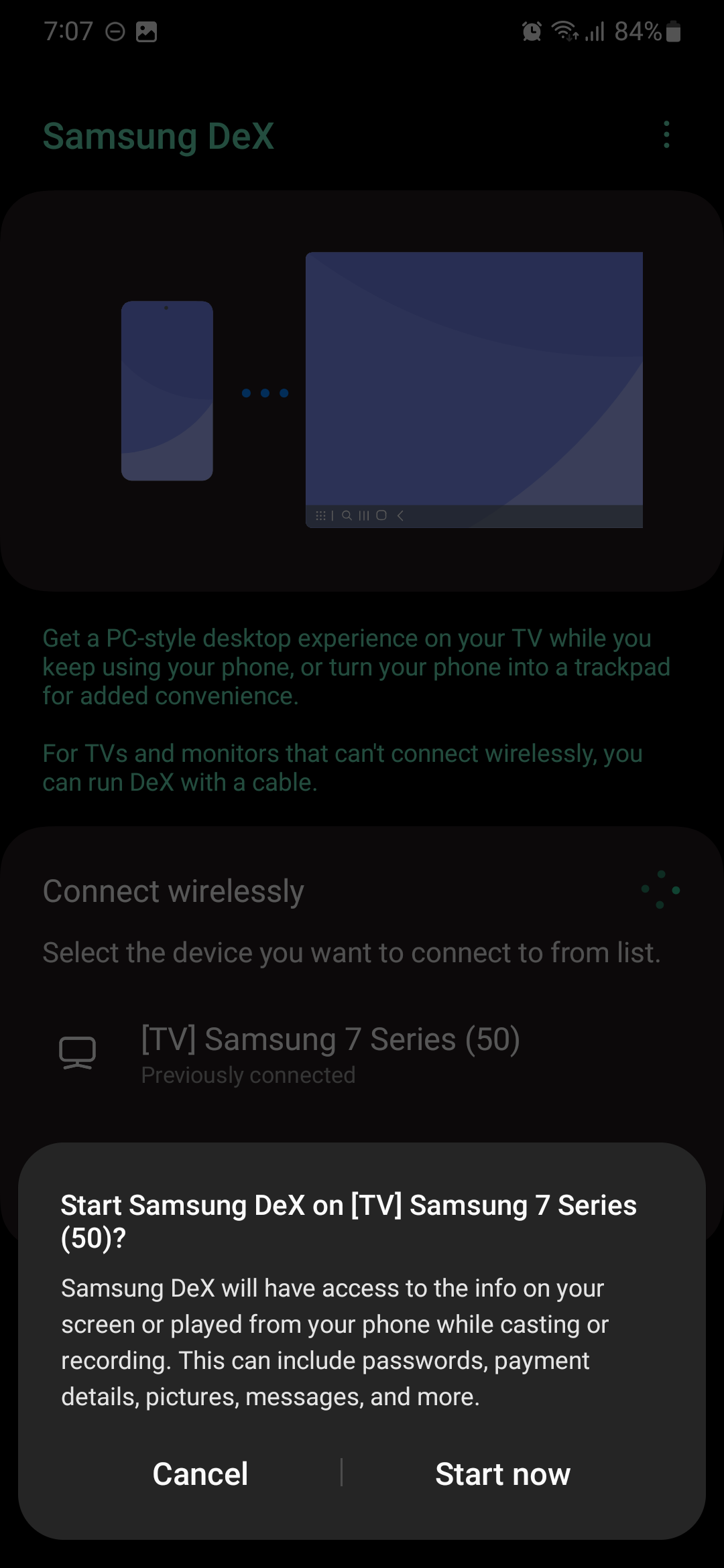
If you want to enable Samsung DeX on your phone and connect to a TV or monitor, tap the “DeX” quick toggle or open Settings, access “Connected devices,” and tap “Samsung DeX,” then choose to establish a wireless connection with your external monitor or TV.
If you are looking for a DeX-compatible smartphone, Samsung has just released the new Galaxy S23, Galaxy S23+, and Galaxy S23 Ultra. But cheaper options also exist. As for TVs, Samsung has just released its 2023 Neo QLED lineup in the USA, but again, other, more affordable TV models also work with wireless DeX.

Mihai is a blogger and column writer at SamMobile. His first Samsung phone was an A800 which took a lot of beating, and a part of him still misses the novelty of the clamshell design. In his free time, he enjoys watching shows, documentaries, and stand-up comedy; listening to music, taking walks, and occasionally playing old(er) video games.












