Last updated: December 22nd, 2023 at 12:16 UTC+01:00
SamMobile has affiliate and sponsored partnerships, we may earn a commission.
Reading time: 2 minutes
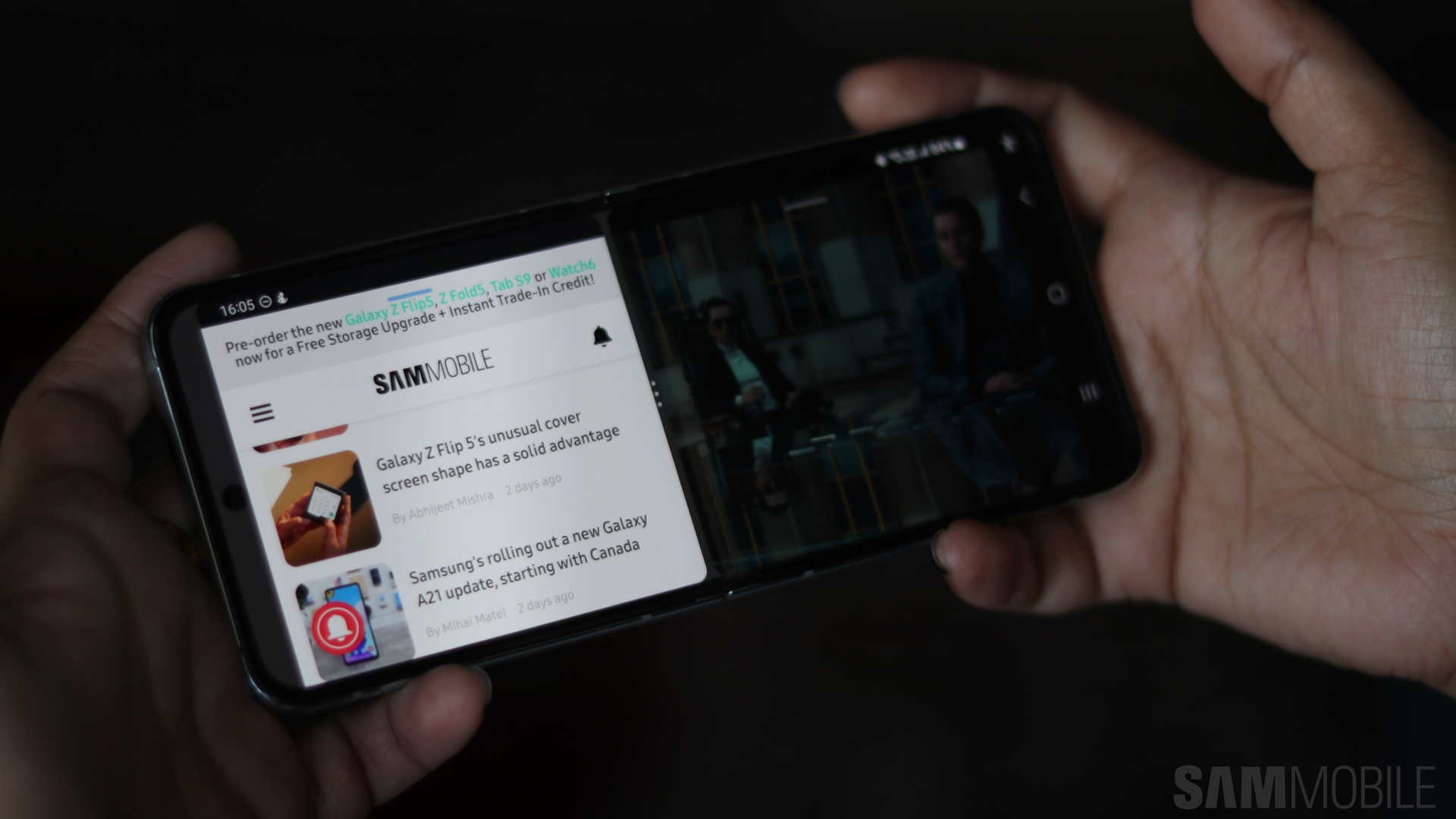
The easiest way to integrate Split Screen into your routine and Galaxy device user experience is through the “Swipe for split screen” gesture. It debuted as a “Labs” feature in One UI 5.0, but now, it is no longer an experimental element but a primary component of the UI. Here's how you can use it.
The “Swipe for split screen” gesture lets you enable Split Screen on your Galaxy phone or tablet by swiping up with two fingers from the bottom of the screen. It's that easy. Quite literally, Split Screen is at your fingertips in modern One UI. Here's an example of how it works:
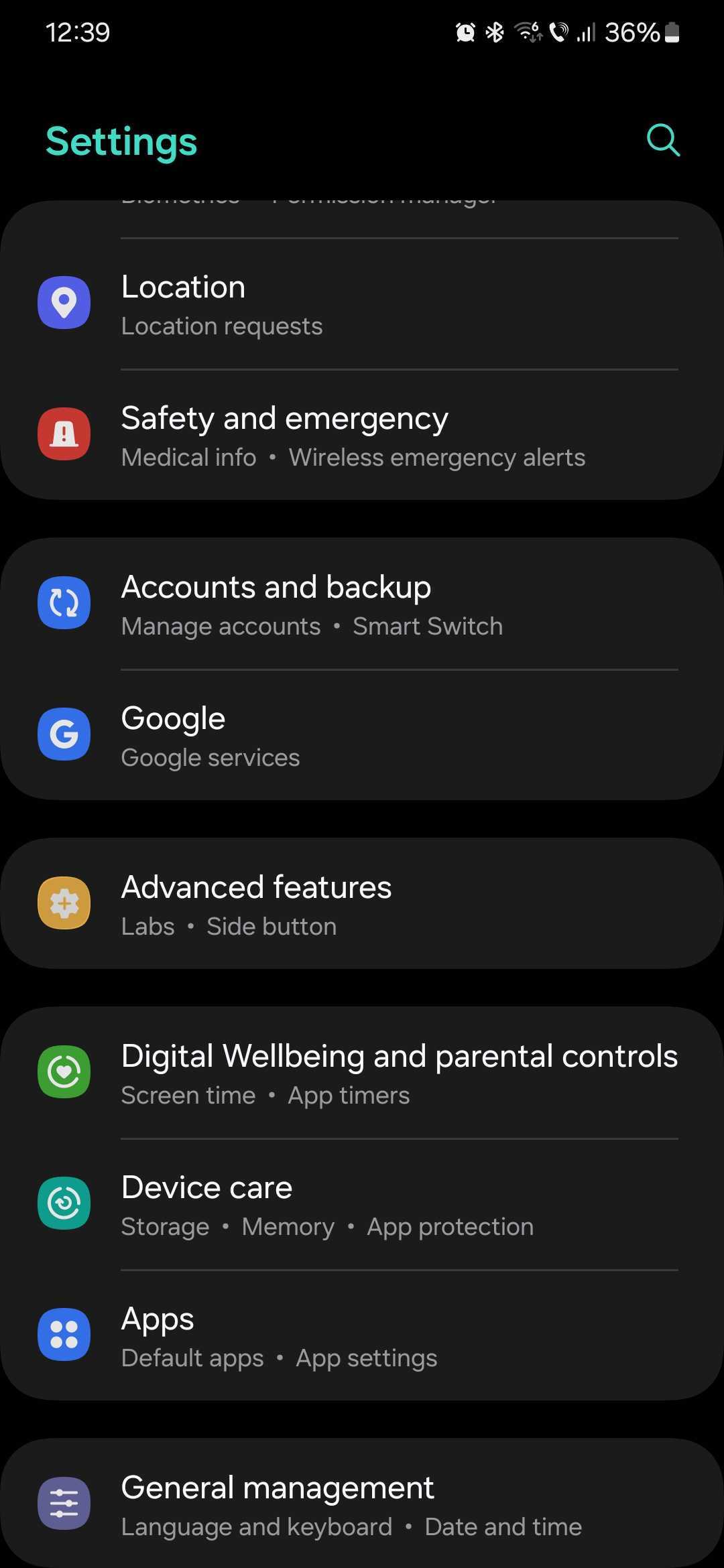
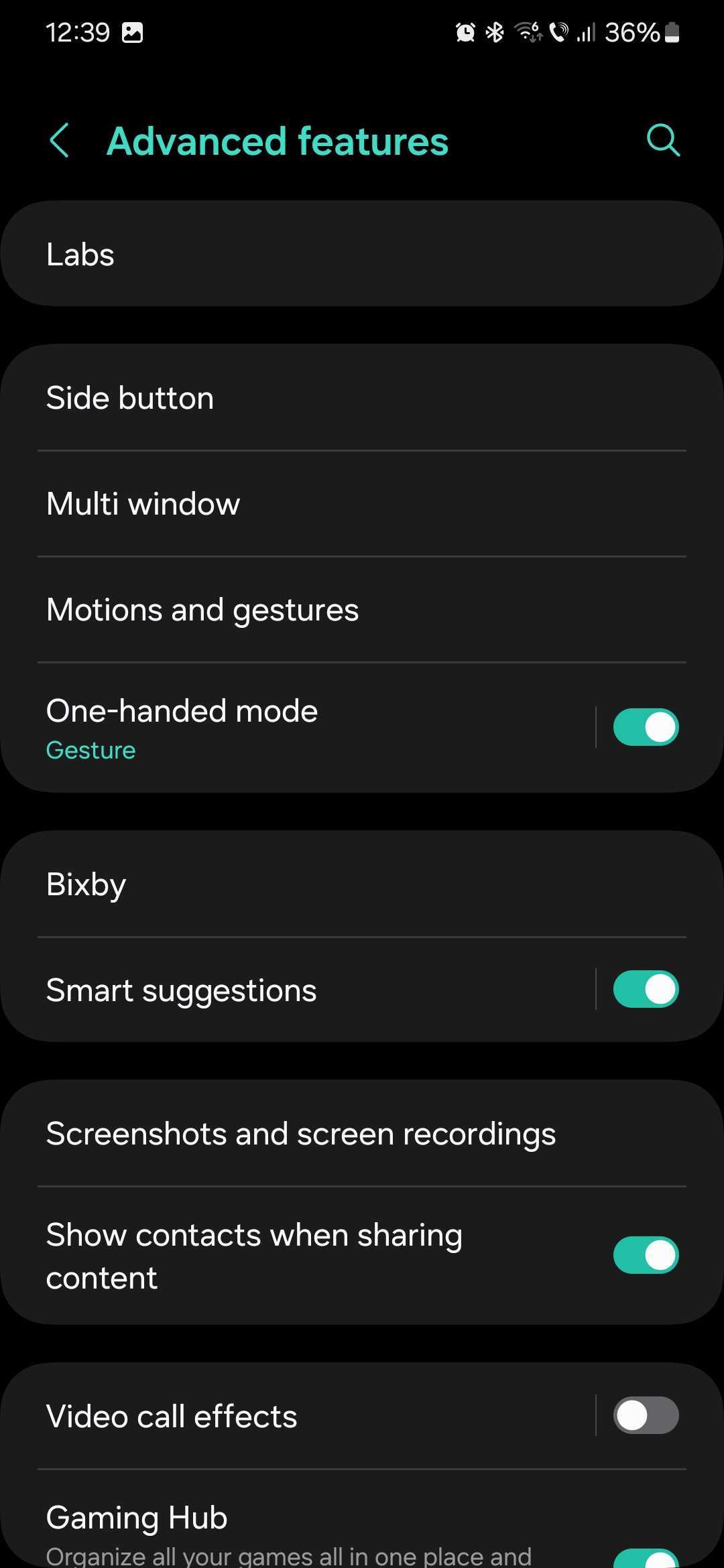
If you want to integrate Split Screen into your routine and use this convenient two-finger gesture, open the Settings app on your phone or tablet, go to “Advanced features,” and tap “Multi window.” Then, tap “Swipe for split screen” and set the toggle switch ON.
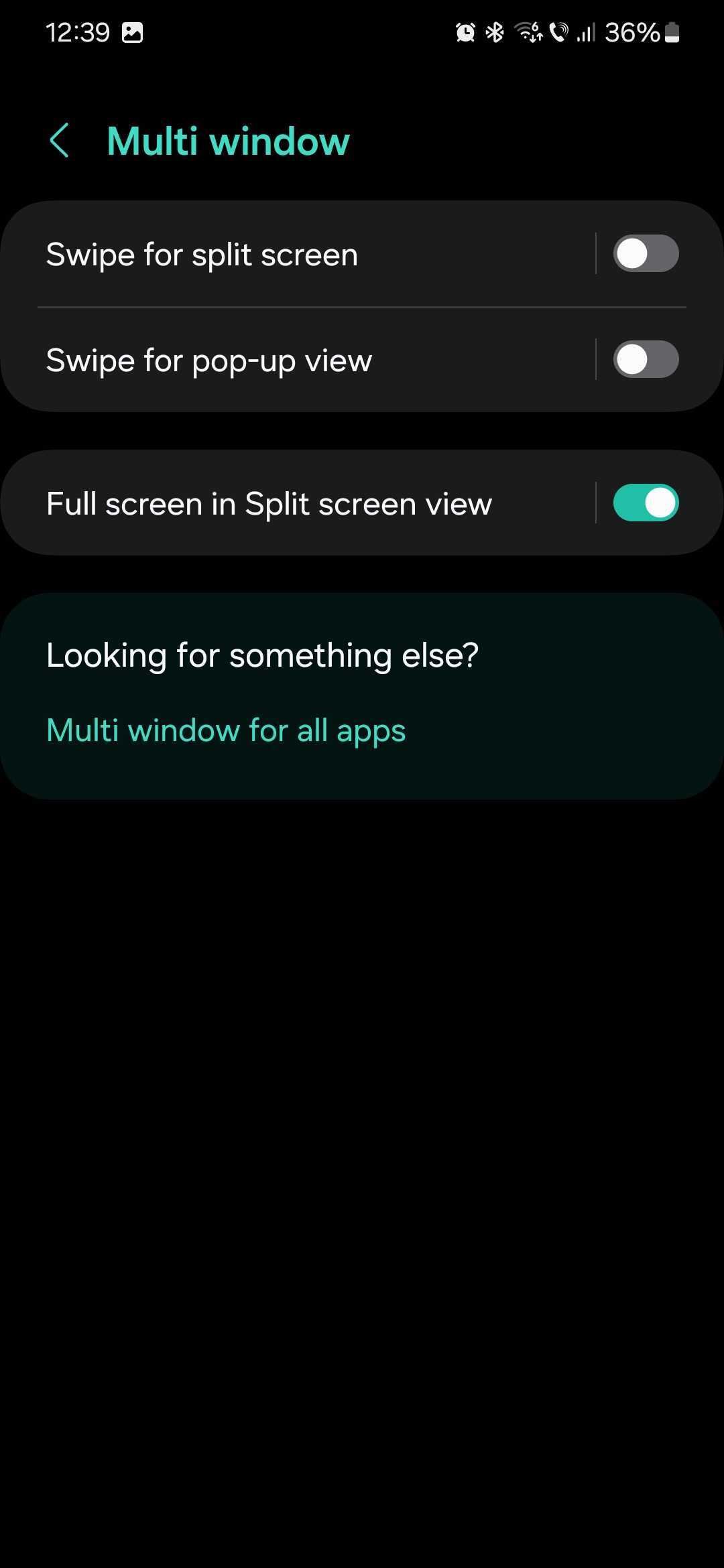
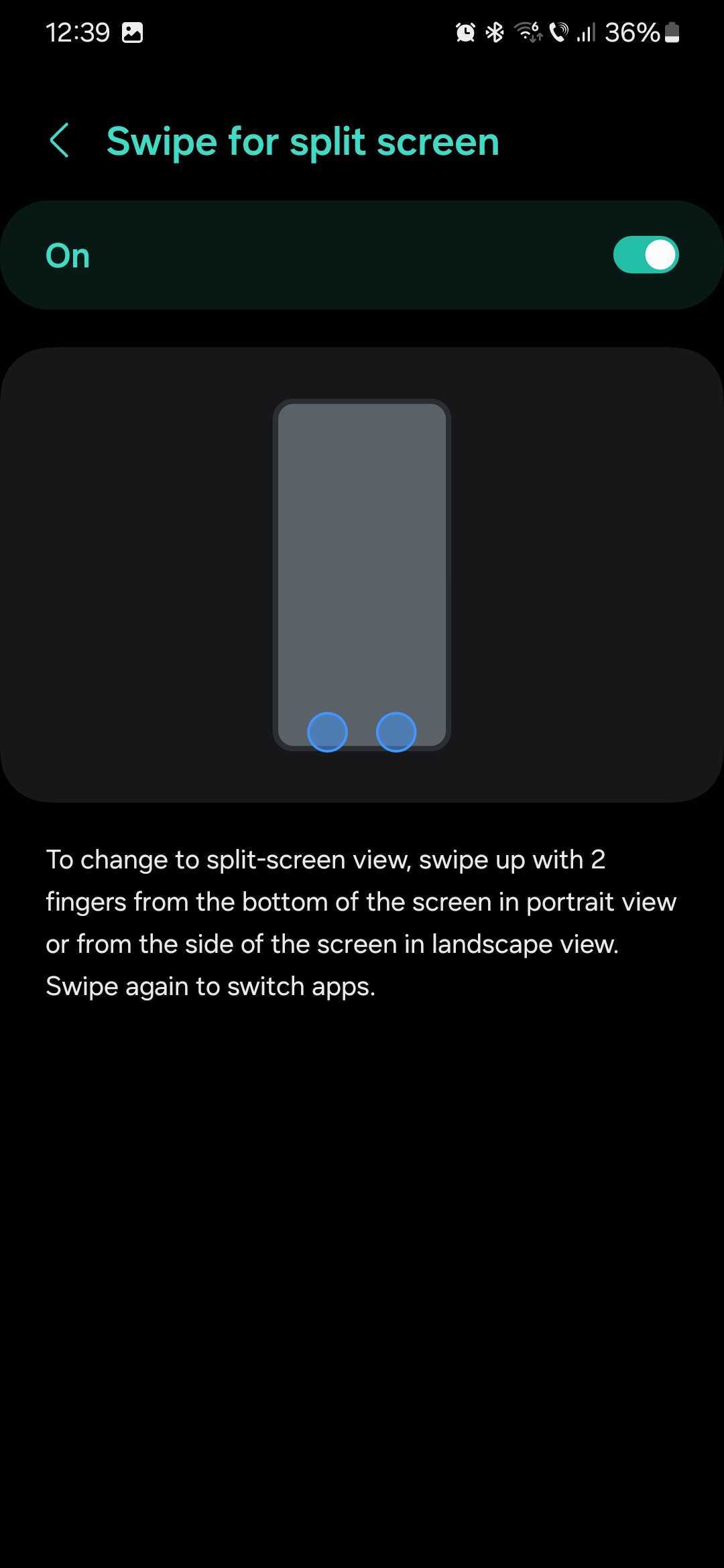
Now, when you have an app open, you can perform the two-finger swipe gesture and enter Split Screen mode in the blink of an eye. You can also resize the windows or flip them around by dragging or tapping the tag in the middle.

Mihai is a blogger and column writer at SamMobile. His first Samsung phone was an A800 which took a lot of beating, and a part of him still misses the novelty of the clamshell design. In his free time, he enjoys watching shows, documentaries, and stand-up comedy; listening to music, taking walks, and occasionally playing old(er) video games.












