Last updated: May 25th, 2022 at 18:20 UTC+02:00
SamMobile has affiliate and sponsored partnerships, we may earn a commission.
Reading time: 3 minutes
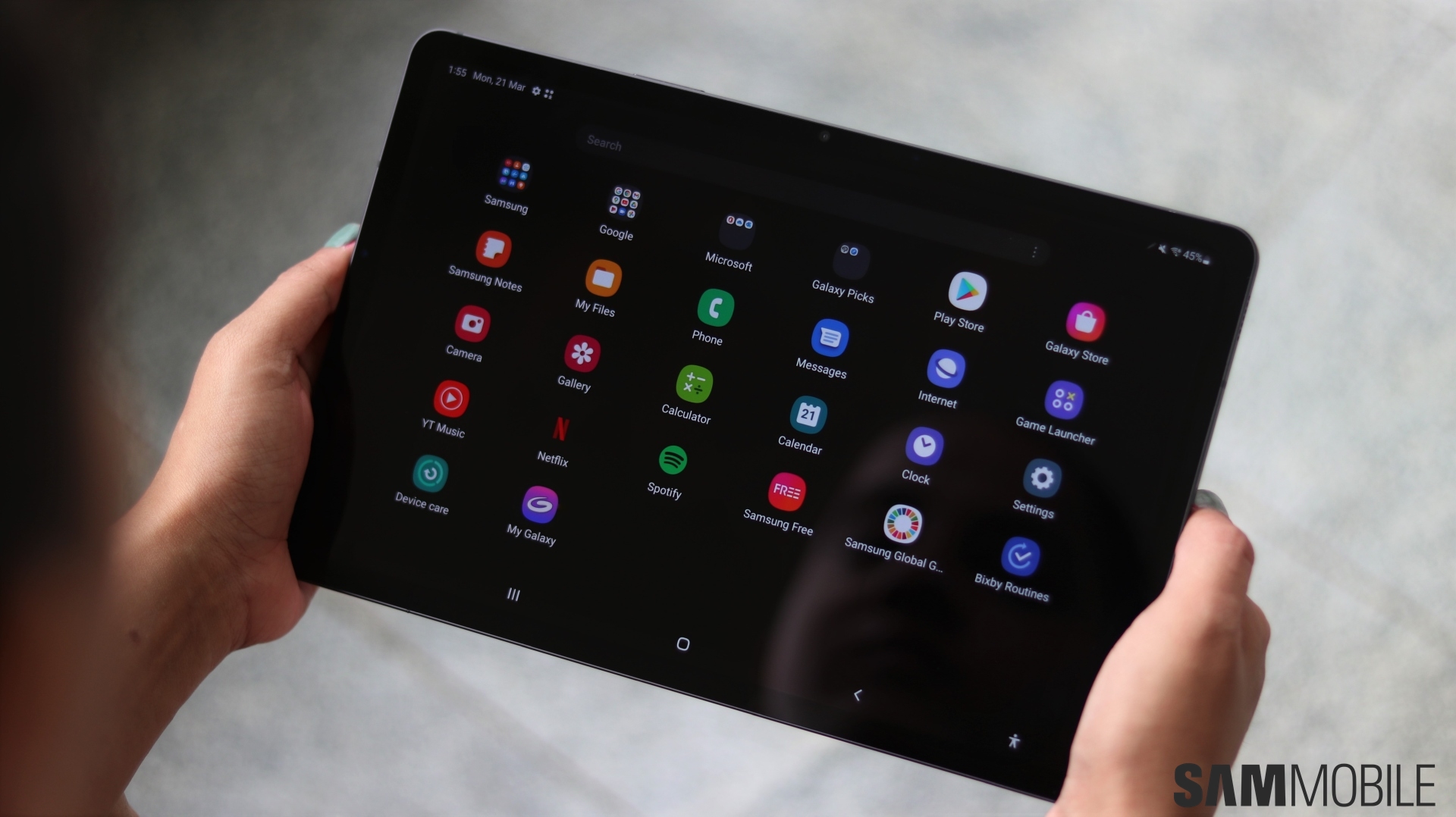
Galaxy tablets, however, are in a different category. Most tablets have a large-enough display to accommodate all the apps you need on a single home screen, and the Edge apps panel in One UI provides additional space for your favorite apps, should you need it.
The apps drawer on a large Galaxy tablet can feel somewhat excessive and functionless. You could hide or add every app you don't need in a folder and keep all your relevant apps on the home screen and taskbar, plus the optional Edge apps panel. But why bother going through the trouble?
One advantage of disabling the apps drawer on a Galaxy tablet is that it frees up the “Swipe up” home screen gesture for the “Search from Home Screen” feature.
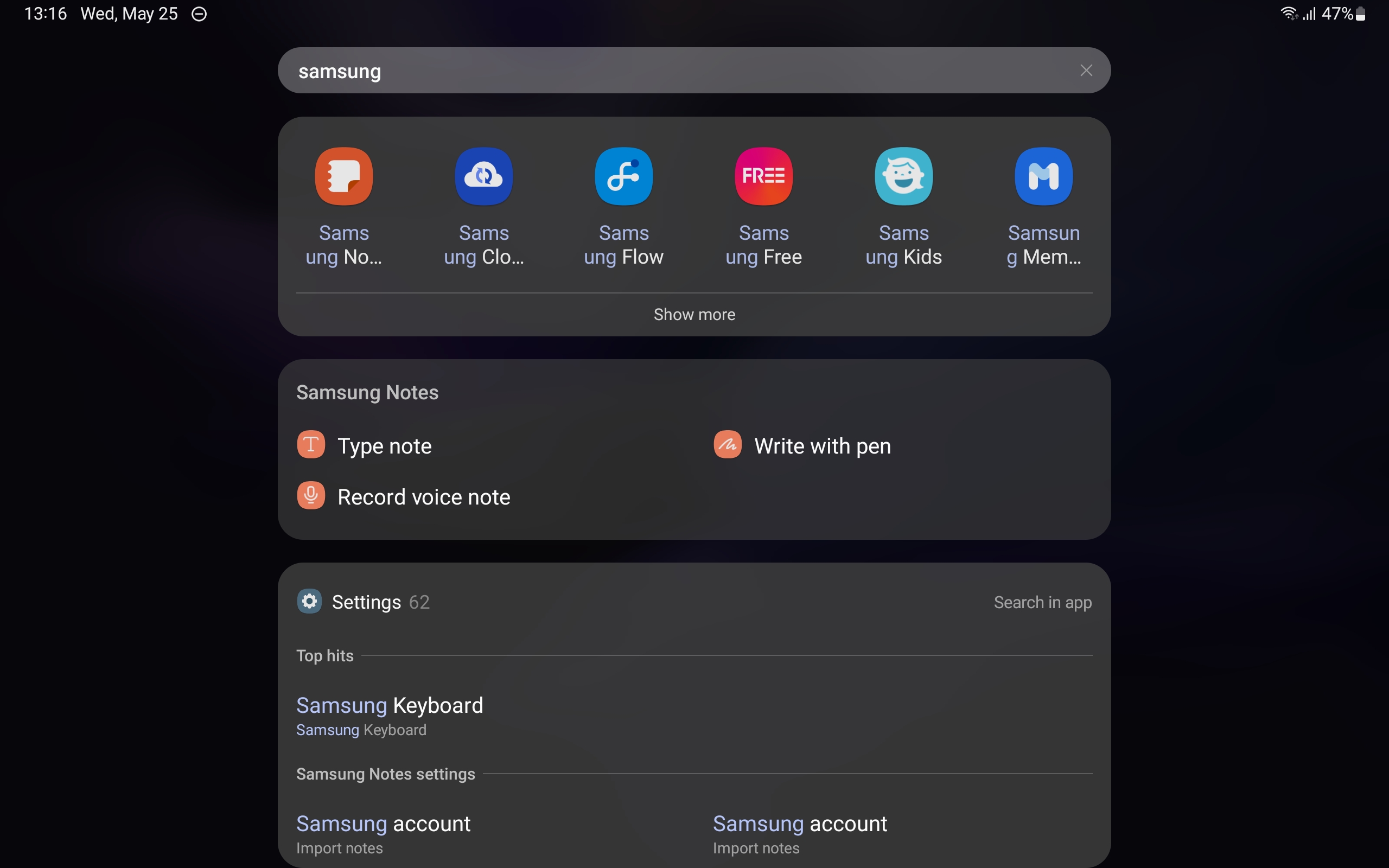
This is a smart search engine that allows One UI users to lookup settings, apps, files, contacts, and more. And on a tablet with a large-enough screen and plenty of space on the home screen, this smart search feature can be much more useful than the apps drawer.
If you dread the thought of losing your custom home screen layout, fret not. You can go into this guide and replace the apps drawer with Search without fear of messing up your current home screen. Your settings will be saved.
First things first, you need to disable the apps drawer on your Galaxy tablet. To do this:
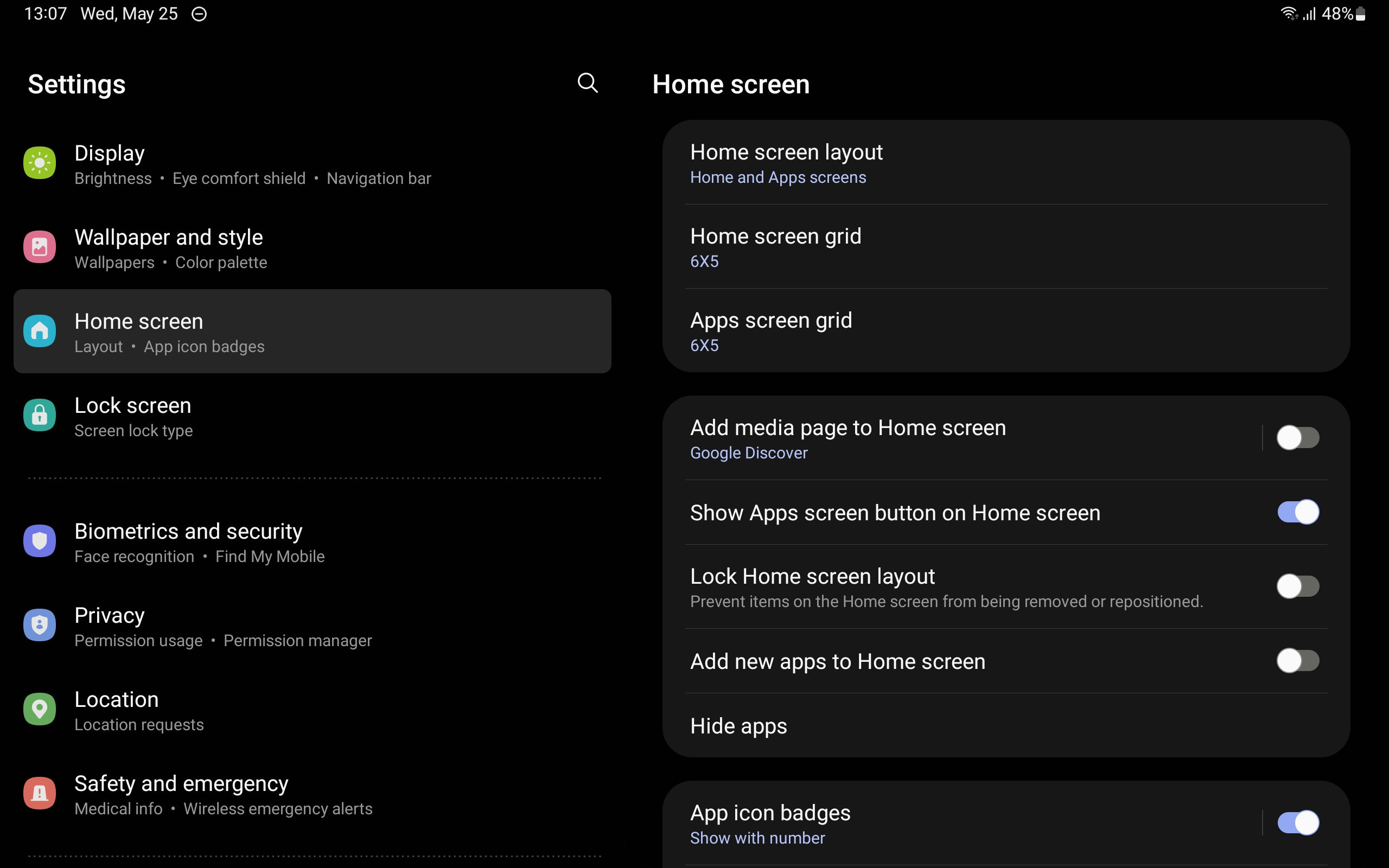
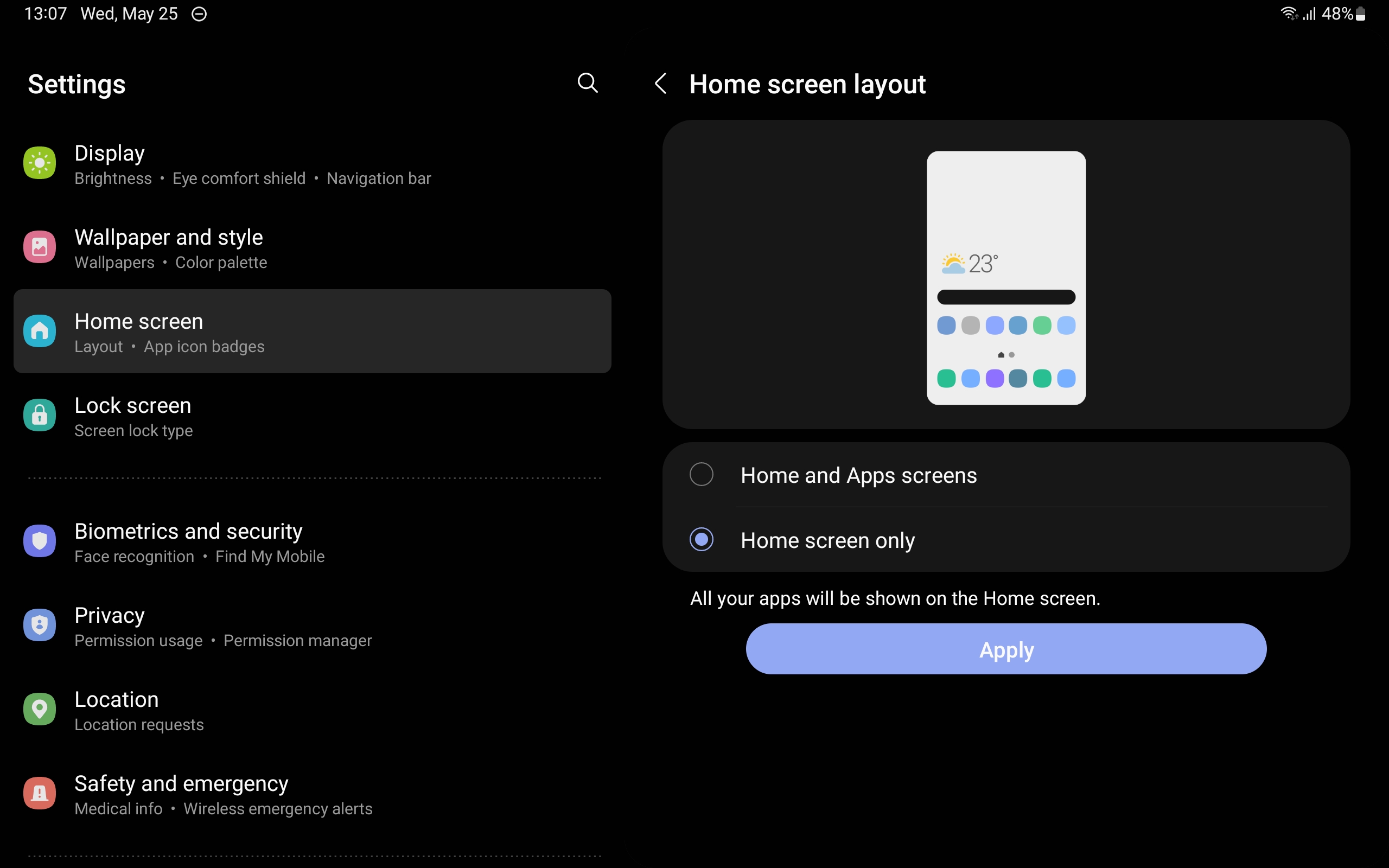
Note that each of these two modes has separate home screen settings. Should you decide to re-enable “Home and Apps screens,” you will find all your shortcuts and home screen settings exactly how you left them when you first enabled “Home screen only.”
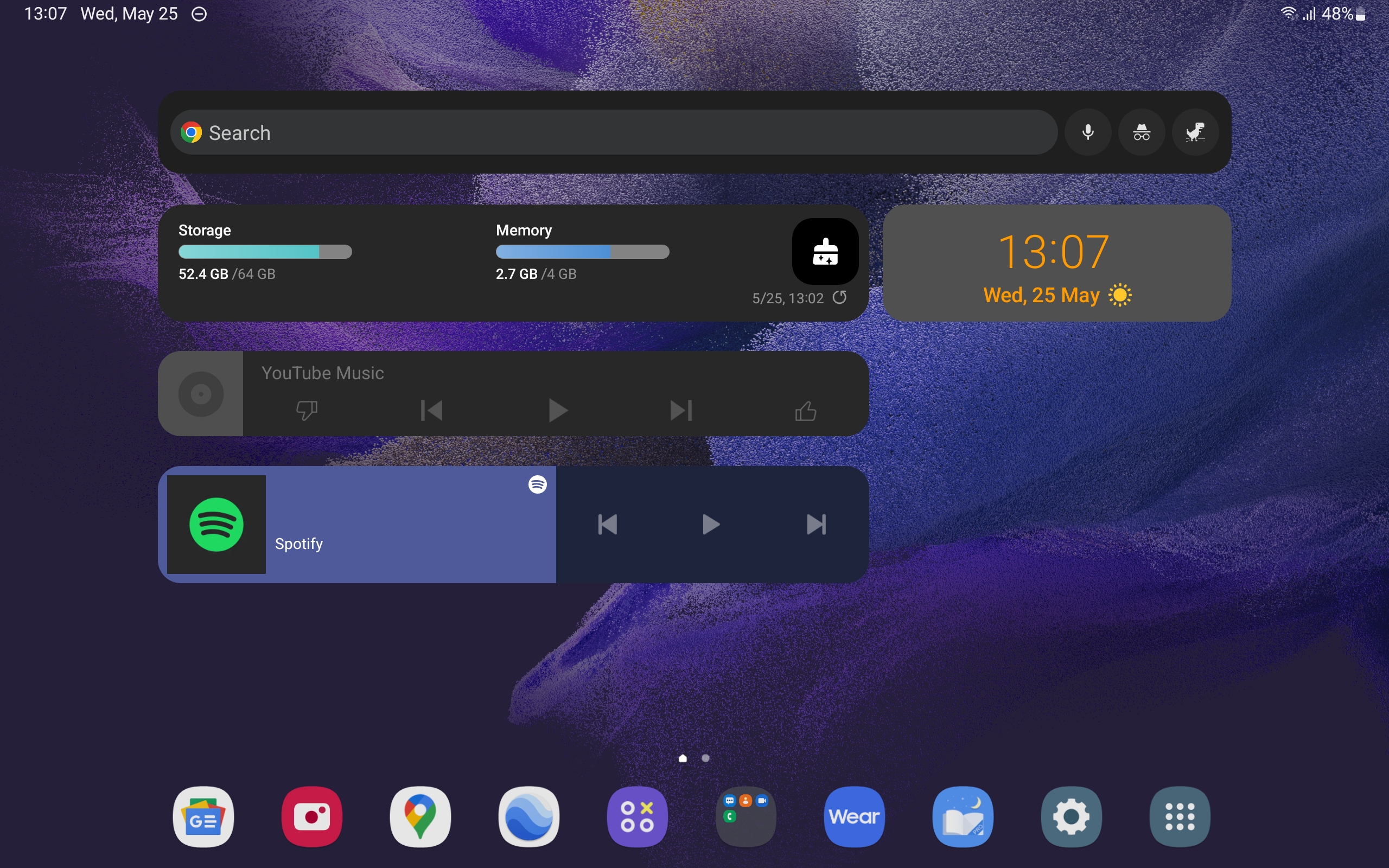
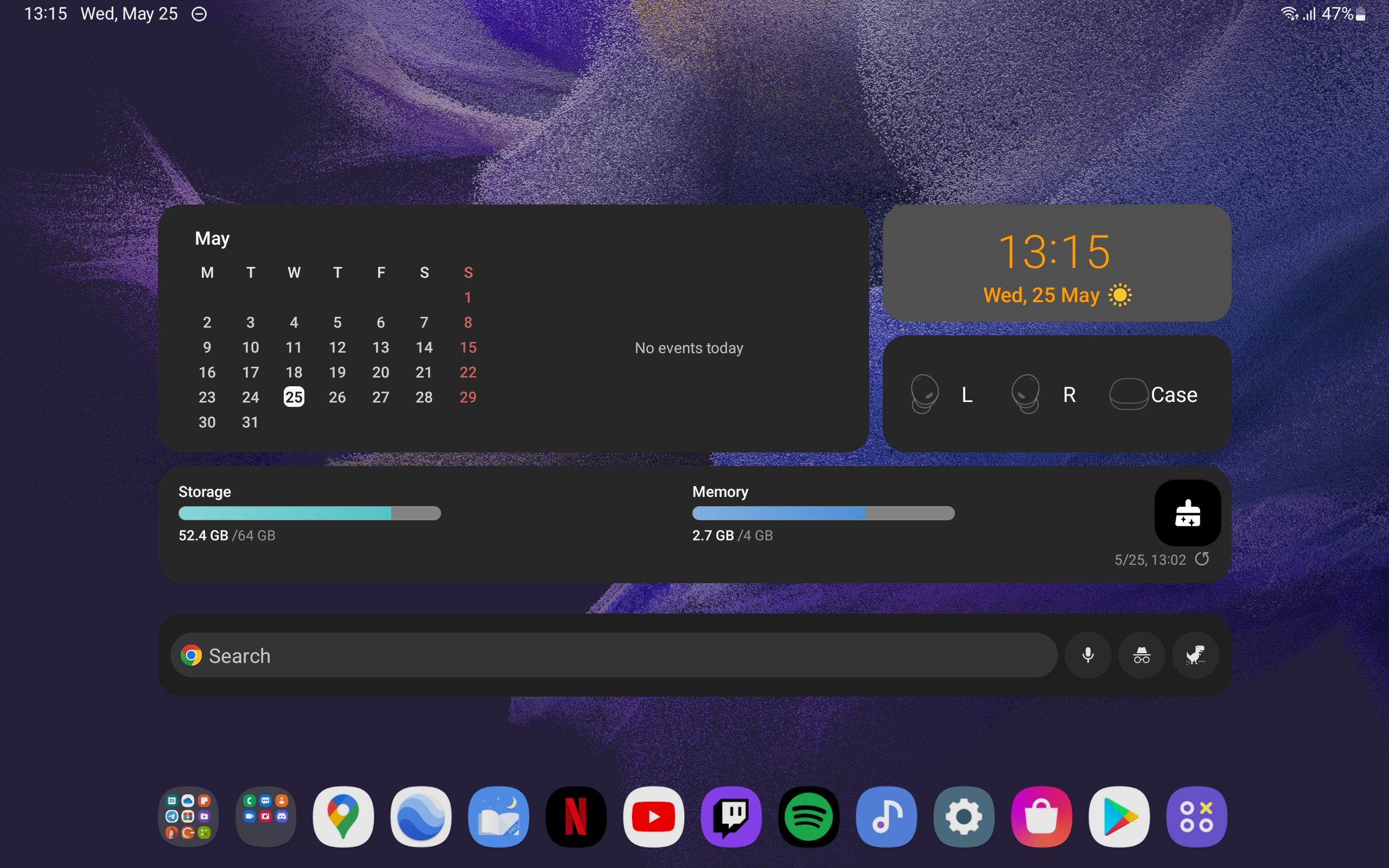
Once you have disabled the apps drawer, the next and final step is to enable the “Search from Home Screen” feature. To do this:
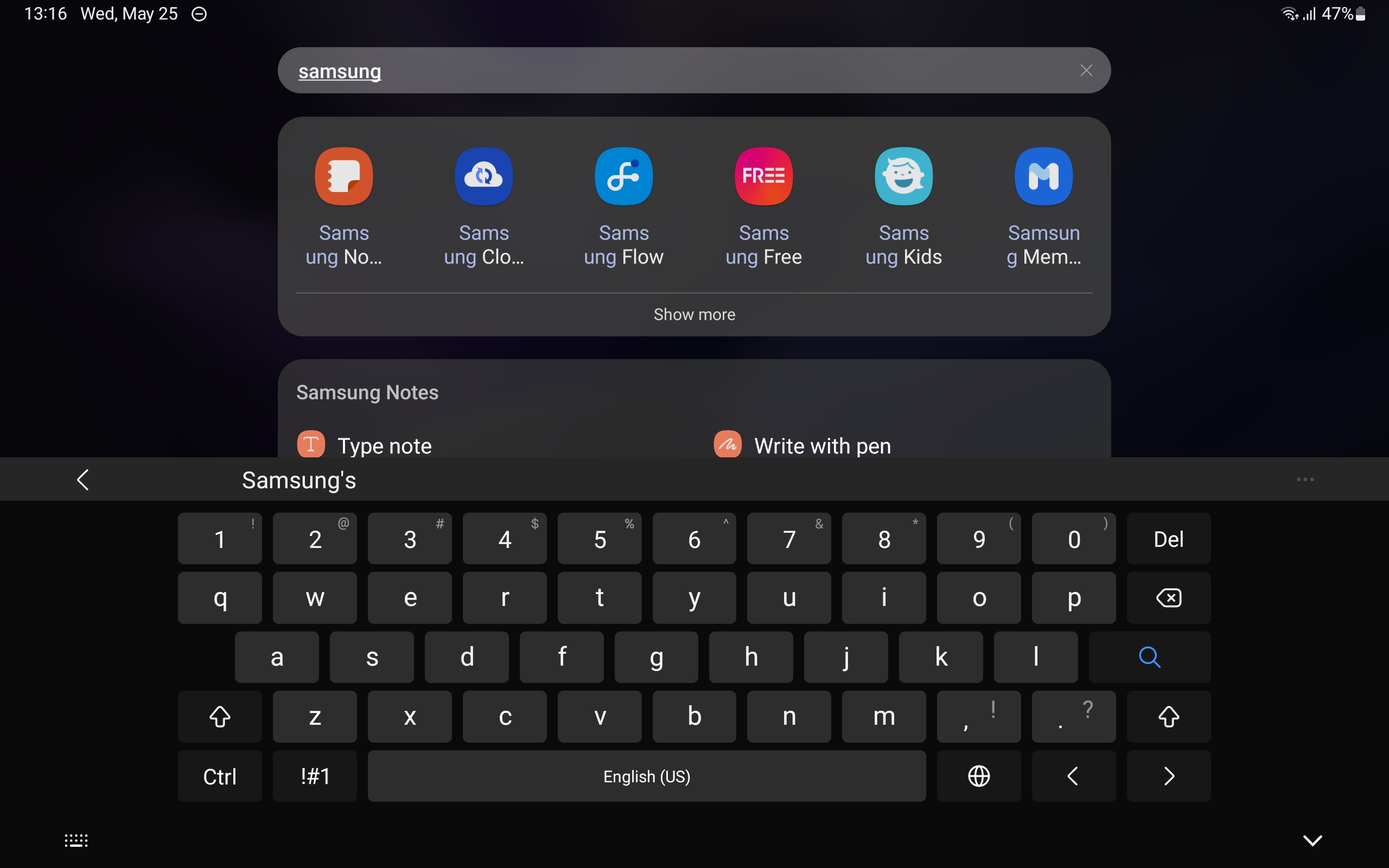
All done! You can now swipe up anywhere on the home screen to get instant access to the smart search feature and your keyboard.
Join SamMobile’s Telegram group and subscribe to our YouTube channel to get instant news updates and in-depth reviews of Samsung devices. You can also subscribe to get updates from us on Google News and follow us on Twitter.

Mihai is a blogger and column writer at SamMobile. His first Samsung phone was an A800 which took a lot of beating, and a part of him still misses the novelty of the clamshell design. In his free time, he enjoys watching shows, documentaries, and stand-up comedy; listening to music, taking walks, and occasionally playing old(er) video games.













