6 days until XMAS. Massive discount Galaxy Z Fold7, Watch8, S25 Ultra and S95F OLED TV
Last updated: February 9th, 2024 at 14:43 UTC+01:00
SamMobile has affiliate and sponsored partnerships, we may earn a commission.
Reading time: 2 minutes
It all works very well once you get the hang of it, but there's one problem if you want to use Samsung Wallet. Namely, the navigation gesture hint will conflict with the Samsung Wallet Quick Access pull tab.
The good news is that there is a way to keep using both the Wallet Quick Access feature and navigation gestures on the Galaxy S24 without running into issues or adding unnecessary complexity. Here's how.
The issue when using both navigation gestures and Wallet Quick Access is that the latter feature adds a pull tab at the bottom of the screen, which overlaps and conflicts with the navigation gesture hint. This makes navigation gestures unreliable.
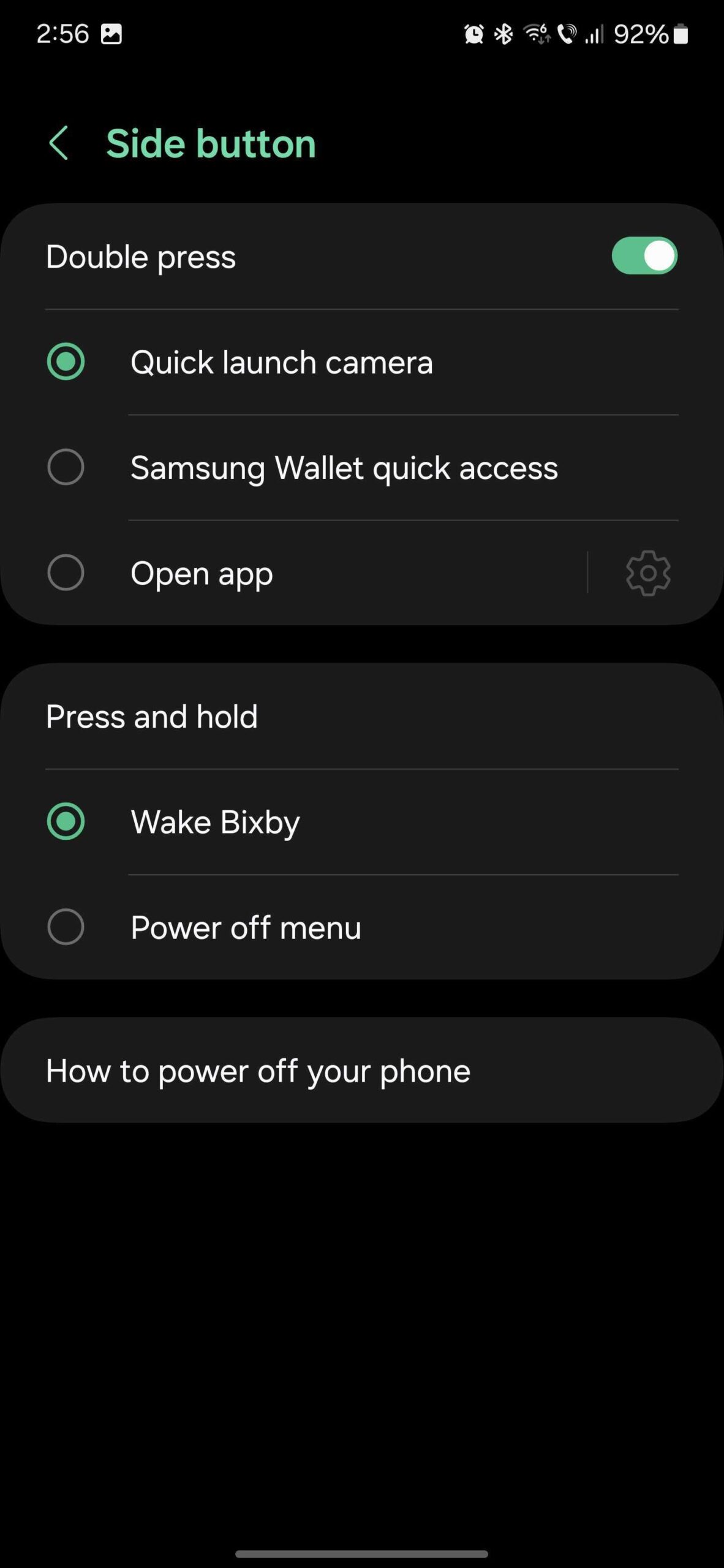
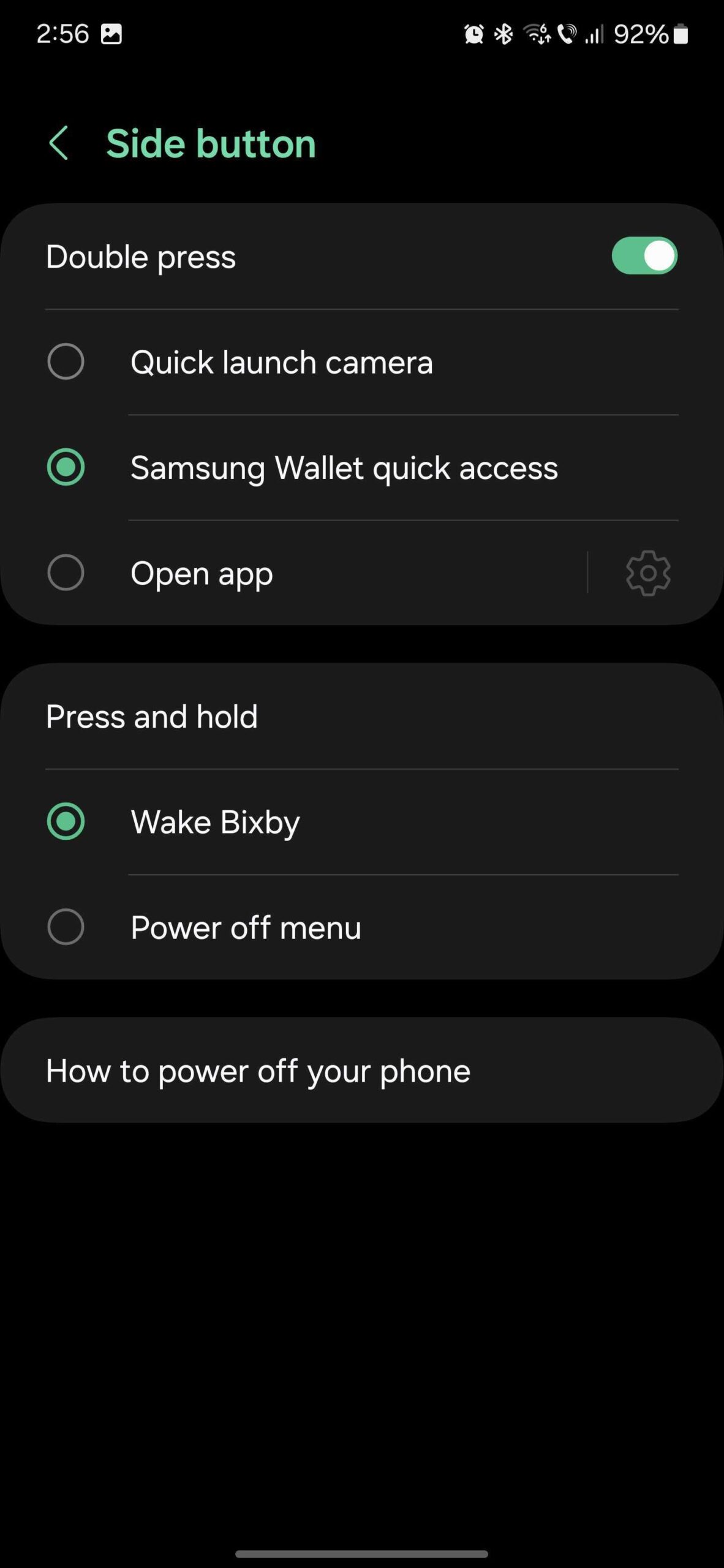
However, if you want to keep using navigation gestures and the Wallet Quick Access feature altogether, you can assign the Wallet feature to the “double press” command on your Galaxy S24's side button. That way, the Wallet pull tab disappears and allows the gesture hint to function properly.
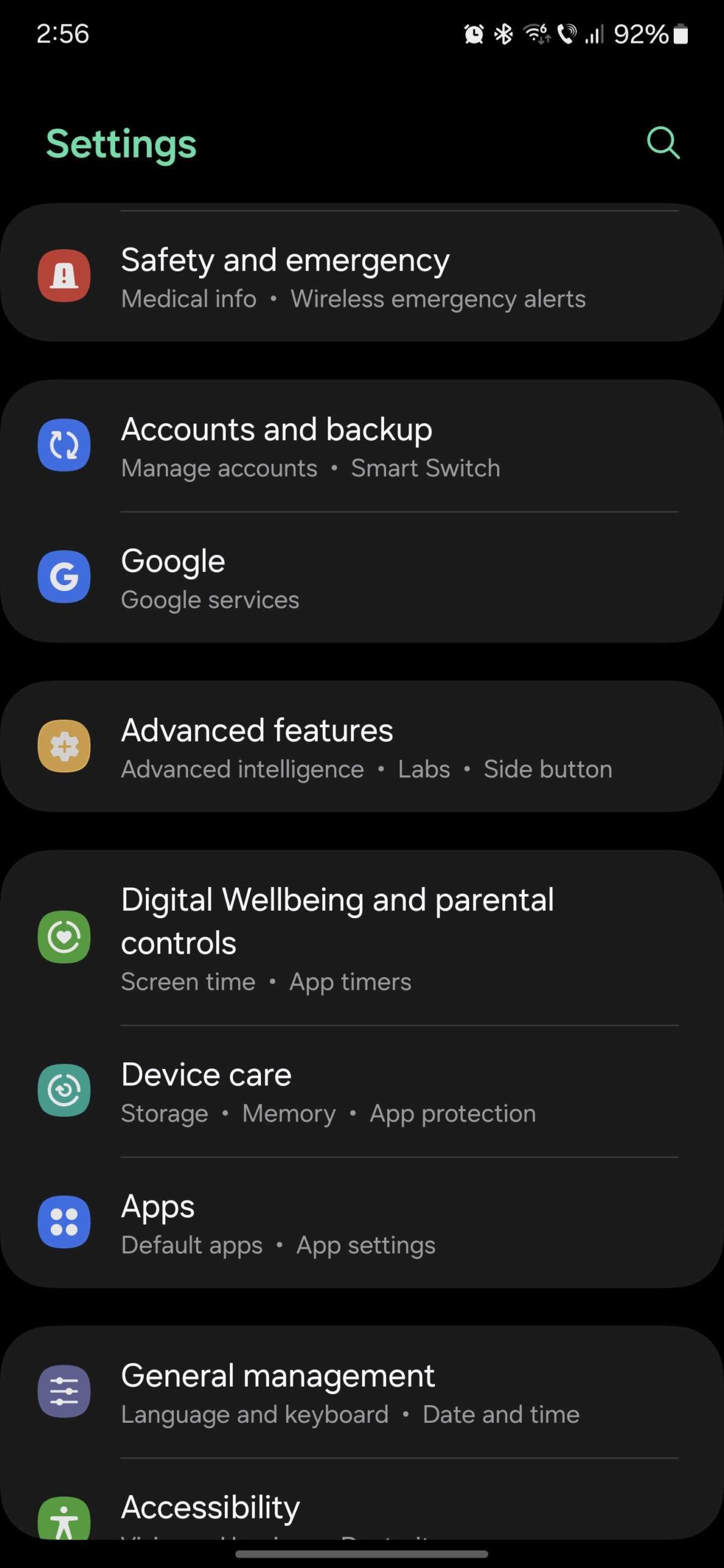
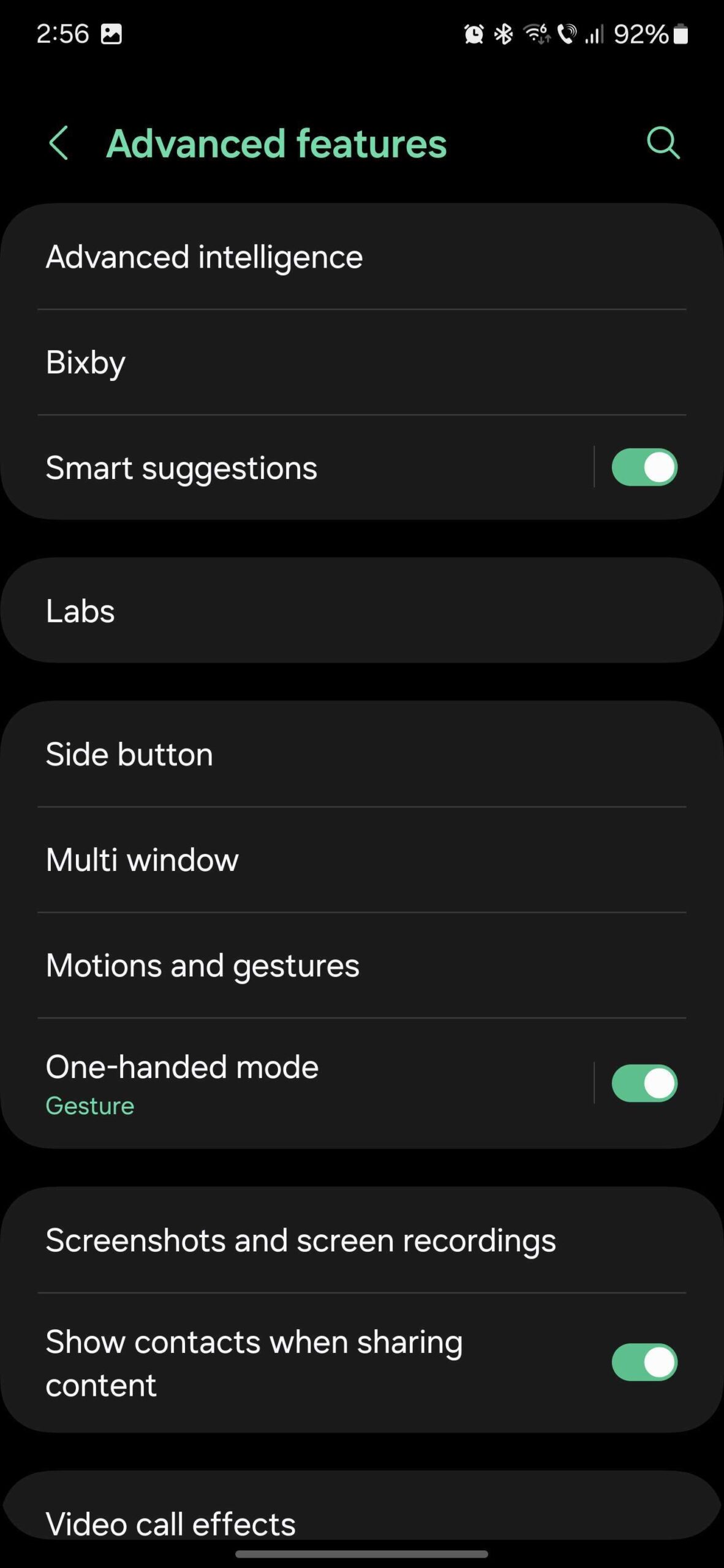
To use this setup, open the Settings app on the Galaxy S24, access “Advanced features,” tap “Side button,” enable the “Double press” option, and select “Samsung Wallet quick access.”
Note that the option to assign the Wallet Quick Access feature to the side button will only be shown if you have Samsung Wallet installed on the Galaxy S24.
Mihai is a blogger and column writer at SamMobile. His first Samsung phone was an A800 which took a lot of beating, and a part of him still misses the novelty of the clamshell design. In his free time, he enjoys watching shows, documentaries, and stand-up comedy; listening to music, taking walks, and occasionally playing old(er) video games.