Last updated: December 7th, 2023 at 14:28 UTC+01:00
SamMobile has affiliate and sponsored partnerships, we may earn a commission.
Reading time: 2 minutes
Samsung has equipped its Galaxy phones and tablets with a very useful privacy tool that users can access through One UI. It's called “Permission Manager” and allows Galaxy device users to see which apps have permission to use what sensors and services. Here's how you can use it to your advantage.
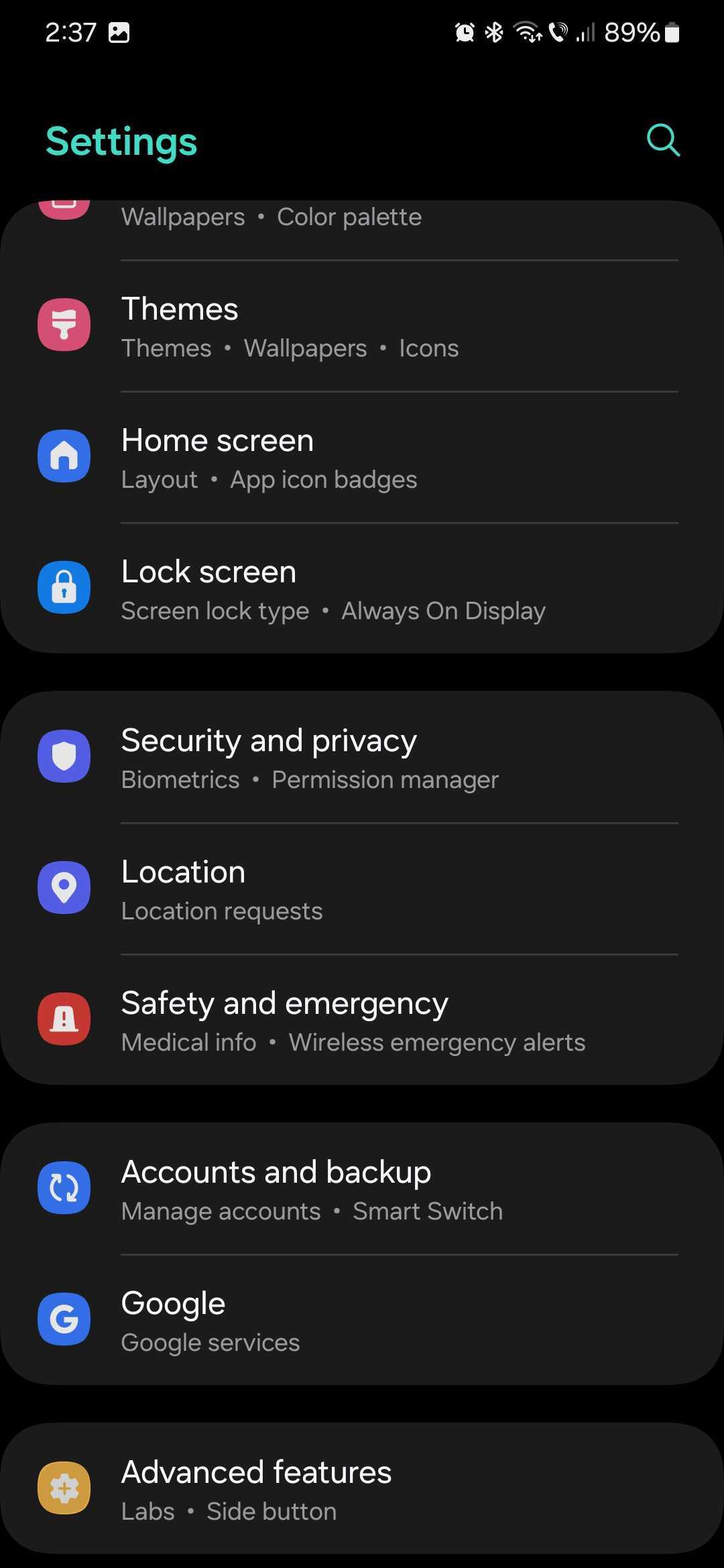
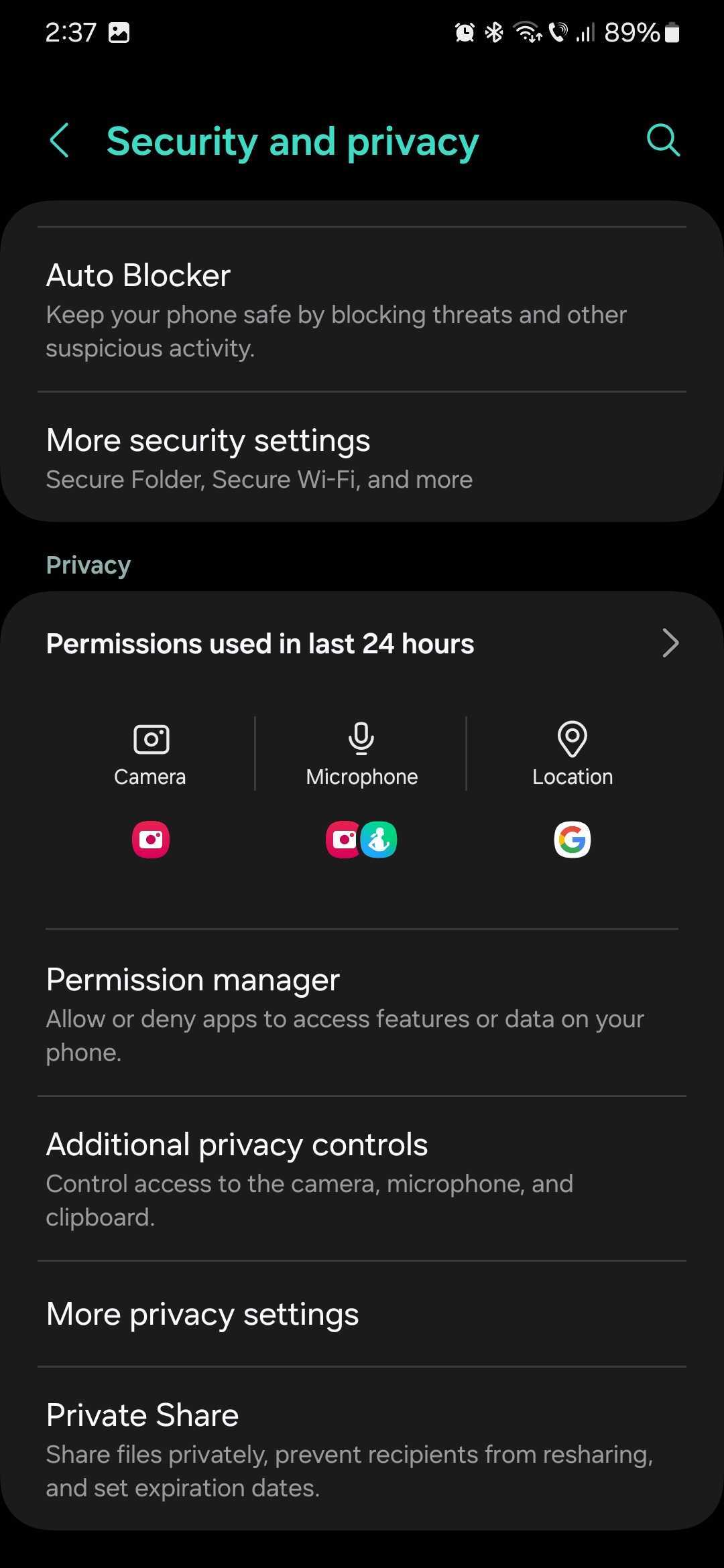
To access the Permission Manager tool, open the Settings app on your Galaxy device and navigate to “Security and Privacy.” Then tap “Permission Manger.”
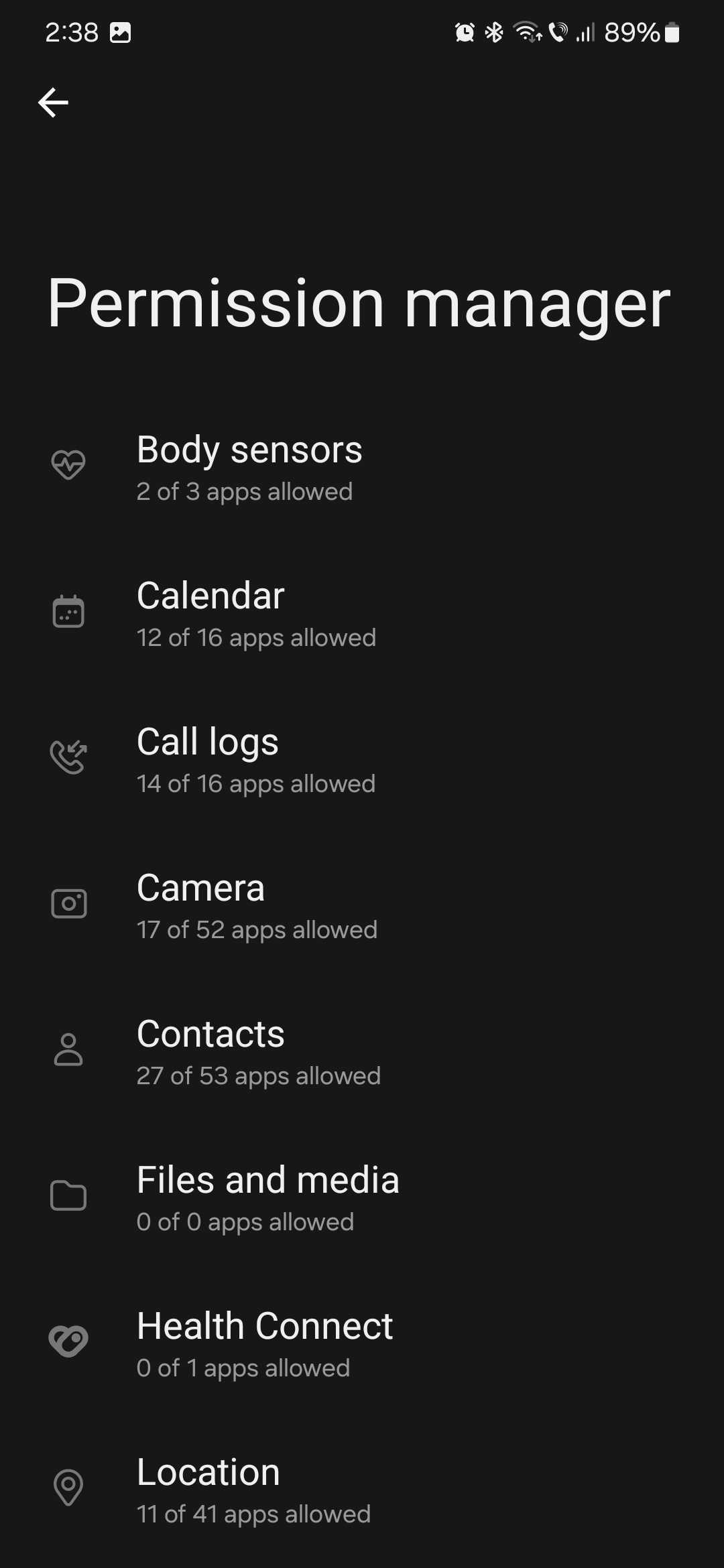
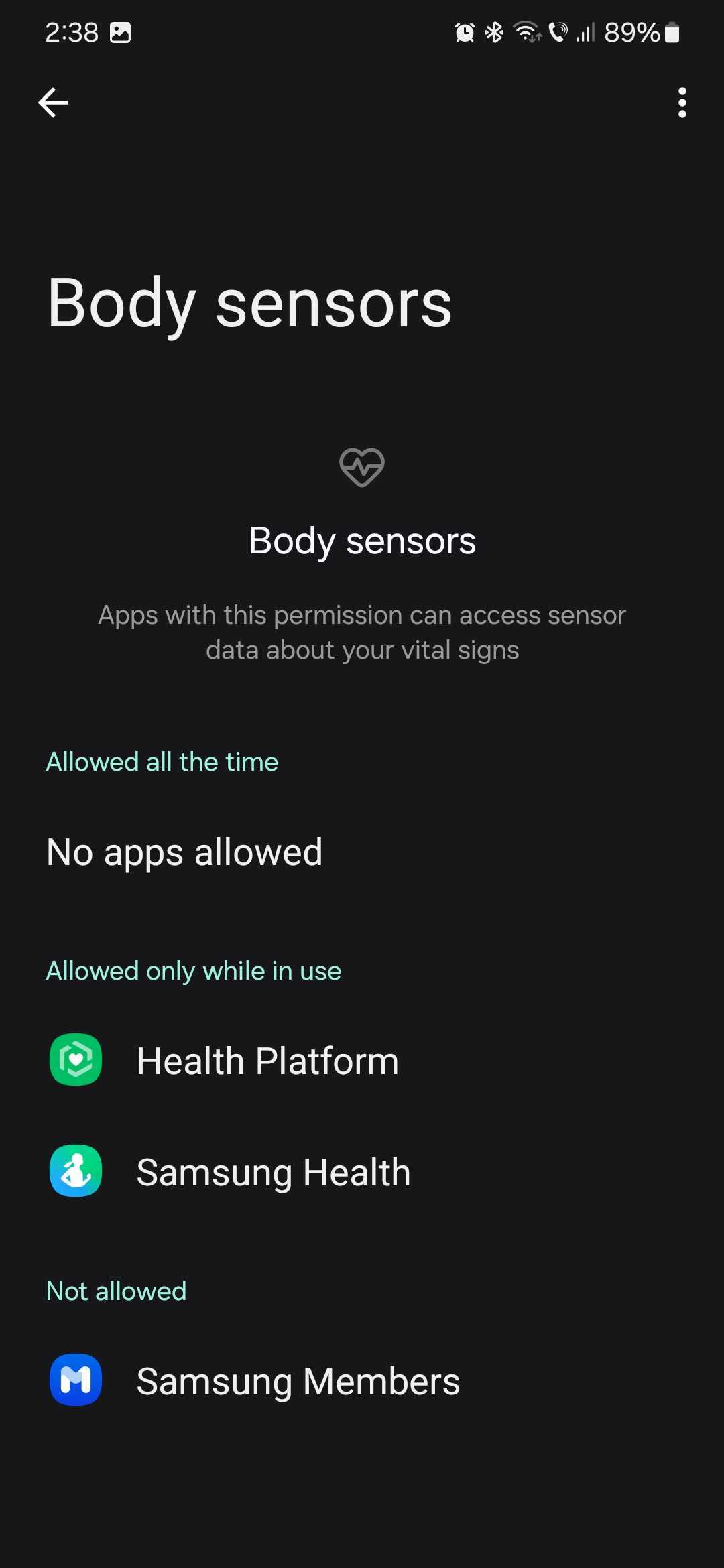
The Permission Manager menu contains almost two dozen categories, including Body sensors, Calendar, Call logs, Camera, Contacts, Files and Media, Location, and more.
You can select a category to see which apps are allowed to use it. Each category contains three sections:
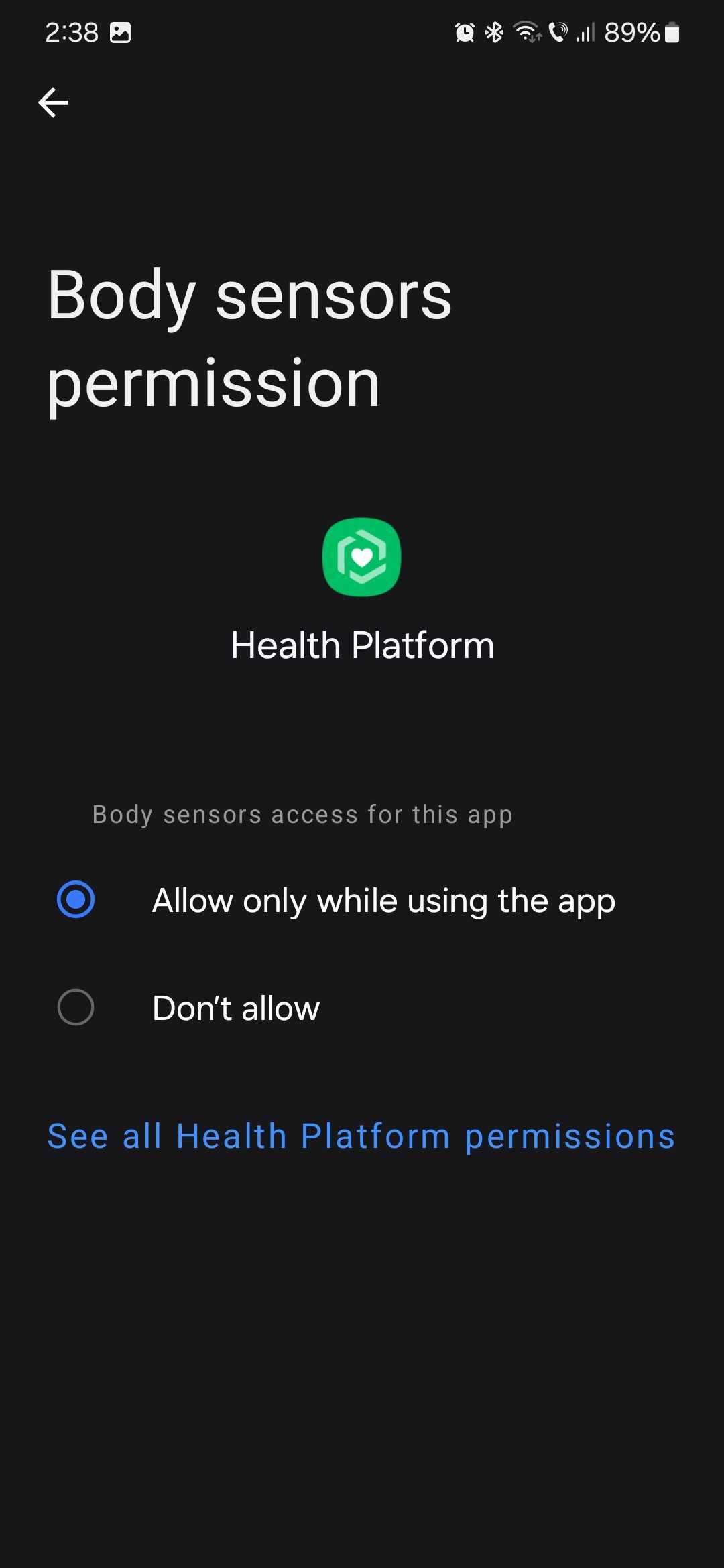
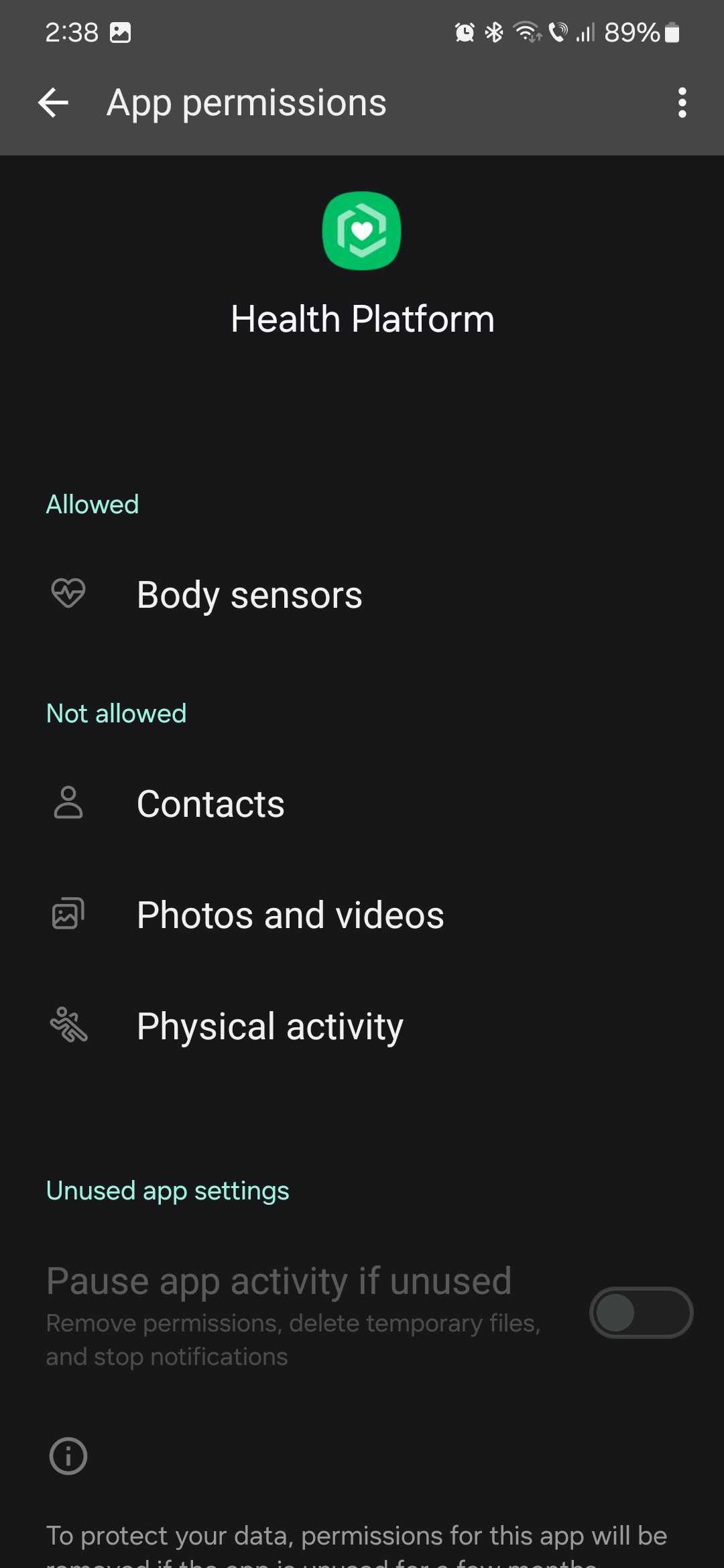
If you want to change permissions for an app, select it and choose one of the available options. You can also tap “See all […] permissions” for more details on what the selected app has access to on your phone, such as Camera, Microphone, and more.

Mihai is a blogger and column writer at SamMobile. His first Samsung phone was an A800 which took a lot of beating, and a part of him still misses the novelty of the clamshell design. In his free time, he enjoys watching shows, documentaries, and stand-up comedy; listening to music, taking walks, and occasionally playing old(er) video games.













