Last updated: January 3rd, 2024 at 13:47 UTC+01:00
SamMobile has affiliate and sponsored partnerships, we may earn a commission.
Reading time: 2 minutes
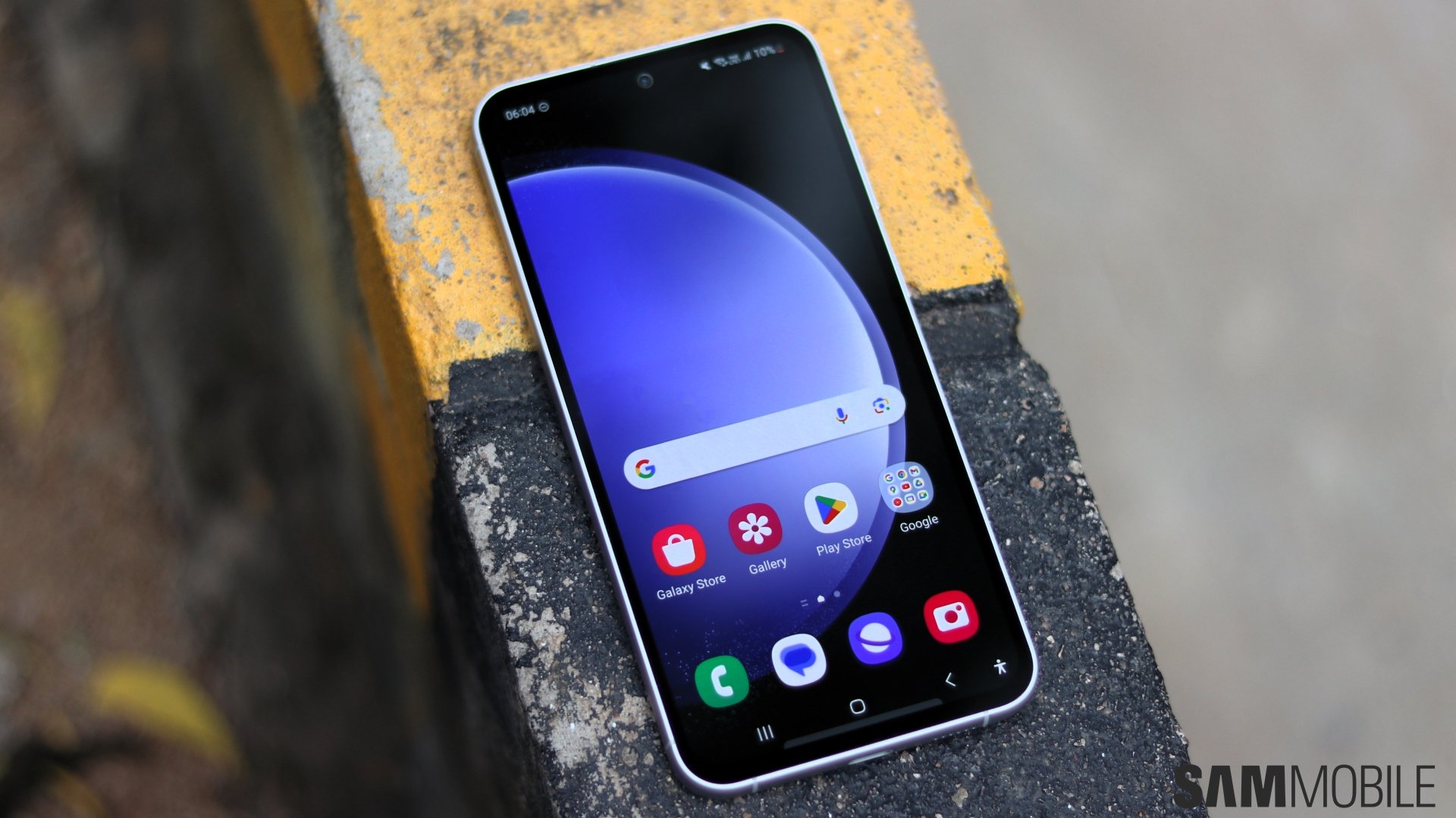
Despite this, you may have noticed that some Samsung apps on your Galaxy phone or tablet are not set as the default option. In case you missed the news last year, Google paid the Korean tech giant a boatload of cash to promote some of its apps and services.
The good news for Galaxy device users is that, regardless of Google's agreements with Samsung, they can choose which default apps to use, from web browsers to phone and messaging apps. Here's how.
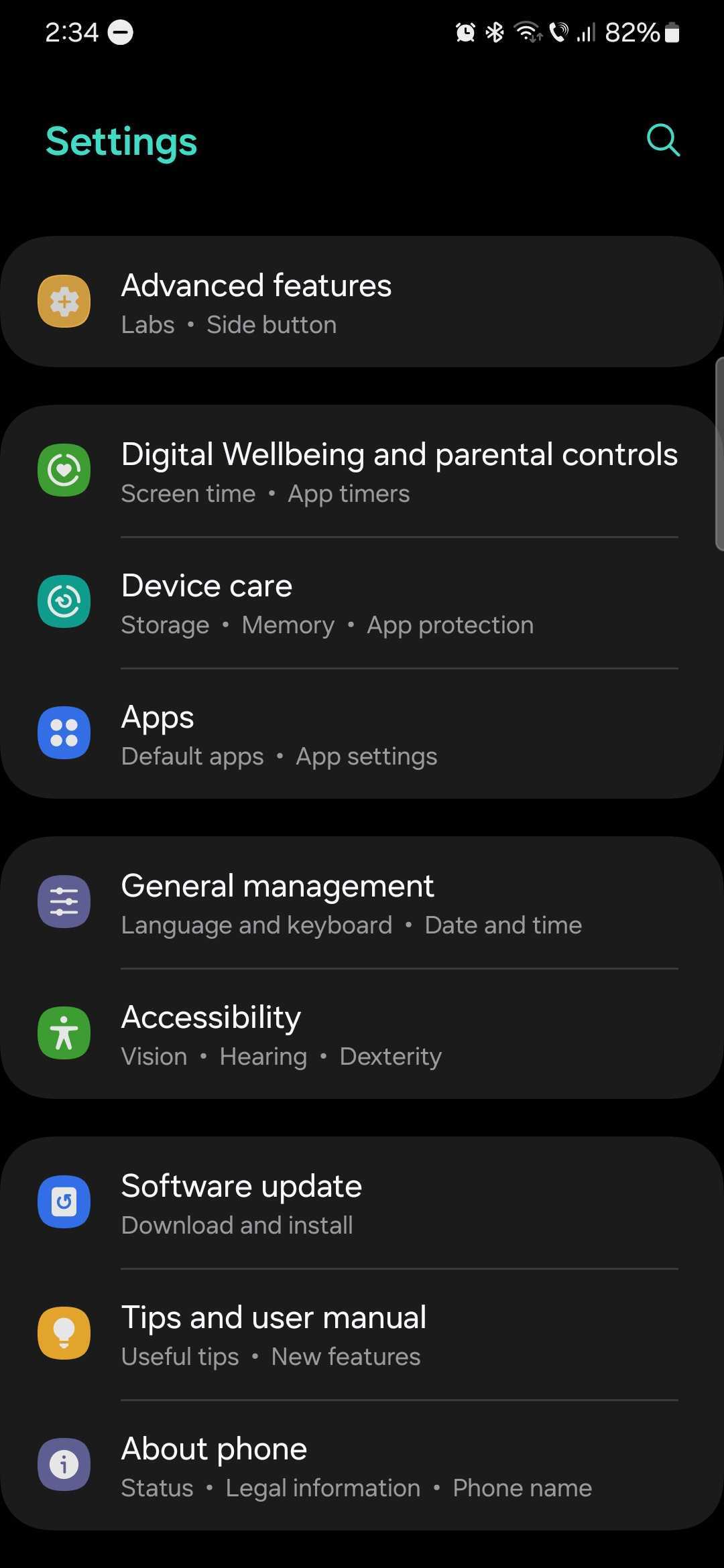
To change default apps in One UI, first, open the Settings app on your Galaxy phone or tablet, then access “Apps.”
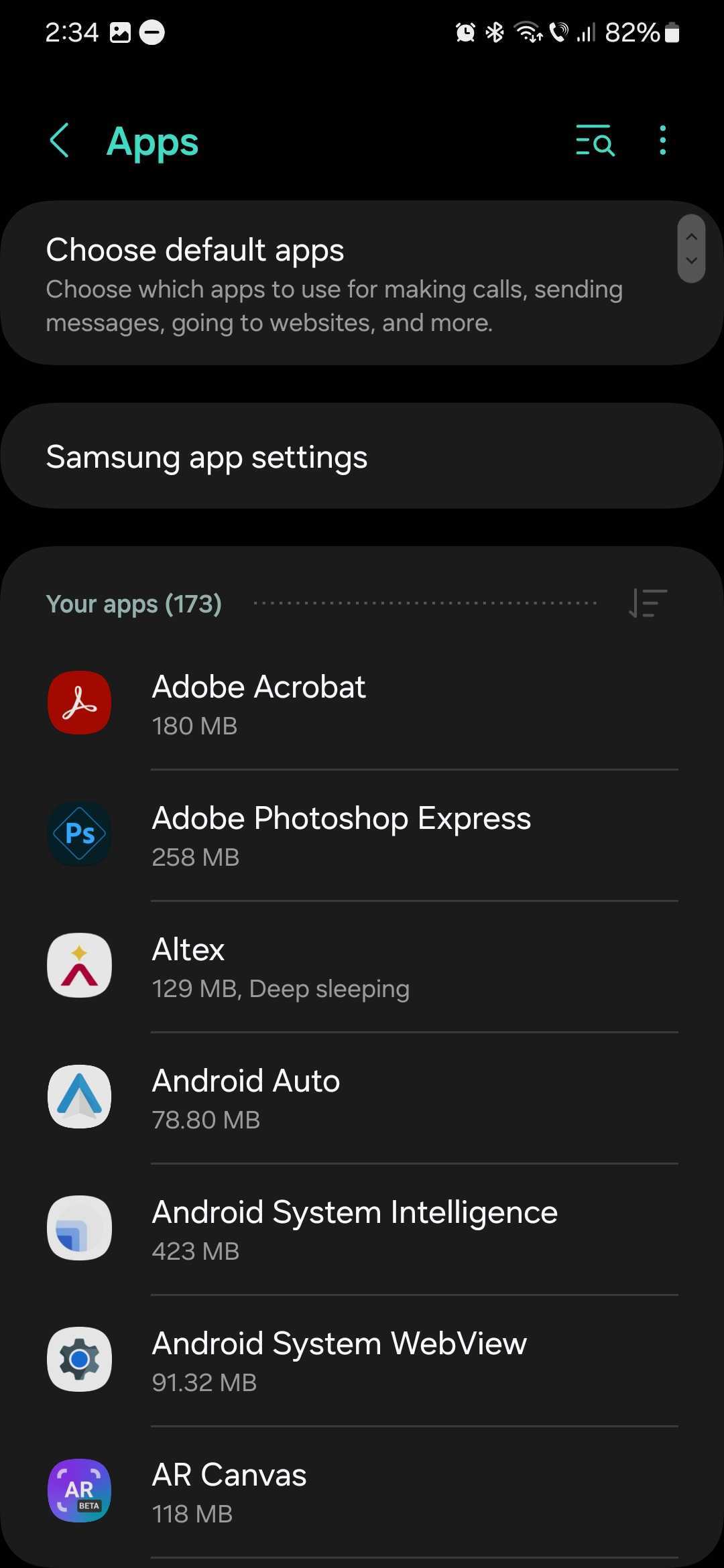
Next, tap “Choose default apps.” In this menu, you will see a list of default app categories, including the internet browser app, digital assistant app, home app, phone, and SMS apps, as well as the default browser app for your work profile, i.e., Secure Folder.
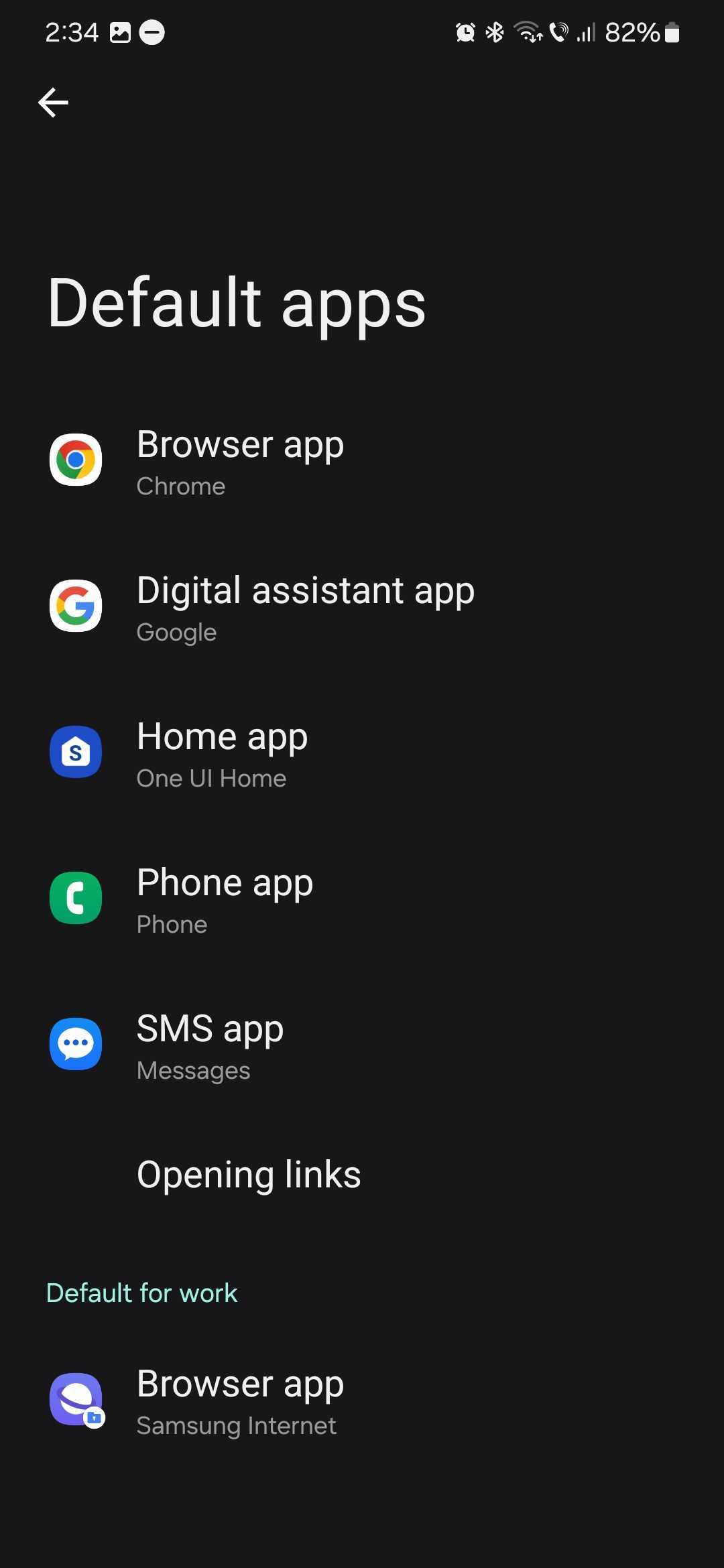
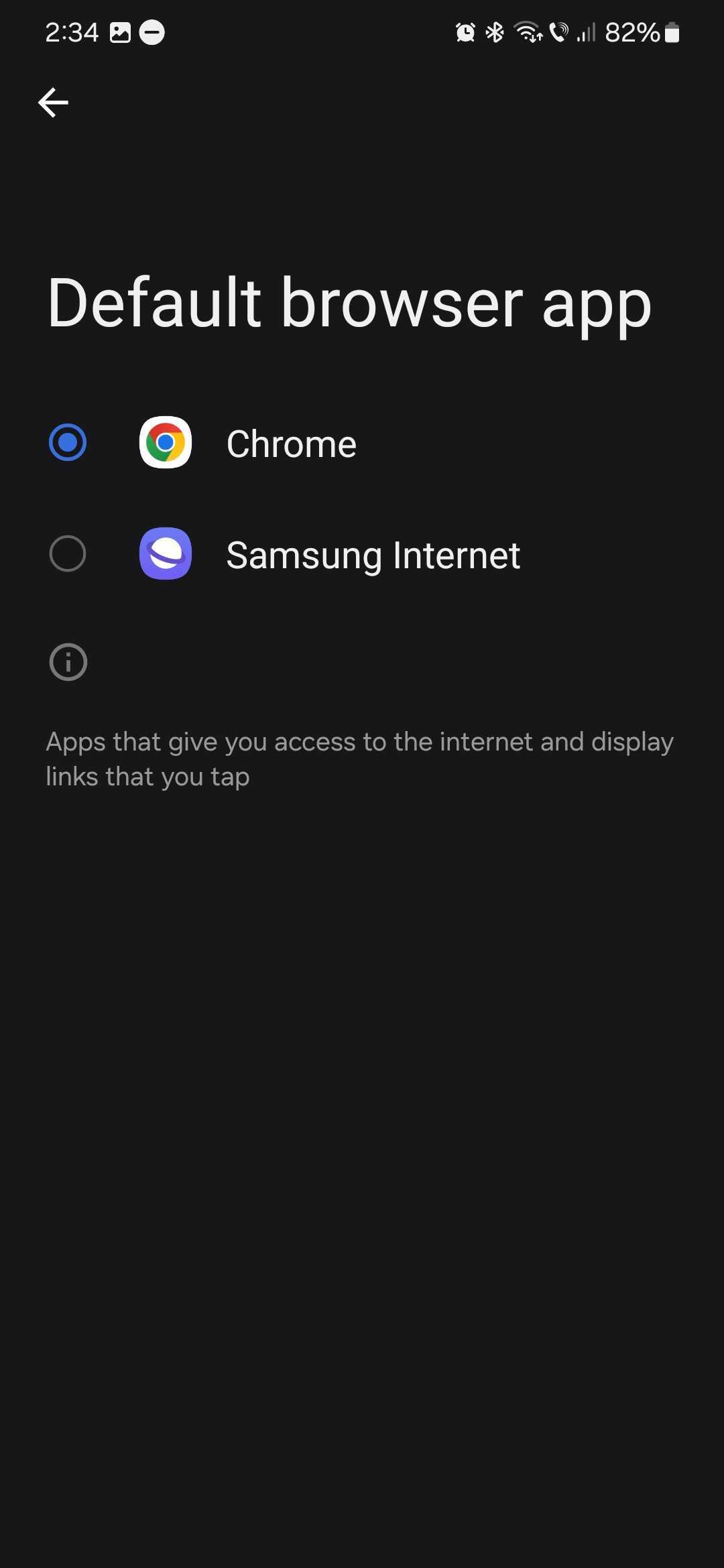
Select the default app category you want to change and pick one of the available options.
You will need to have an alternative app installed on your Galaxy device before you can see it listed as an option. For example, the Home app category will only contain the “One UI Home” option if you don't have other Android skins installed.

Mihai is a blogger and column writer at SamMobile. His first Samsung phone was an A800 which took a lot of beating, and a part of him still misses the novelty of the clamshell design. In his free time, he enjoys watching shows, documentaries, and stand-up comedy; listening to music, taking walks, and occasionally playing old(er) video games.













