Last updated: October 25th, 2026 at 16:22 UTC+01:00
SamMobile has affiliate and sponsored partnerships, we may earn a commission.
Things are easier and more intuitive than you might think.
Reading time: 3 minutes
Abhijeet Mishra / SamMobile
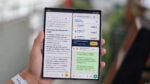
One thing you'll have to get used to after you switch to a Samsung Galaxy Z foldable phone is the fingerprint scanner's location. Unlike most other Galaxy phones, which have in-display fingerprint sensors, the Galaxy Z Flip 8, Fold 8, and Fold 8 Ultra have fingerprint scanners embedded in the physical side button.
Over the years, many Galaxy phone users have formed the habit of pressing this side button to wake the screen and check lock screen notifications without unlocking the device.
For new foldable phone users, that habit can become a bit of an issue because, on Galaxy Z devices, the same side button also unlocks the phone when you touch it with a registered fingerprint. And the fingerprint scanner is so fast, it might unlock the phone before you have a chance to see the lock screen.
Is there no reliable way to check lock screen notifications on these Samsung foldable phones without accidentally triggering the fingerprint scanner?
Should you use a registered finger for unlocking the phone and an unregistered one for waking it up without leaving the lock screen?
That sounds more like a hassle than a solution, but thankfully, there's a much better one already baked into Samsung's One UI software.
Or should Samsung add an annoying delay to the fingerprint sensor as Apple did to solve the problem on the iPhone Duo?
Well, that's actually not necessary because Samsung already has the fix.
Samsung's One UI has had this neat trick for years: You can double-tap the screen to turn it on. It was useful before, but now it works even great on foldables.
Using this gesture, you can check notifications directly on your Galaxy Z Flip or Fold's lock screen without having to touch the side-mounted fingerprint scanner and unlock your phone.
This feature is enabled by default in One UI, but not everyone is aware of its existence, especially newcomers who may have switched to Samsung this year. And if it's turned off, you may have imported your old settings through SmartSwitch.
To make sure this gesture is enabled on your Galaxy Z device, go to:
Mihai Matei / SamMobile
Galaxy Z Fold 8 Advanced features
Mihai Matei / SamMobile
Galaxy Z Fold 8 Motions and gestures
In the spirit of customization, Samsung also included a separate, similar double-tap gesture to turn off the screen. You can use one or both for the complete experience.
Now, whenever you want to check lock screen notifications or Now Brief without unlocking your phone, you can just double-tap the display.
The side key will work the same as before: press and hold it for a fraction of a second to wake the screen and bypass the lock screen while simultaneously unlocking your phone — all in one gesture that will no longer conflict with another function.