Last updated: October 29th, 2026 at 13:14 UTC+01:00


3 must-try features if Galaxy Z Fold 8 or Fold 8 Ultra is your first Samsung phone or foldable

Some of these may seem familiar if you're an Android user.

Mihai Matei

Reading time: 4 minutes

Samsung Galaxy Z Fold 8 Ultra

Abhijeet Mishra / SamMobile

Tips & Tricks

Samsung Galaxy Z Fold 8 Ultra

TL;DR

  • Enable notification categories to mute specific alert types from an app without turning off all of its notifications.
  • Try Samsung's Multi window gestures to quickly open split-screen or pop-up views and multitask with up to three apps.
  • Turn off cover screen mirroring so the foldable's outer and inner displays can have separate home screen layouts.

In essence, most mobile devices fulfill the same basic functions, but the user experience can differ significantly across smartphone models and operating systems.

If the Galaxy Z Fold 8 or the Galaxy Z Fold 8 Ultra is your first Samsung handset, you'll probably navigate the new form factor and One UI with relative ease, as long as you've used a smartphone before.

However, your experience with other devices will only help you so far. If you're unfamiliar with Samsung phones or the Galaxy Z series, you might miss a few fantastic features that are unique to Samsung's One UI software, Z foldable phones, or Android OS.

Must-know One UI features you should try on your new Galaxy Z Fold

Below, we have compiled a few great Samsung/Android features that we think you should know about if this is your first time using a Samsung device or foldable.

Some of these may seem familiar if you're an Android user, or they may seem very alien if you've transitioned from iOS. Let's start with:

Notification categories for each app

This might be one of Android's most underrated features. You see, platforms like iOS give you a binary choice for app notifications. You can either turn an app's notifications on or off, but there's no granularity.

Say you want to keep receiving delivery notifications from your delivery app but without getting any promotional messages from them. Some apps have notification settings built-in, but Samsung's One UI lets you control that from the home screen with incredible ease. Here's how:

First, enable the option: Go to Settings > Notifications> Advanced settings > turn on Manage notification categories for each app.

Notification categories

Mihai Matei / SamMobile

Notification categories

Notification categories

Mihai Matei / SamMobile

Notification categories

Here's the fun part: whenever you receive a notification you want disabled, press and hold it. One UI will help you navigate precisely to the notification category toggle you should turn off to stop receiving those types of notifications without turning off notifications for the app entirely.

The best Multi-window experience through gestures

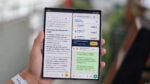
One of the best things about the Galaxy Z Fold 8 and Fold 8 Ultra is the ability to multitask with ease by launching up to three apps side by side with a few gestures.

It's called Multi window, and nobody does this better than Samsung. One of the best things about it is how easy you can launch a second app when one is already open:

  • Swipe up with two fingers from the bottom of the screen to enable horizontal Multi window.
  • Swipe left or right with two fingers from the left or right sides of the screen to enable vertical Multi window.

To make sure you have these shortcuts turned on, open Settings > Advanced features > Multi window > turn on Swipe for split screen.

Galaxy Z Fold 8 Multi window settings

Mihai Matei / SamMobile

Galaxy Z Fold 8 Multi window settings

Galaxy Z Fold 8 Multi window settings

Mihai Matei / SamMobile

Galaxy Z Fold 8 Multi window settings

As you will likely notice, there's also an option to swipe for pop-up view. Try to experiment with the different options and find your ideal configuration.

Cover screen mirroring

By default, One UI mirrors the Galaxy Z Fold 8/8 Ultra's cover screen to the main screen. Any changes you make to the cover screen app shortcuts and widgets will also apply to the inner foldable panel and vice versa.

It sounds convenient because, in theory, you don't have to organize your home screen twice / once for each display.

However, in practice, this doesn't quite work because the cover and main screens don't have the same orientation and aspect ratio. Organizing one home screen usually disorganizes the other.

Thankfully, you can change this behavior and have separate home screen layouts for each display.

To do this: Pinch the home screen > Settings > Turn Cover screen mirroring off.

Galaxy Z Fold 8 cover screen mirroring settings

Mihai Matei / SamMobile

Galaxy Z Fold 8 cover screen mirroring settings

Galaxy Z Fold 8 cover screen mirroring settings

Mihai Matei / SamMobile

Galaxy Z Fold 8 cover screen mirroring settings

Samsung's One UI has numerous other hidden features and useful options, some of which are again unique to foldable phones; be sure to try them out!