
Last updated: November 13th, 2026 at 14:45 UTC+01:00


One tweak makes the Galaxy Z Fold 8 multi-window experience even better

Free screen real estate.

Mihai Matei

Reading time: 2 minutes

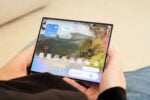
Three-app multitasking on Galaxy Z Fold 8

Abhijeet Mishra / SamMobile

Tips & Tricks

Three-app multitasking on Galaxy Z Fold 8

TL;DR

  • Turn on Full screen in split screen view in One UI to hide the status and navigation bars while using multi-window.
  • Hiding those bars gives split-screen apps more room and can make their interfaces feel less cramped, especially with button navigation.
  • You can still reveal the bars with a swipe, and Samsung’s flexible Android-based resizing is a key advantage over iOS.

Compared to other foldable phones, the Galaxy Z Fold 8 arguably offers the most comfortable multi-window experience, primarily because the multi-window a.k.a. split-screen feature lends itself perfectly to the emerging passport-style form factor.

And yet, with just one tweak in One UI, you can make multi-window on the Galaxy Z Fold 8 even better.

Why you may want to hide UI elements in multi-window

By default, One UI's status and navigation bars are always visible when you use split-screen on the Galaxy Z Fold 8 and, indeed, on other Samsung phones, whether slab-type or foldable.

Thankfully, you can set your Galaxy Z Fold 8 (or other Galaxy phone) to hide these bars whenever you use split-screen.

Doing so will give you more screen real estate for your multi-window apps. And when you want to bring up the status and nav bars, all you need is to swipe up from the bottom of the screen or down from the top.

To try this feature on your Galaxy Z Fold 8:

  • Open Settings > Advanced features > Multi window > Turn on Full screen in split screen view.
Full screen in multi-window setting

Mihai Matei / SamMobile

Full screen in multi-window setting

Thanks to Android's responsive UI capabilities, app windows can be resized to almost any shape and size. UIs adapt on the fly. This works perfectly with multi-window, and if you hide the status and navigation bars while using split-screen on the Galaxy Z Fold 8, your apps' UIs will have more room to unfurl and look better.

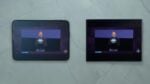
It actually makes a difference, especially if use the chunky navigation bar instead of navigation gestures. Hiding it in multi-window allows the app's ui to breathe. Below is a side-by-side comparison.

Galaxy Z Fold 8 multi-window with visible bars

Mihai Matei / SamMobile

Galaxy Z Fold 8 multi-window with visible bars

Galaxy Z Fold 8 multi-window with hidden bars

Mihai Matei / SamMobile

Galaxy Z Fold 8 multi-window with hidden bars

This is one of the main advantages the Galaxy Z Fold 8 and One UI have over the iPhone Duo and iOS. The latter also offers multi-window, but iOS can resize apps based only on a pre-set list of resolutions. Therefore, iOS doesn't allow resizing of multi-window at all.

In contrast, Samsung leveraged the power of Android's reactive UI to give Galaxy Z Fold users additional options for an even better multi-window experience.

If you have a Galaxy Z Fold 8 and you're already enjoying multi-window, make sure to give this One UI tweak a try. You might end up liking it even more.