Last updated: July 16th, 2025 at 16:32 UTC+02:00


3 easy ways to create wallpapers on your Samsung Galaxy phone

One UI offers endless ways to customize your Galaxy phone's wallpaper.

Mihai Matei

Reading time: 4 minutes

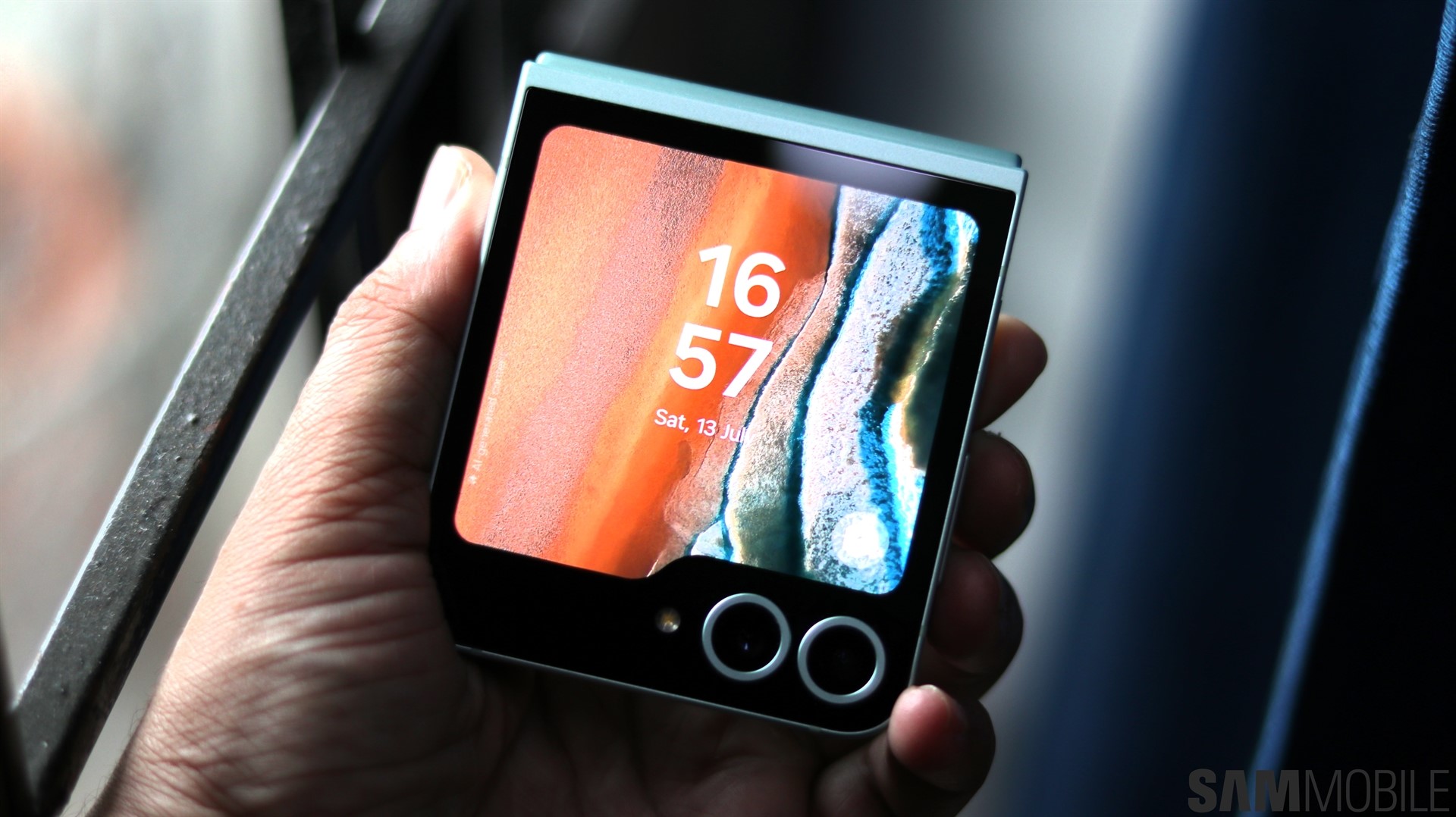
galaxy z flip 6 ai wallpapers
Tips & Tricks

Home screen wallpapers offer an easy way to personalize our devices and express ourselves. They let us recreate a specific mood or keep a favorite family photo close to our hearts. We use wallpapers on our computers, Galaxy phones, tablets, and virtually any other type of device that has a wallpaper option.

Speaking of options, Samsung's One UI offers not one but multiple ways to customize the home screen wallpaper. And you can create, customize, and set new wallpapers using a variety of methods. Here's all you need to know.

There are three main ways to set a new wallpaper on your Galaxy device: From the Gallery app, from the dedicated “Wallpaper and styles” menu, or from the feature-rich Wonderland app, developed by Samsung's Good Lock team.

The Gallery app allows you to browse your photo gallery and directly choose which photo you want to use as a wallpaper. Simply open the photo, tap the three-dot menu button in the upper right corner, tap Set as wallpaper, and select Home screen, Lock screen, or both.

screenshot_20250716_162123_gallery
screenshot_20250716_162128_gallery
screenshot_20250716_162132_gallery
screenshot_20250716_162220_wallpaper and style
screenshot_20250716_162226_wallpaper and style
screenshot_20250716_162237_wallpaper and style
screenshot_20250716_162247_wallpaper and style
screenshot_20250716_162256_wallpaper and style

Now you can move the image around to crop a different area. You can also set different effects (such as blur) and frames in different shapes and colors.

You can also let One UI customize your wallpaper for you by tapping the suggestion button.

Once you're happy with the results, tap Done to set your new wallpaper.

Using the Wallpaper and style menu

The option most Galaxy device users are familiar with is the dedicated Wallpaper and style menu, which can be accessed by pinching the home screen.

screenshot_20250716_165234_one ui home
screenshot_20250716_165219_wallpaper and style

This menu also gives you access to the Gallery wallpaper option mentioned above, along with a few extra options you won't find in the Gallery app. These include:

  • Featured wallpapers, some of which have different variations or effects.
  • Generative. This is the Galaxy AI tool that lets you create AI-generated wallpapers based on prompts.
  • Graphical.
  • Colors.
screenshot_20250716_163243_wallpaper and style
screenshot_20250716_163259_wallpaper and style

The Generative wallpaper tool is one of the funnest and easiest to use. You can rely on Galaxy AI to create unique wallpapers that only you will have on your phone, and you can always explore new ideas and designs in just a few screen taps.

The Generative wallpaper tool offers endless color and shape variations. For example, you can make AI images of a castle made out of cloth or a precious mineral. And you can generate wallpapers in different styles when you choose the “Painting” option. Styles include:

  • Avant-garde, 19th century realist, Expressionist, Impressionist, 19th century post-impressionist, Art nouveau, Baroque, Bauhaus, Classicist, Constructivist, Watercolor, Abstract and Abstract pointillism, Pop art, Graphic design.
screenshot_20250716_163904_wallpaper and style
screenshot_20250716_163911_wallpaper and style
screenshot_20250716_163919_wallpaper and style
screenshot_20250716_163938_wallpaper and style

Finally, if you want to change your lock screen wallpaper via the Wallpaper and style menu, you get to choose from a couple of extra options, such as:

  • Photo ambient: Allows you to set a custom photo as your lock screen wallpaper, complete with AI-generated weather effects that match the weather outside.
  • Wallpaper services. These services include Samsung's dynamic lock screen based on Samsung photo collections, plus the Samsung Global Goals lock screen.
screenshot_20250716_163440_wallpaper and style
screenshot_20250716_163347_wallpaper services

Creating unique wallpapers with Wonderland

The third and most in-depth way to create a wallpaper for your Galaxy device is through the Wonderland app. It's developed by Samsung's Good Lock team but is available as a standalone app from the Galaxy Store. And even if it wasn't a standalone app, Good Lock is now available globally.

Wonderland allows you to create static or animated wallpapers for your home and lock screen, and you can use presets or create your own from scratch using photos from your Gallery. Animated wallpapers can also react based on your phone's accelerometer data, so when you move your phone, the wallpaper can change perspective.

If you want to go in-depth with wallpaper creation, Wonderland allows you to finely tune various elements, from particle effects to layers and more. It can be very fun and the process can lead to unique results.

screenshot_20250716_163635_wonderland
screenshot_20250716_163645_wonderland
screenshot_20250716_163717_wonderland
screenshot_20250716_163707_wonderland

Check out the latest Samsung offers

Samsung Shop