Cyber week deals! Galaxy Watch8 Classic, Fold 7, S25 Ultra. Follow us on YouTube, TikTok, or LinkedIn
Last updated: September 13th, 2019 at 15:59 UTC+02:00
SamMobile has affiliate and sponsored partnerships, we may earn a commission.
Reading time: 2 minutes
Formatting the Galaxy Note 10+ microSD card is quite easy. You don’t need any special apps or prior preparation, but you should make sure that your personal data located on the microSD card has been backed up before following these steps unless you purposefully want to get rid of your data.
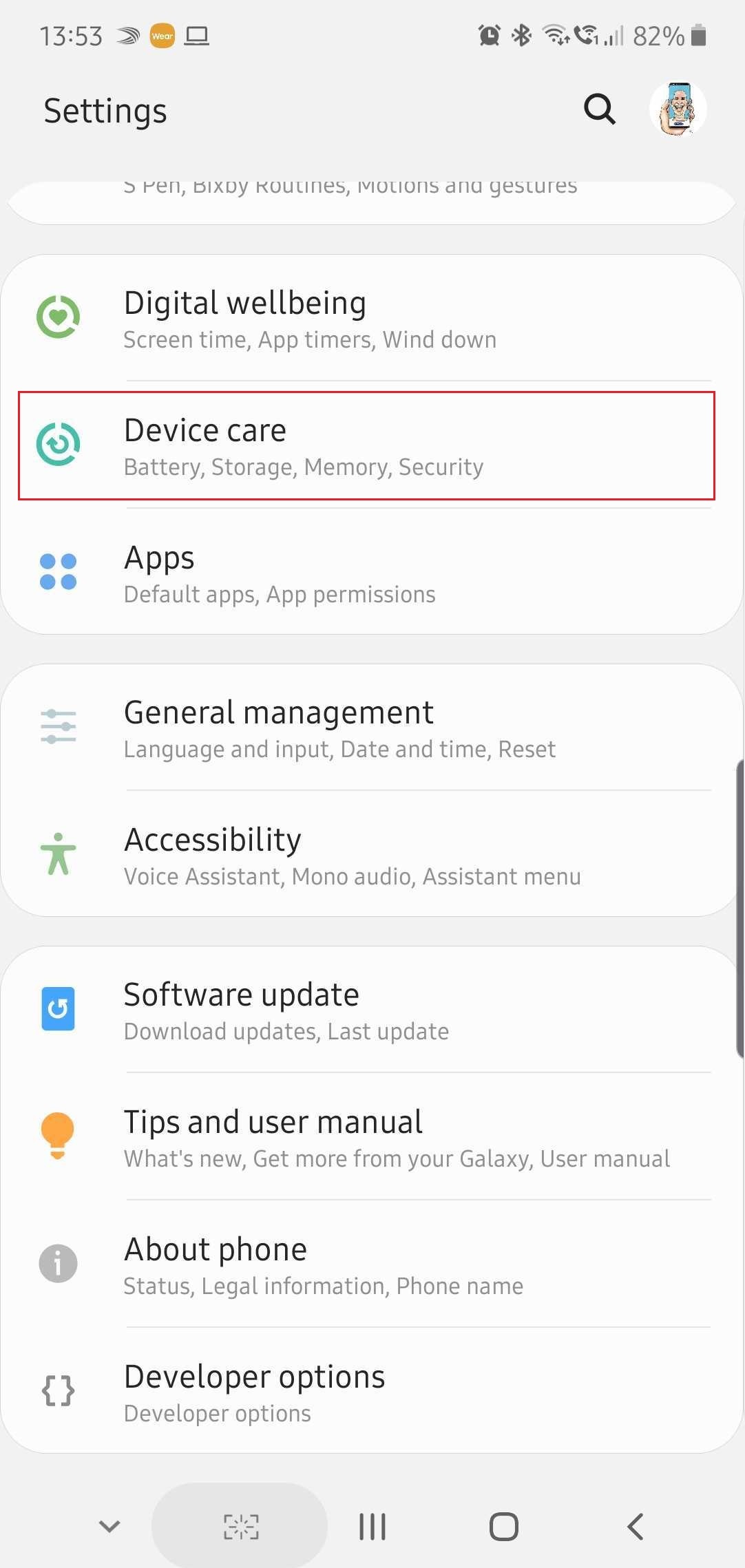
Step 1: Open the Settings app. You can do this either from the apps drawer or by dragging the status bar down and tapping the small cog-shaped icon. Next, scroll to and tap Device Care.
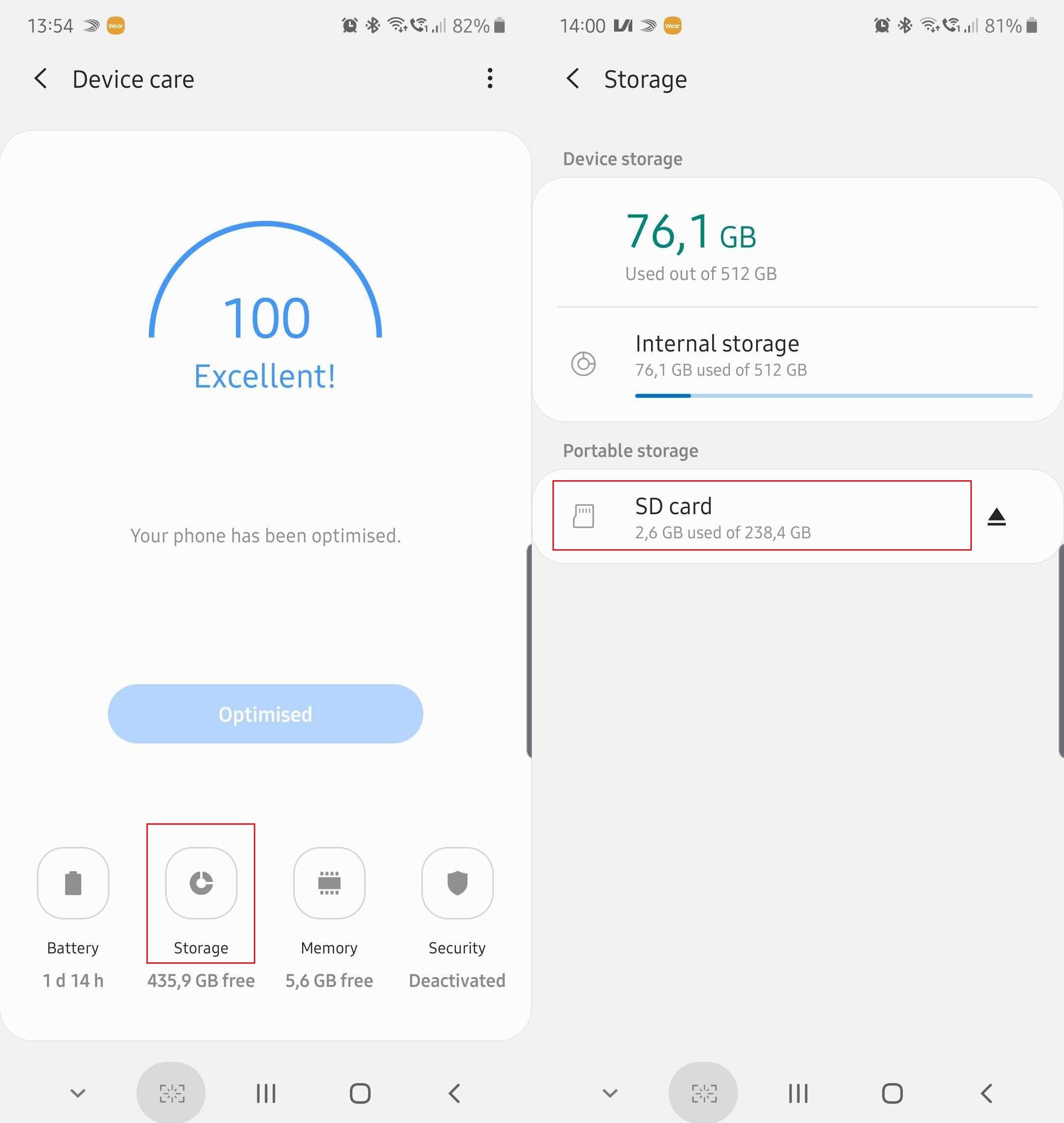
Step 2: Tap the Storage button in the lower area of the screen, then select SD card in the Portable Storage category.
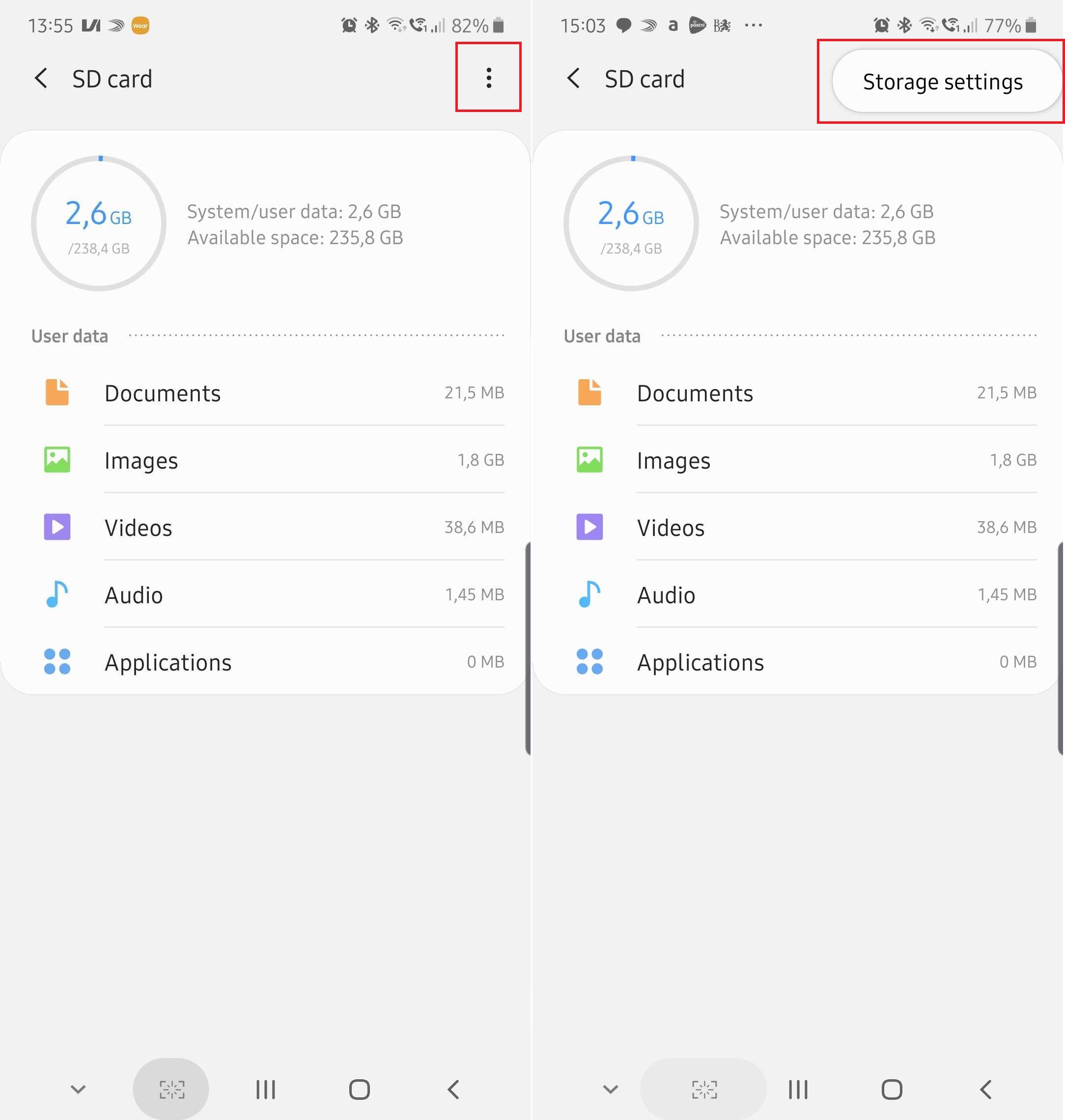
Step 3: Tap the 3-dot button in the upper-right corner and select Storage Settings.
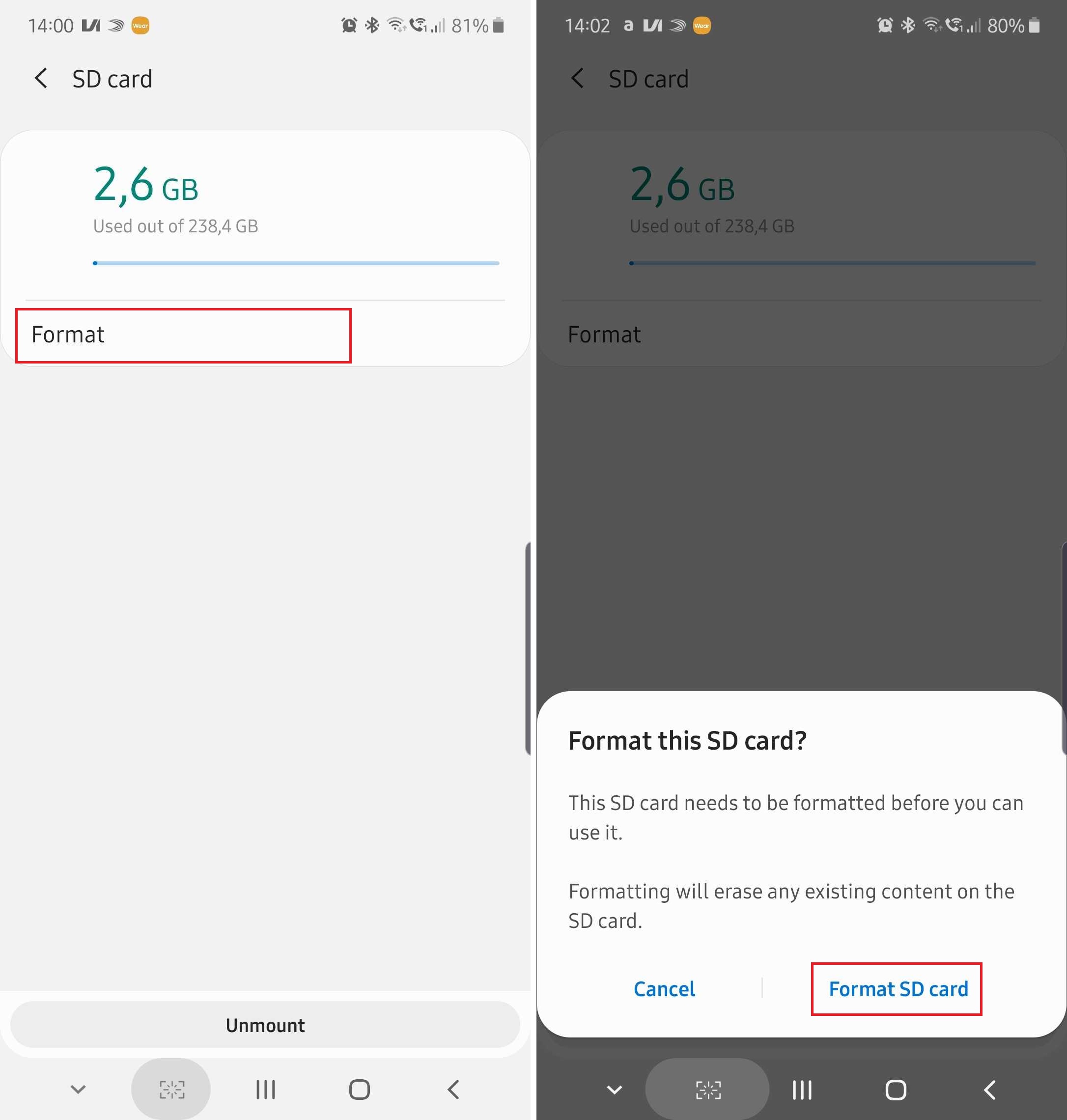
Step 4: Tap Format. The phone will warn you that you are about to erase all the content stored on the microSD card. If you still need to back up your data, this is your last chance. Otherwise, confirm and finalize the process by tapping Format SD card.
The microSD formatting process will be completed in a few moments. Once done, you can restore your personal data back to the external storage or start creating new files. For more guides, you can check out other Galaxy Note 10 tips on how to record the Note 10 screen or capture screenshots.
[modelinfo model=”SM-N975F”]
Mihai is a blogger and column writer at SamMobile. His first Samsung phone was an A800 which took a lot of beating, and a part of him still misses the novelty of the clamshell design. In his free time, he enjoys watching shows, documentaries, and stand-up comedy; listening to music, taking walks, and occasionally playing old(er) video games.