Last updated: January 9th, 2019 at 13:33 UTC+01:00
SamMobile has affiliate and sponsored partnerships, we may earn a commission.
Reading time: 2 minutes
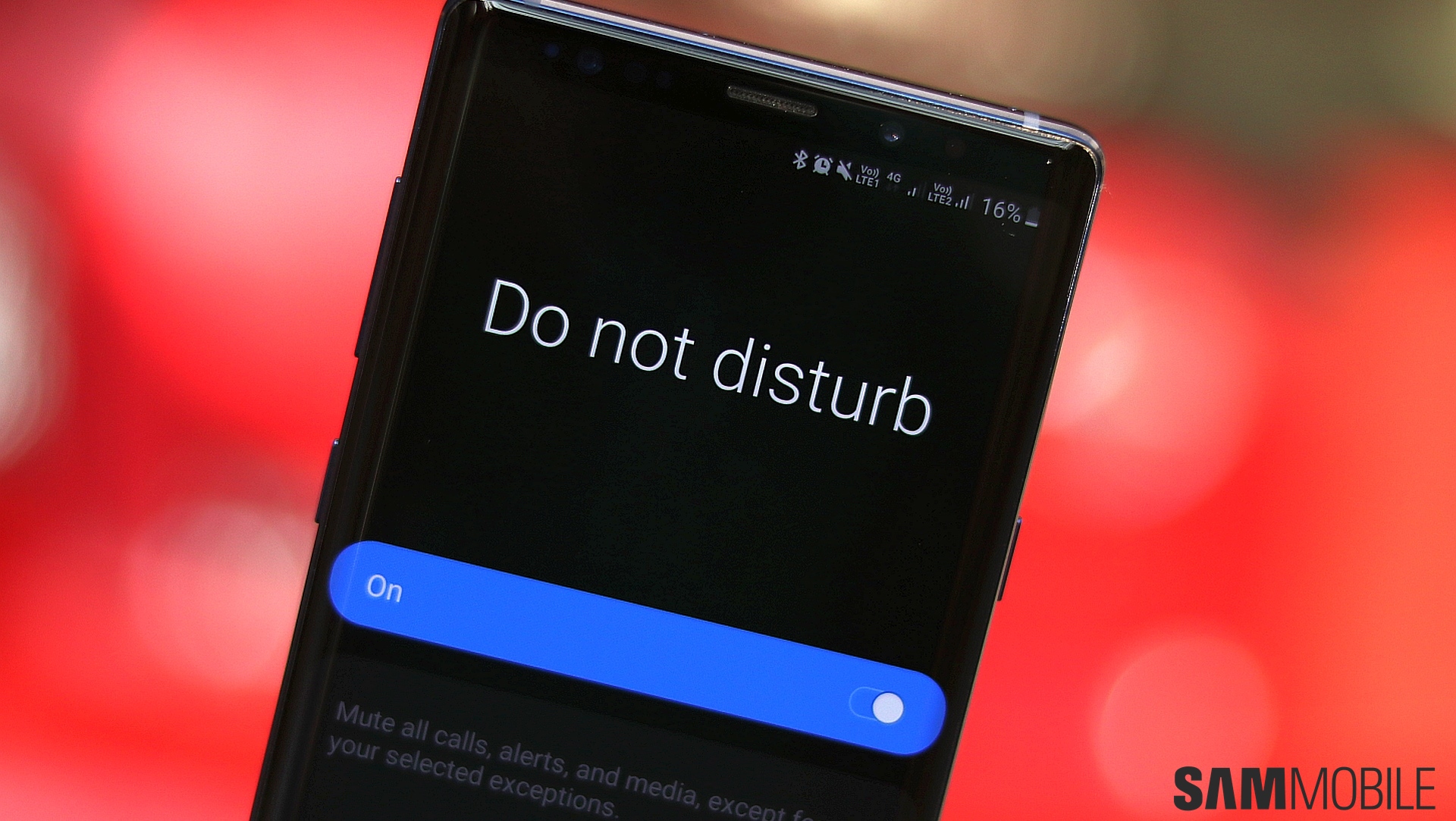
In fact, Android Pie completely mutes all media sounds and doesn't allow you manually increase or decrease media volume. So once Do not disturb is enabled, you would have to turn it off to be able to hear audio in videos and other media on the device. It's a neat option to ensure your phone doesn't accidentally make a sound during your late-night sessions of scrolling through your Facebook and Instagram feeds, and Do not disturb is overall more customizable on One UI.
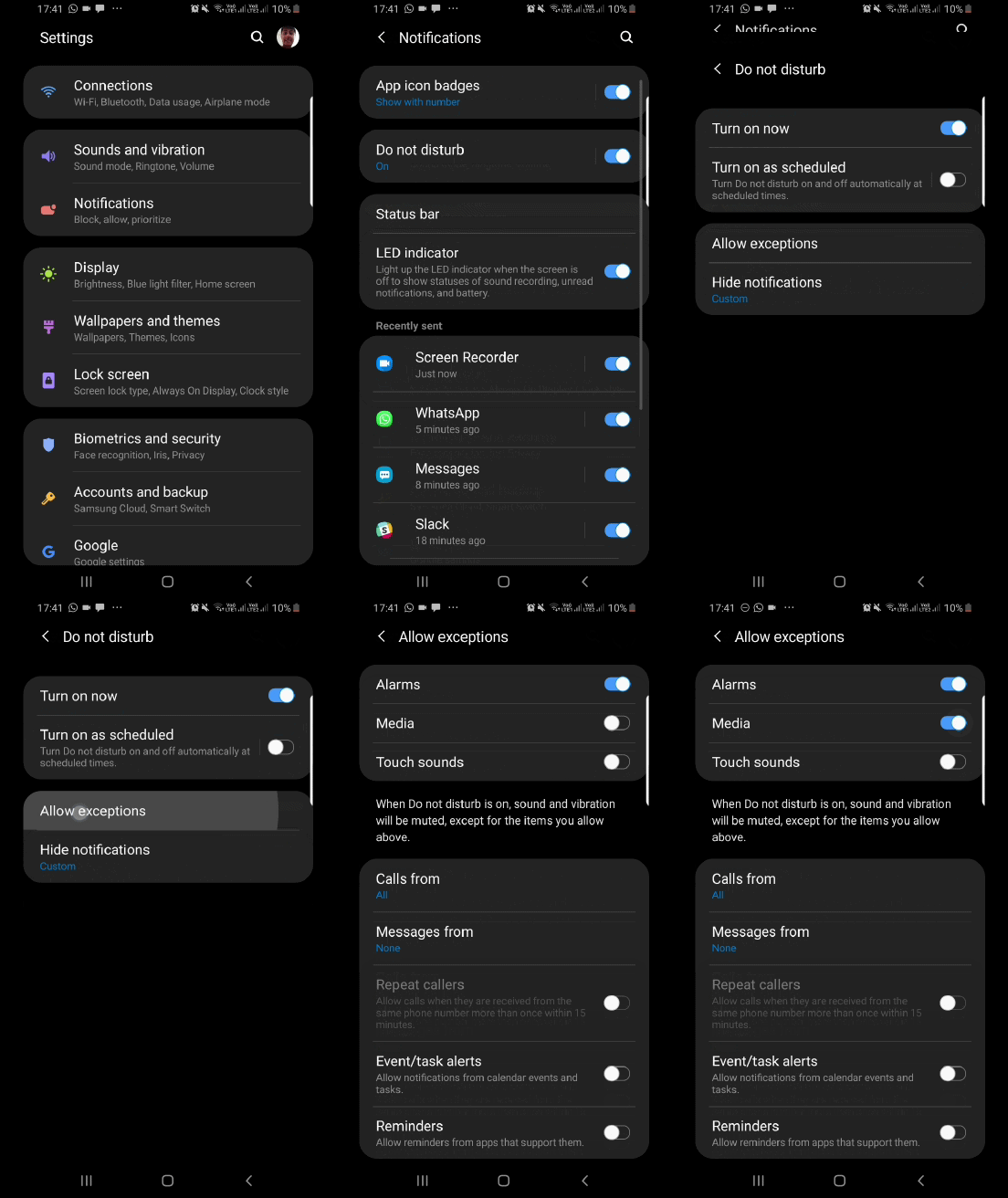
To customize Do not disturb, you can open the Settings app, go into the Notifications section, then tap the Do not disturb option (yes, Do not disturb is no longer located in the Sounds and vibration menu). In the Do not disturb menu, go into the Allow exceptions section to find toggles for alarms, media, and touch sounds, in addition to the usual settings that let you select whether you want to hear calls, messages and other notifications. You can see the GIF animation above for a visual guide.
There's a lot more that Android Pie and One Ui bring to Galaxy smartphones, and you can check it all out in our One UI (Android Pie) feature focus series of articles.

Abhijeet's writing career started with guides for custom firmware for Samsung devices (including the original Galaxy S), and he moved to SamMobile in mid-2013 and worked up the ranks to Editor-in-chief. In addition to phones and mobile devices, his interests include gaming on both PC and console, PC hardware, and spending countless hours on YouTube watching videos on tech, movies, games, politics, and internet dramas.












