Last updated: January 3rd, 2019 at 10:37 UTC+01:00
SamMobile has affiliate and sponsored partnerships, we may earn a commission.
Reading time: 2 minutes
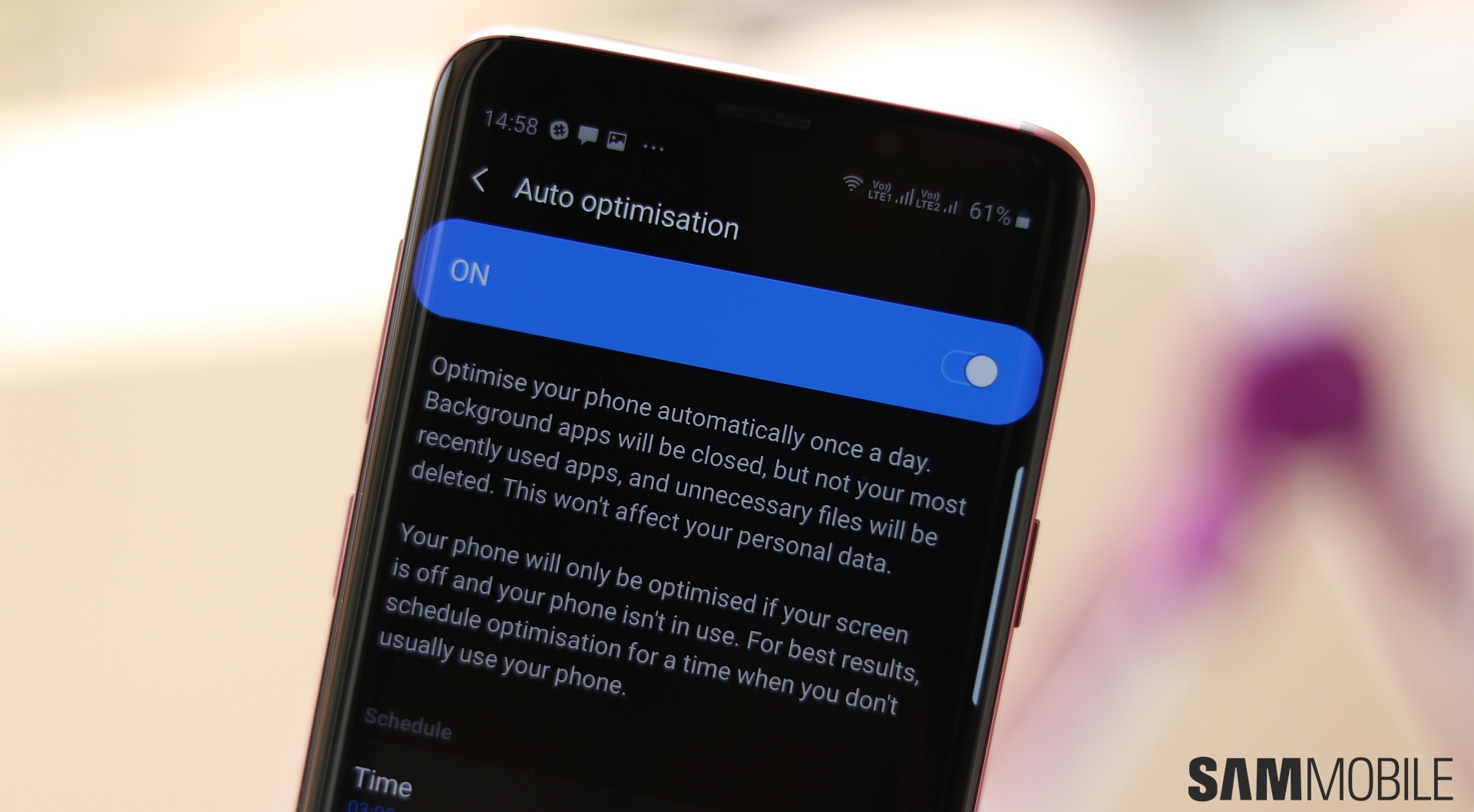
Auto optimization can be considered an extension of the auto restart feature we already have on Galaxy smartphones. When enabled, it will clear background apps from memory and free up storage at a scheduled time each day. However, as noted in its description, the auto optimization feature lets recently used apps stay in memory and only clears those you haven't used for some time but are still taking up device RAM. For freeing up storage, it will only delete unnecessary files such as cached and advertisement files and won't affect your personal data.
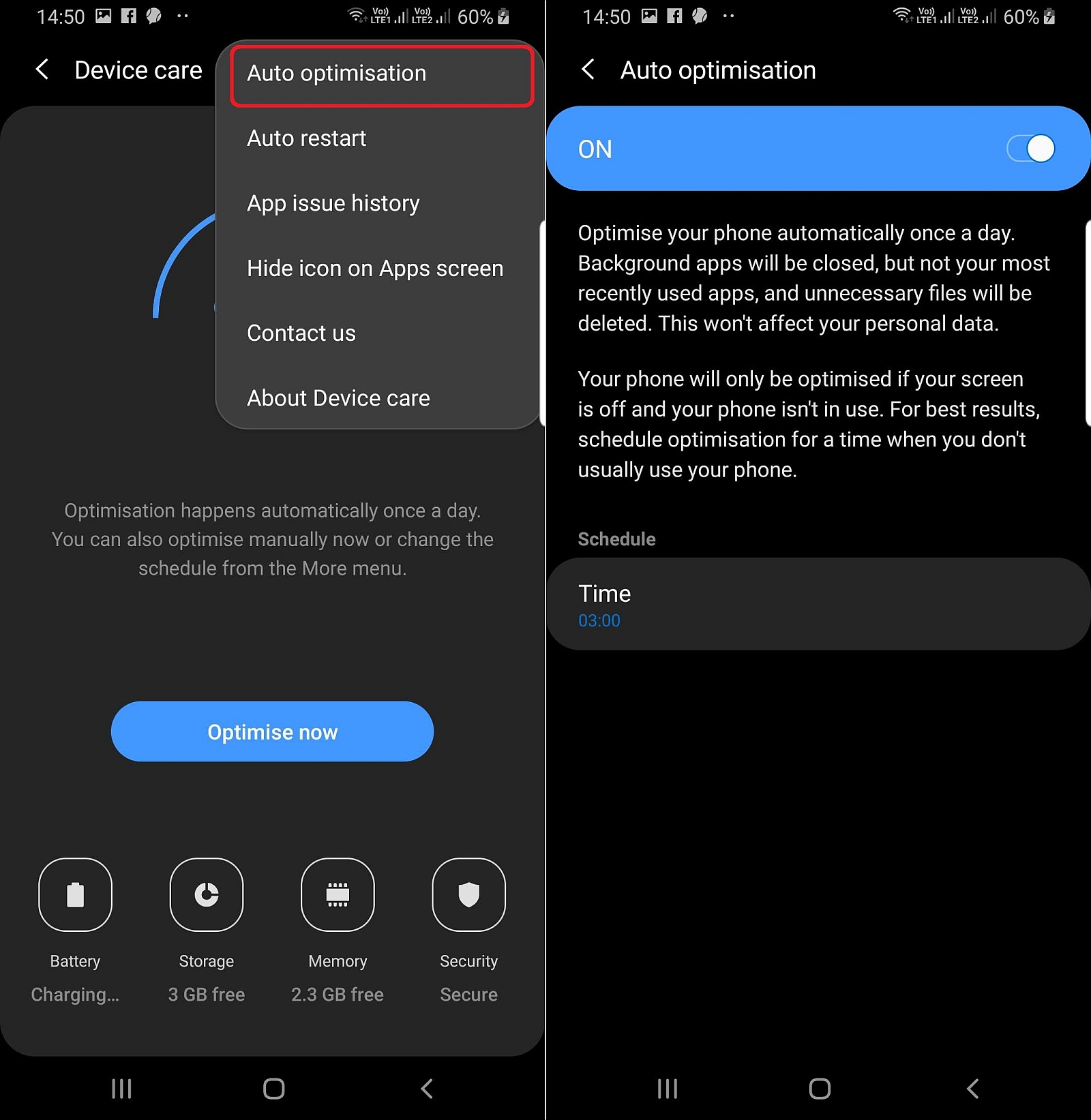
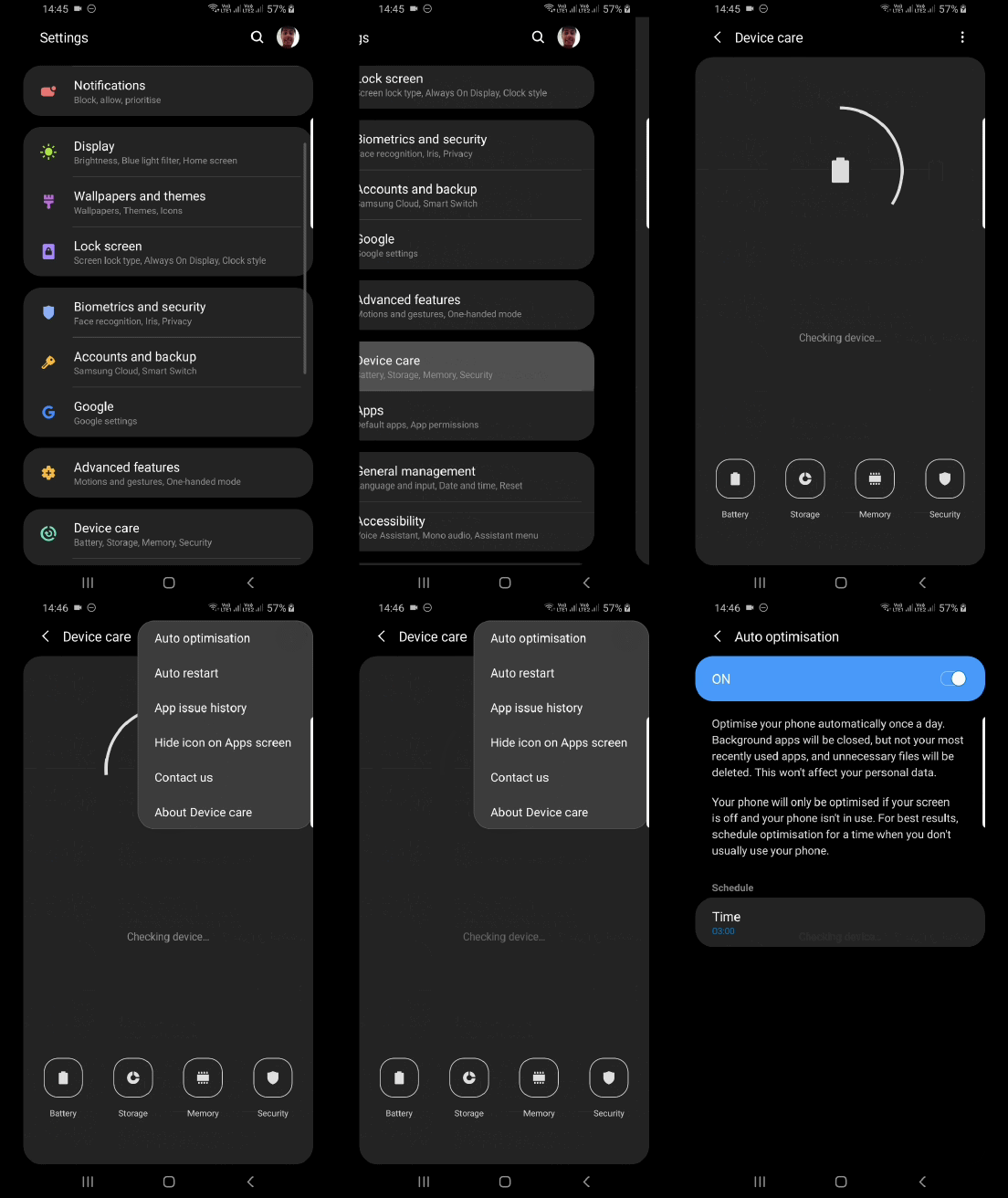
The auto optimization option can be found in the Device care section of the Settings app on Android Pie. In the main Device care screen, tap the three-dot button at the top right and tap Auto optimization (see the animation below for a quick visual guide). Here, you can enable the feature and select a time for when the optimization should take place. The optimization won't occur if you're using the phone at the scheduled time, so be sure to select a time when you don't usually use your phone on most days.
Don't forget to check out more of what's new with Android Pie and One UI in our One UI (Android Pie) feature focus series.

Abhijeet's writing career started with guides for custom firmware for Samsung devices (including the original Galaxy S), and he moved to SamMobile in mid-2013 and worked up the ranks to Editor-in-chief. In addition to phones and mobile devices, his interests include gaming on both PC and console, PC hardware, and spending countless hours on YouTube watching videos on tech, movies, games, politics, and internet dramas.













