Last updated: September 22nd, 2017 at 14:42 UTC+02:00
SamMobile has affiliate and sponsored partnerships, we may earn a commission.
Reading time: 2 minutes
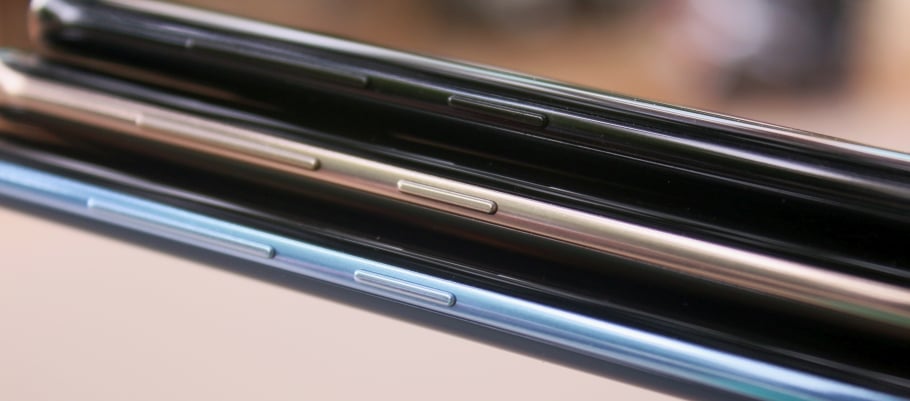
Samsung did not offer an option to disable or remap the Bixby button for a long time. It even released updates to break the apps that allowed remapping of the Bixby button. In a recent Bixby Home update that was rolled out in a few markets, Samsung finally offered an option to disable the Bixby button. If you have disabled the Bixby button already, but want to re-enable it, the situation could be quite tricky.
There are two ways to re-enable Bixby Home: asking Bixby through voice command or by swiping left from the home screen. This is possible only on phones that come with a dedicated Bixby button. Here's how to do it using both these ways.
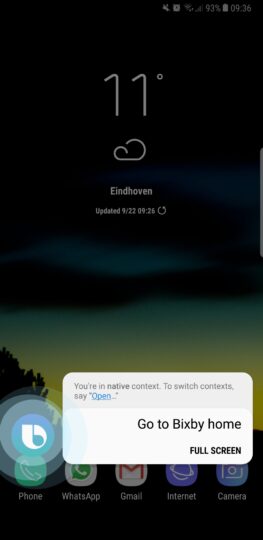
Step 1: Long press the Bixby button to activate Bixby Voice and prompt “Open Bixby Home”
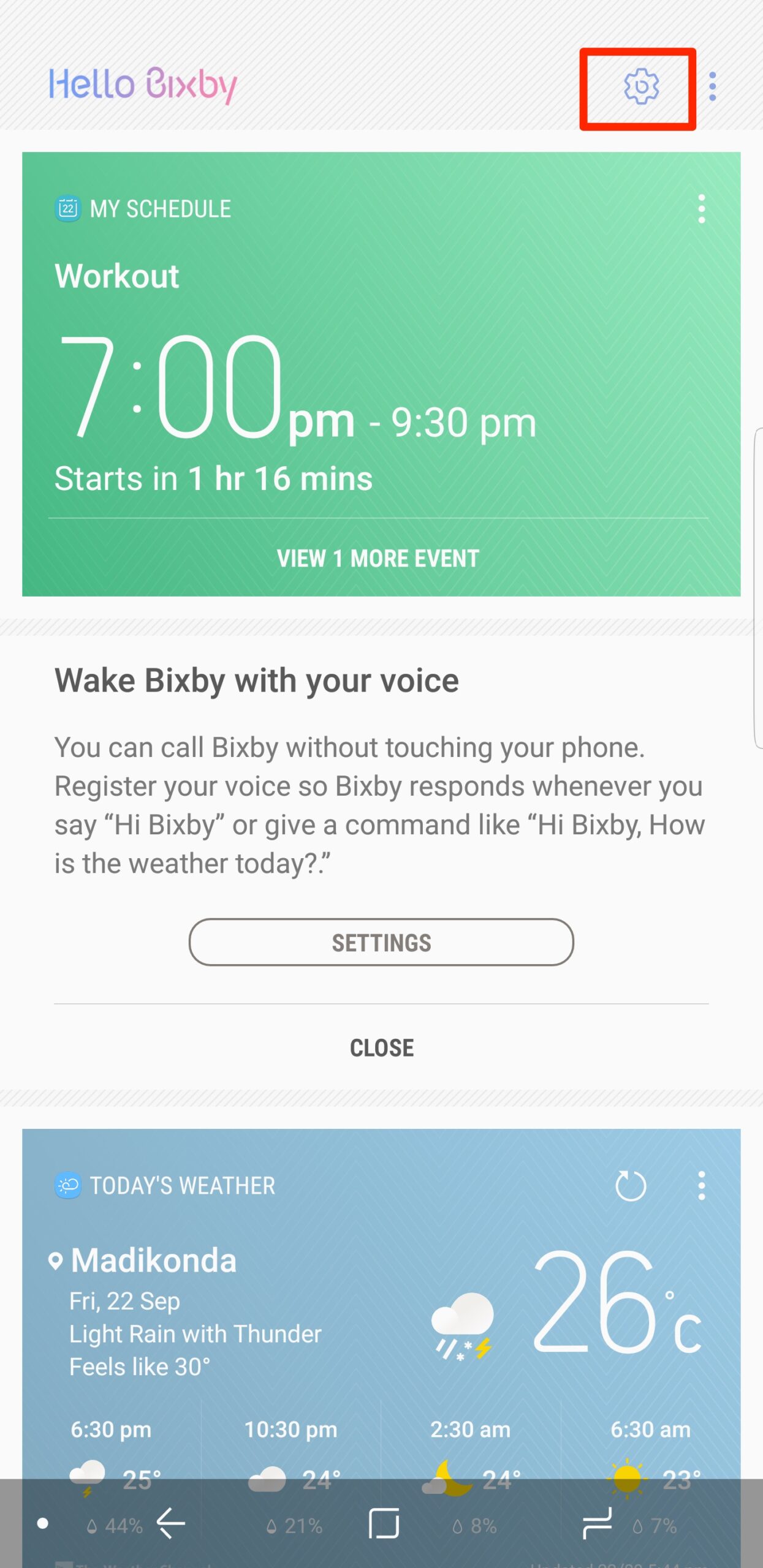
Step 2: Click the gear-shaped icon on the top right corner of the screen and then turn on the Bixby Key option by toggling the switch.
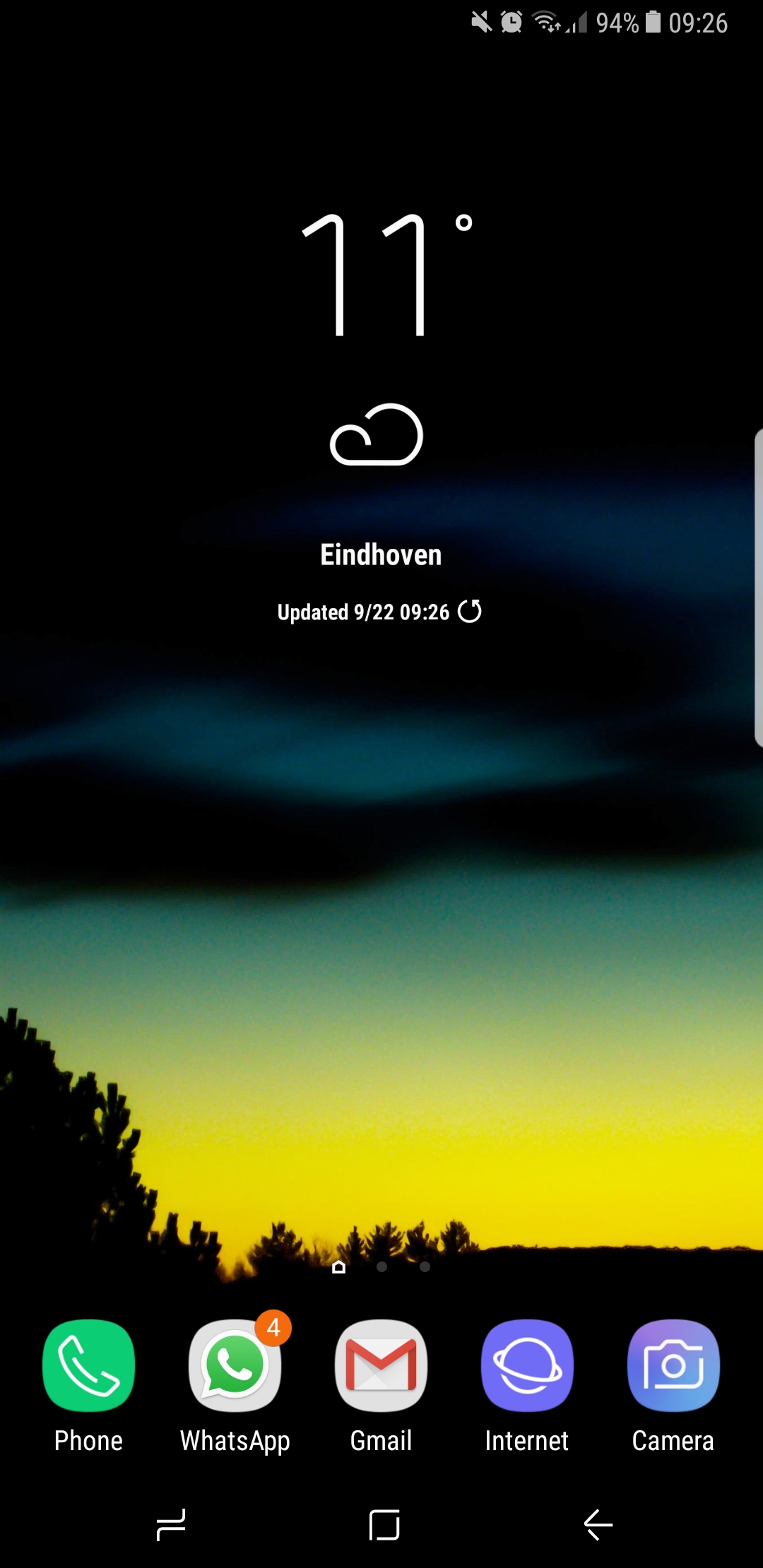
Step 1: If you've disabled the Bixby Home screen, long press on the home screen and swipe to the left.
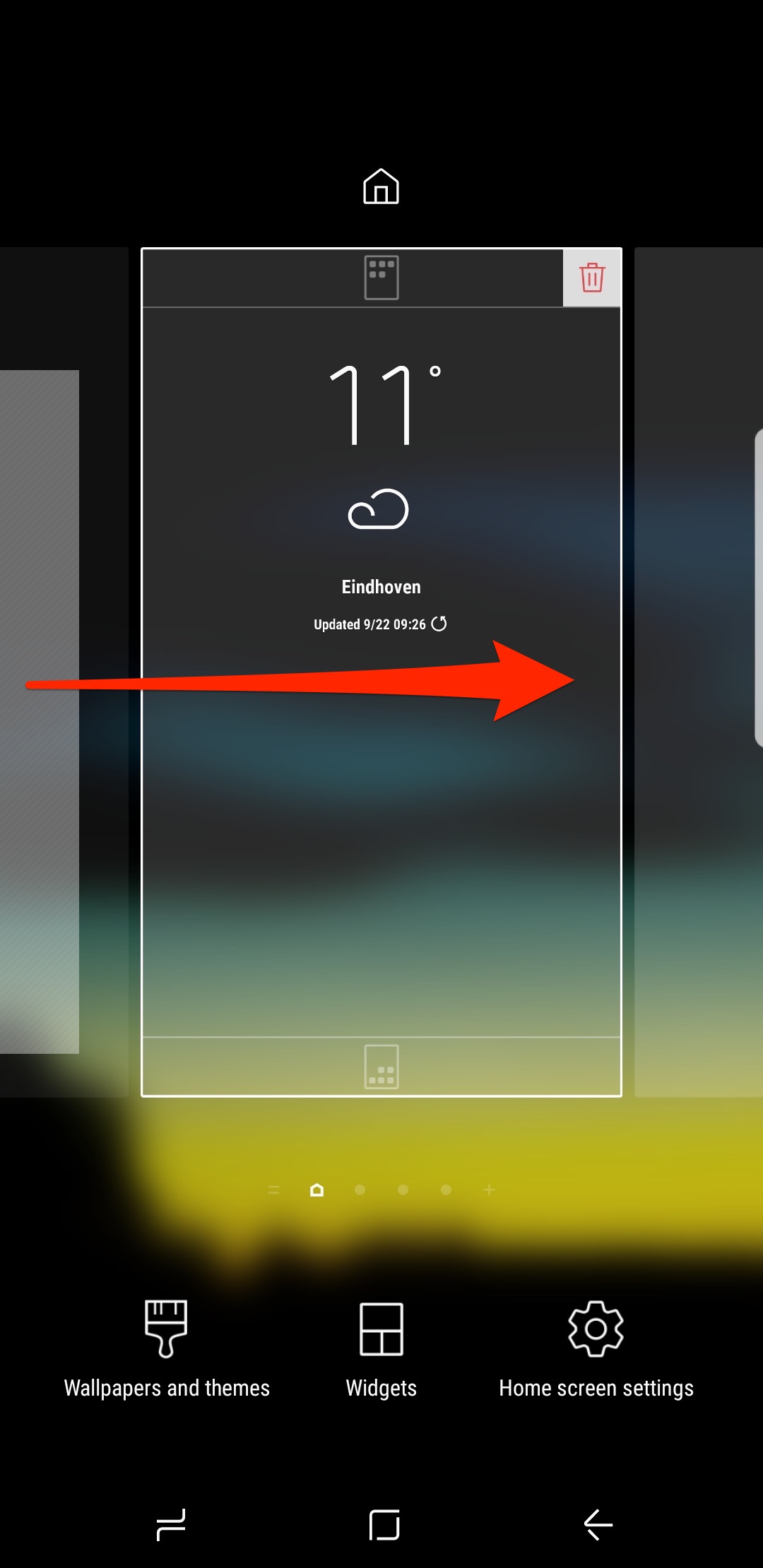
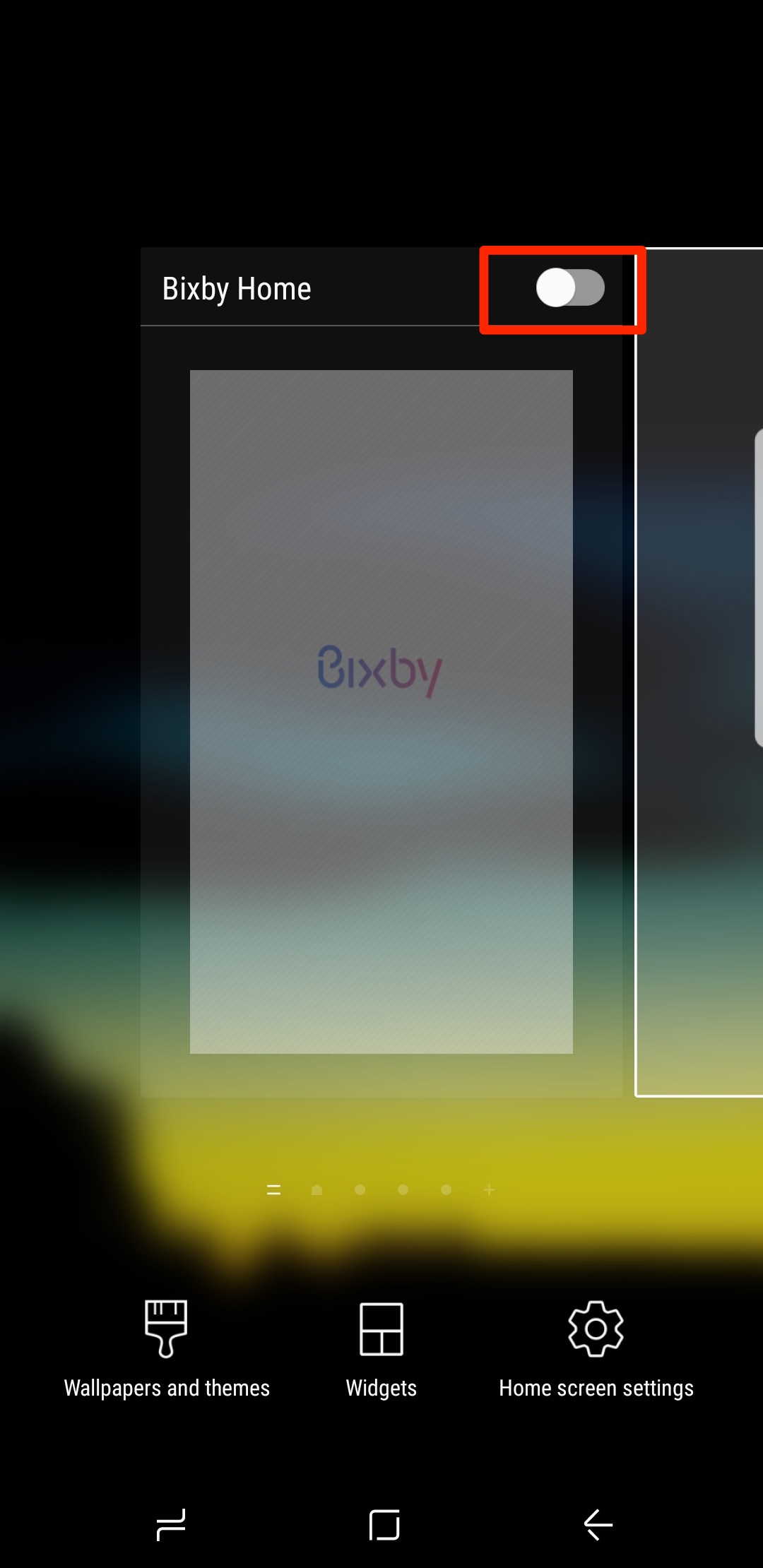
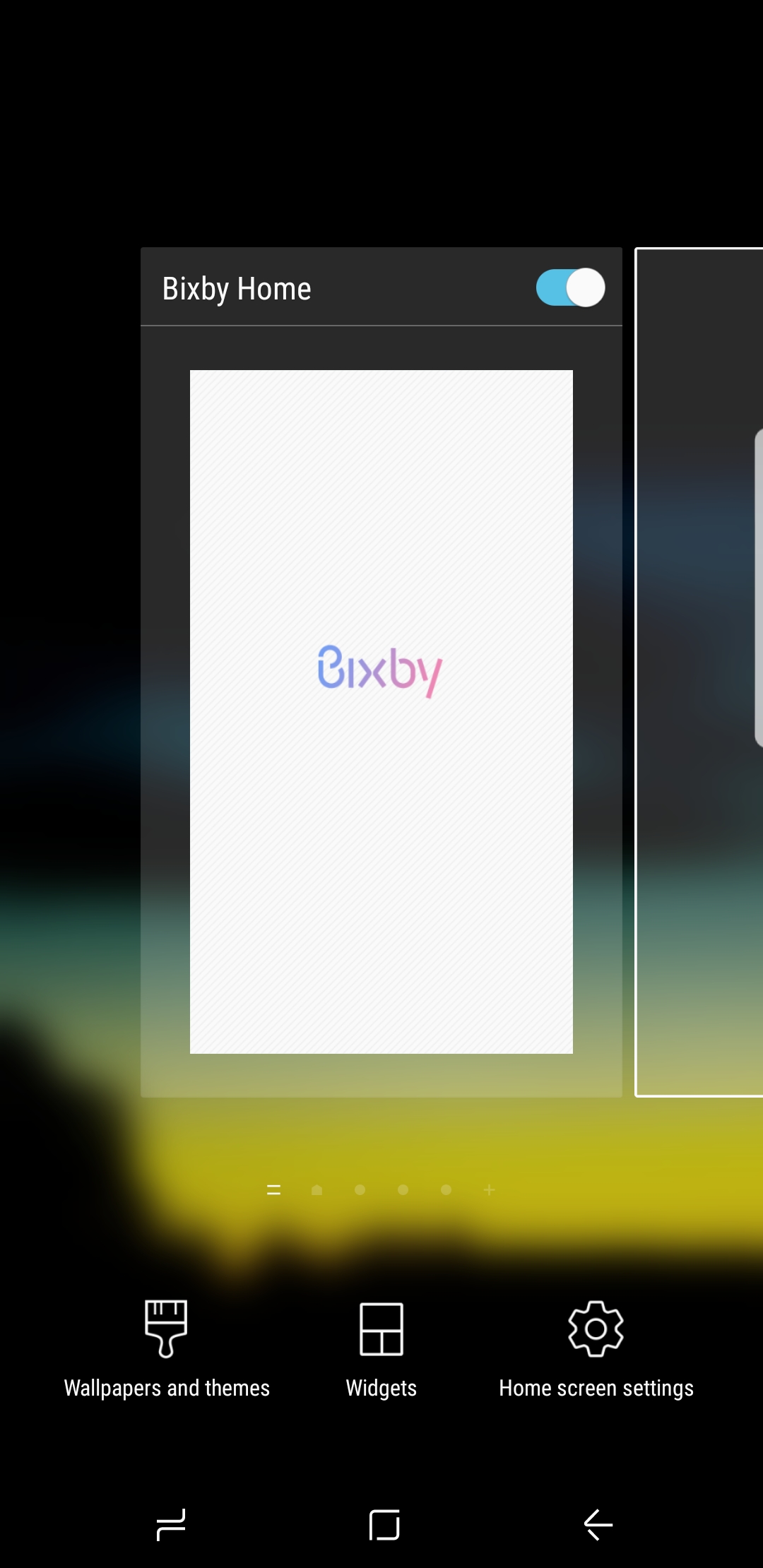
Step 2: Toggle the Bixby Home switch.
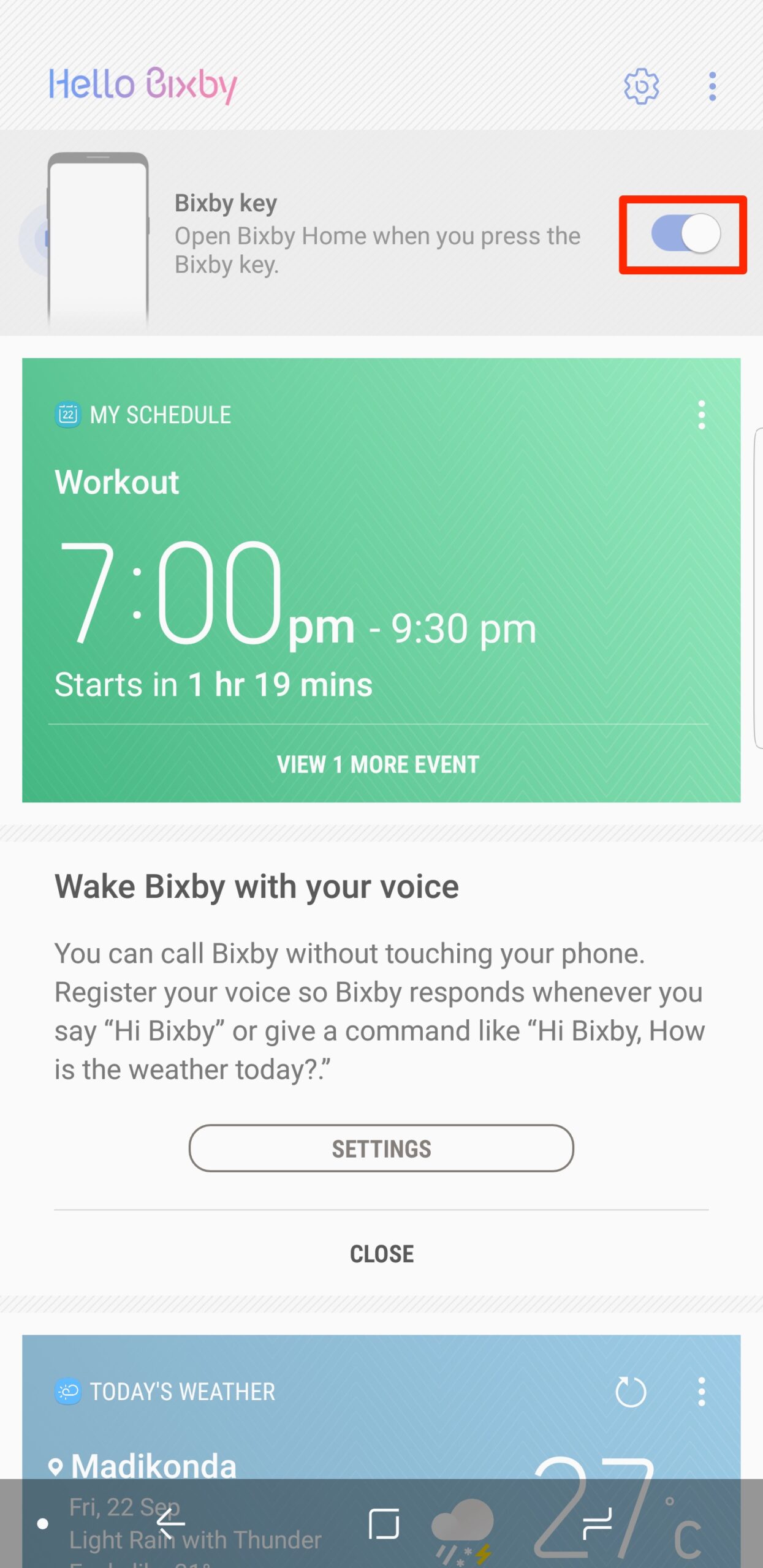
Step 3: Now, open the Bixby Home screen and click the gear-shaped icon on the top right corner of the screen. Now, turn on the Bixby Key option by toggling the switch.
Voila! You have now successfully re-enabled the Bixby button to open Bixby Home.

Asif is a computer engineer turned technology journalist. He has been using Samsung phones since 2004, and his current smartphone is the Galaxy S23 Ultra. He loves headphones, mechanical keyboards, and PC hardware. When not writing about technology, he likes watching crime and science fiction movies and TV shows.













