Last updated: May 10th, 2017 at 12:46 UTC+02:00
SamMobile has affiliate and sponsored partnerships, we may earn a commission.
Reading time: 2 minutes
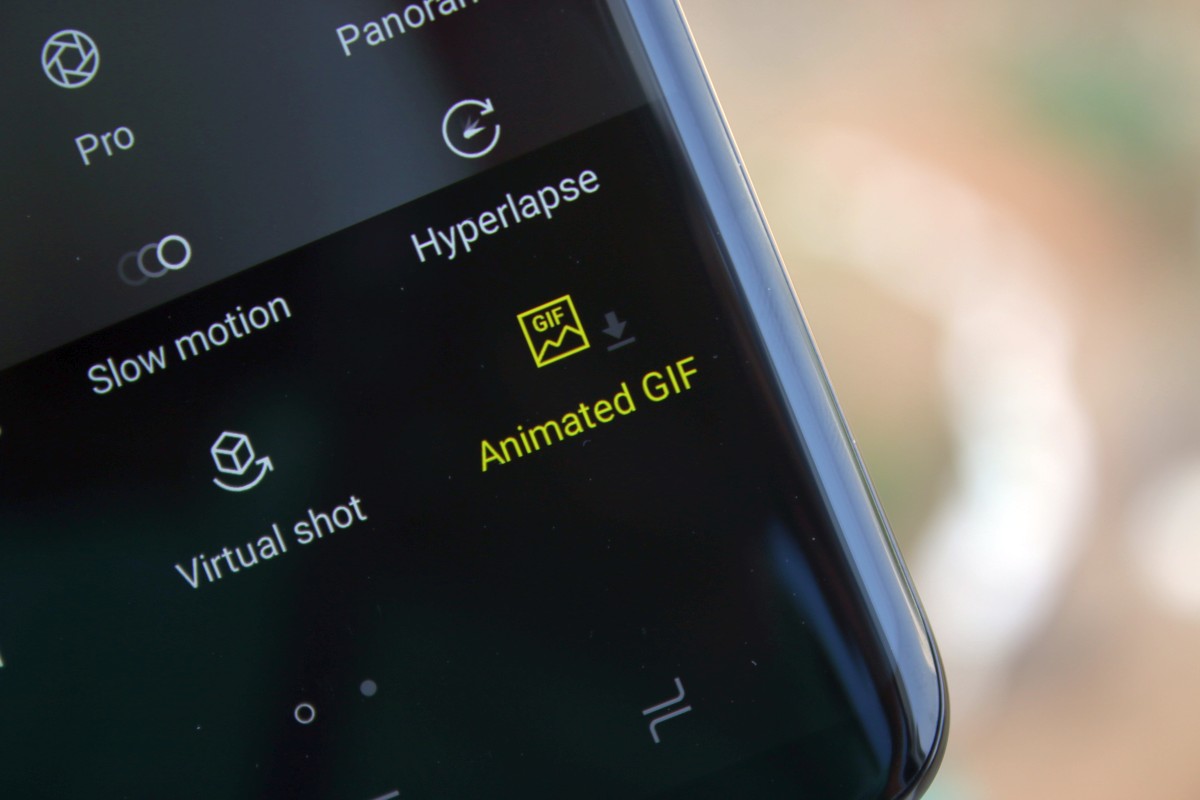
The GIF shooting mode doesn't come installed by default, so you will have to download it in the camera app. Here's how you can do that.
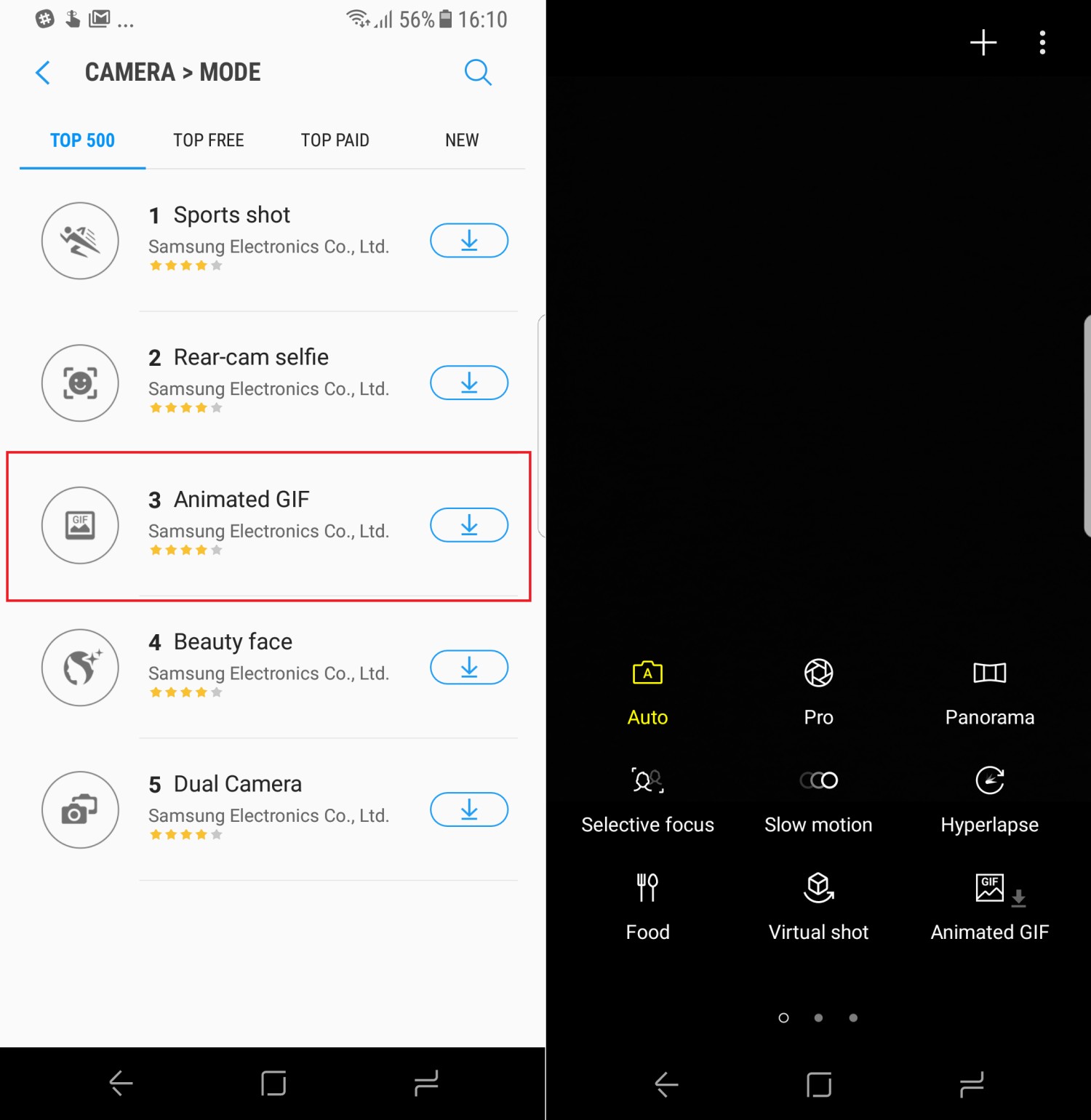
Step 1: Open the camera app, then swipe right on the screen to access the shooting modes.
Step 2: Hit the + button at the top. You'll see a list of all downloadable camera modes for the S8 and S8+. Tap the download button next to Animated GIF.
Step 3: Once it's installed, simply go back to the camera app. To access the GIF mode, go to the mode selection screen.
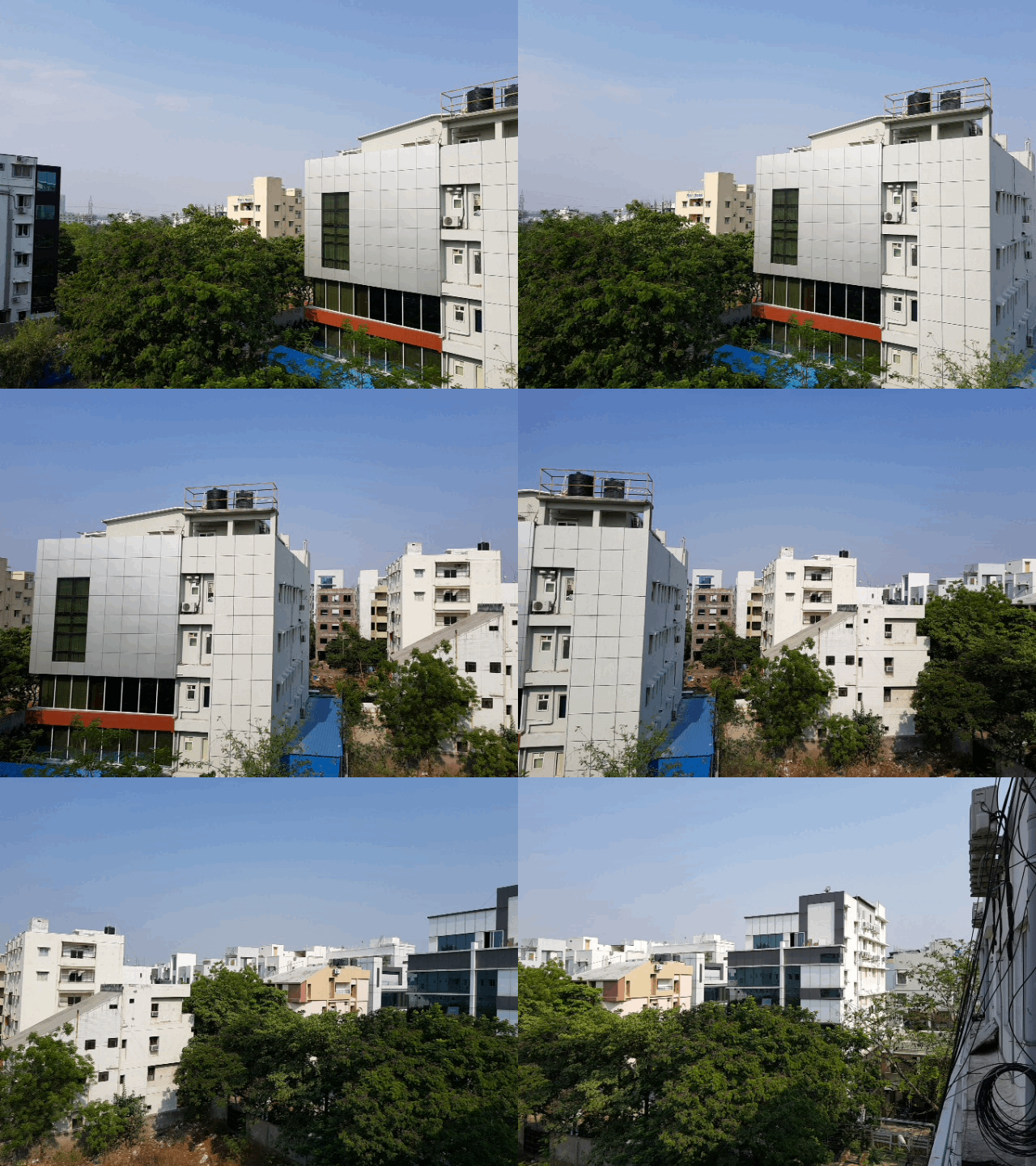
To capture GIFs, you need to hold down the camera shutter button till you've captured what you need. The camera app will count up to a maximum of 20, and that's where GIF recording stops. You can't record long GIFs, and the quality isn't always too great, but it's still a nice way to capture moments in moving form without using up the space a typical video would take. As with all images and videos, these GIFs can be accessed from the gallery and shared through other apps. Below is a sample so you can see what kind of quality you can expect.
You can also make GIFs from content playing on the phone from apps such as YouTube, by using the Smart Select Edge panel. For more tips and tricks on the Galaxy S8 and S8+, go here.

Abhijeet's writing career started with guides for custom firmware for Samsung devices (including the original Galaxy S), and he moved to SamMobile in mid-2013 and worked up the ranks to Editor-in-chief. In addition to phones and mobile devices, his interests include gaming on both PC and console, PC hardware, and spending countless hours on YouTube watching videos on tech, movies, games, politics, and internet dramas.













