Last updated: February 19th, 2024 at 14:23 UTC+01:00
SamMobile has affiliate and sponsored partnerships, we may earn a commission.
Reading time: 2 minutes
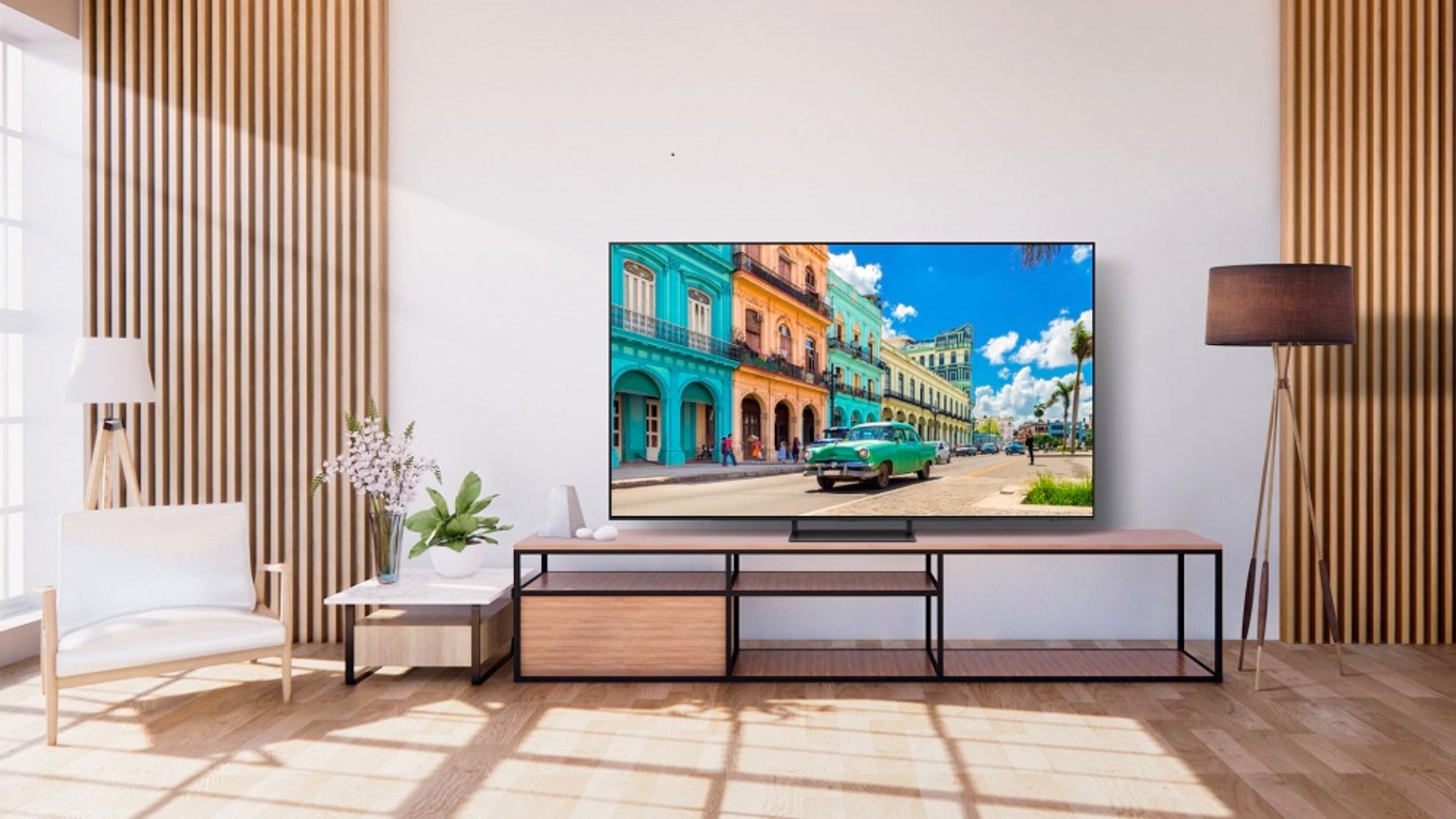
Another neat party trick you can keep up your sleeve is to use the Galaxy Watch to control your TV. Indeed, similar to Galaxy phones, Samsung smartwatches can also double as TV remote controllers.
Before you can control your Samsung TV with the Galaxy Watch from your wrist, you'll have to make sure both devices are synced to the SmartThings platform.
With that caveat out of the way, you can control your Samsung TV using the Galaxy Watch in two ways: Using the SmartThings smartwatch app or the SmartThings “Device control” tile.
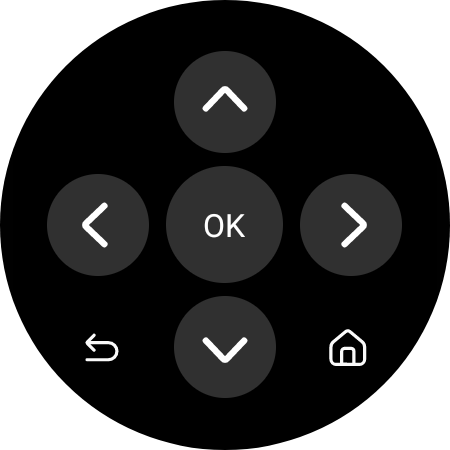
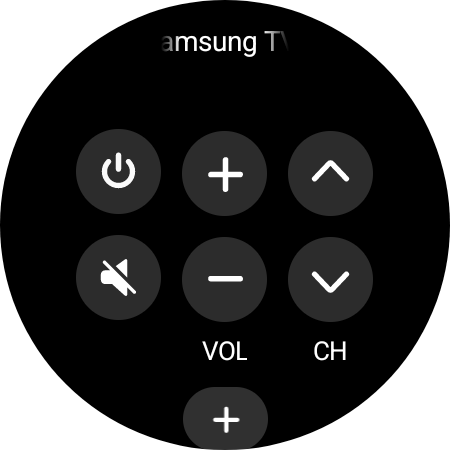
When using the SmartThings app, make sure you select the correct location or room in which your TV is located. After that, you can control your TV through the smartwatch UI, power it ON or OFF, change the channels and audio volume levels, and navigate the UI.
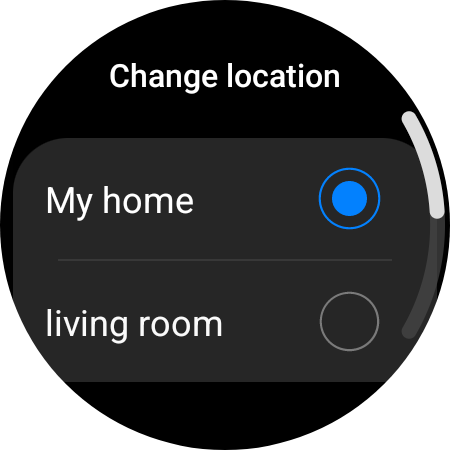
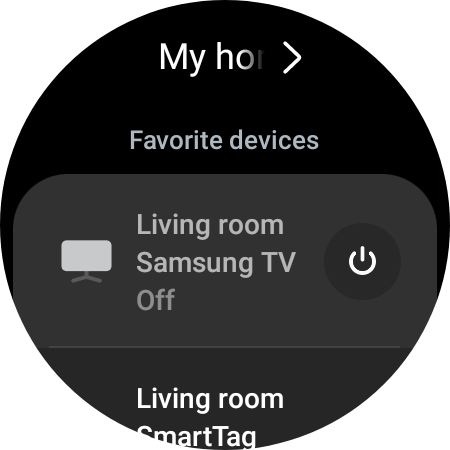
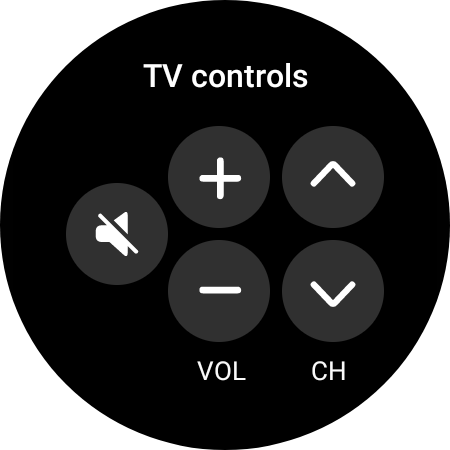
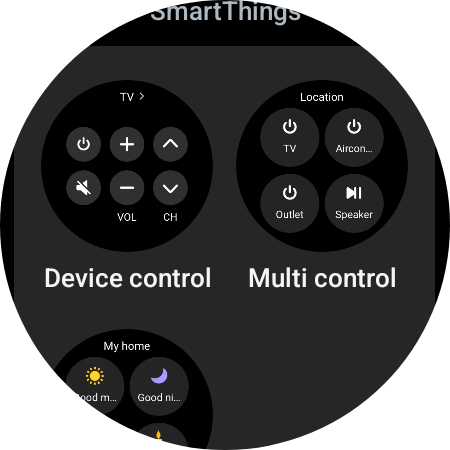
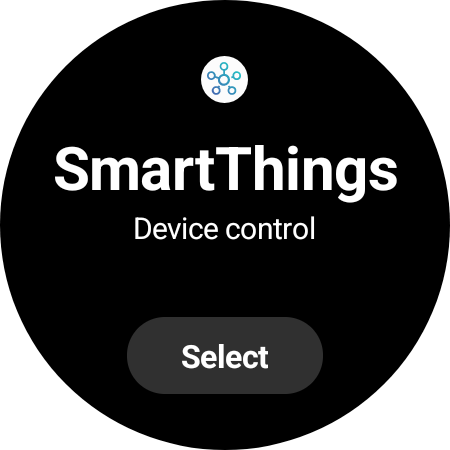
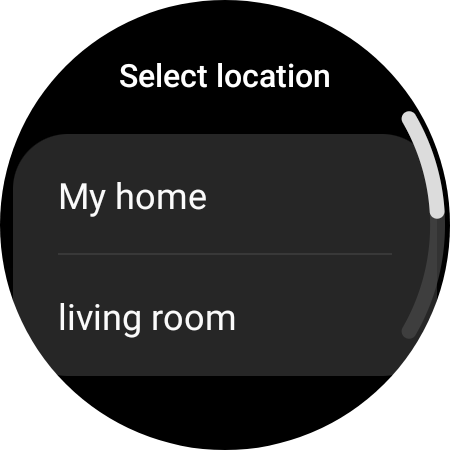
To control your Samsung TV without having to open the SmartThings app, you can add the “Device control” tile to the tile carousel on your watch. When you do, make sure you select your TV's location.
This Device Control tile is slightly more limited, giving you options for the TV's audio volume, channels and power status. However, tapping the “+” on-screen button will let you access the SmartThings app for more advanced controls.

Mihai is a blogger and column writer at SamMobile. His first Samsung phone was an A800 which took a lot of beating, and a part of him still misses the novelty of the clamshell design. In his free time, he enjoys watching shows, documentaries, and stand-up comedy; listening to music, taking walks, and occasionally playing old(er) video games.












