Cyber week deals! Galaxy Watch8 Classic, Fold 7, S25 Ultra. Follow us on YouTube, TikTok, or LinkedIn
Last updated: April 15th, 2025 at 02:58 UTC+02:00
SamMobile has affiliate and sponsored partnerships, we may earn a commission.
Reading time: 2 minutes
However, some may also be shocked to discover that there’s no apparent way to go back to a horizontal app drawer. But is that really the case? You will be glad to know that it’s not.
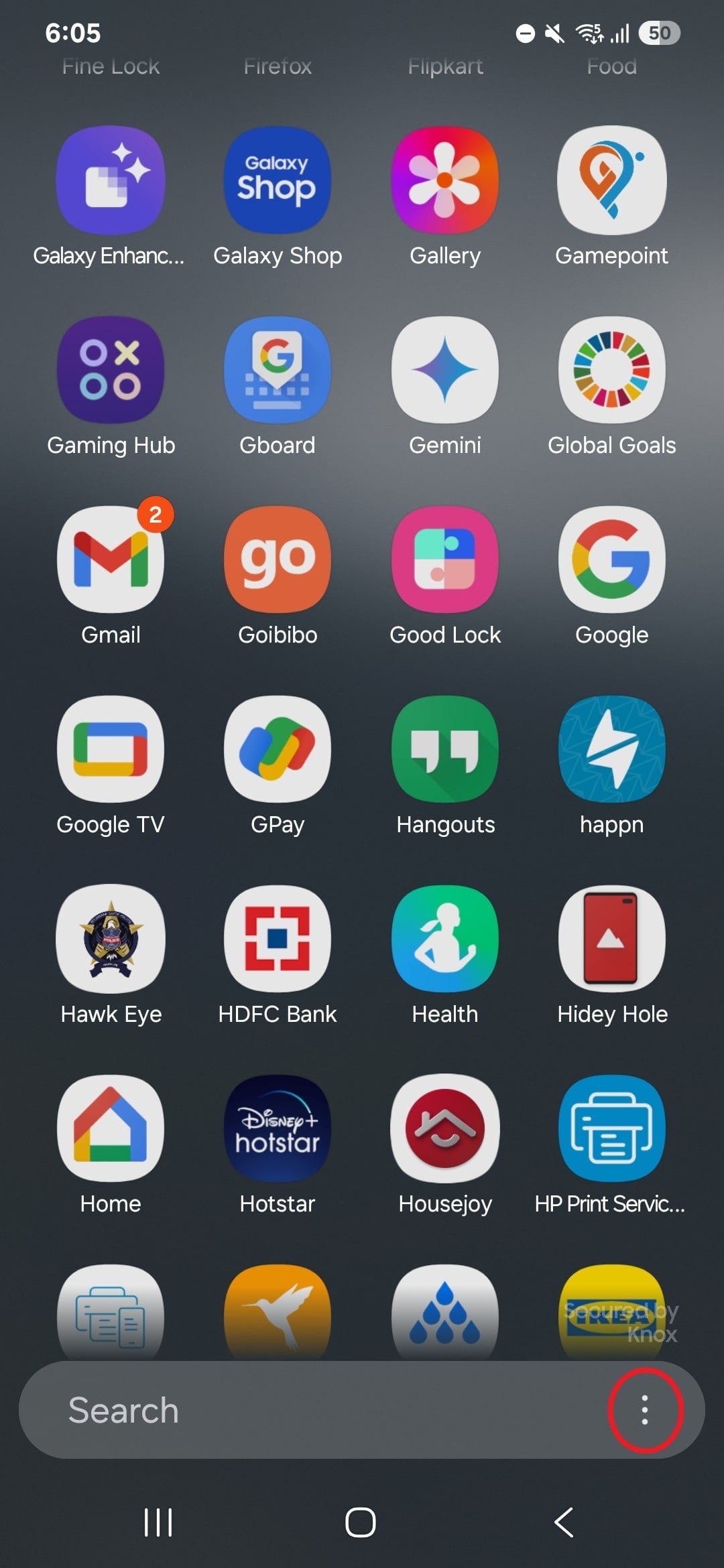
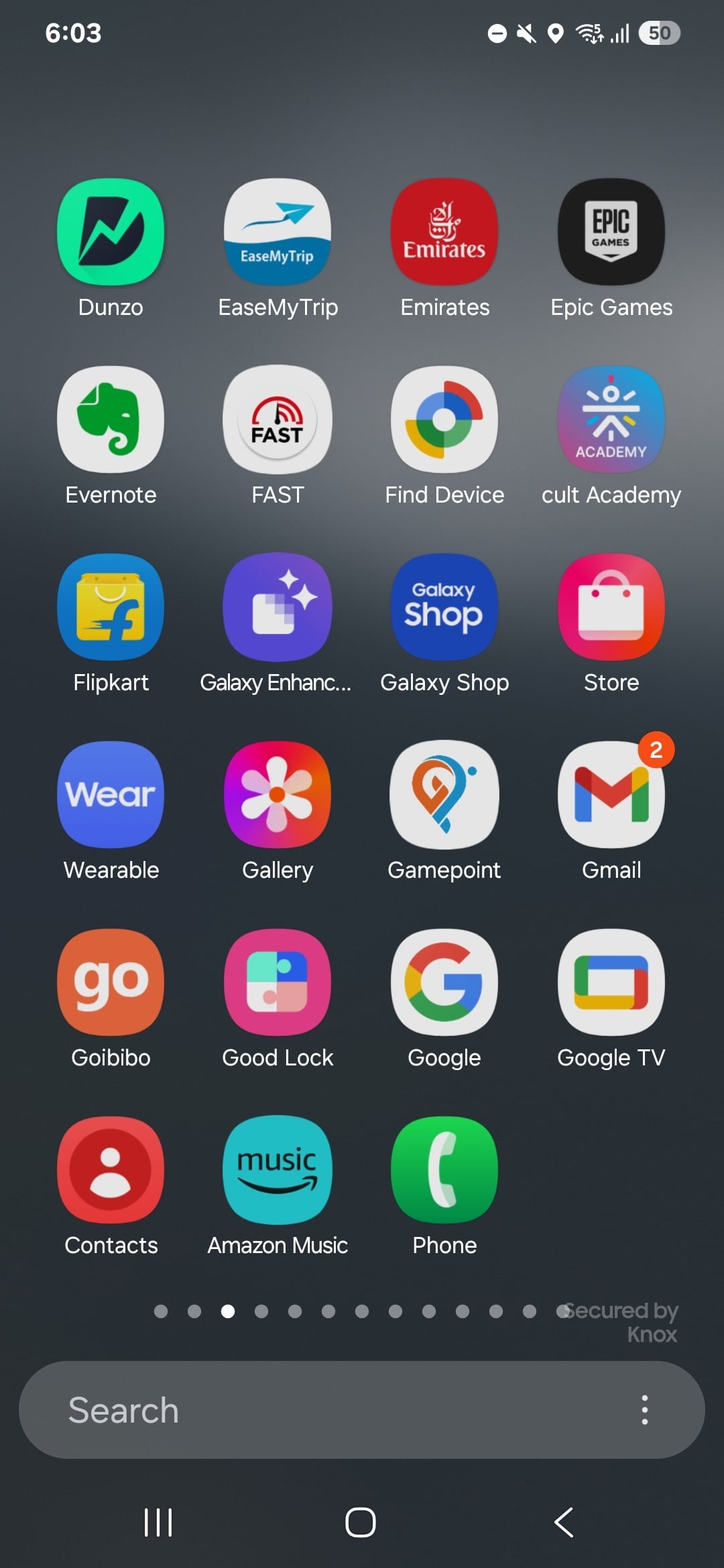
You can switch between a vertical and horizontal app drawer, it’s just that Samsung has made it a little confusing: the vertical and horizontal layouts are tied to how the apps are sorted.
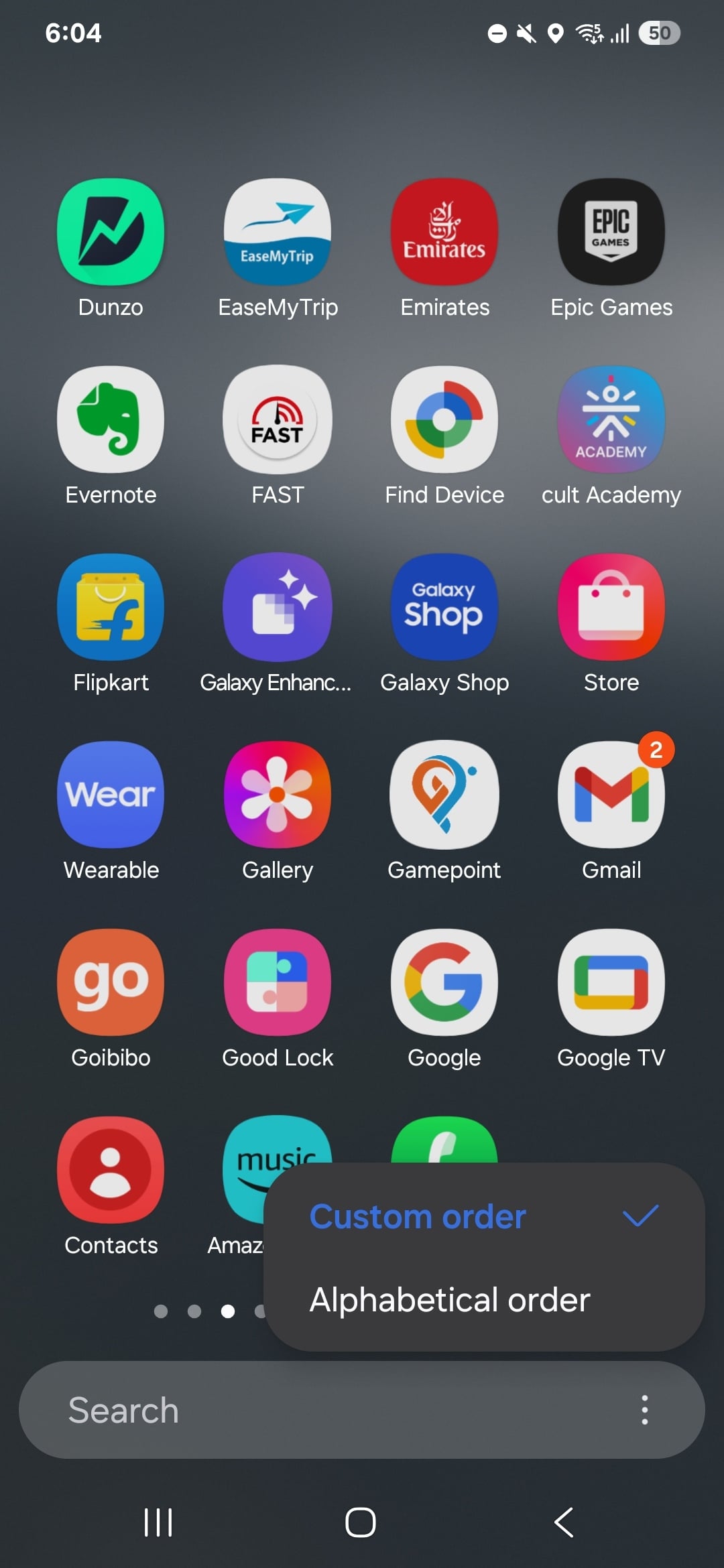
When sorted alphabetically, the app drawer uses a vertical layout. Using the custom sort option, in which you can move apps around as you see fit, switches to the horizontal layout that Galaxy smartphone owners are accustomed to.
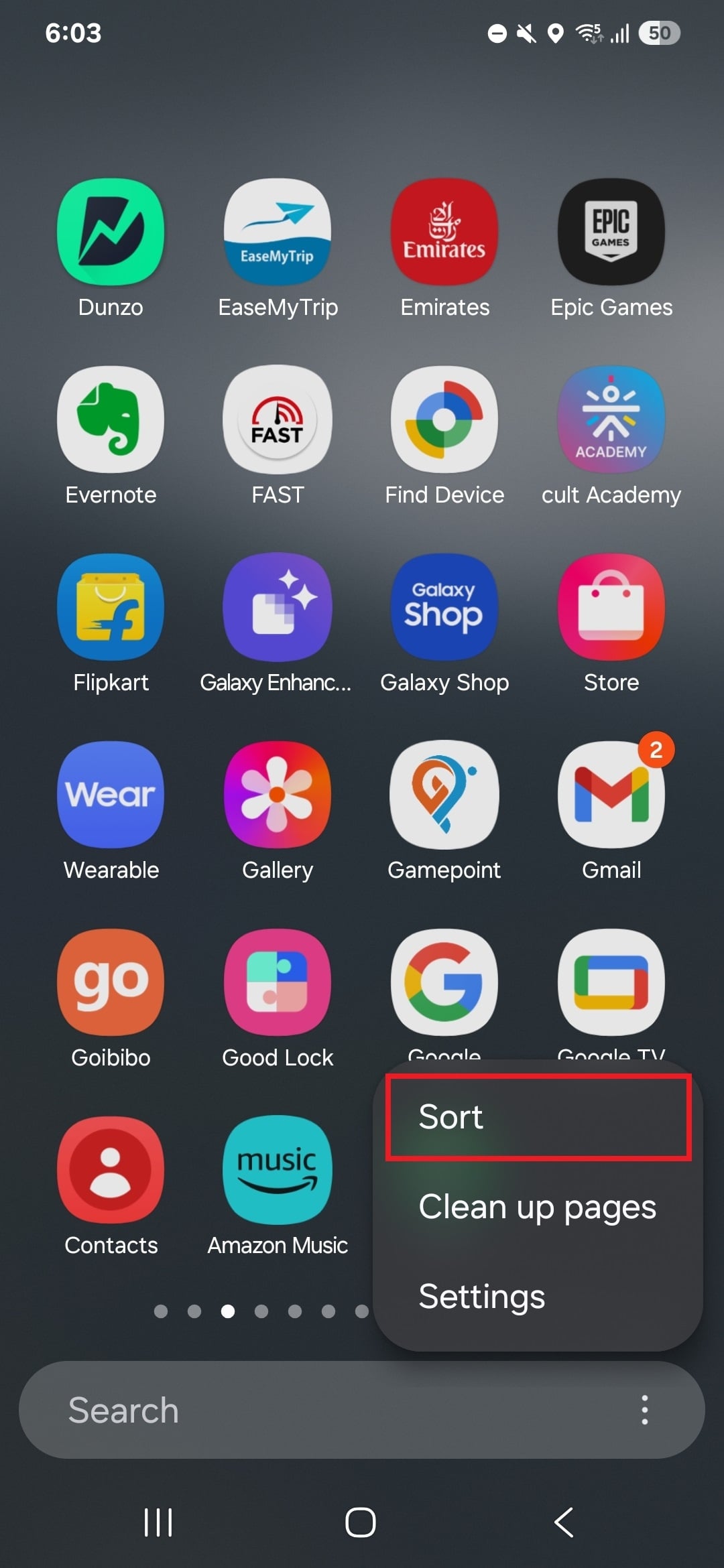
To switch between the two, you just need to go into the app drawer, tap the button at the bottom right corner of the screen next to the search bar, tap Sort, and select Custom order or Alphabetical order to get the desired layout.
When you switch to the horizontal layout, you might find that some of the app drawer pages have a lot of empty space. To fix that, hit the button next to the search bar and select the Clean up pages option. You can still move icons around and arrange them how you want, and if you end up having more empty space as a result, just use the clean up option again.
Abhijeet's writing career started with guides for custom firmware for Samsung devices (including the original Galaxy S), and he moved to SamMobile in mid-2013 and worked up the ranks to Editor-in-chief. In addition to phones and mobile devices, his interests include gaming on both PC and console, PC hardware, and spending countless hours on YouTube watching videos on tech, movies, games, politics, and internet dramas.