Last updated: March 6th, 2024 at 18:24 UTC+01:00
SamMobile has affiliate and sponsored partnerships, we may earn a commission.
Reading time: 3 minutes
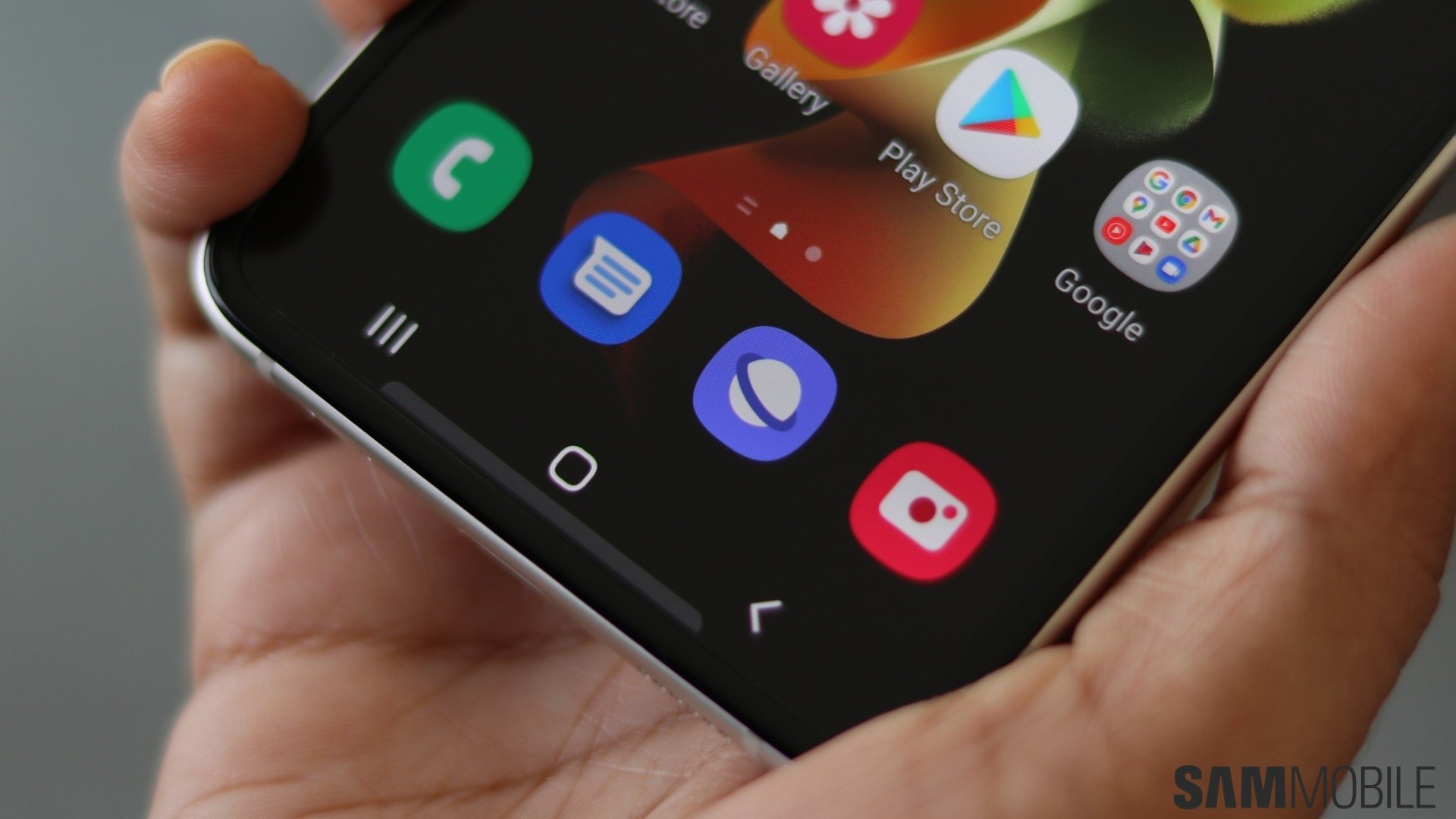
But that is changing today: Samsung has launched Samsung Internet for Windows! The app is available on the Microsoft Store, and it works on all Windows PCs and laptops, not just the ones made by Samsung.
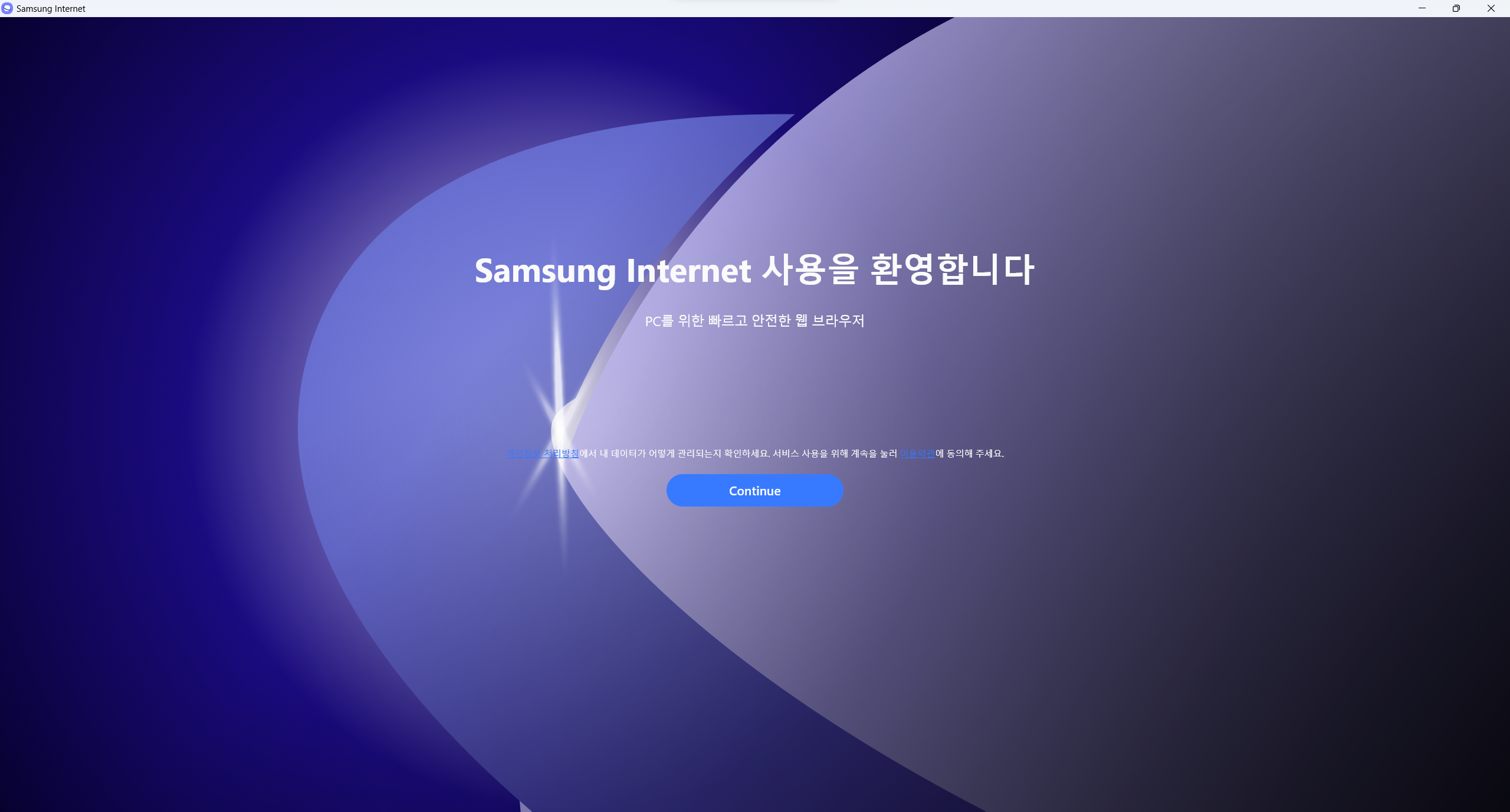
The biggest benefit Samsung Internet on a desktop operating system will provide is the syncing of browsing data between your phone and PC, the lack of which has prevented many users from using Samsung Internet as their primary browser app on their phones and tablets.
Unfortunately, Samsung hasn't yet implemented full-fledged sync support on Samsung Internet for Windows. While you can log in with your Samsung account, only browsing history, bookmarks, saved pages and open tabs can be synced at this time. Password syncing is not available, which hopefully won't remain the case for long.
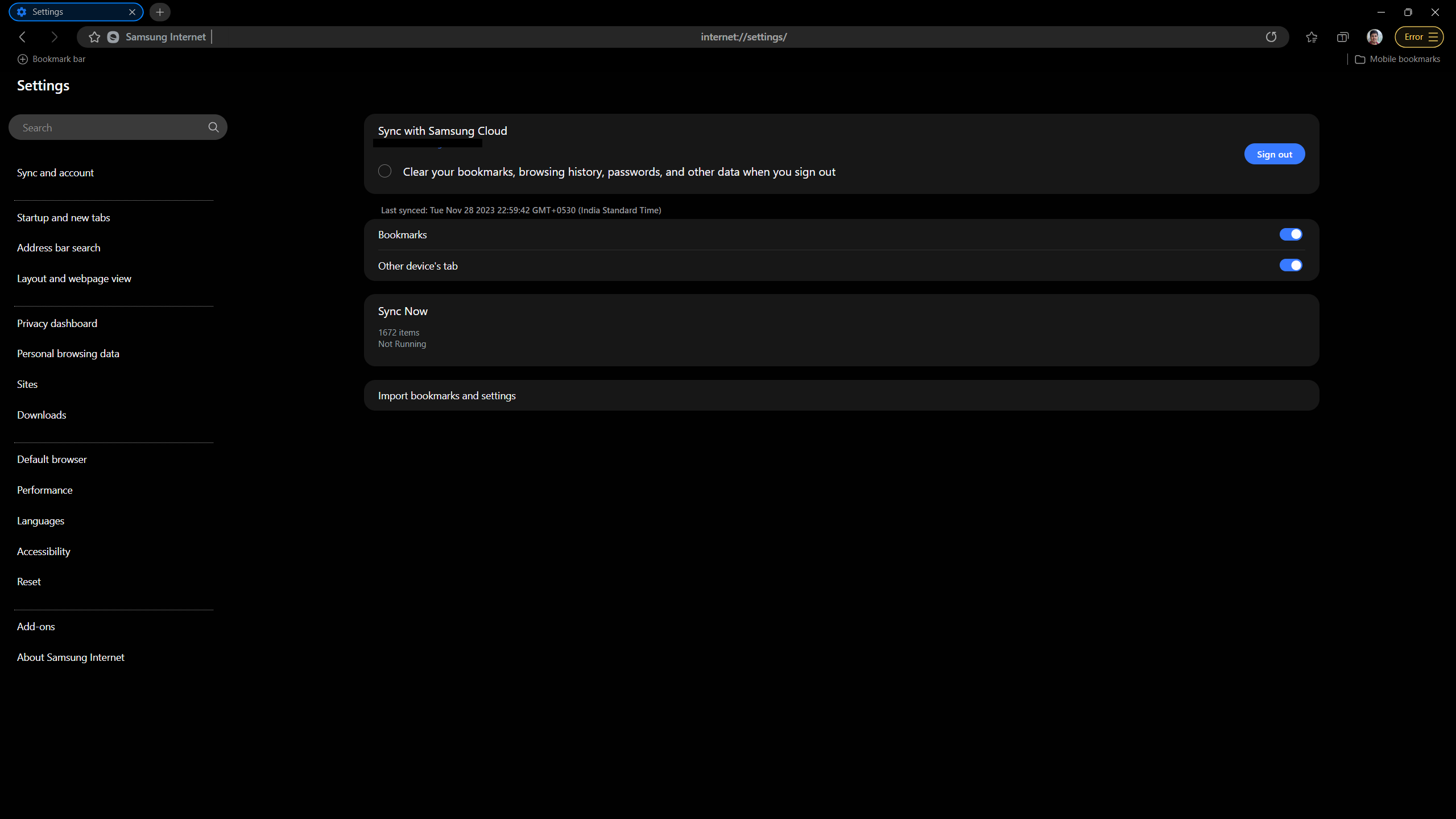
The first time you run Samsung Internet on Windows, you can import browsing history, bookmarks/favorites, and search engines from other browsers, including Google Chrome and Microsoft Edge. You can also import bookmarks using an HTML file.
As for other features, Samsung Internet on Windows has ad blocker support, a secret (incognito) mode, extension support, light and dark mode themes, and a few others. Since Samsung Internet is based on the open-source Chromium project like Chrome and Microsoft Edge, it should support extensions and add-ons that work on those browsers. In fact, you're taken to the Chrome Web Store when selecting the Add-ons button in Samsung Internet, though at this time, the install button for all extensions is greyed out.
Performance of Samsung Internet on Windows is pretty lackluster. Scrolling is very laggy, as if the browser doesn't support even a 60Hz refresh rate, let alone the higher refresh rates that can be found on modern desktop monitors. Its performance is in stark contrast to the Android version of the app, so Samsung clearly has work to do.
To check out Samsung Internet on your PC, visit this link to install it via the Microsoft Store. As mentioned earlier, you can install it on any PC or laptop. A Galaxy laptop is not required and neither is any specific hardware, but you need to be on Windows 10 or Windows 11.

Abhijeet's writing career started with guides for custom firmware for Samsung devices (including the original Galaxy S), and he moved to SamMobile in mid-2013 and worked up the ranks to Editor-in-chief. In addition to phones and mobile devices, his interests include gaming on both PC and console, PC hardware, and spending countless hours on YouTube watching videos on tech, movies, games, politics, and internet dramas.












