Last updated: August 14th, 2024 at 06:21 UTC+02:00
SamMobile has affiliate and sponsored partnerships, we may earn a commission.
Reading time: 3 minutes
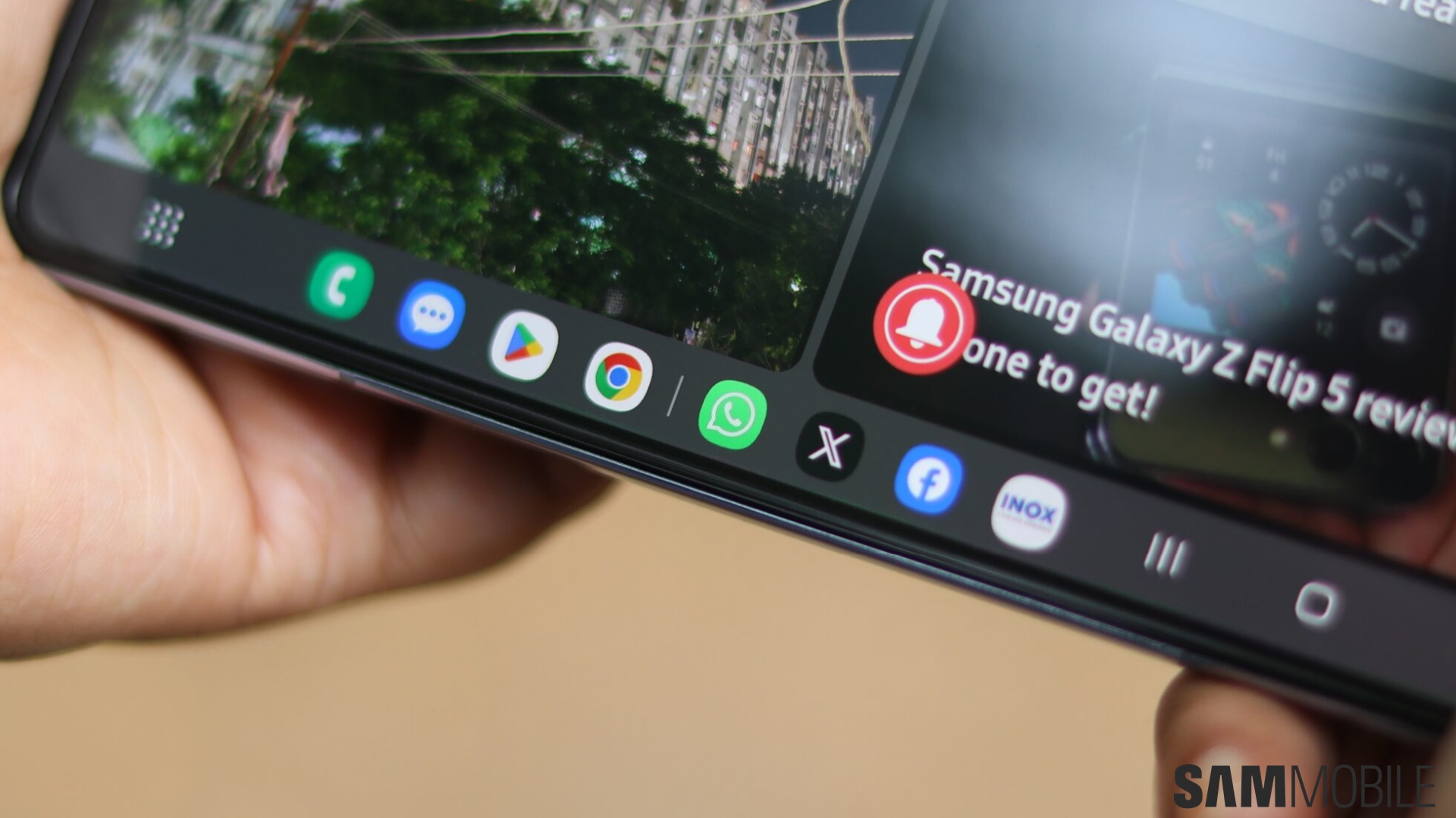
The multitasking experience is even better on Samsung's Galaxy Z Fold phones thanks to their large foldable displays. For example, while regular Galaxy phones can run two apps on the screen in split-screen mode, a Galaxy Z Fold lets you run three apps at the same time.
Galaxy Z Fold smartphones, including the Galaxy Z Fold 6, also come with a desktop-like Taskbar. Similar to Microsoft Windows, the One UI Taskbar gives you quick access to your favorite apps. The Taskbar also has a couple of tricks for more efficient multitasking that you should know about.
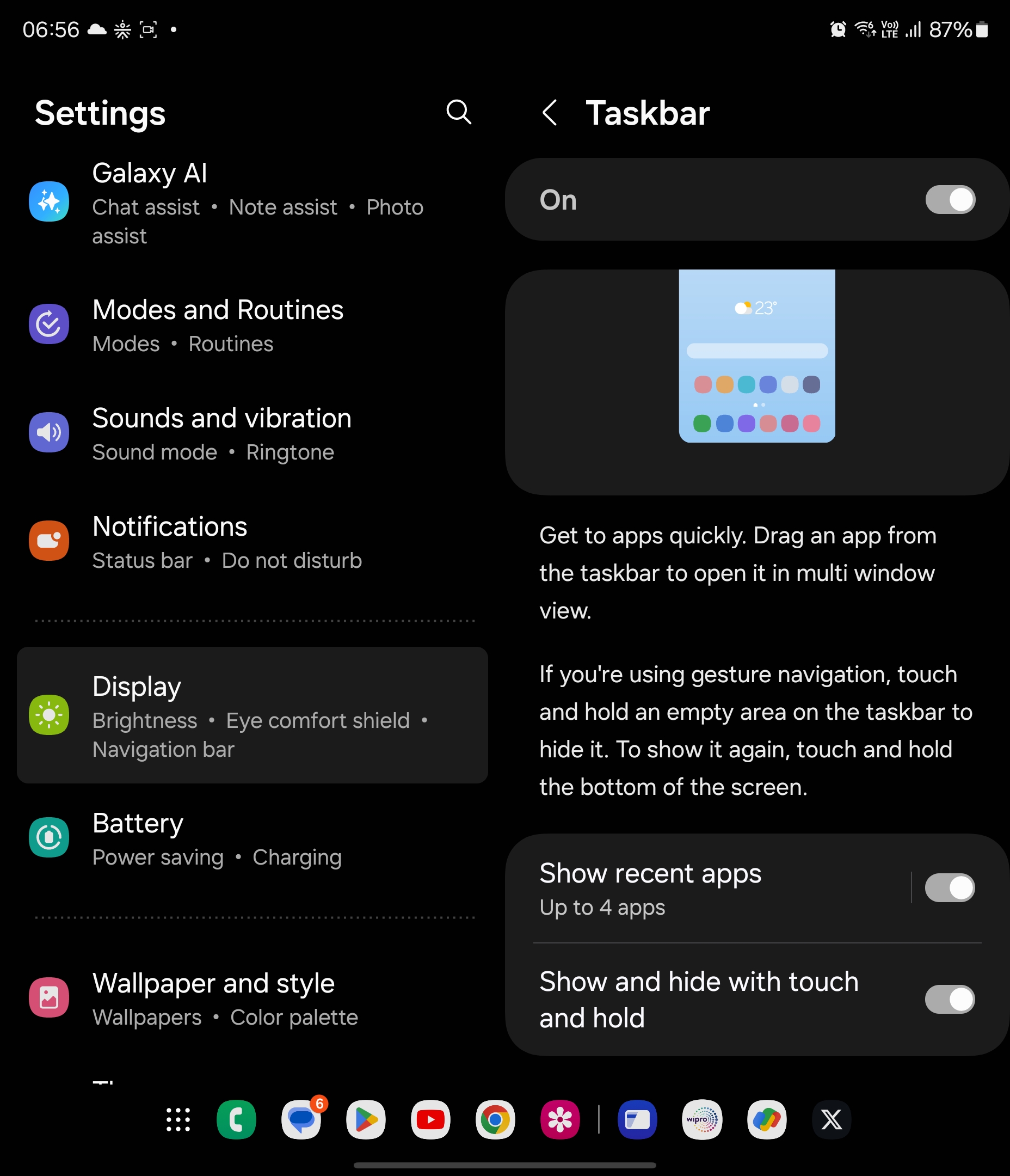
Before you continue reading to find out what those tricks are, make sure the Taskbar is enabled on your Fold. To do that, navigate to the Settings » Display » Taskbar menu and toggle it on. You will have to do this on the inner display when the phone is unfolded. Taskbar is not supported on the cover screen.
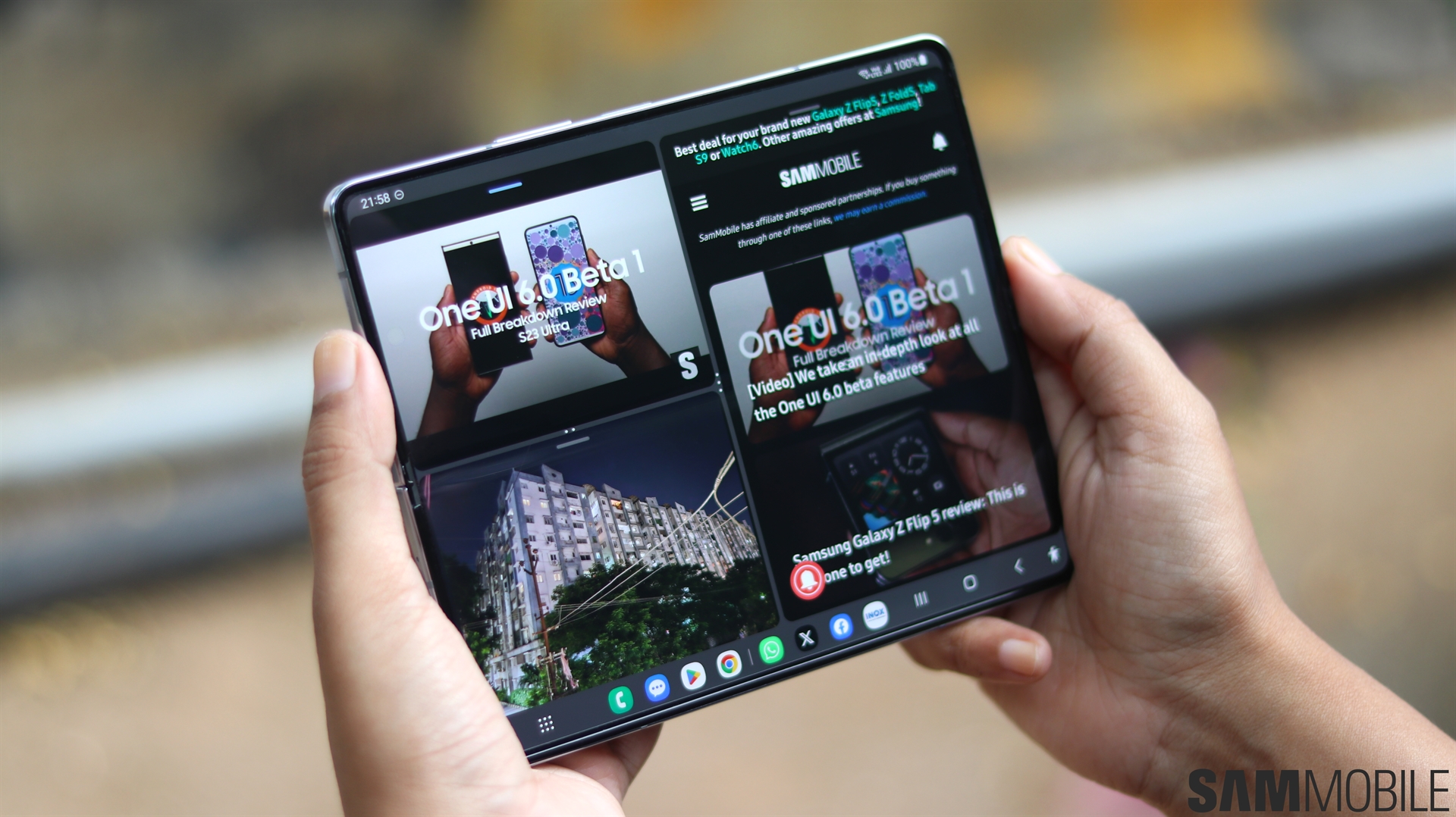
You can tap app shortcuts on the Taskbar to open a particular app, but if you long-press an app's icon and drag it upwards, you can instantly enable Multi Window/split-screen mode.
When you have only one app running on the screen, you can drag another app's icon up from the Taskbar to the top or bottom of the screen to use it with the already open app in horizontal split-screen. For vertical split-screen, just drag the app icon to the right or left side.
If you're already using two apps in Multi Window mode, you can add a third app. Just drag the app's icon into the top, bottom, left, right, or center of the screen depending on where you want to place it.
Check out the video below to see how this works.
Note: The Taskbar copies the app shortcuts that are present on your home screen's bottom-most row. You will need to add and remove apps on the home screen to change the Taskbar shortcuts.
In addition to quick access to your favorite apps, the Taskbar lets you switch between recently used apps with a single tap. This is a feature called Show recent apps that you can enable from the phone's Settings » Display » Taskbar menu.
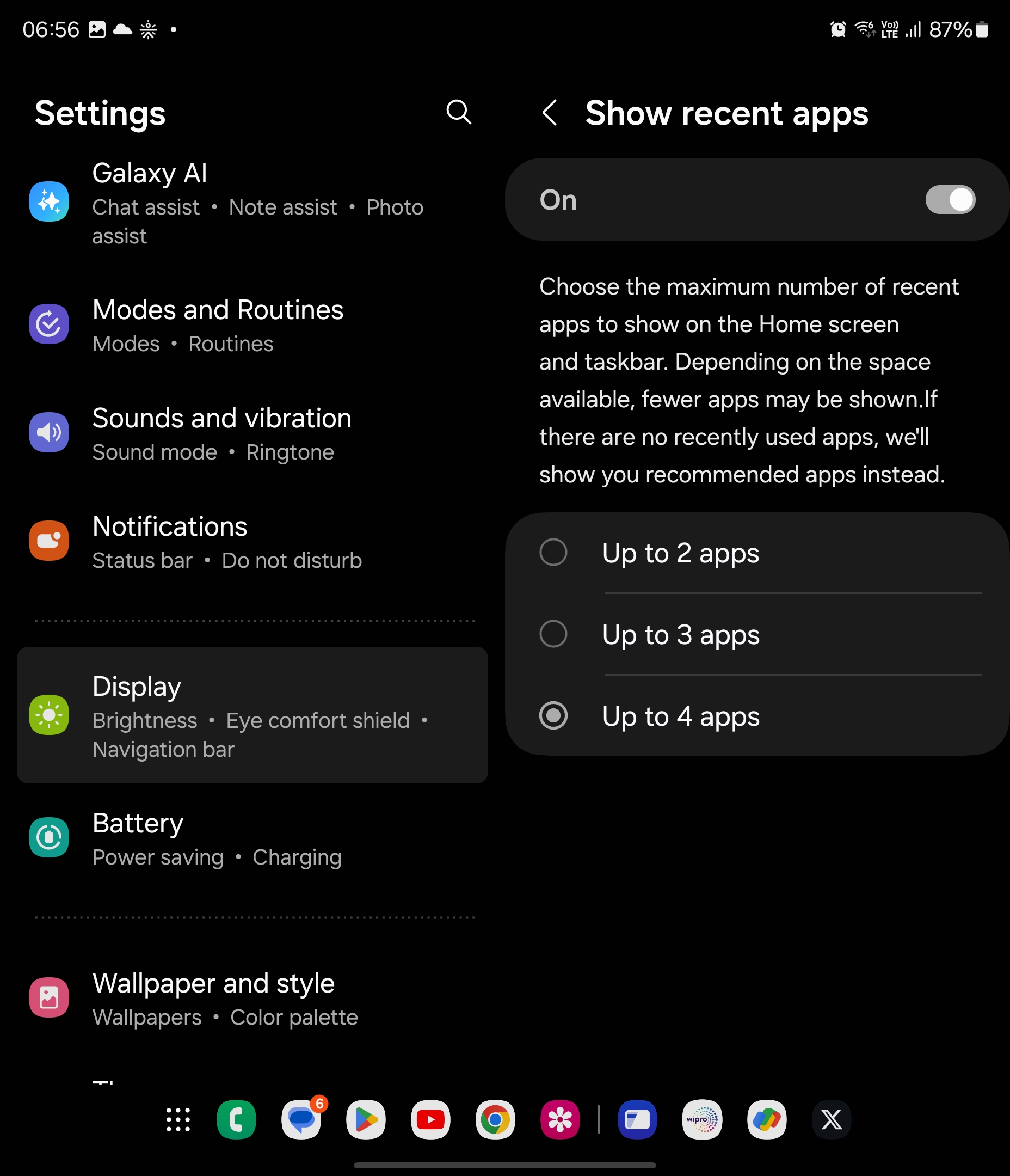
Once the Show recent apps feature is enabled, the Taskbar will split into two sections. Recently used apps will be displayed on the right side, and you can simply tap the desired app's icon to instantly switch to it. This is essentially a faster way to switch between apps compared to the traditional method.
You can customize how many recent apps are displayed—2, 3, or 4—on the Taskbar. However, adding more app shortcuts to the taskbar will affect the number of recently used apps you see. Also, as Samsung notes, if there are no recently used apps, the phone will show you recommended apps instead.

Abhijeet's writing career started with guides for custom firmware for Samsung devices (including the original Galaxy S), and he moved to SamMobile in mid-2013 and worked up the ranks to Editor-in-chief. In addition to phones and mobile devices, his interests include gaming on both PC and console, PC hardware, and spending countless hours on YouTube watching videos on tech, movies, games, politics, and internet dramas.














