Last updated: October 31st, 2023 at 14:05 UTC+01:00
SamMobile has affiliate and sponsored partnerships, we may earn a commission.
Reading time: 5 minutes
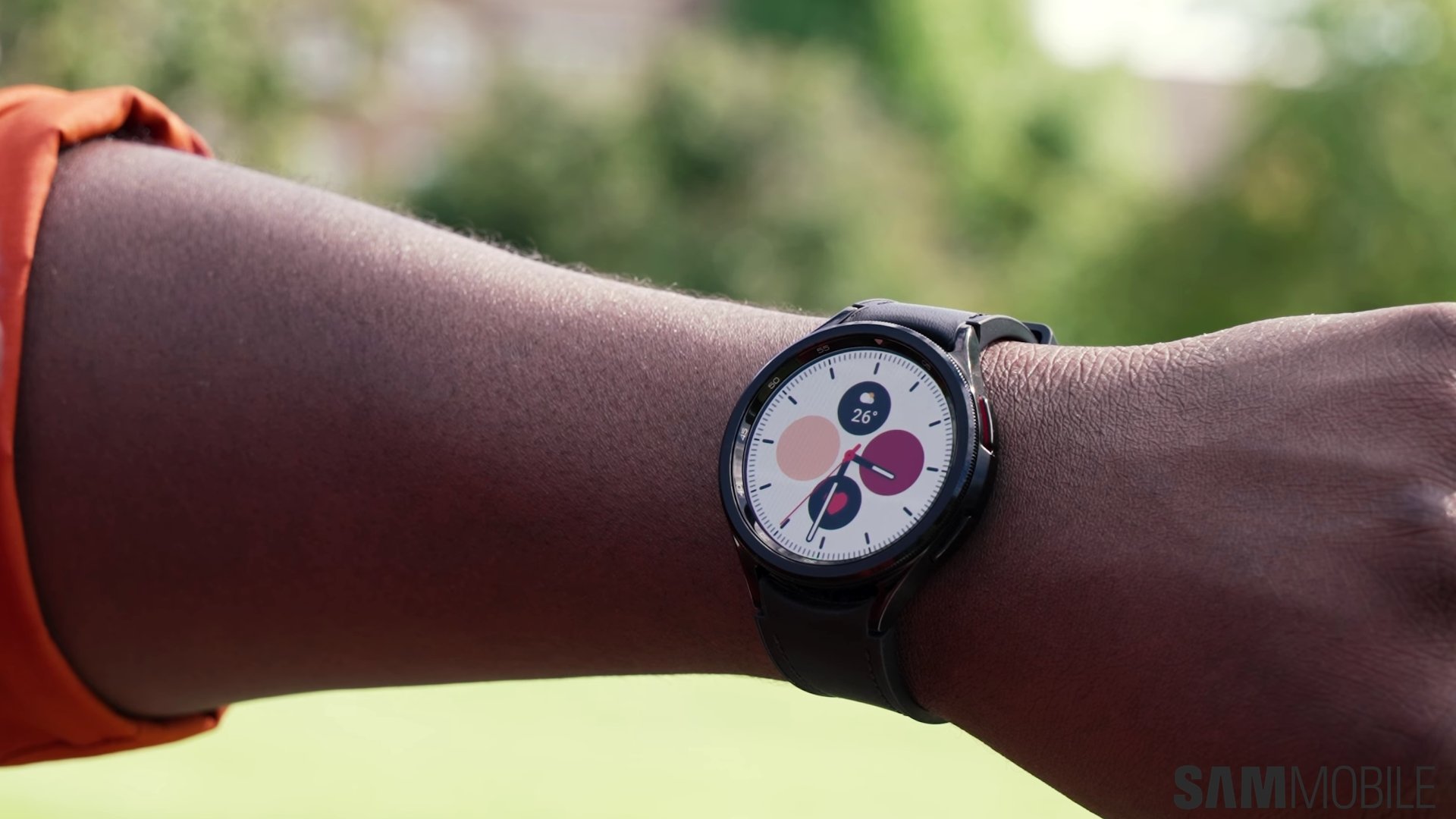
As mentioned yesterday, One UI Watch is Samsung's proprietary skin layered on top of Google's Wear OS smartwatch software. The latest version, One UI Watch 5, is based on Wear OS 4 and debuted with the Galaxy Watch 6 series. Later, Samsung released One UI Watch 5 as a firmware update for the Galaxy Watch 4 and Watch 5 lineups.
Story continues after our Galaxy Watch 6 Classic review video
Below, you'll find a general overview of the structure of One UI Watch 5, which should be particularly useful for people who have never used a Samsung smartwatch and don't know if they'd get along with the UI.
If you're a prospective Galaxy Watch buyer with no experience with Wear OS or One UI Watch, this information should put smartwatches into a better context.
Structure-wise, we like to think of One UI Watch 5 as having six major UI components: Watch face, Notification area, Apps drawer, Tiles, Quick toggle area, and the Settings app. Here's what each does.
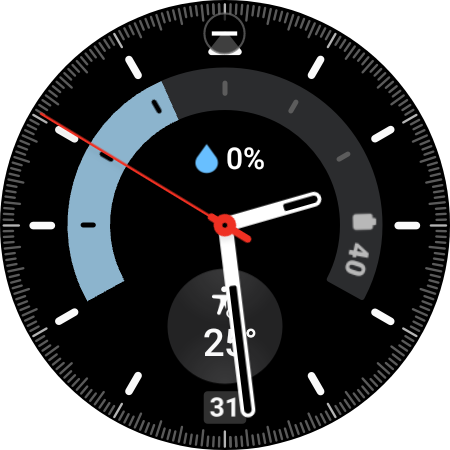

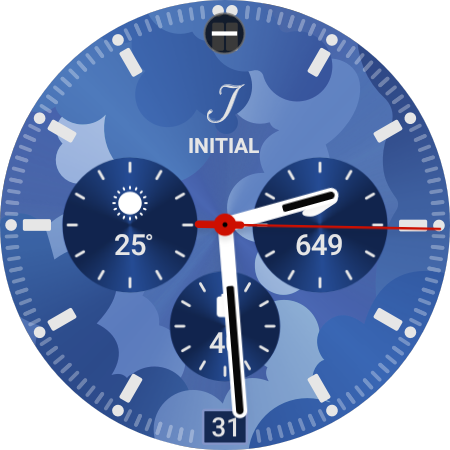

Watch faces are interactive. Most watch face UI elements can be tapped on for more information. For example, tapping the battery life tracker on the watch face (if said watch face contains this battery UI element) lets you access more detailed battery information. Each watch face comes with its own customization options, and interactive elements can often be added, replaced, or removed.
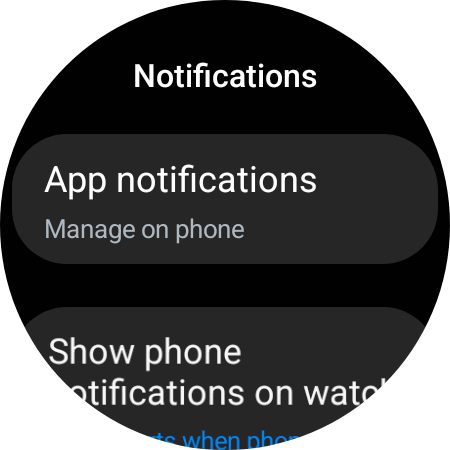
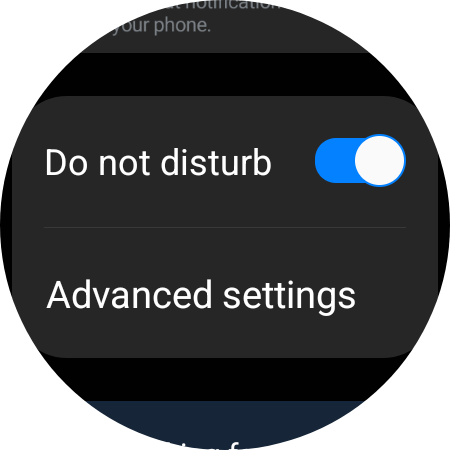
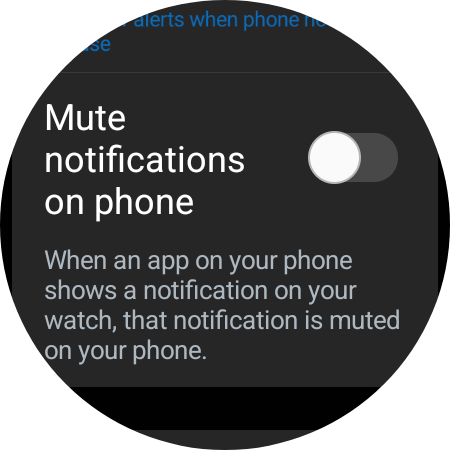
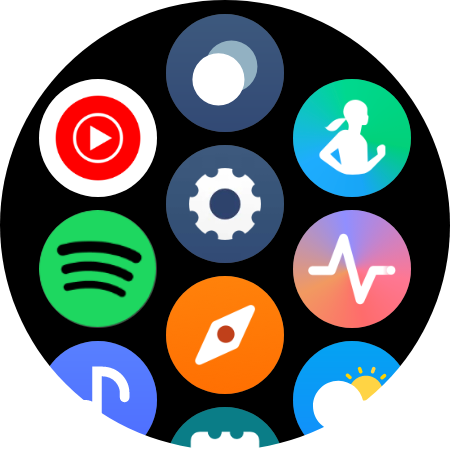
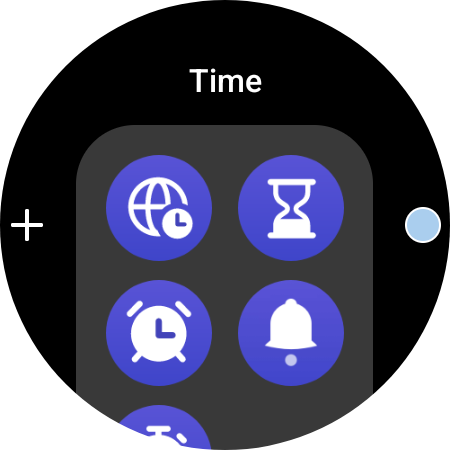
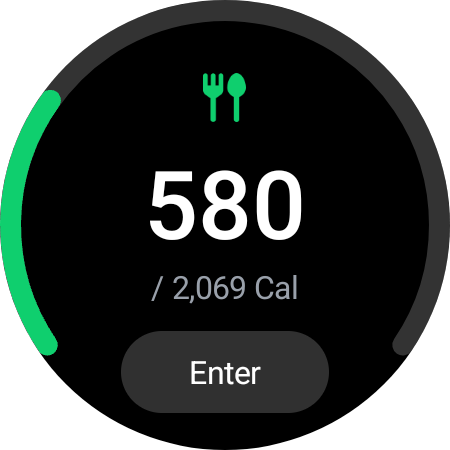
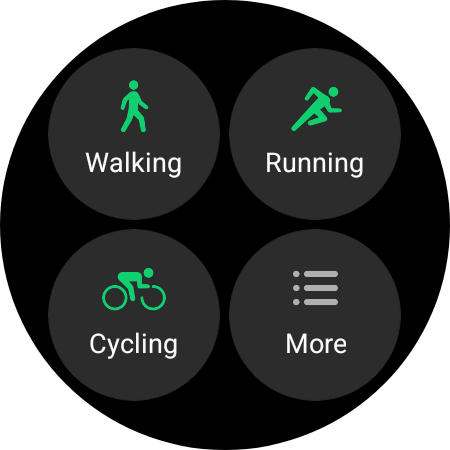
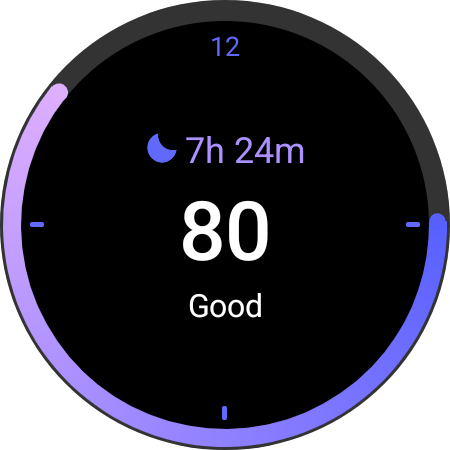
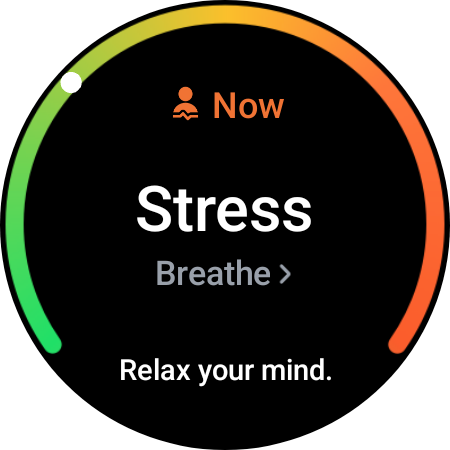
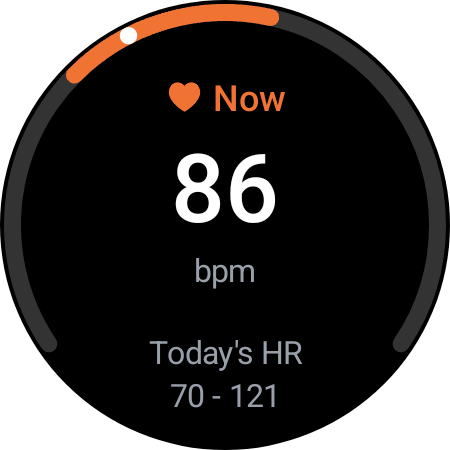
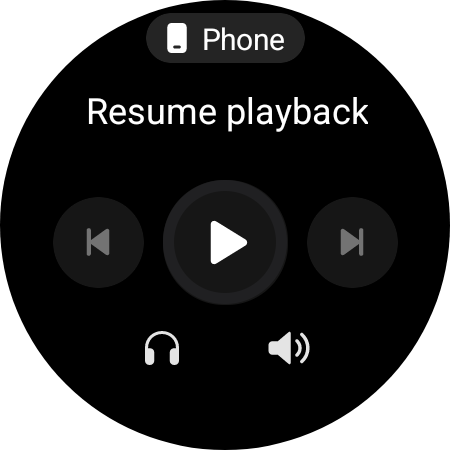
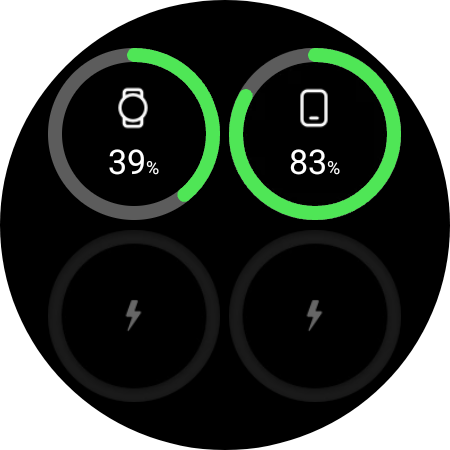
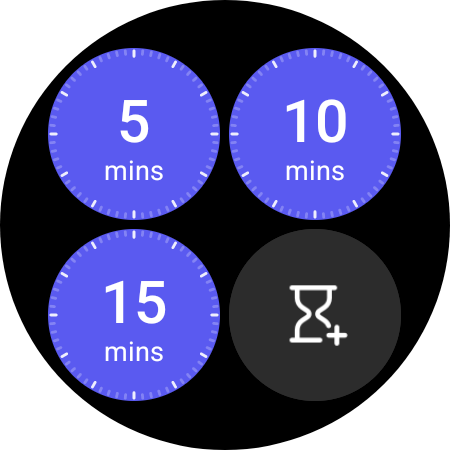
Tiles are like full-screen interactive widgets you can scroll through one by one by rotating the Galaxy Watch bezel (or virtual bezel) clockwise or swiping right-to-left on the watch face. Tiles are the “smart” in “smartwatch.” They allow users to track calories burned, sleep, weight, stress levels, heart rate, and more at a glance. Additional information can usually be accessed by tapping Tiles. Users can add or remove Tiles as they wish.
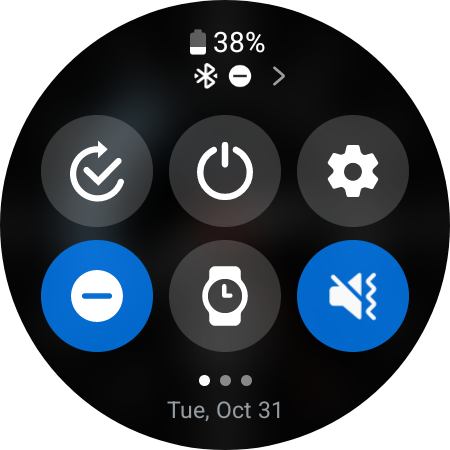
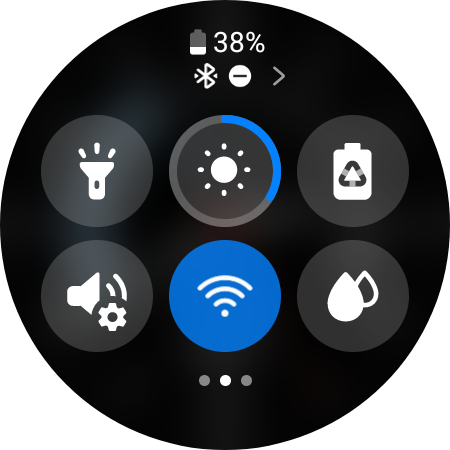
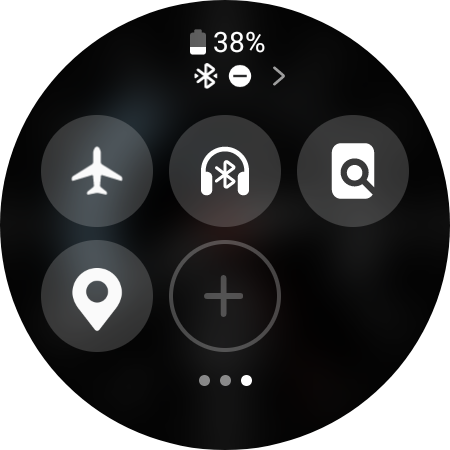
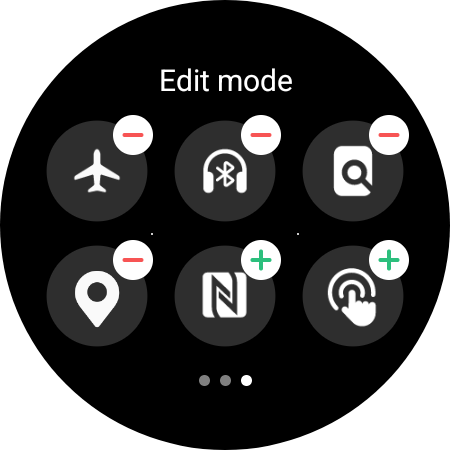
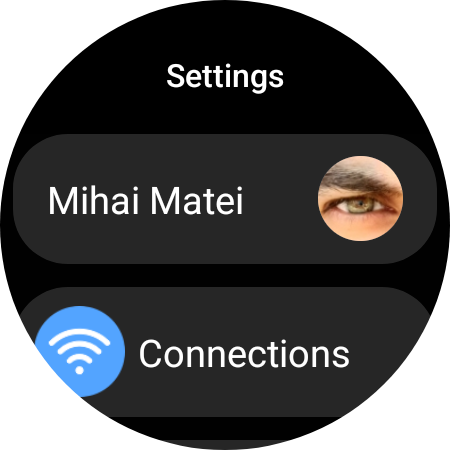
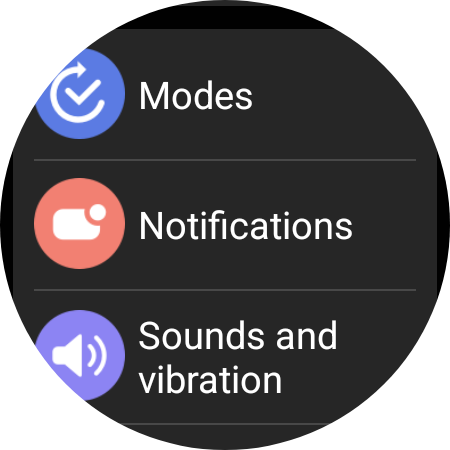
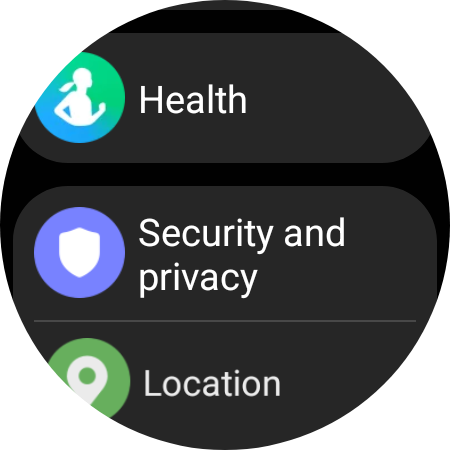
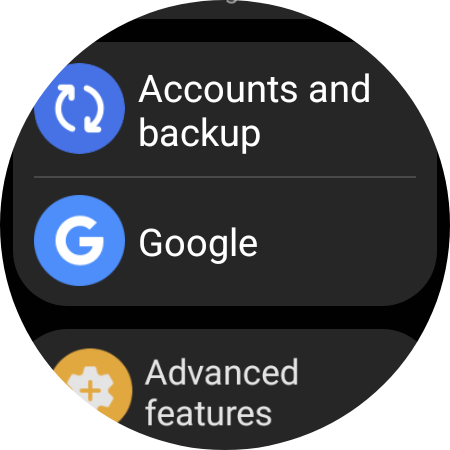
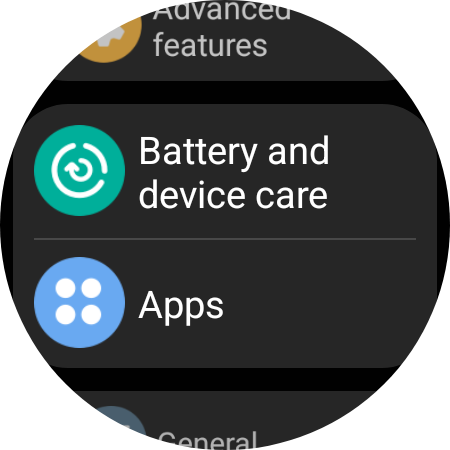
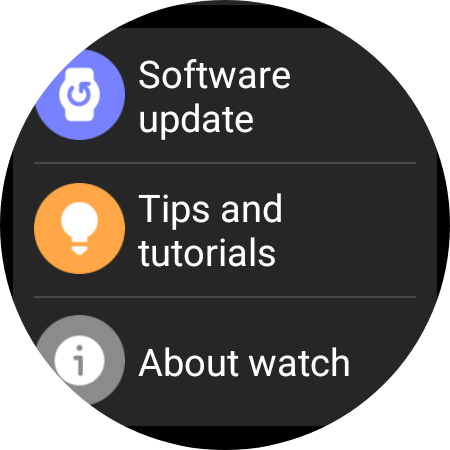
In essence, these six UI elements are what the Galaxy Watch UI experience boils down to.
Generally speaking, you'll likely use the watch face and Tiles the most.
Notifications and the Quick Toggle area are more situational, and you might not use them as often, although this will also depend on your notification settings.
Finally, you likely won't access the Settings app often (or at all) once you've set everything up, and if you end up liking Tiles, you'll much prefer using them instead of the apps drawer whenever possible.
Hopefully, you now have a better understanding of the UI structure of Samsung smartwatches and how alike or different they are from smartphones.

Mihai is a blogger and column writer at SamMobile. His first Samsung phone was an A800 which took a lot of beating, and a part of him still misses the novelty of the clamshell design. In his free time, he enjoys watching shows, documentaries, and stand-up comedy; listening to music, taking walks, and occasionally playing old(er) video games.













