Cyber week deals! Galaxy Watch8 Classic, Fold 7, S25 Ultra. Follow us on YouTube, TikTok, or LinkedIn
Last updated: December 18th, 2024 at 16:46 UTC+01:00
SamMobile has affiliate and sponsored partnerships, we may earn a commission.
Reading time: 3 minutes
Samsung’s new Android 15-based One UI 7.0 for Galaxy phones and tablets brings a redesigned user interface as well as a ton of new features. While the company has mentioned most of the changes in the change log, it hasn’t specified all of them there.
As people are digging deeper into the new software, they are discovering features that the brand hasn’t mentioned anywhere. Today, we're learning of one such feature that makes setting up smart home devices, especially the older ones, much easier than before.
As you might know, modern Wi-Fi routers, especially the models with mesh technology, create only one SSID that combines the 2.4GHz and 5GHz bands. Once you connect your device to it, the router automatically puts the device on either the 2.4GHz or the 5GHz band depending on what kind of device it is, the signal strength of the two bands where the device is located, how populated the two bands are, and other such factors.
Suppose you connect your Galaxy S24 to such routers: they will recognize that it is a smartphone and determine that it needs more data, and therefore, put it on the 5GHz network, provided that the band has good signal strength where the phone is located and is not congested. While this arrangement sounds good, it creates a problem while setting up smart home devices.
Smart home devices, especially the older ones, support only 2.4GHz Wi-Fi. So, to set them up, your smartphone will also have to be on the same band. However, modern routers, as mentioned earlier, automatically put your phone on the 5GHz band, and don’t give you the option to keep it on the 2.4GHz band. In this case, you will face issues setting up your smart home device as it is on a different Wi-Fi band than your smartphone.
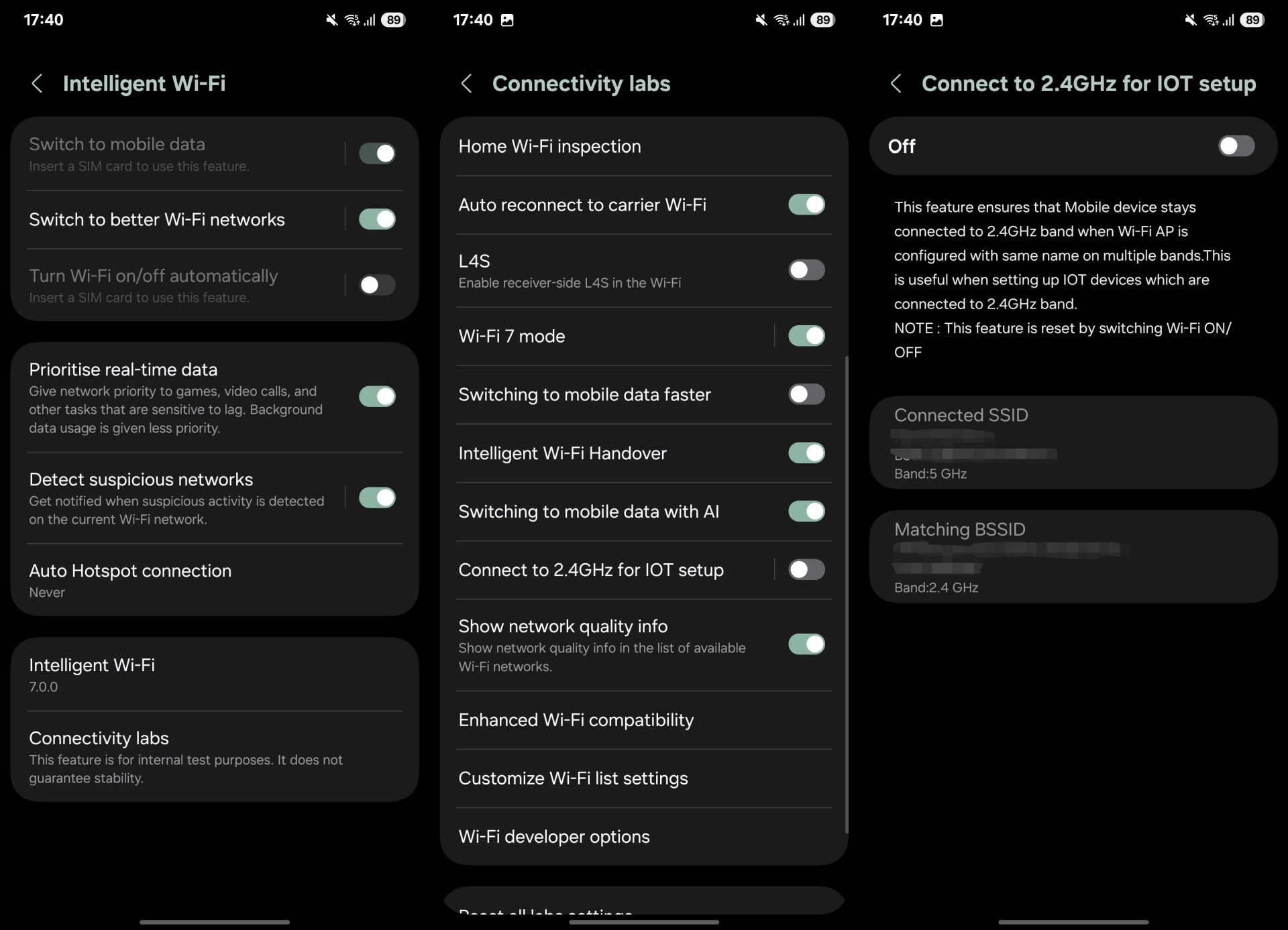
One UI 7.0 packs an option called ‘Connect to 2.4GHz for IOT setup.’ You will be able to find it in Settings » Wi-Fi » Connectivity labs. This feature keeps your smartphone on the 2.4GHz band even if the same SSID is also broadcasting the 5GHz network. As it keeps your phone on the same band as the one your smart home device supports, it becomes easier to set up the IoT device.
As the feature is still a part of Labs, it might have issues (not that we have come across any). Once you set up your smart home device, make sure to turn off the option. Otherwise, you will experience slow data speeds on your device. (The Connectivity labs menu is hidden by default, but you can enable it by tapping the Intelligent Wi-Fi button multiple times until you get a popup saying the menu has been activated.)
One UI 7.0 has many such hidden features. One of them is the ability to keep playing music in the background while recording video. You can check out the main features of the new software in our video below.
I’m a computer science engineer living in Hyderabad, India, who has a keen interest in automobiles and consumer electronics. My journalism career kicked off in 2017 with MySmartPrice where I wrote news, features, buying guides, and explanatory articles about technology among other things, and reviewed many products, including smartphones, tablets, laptops, PC components, smartwatches, audio devices, wearables, and smart home products. Since then, I have worked for 91Mobiles, Apple, and Onsitego, before finally landing on SamMobile.