Last updated: April 14th, 2020 at 01:26 UTC+02:00
SamMobile has affiliate and sponsored partnerships, we may earn a commission.
Reading time: 2 minutes
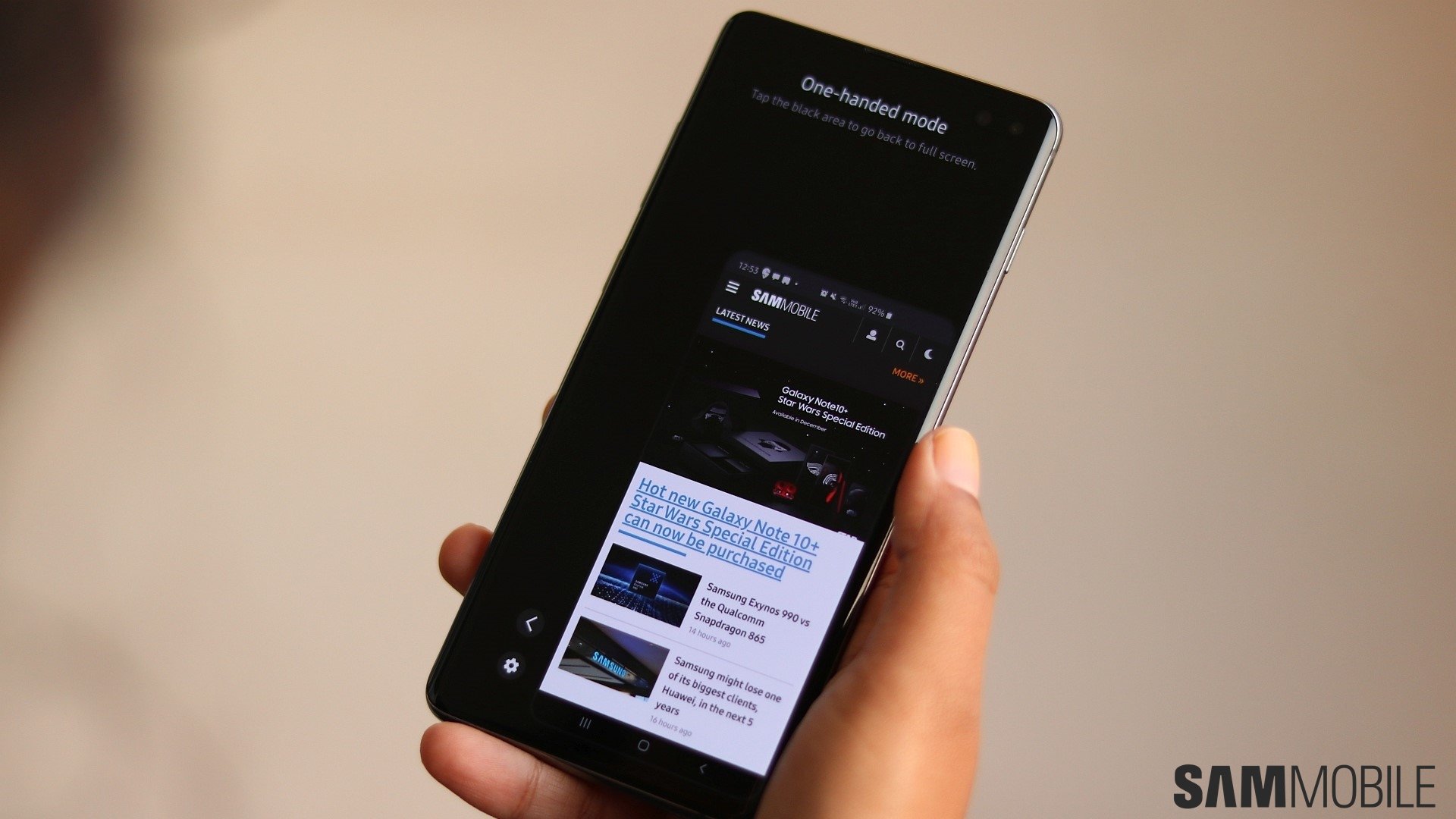
This is particularly useful if you're bothered by losing screen real estate in favor of reachability. With One Hand Operations+ and the Virtual touch pad feature, you don't have to make this trade-off. You can download the One Hand Operations+ module directly to your phone from our APK archive (hit the link).
Once you have installed One Hand Operations+ on your phone, launch the module from your apps drawer and follow these steps:
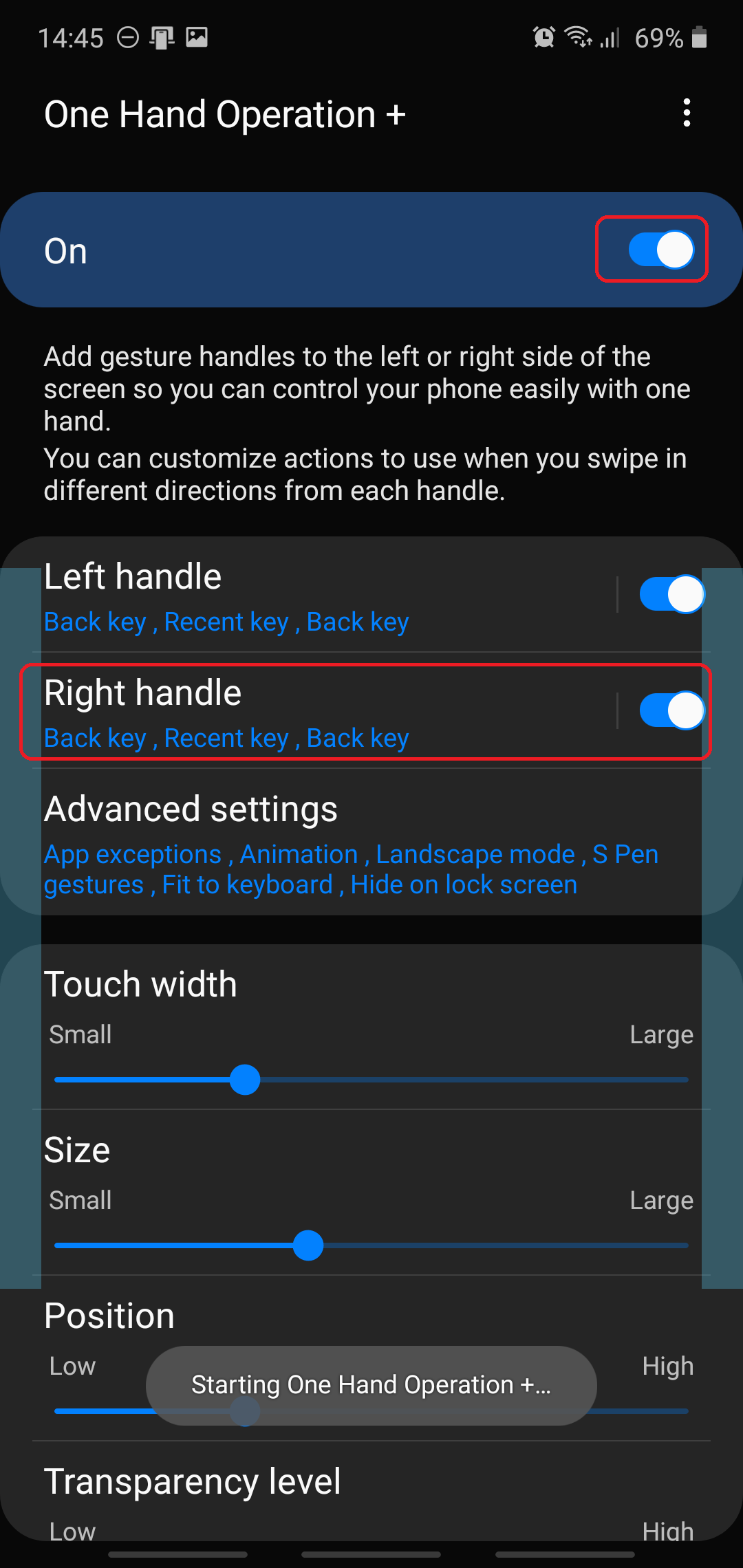
Step 1: Tap the On toggle to enable One Hand Operation+
Step 2: Enable and tap either the Left handle or Right handle – whichever you prefer
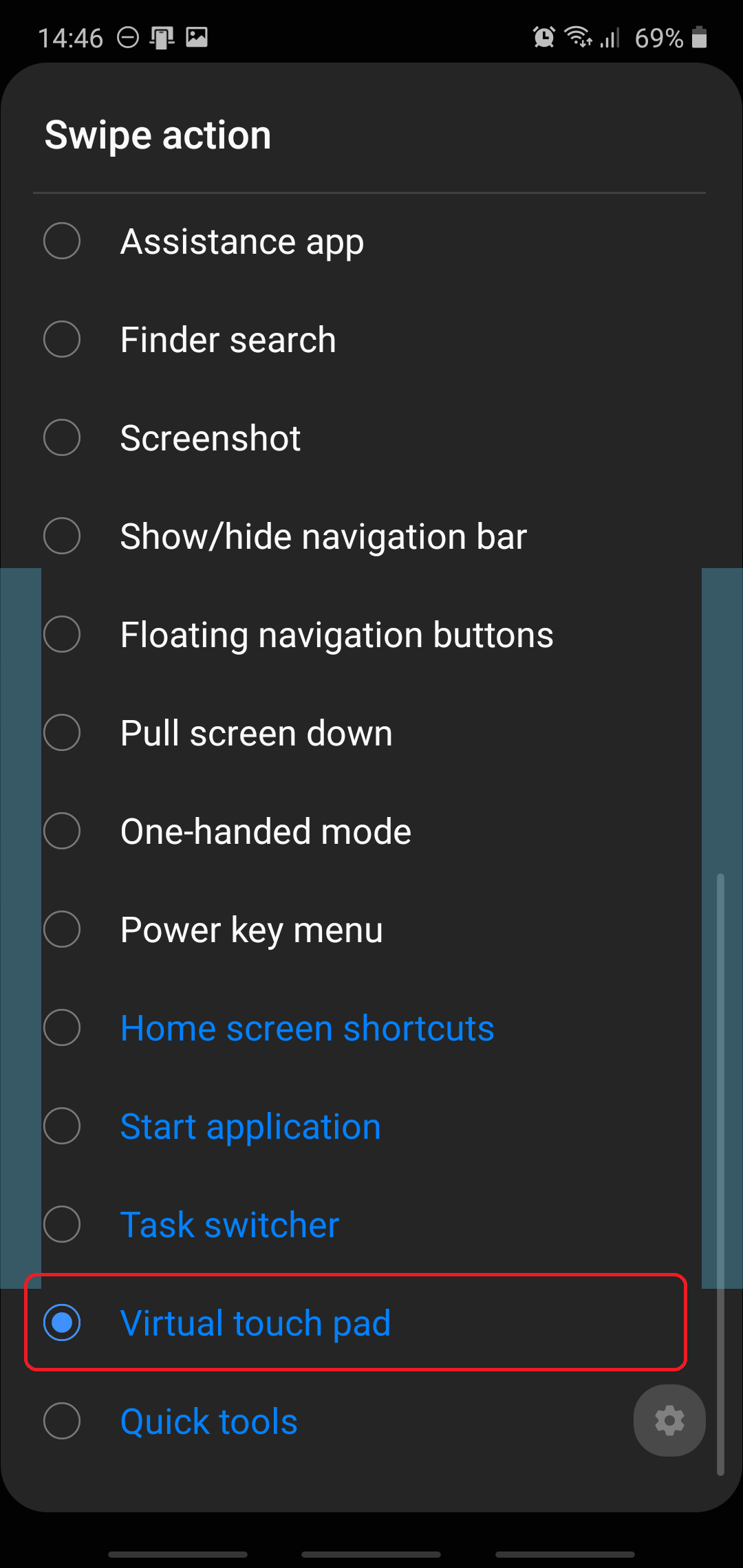
Step 3: Select the desired gesture, like Straight left, for example
Step 4: Scroll down the list of options and select Virtual touch pad

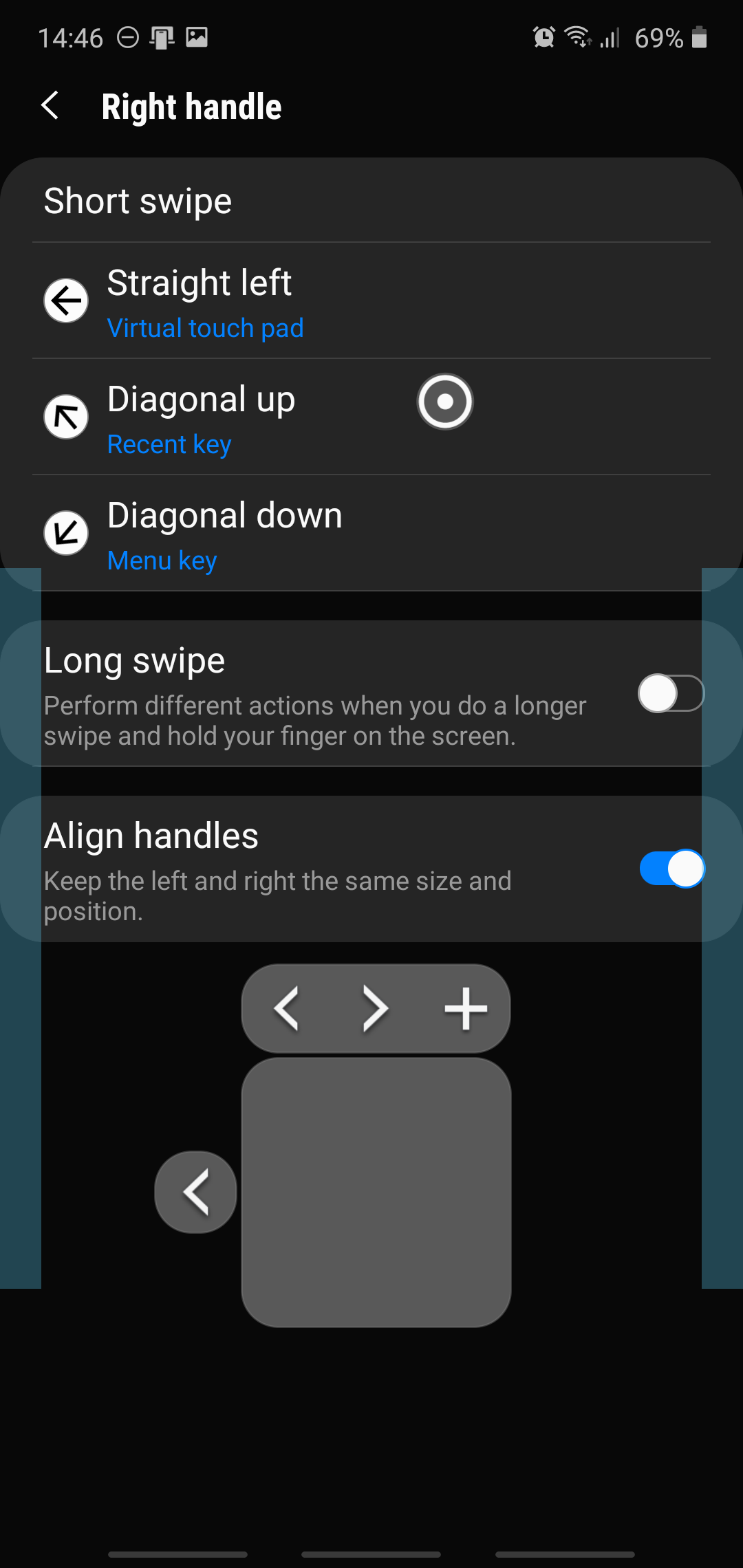
You can now perform the selected gesture (Straight left in this example) to enable the Virtual touch pad. As seen in the fourth screenshot above, the pad is generally located on the lower half of the screen, and with it, you can control a circular cursor to reach the upper half without having to minimize the display area. It's particularly useful for devices with large displays, such as the Galaxy S20+ and Galaxy S20 Ultra, whose panels clock in at 6.7 and 6.9-inch, respectively.

Mihai is a blogger and column writer at SamMobile. His first Samsung phone was an A800 which took a lot of beating, and a part of him still misses the novelty of the clamshell design. In his free time, he enjoys watching shows, documentaries, and stand-up comedy; listening to music, taking walks, and occasionally playing old(er) video games.












