Last updated: October 25th, 2019 at 12:59 UTC+02:00
SamMobile has affiliate and sponsored partnerships, we may earn a commission.
Reading time: 3 minutes
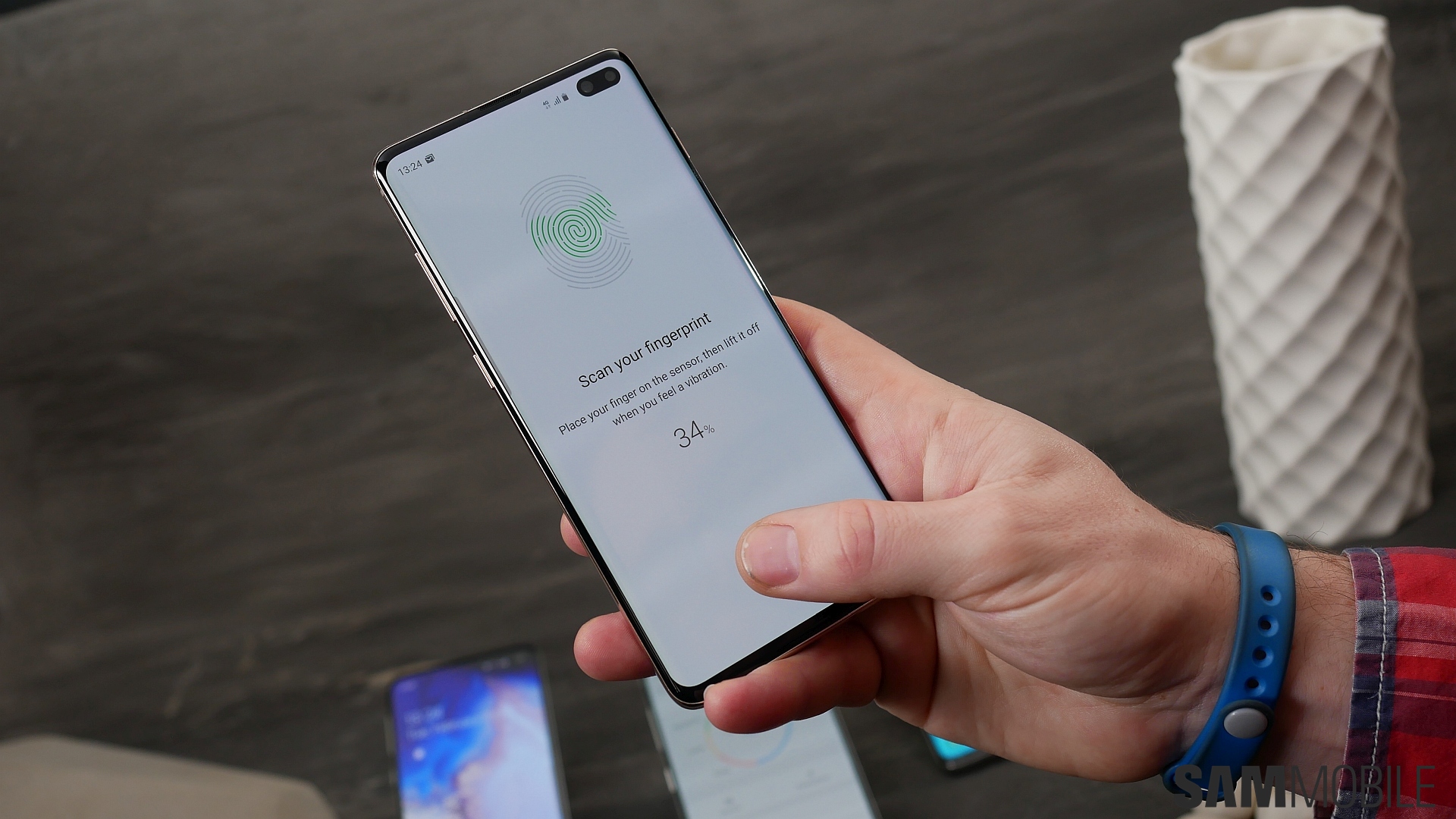
This particular vulnerability only becomes a problem if someone registers their fingerprint on their Galaxy Note 10/10+/10 5G/10+ 5G or Galaxy S10/S10+/S10 5G for the first time with such a case installed, but it's still a serious flaw that Samsung quickly acknowledged. The Korean giant announced that it would soon be patching the issue via a biometrics update over the air, and that update is now available worldwide for all Galaxy S10 and Note 10 owners.
The biometrics update will show up as a notification that will not go away until you have installed it. The notification, as you can see in the screenshot below, is called Performance and security – just tap it and then hit the Update button to install the biometrics update. However, just installing it is not going to be a complete safeguard against the vulnerability; there are a couple of other things you need to do.
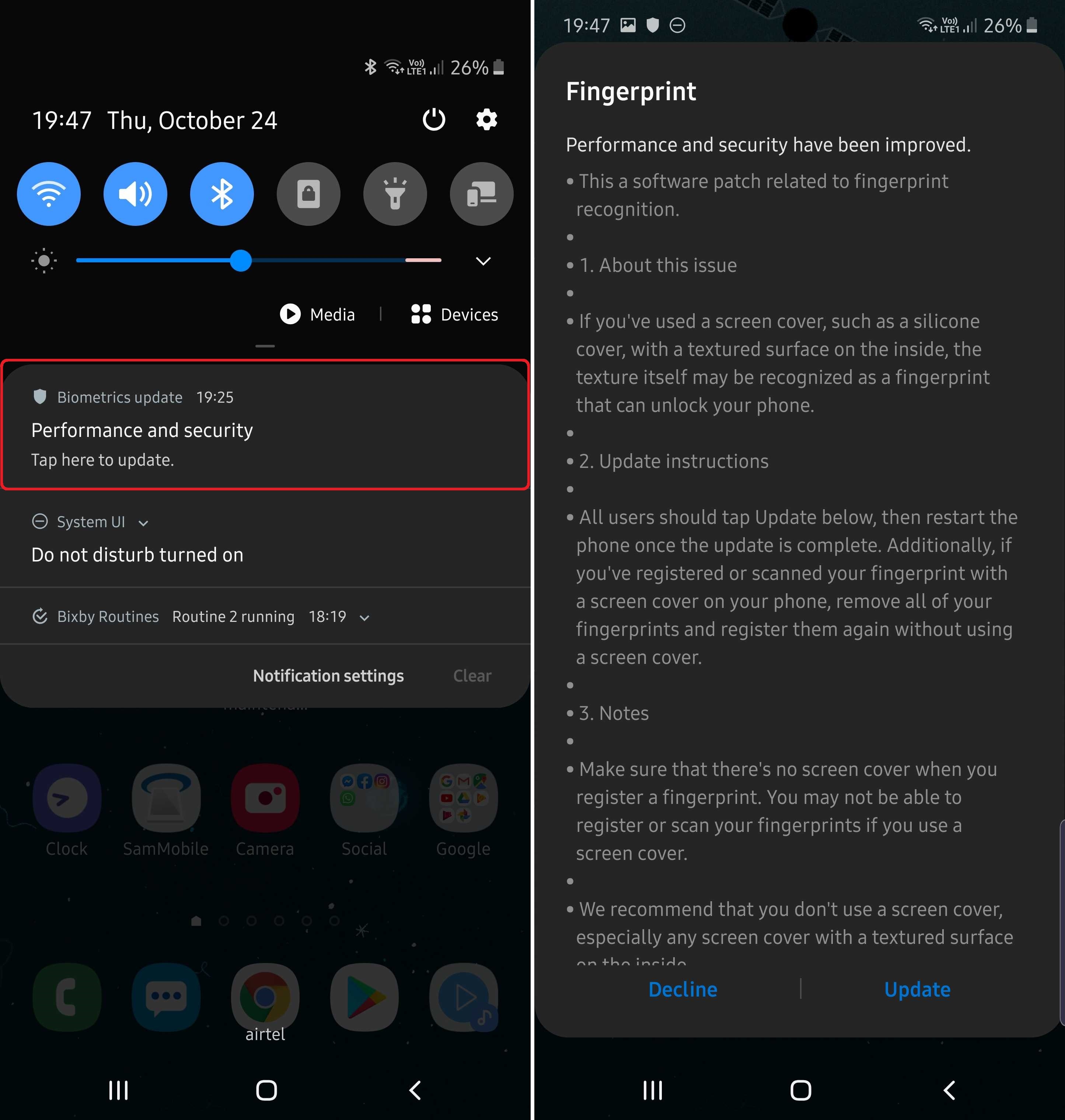
The first thing you should do once the update is installed is restart your phone. Then, whether your previously registered fingerprints were added with a silicon case installed on the screen or without the case installed, you should proceed to delete them all from your phone.
To do that, open the Settings app, navigate to Biometrics and security, then tap Fingerprints and enter your PIN/password/pattern to see all your registered fingerprints. Tap and hold on one of the fingerprints, select all fingerprints, then tap the Remove button on top to delete them.
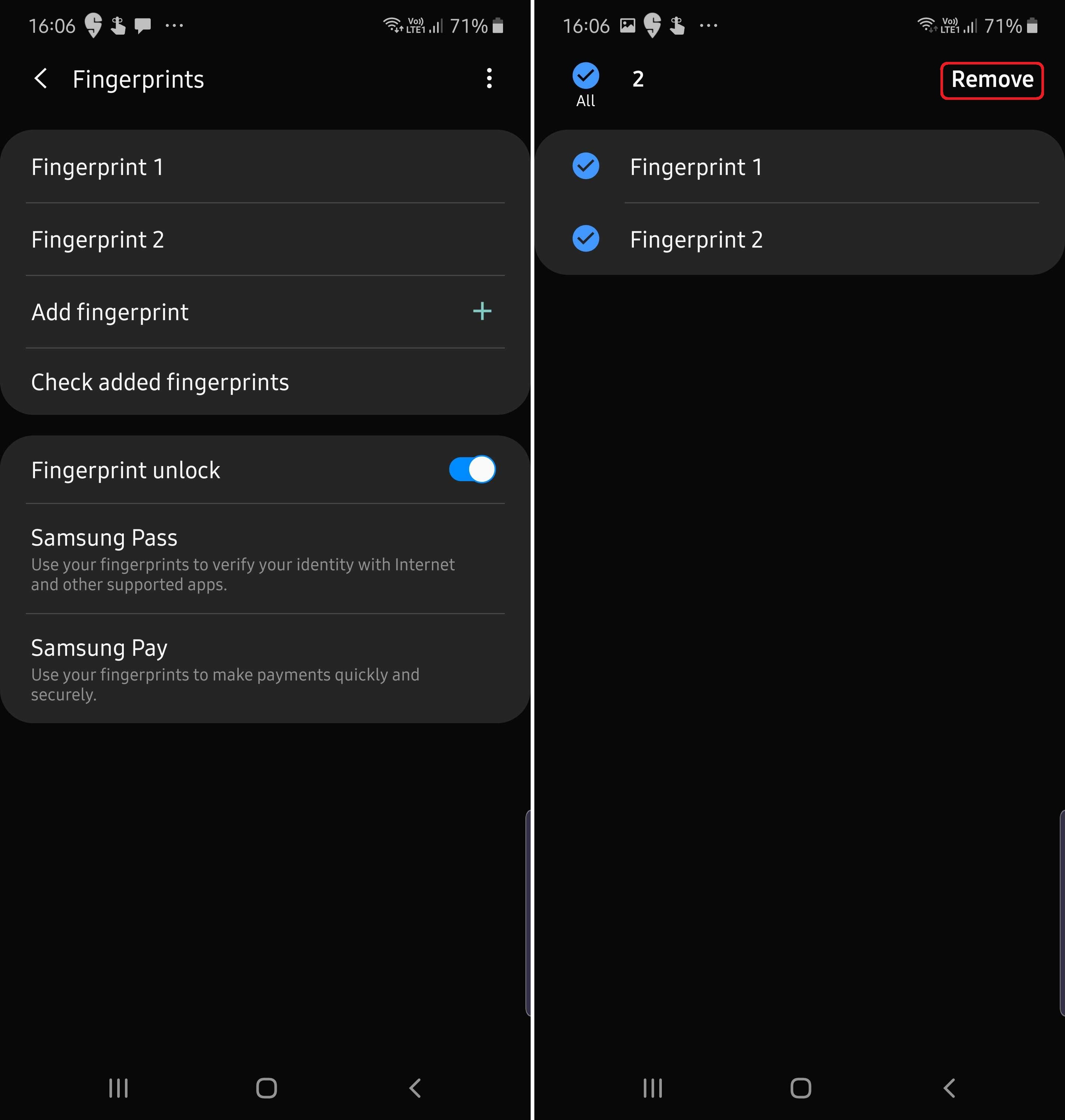
Then, make sure you don't have a silicon case installed and register your fingerprint on the device again by tapping the Add fingerprint option. As Samsung notes, it's best to scan all the edges of your finger when registering a fingerprint for the best protection. And, well, it's best to stop using cases that cover the top of your device and simply opt for an official screen protector from Samsung.
Once you have deleted your fingerprints and added them again, if you want to make sure that the necessary biometrics update is actually installed on your Galaxy S10 or Galaxy Note 10, here's what you need to do. Open the Settings app on your phone, navigate to Biometrics and security, then tap the Biometrics preferences option. Here, check the version number listed in front of the word Fingerprints at the bottom.
As shown in the screenshot below, on Android Pie, the version number should be 2.0.24.20 for your device to be safe against the fingerprint vulnerability. If you're testing the Android 10 beta, the version number should be 5.0.0.1. If the version numbers are different, it means you have not installed the biometrics update, in which case you should check your notification shade and do the needful, then follow all the advice we have given above.


Abhijeet's writing career started with guides for custom firmware for Samsung devices (including the original Galaxy S), and he moved to SamMobile in mid-2013 and worked up the ranks to Editor-in-chief. In addition to phones and mobile devices, his interests include gaming on both PC and console, PC hardware, and spending countless hours on YouTube watching videos on tech, movies, games, politics, and internet dramas.













