Last updated: May 27th, 2022 at 16:16 UTC+02:00
SamMobile has affiliate and sponsored partnerships, we may earn a commission.
Reading time: 2 minutes
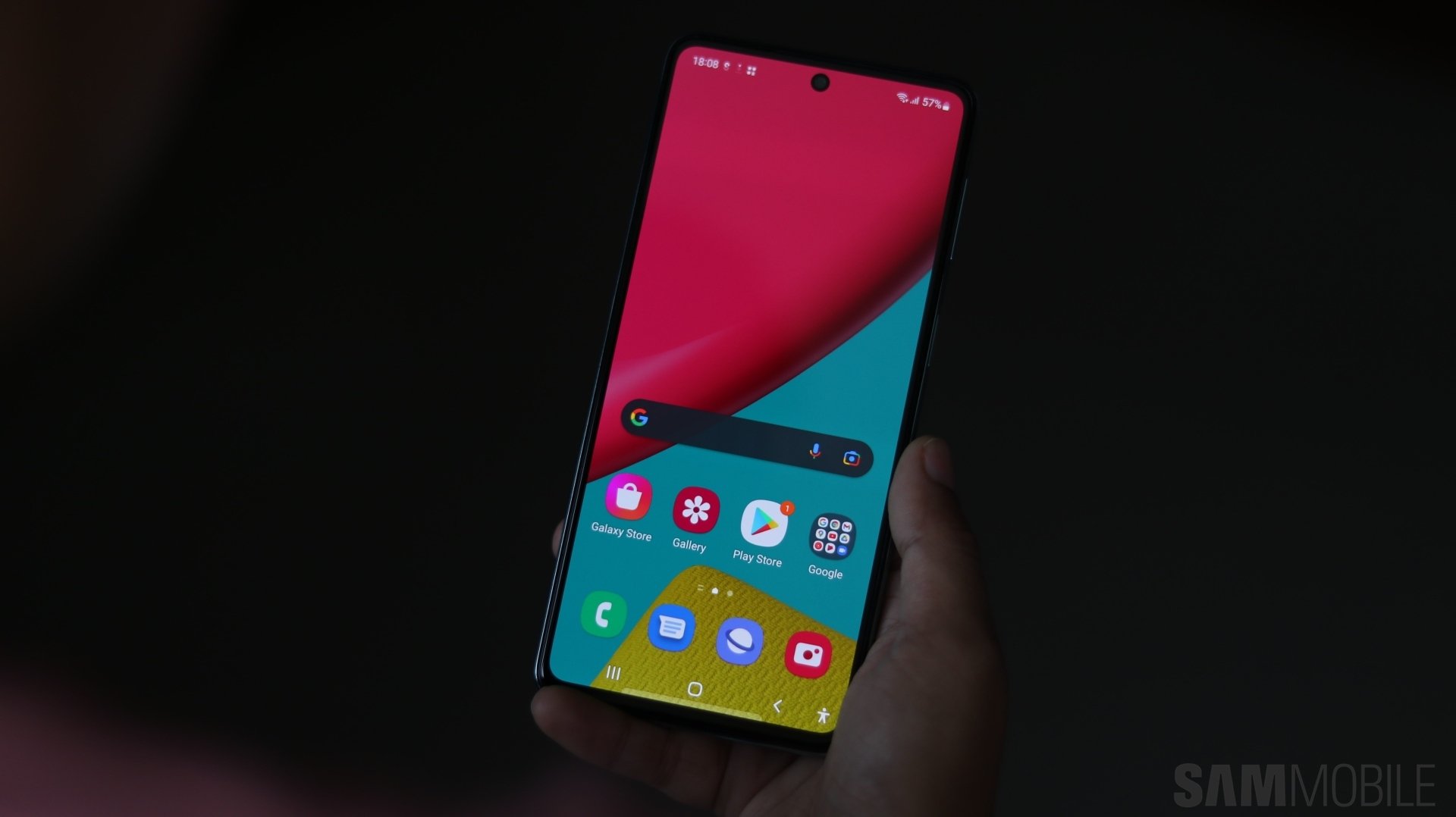
It's called “Data saver,” and as per the official description, once enabled, it helps cut down your data usage by preventing apps from using data in the background.
As usual when it comes to One UI guides, the first thing you need to do is open the Settings app on your Galaxy device. Then you can follow these steps:
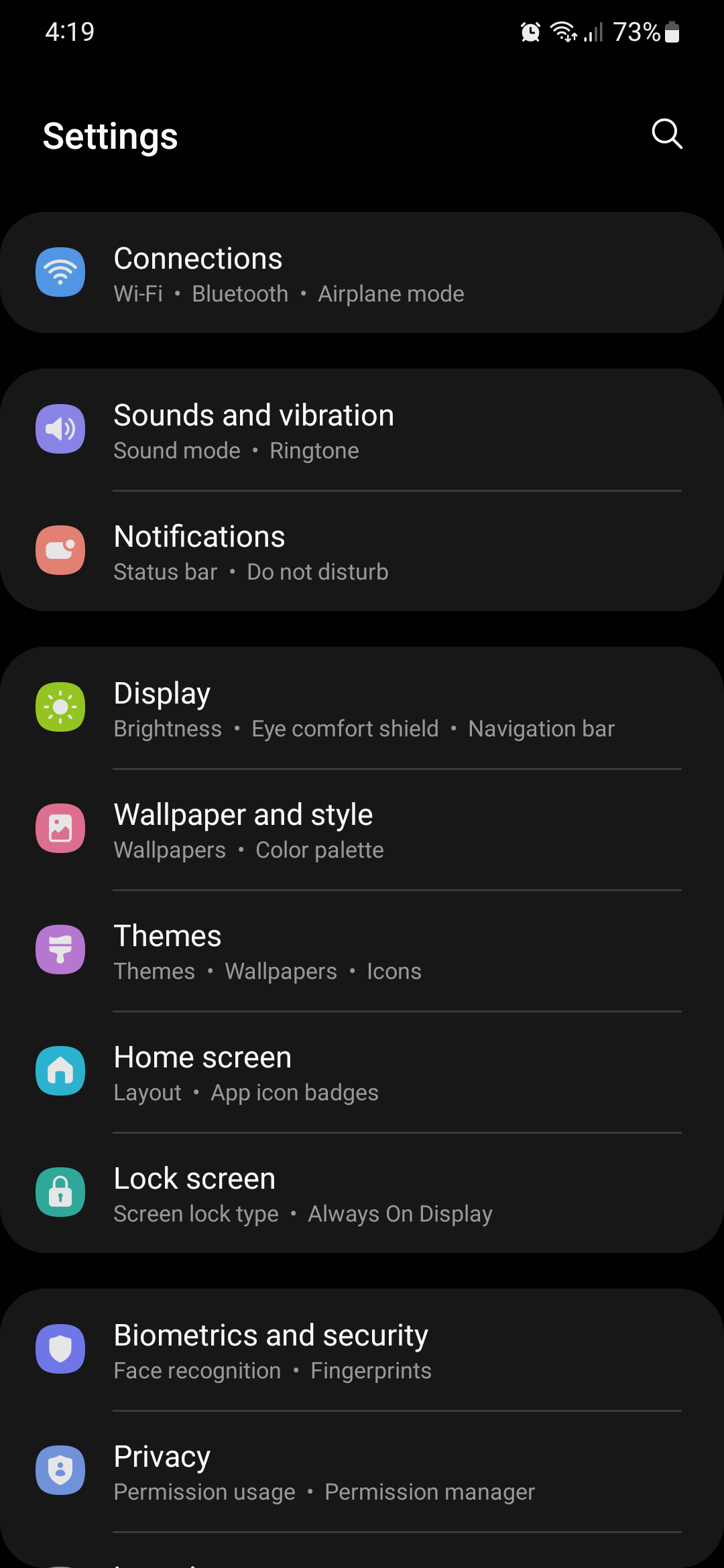
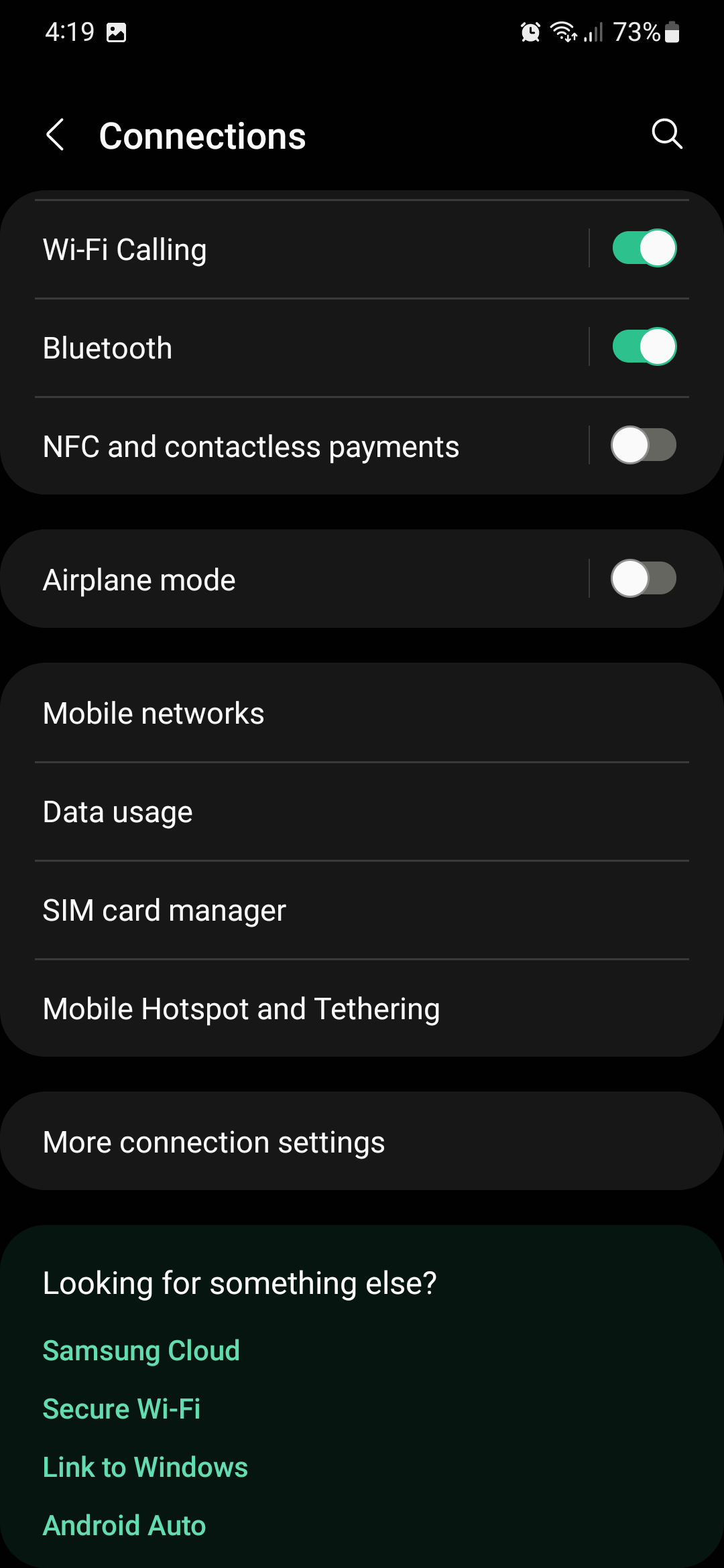
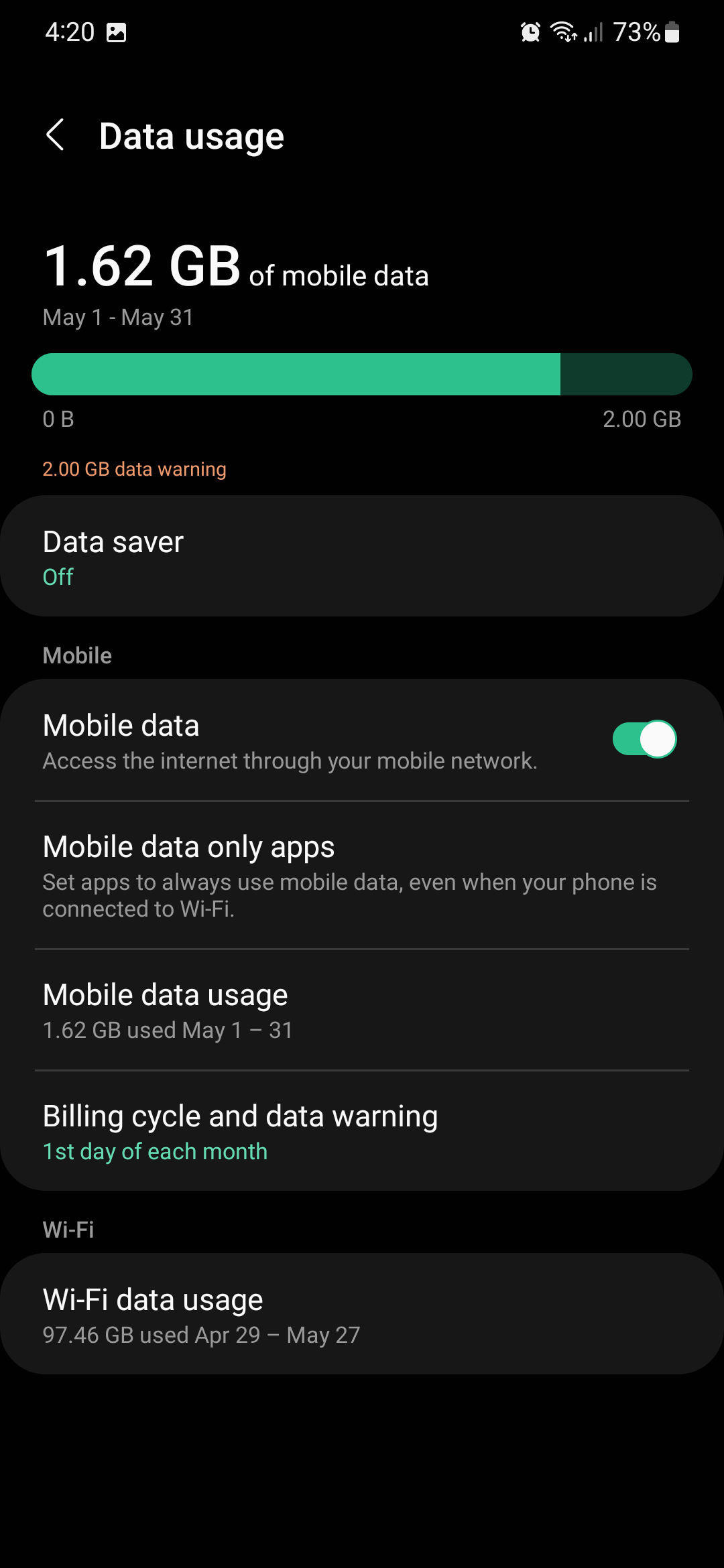
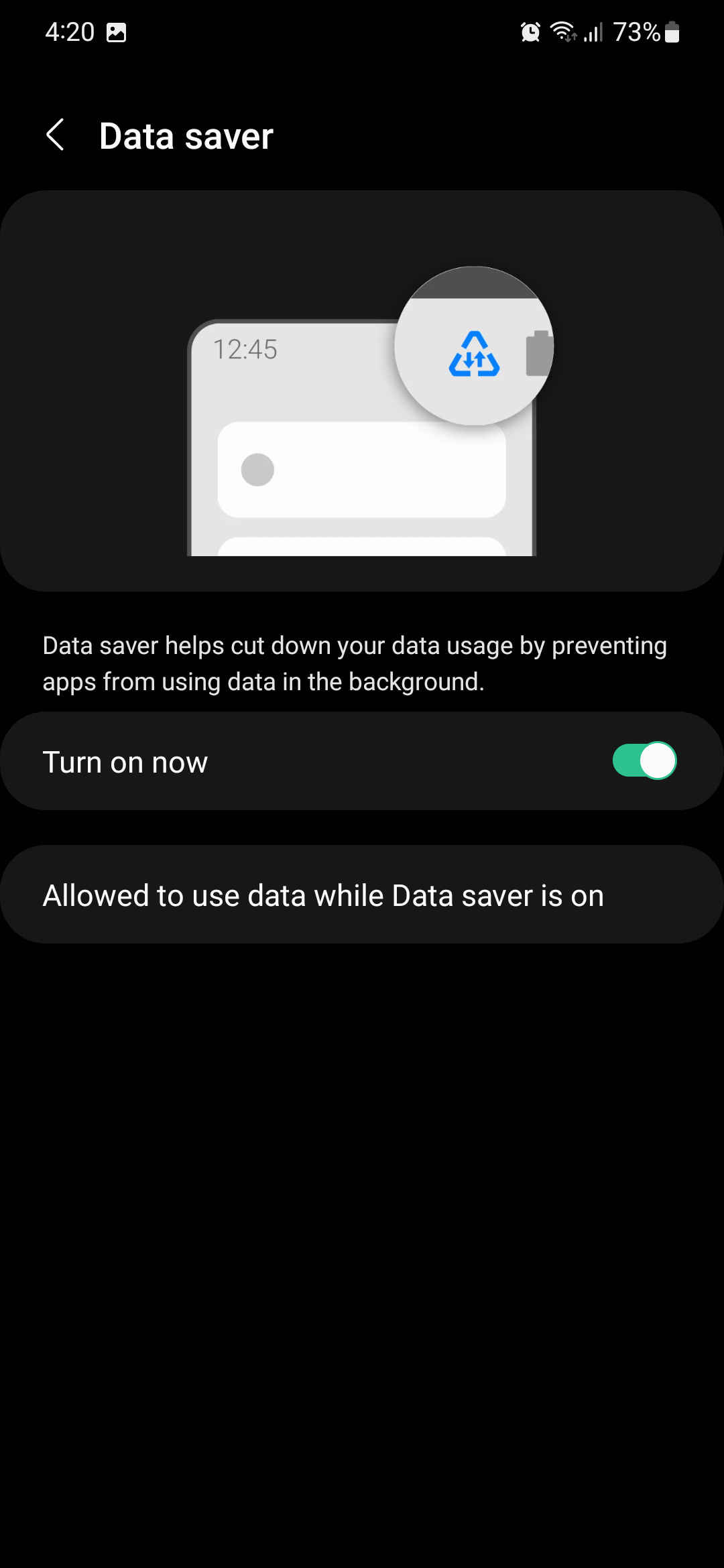
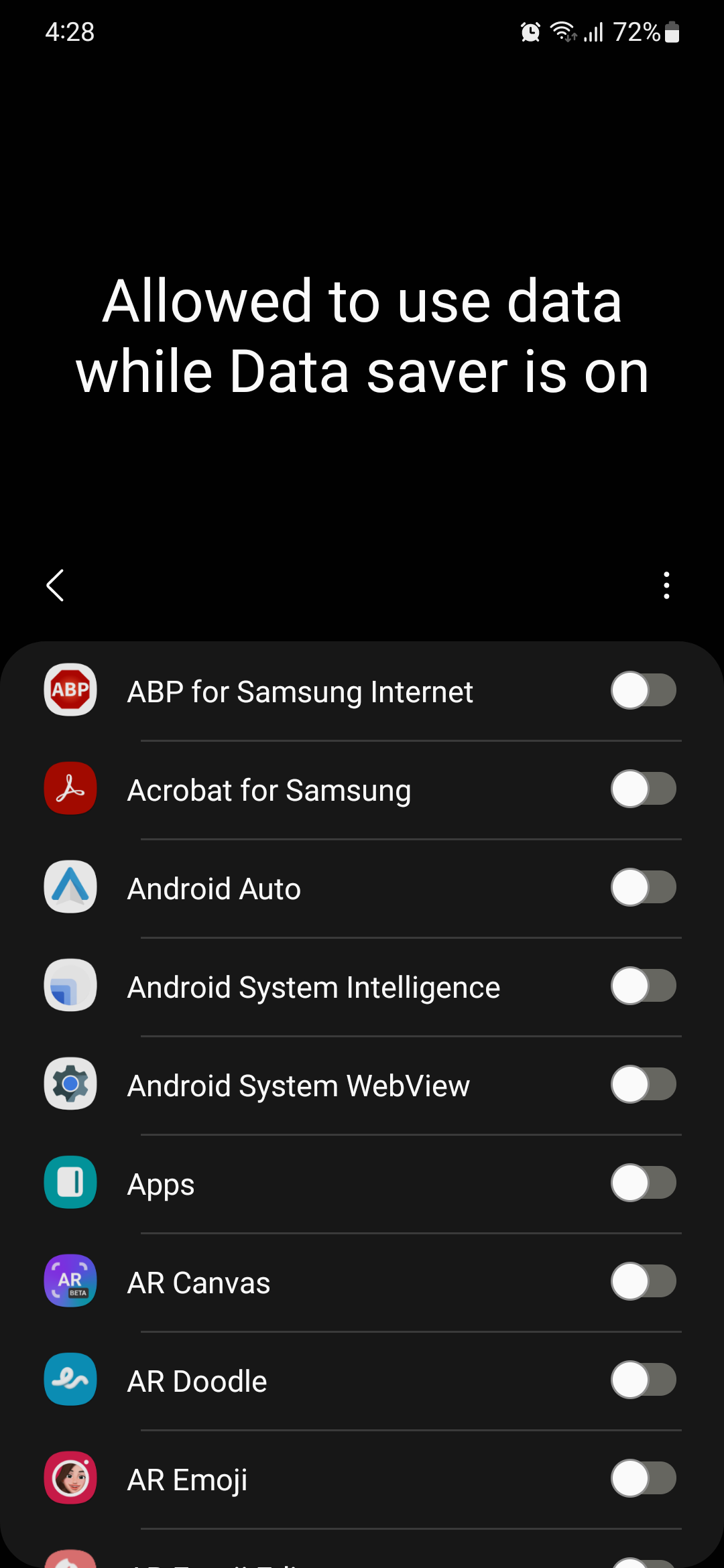
Optionally, you can tap “Allowed to use data while Data saver is on” and tap individual toggle switches to set exceptions for the apps that shouldn't be affected by Data saver whenever this feature is enabled.
Enabling Data saver on your Samsung Galaxy smartphone can help you manage your data consumption whenever your phone is not connected to a Wi-Fi network. Furthermore, it can help you improve battery life if you're traveling and you don't have quick access to a charger. Feel free to experiment with it and you're bound to see some positive results.
Join SamMobile’s Telegram group and subscribe to our YouTube channel to get instant news updates and in-depth reviews of Samsung devices. You can also subscribe to get updates from us on Google News and follow us on Twitter.

Mihai is a blogger and column writer at SamMobile. His first Samsung phone was an A800 which took a lot of beating, and a part of him still misses the novelty of the clamshell design. In his free time, he enjoys watching shows, documentaries, and stand-up comedy; listening to music, taking walks, and occasionally playing old(er) video games.












