Last updated: December 29th, 2022 at 01:20 UTC+01:00
SamMobile has affiliate and sponsored partnerships, we may earn a commission.
Reading time: 3 minutes
Another nice thing about Samsung Internet, especially when compared to Google Chrome, is that its user interface places all the buttons at the bottom, which is great for one-handed use.
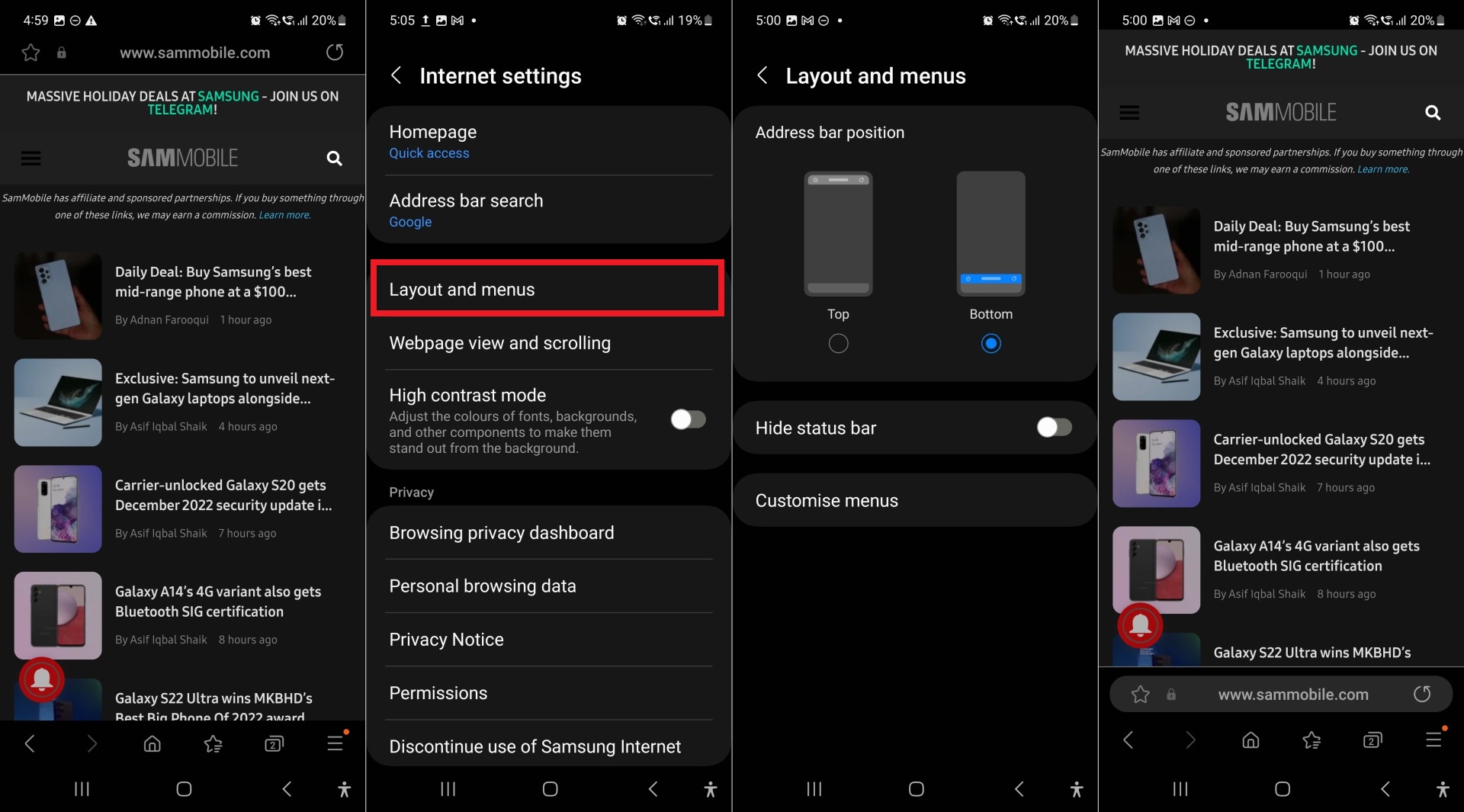
It also lets you move the address/URL bar to the lower half of the screen, but by default, the address bar resides at the top while buttons like bookmarks or going front and back sit at the bottom.
Most Samsung Internet users are probably used to the default button and address bar layout, but those who want to bring the address bar down to the bottom of the screen can do so very easily by following the instructions below.
All you need to do is tap the three parallel lines at the bottom of the app and tap the Settings button. Once in settings, tap Layout and menus, and then select Bottom instead of Top. To put the address bar back at the top of the screen, just do the reverse and select Top instead of Bottom.
That's pretty much it. You will now find the address bar sitting just above the bottom row of buttons and will be able to tap it and enter new URLs more conveniently, especially when only one of your hands is free to operate your device.
If you have never used Samsung Internet, we recommend taking it for a spin. It lacks Google Chrome's advanced cross-device syncing (as there's no version of Samsung Internet for Windows) but is packed to the brim with features that enhance your browsing experience. Also, it is extremely fast and smooth and works on both Galaxy-branded and non-Galaxy devices, as long as they run Android 5.0 or newer.
You can download Samsung Internet from the Google Play Store or Samsung's Galaxy Store. There's also a beta version of Samsung Internet that can be downloaded separately and lets you test out new features before they come to the stable app – the beta version is available on Google Play and the Galaxy Store as well.

Abhijeet's writing career started with guides for custom firmware for Samsung devices (including the original Galaxy S), and he moved to SamMobile in mid-2013 and worked up the ranks to Editor-in-chief. In addition to phones and mobile devices, his interests include gaming on both PC and console, PC hardware, and spending countless hours on YouTube watching videos on tech, movies, games, politics, and internet dramas.













