Last updated: March 6th, 2024 at 12:44 UTC+01:00
SamMobile has affiliate and sponsored partnerships, we may earn a commission.
Reading time: 2 minutes
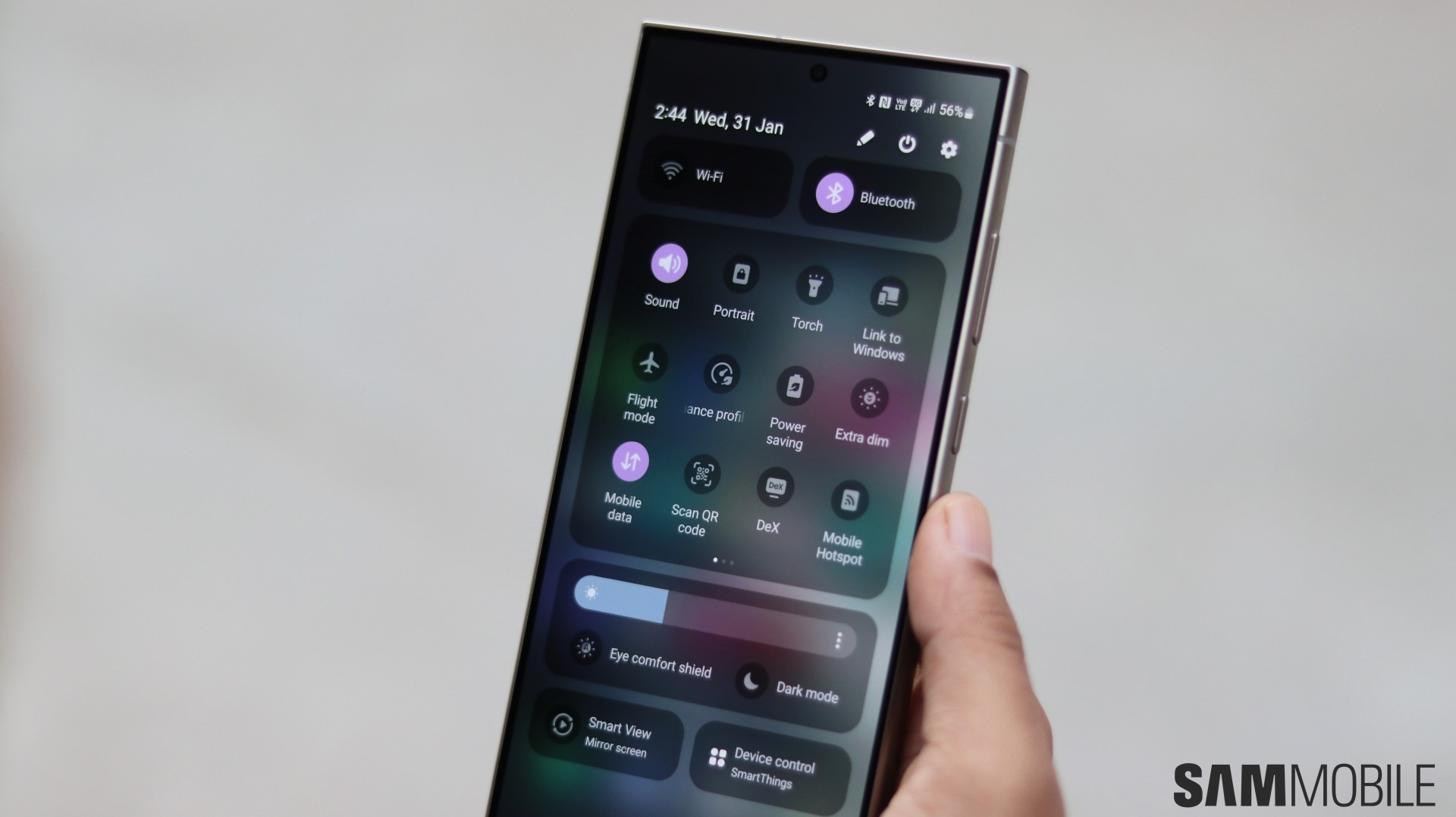
Right now, we're not focusing on all the methods One UI offers for taking a screenshot. But we want to let you in on a little feature that can help you generate cleaner screen grabs with your Galaxy phone or tablet and possibly cut down on extra editing work.
If you ever wanted to share screenshots from your Galaxy phone or tablet while excluding the status and navigation bars, you know cropping out these UI elements can turn into a real chore, particularly if you are working with more than one screen grab. Well, with this trick, you won't have to do any extra work,
There is a way to capture cleaner screenshots with your Galaxy phone or tablet and exclude the navigation and status bar. All you need to do is open the Settings app, access “Advanced features,” go to “Screenshots and screen recordings,” and switch the “Hide status and navigation bars” toggle ON.
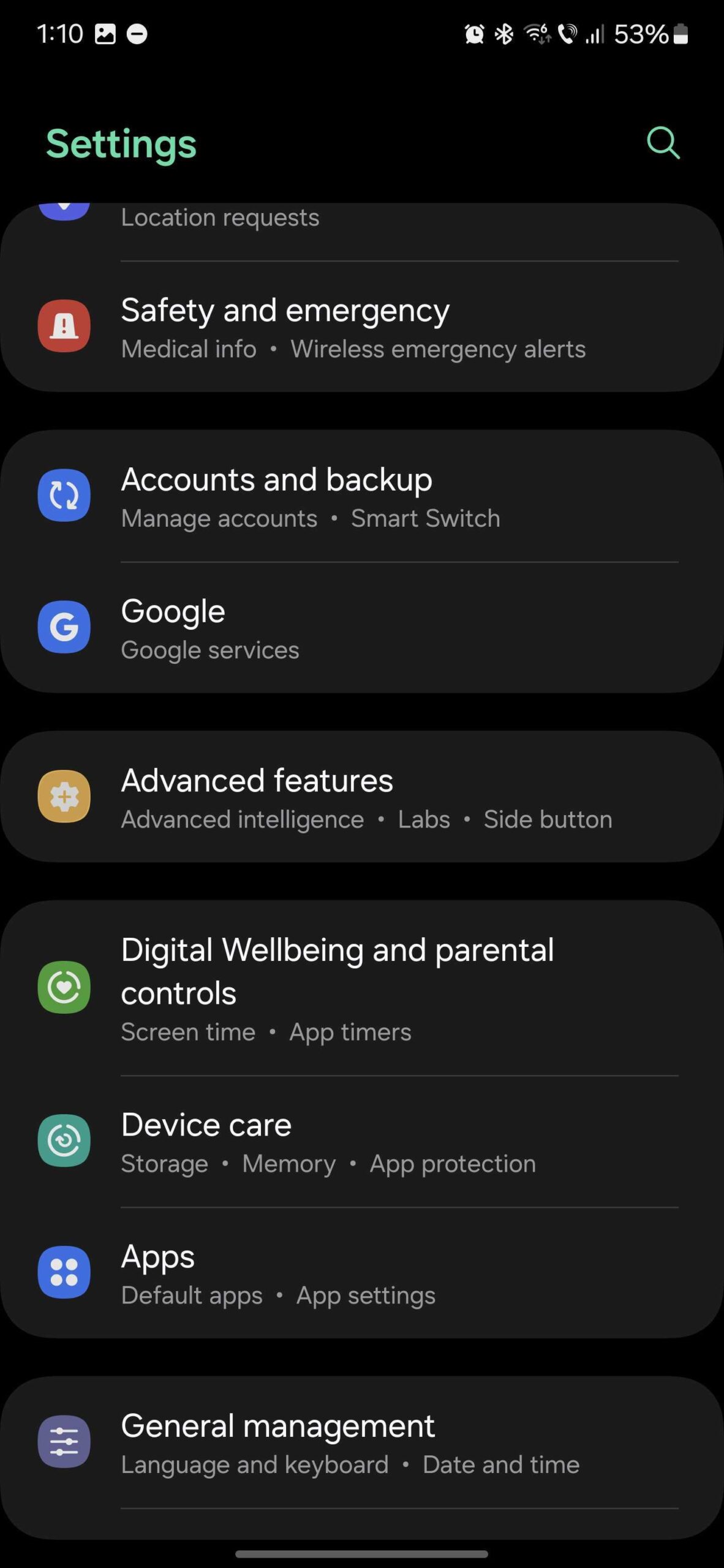
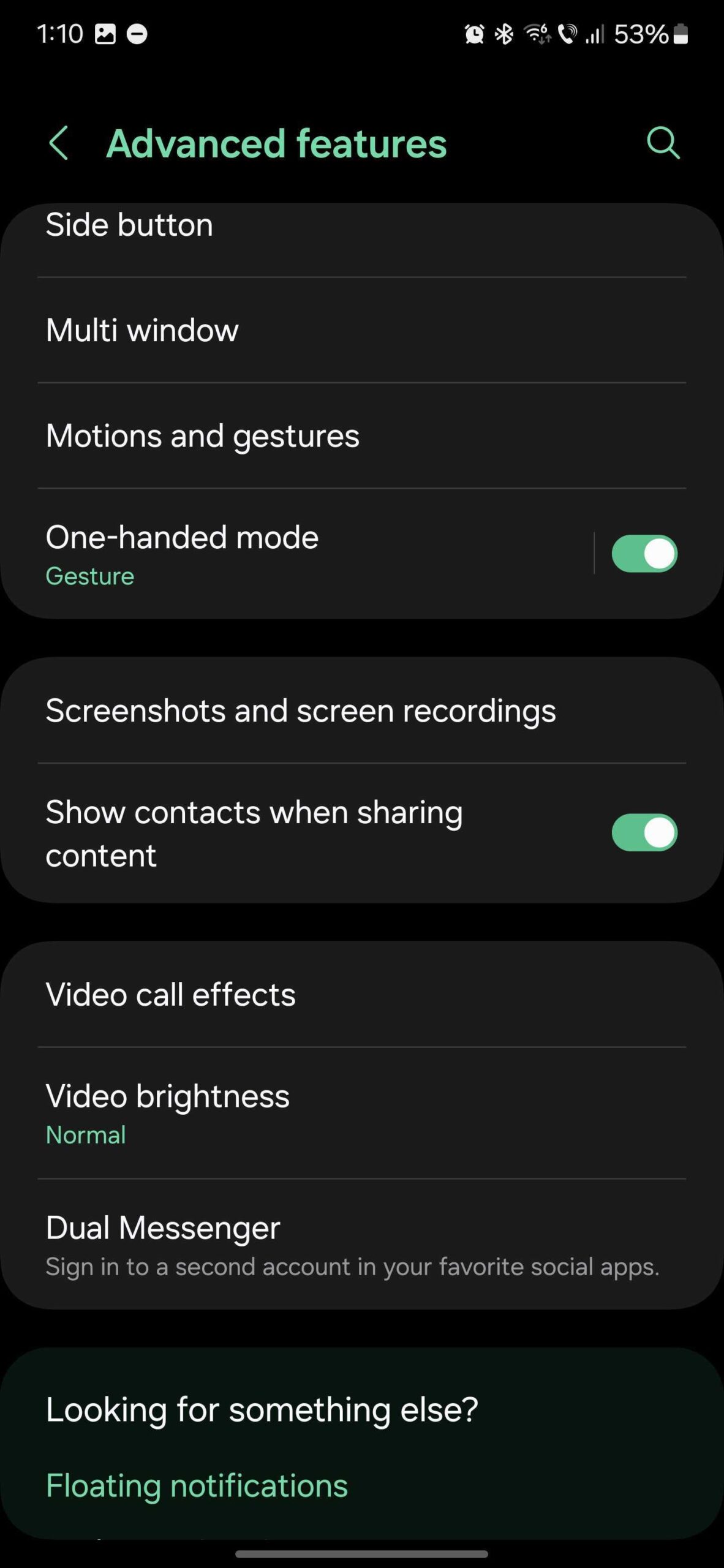
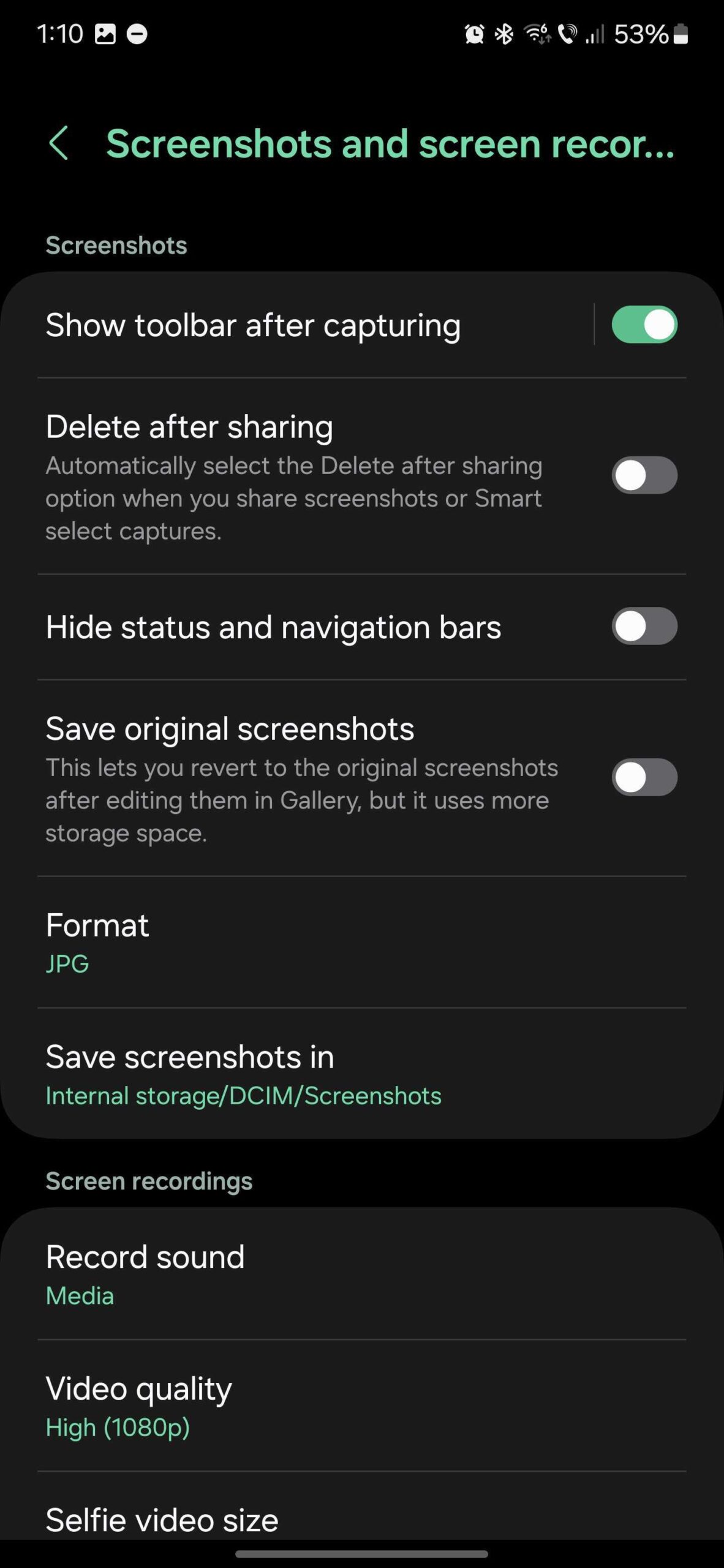
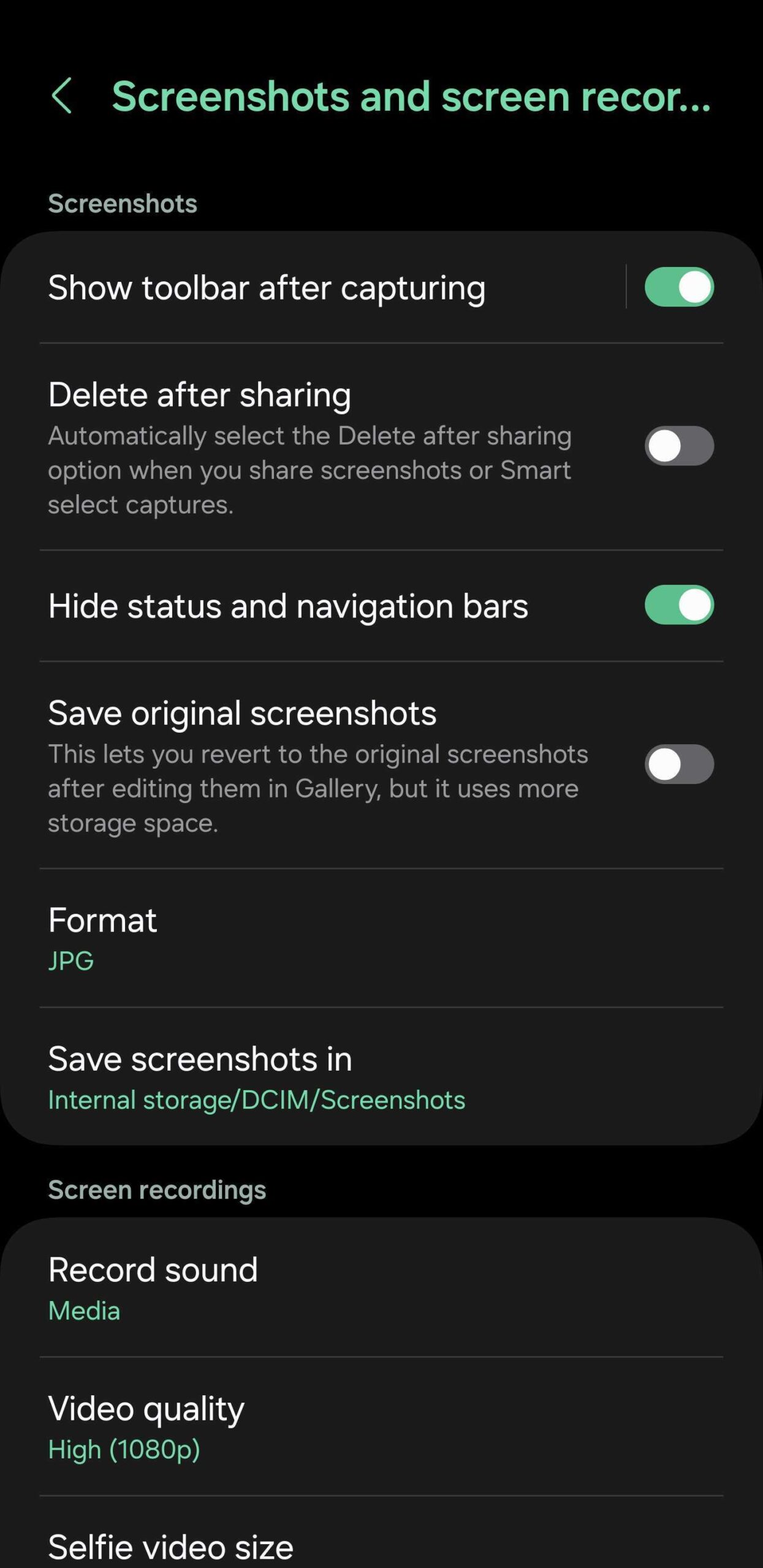
These two top and bottom UI elements will now be excluded from your screen grabs. You can see this demonstrated in the fourth screenshot above.
You may also notice that images captured when this feature was turned ON have a slightly shorter aspect ratio. That is because the navigation and status bars are cropped out of the final image rather than covered up.

Mihai is a blogger and column writer at SamMobile. His first Samsung phone was an A800 which took a lot of beating, and a part of him still misses the novelty of the clamshell design. In his free time, he enjoys watching shows, documentaries, and stand-up comedy; listening to music, taking walks, and occasionally playing old(er) video games.














