Last updated: October 22nd, 2025 at 15:28 UTC+02:00
SamMobile has affiliate and sponsored partnerships, we may earn a commission.
You can use the headset's apps and PC's screen side by side.
Reading time: 2 minutes
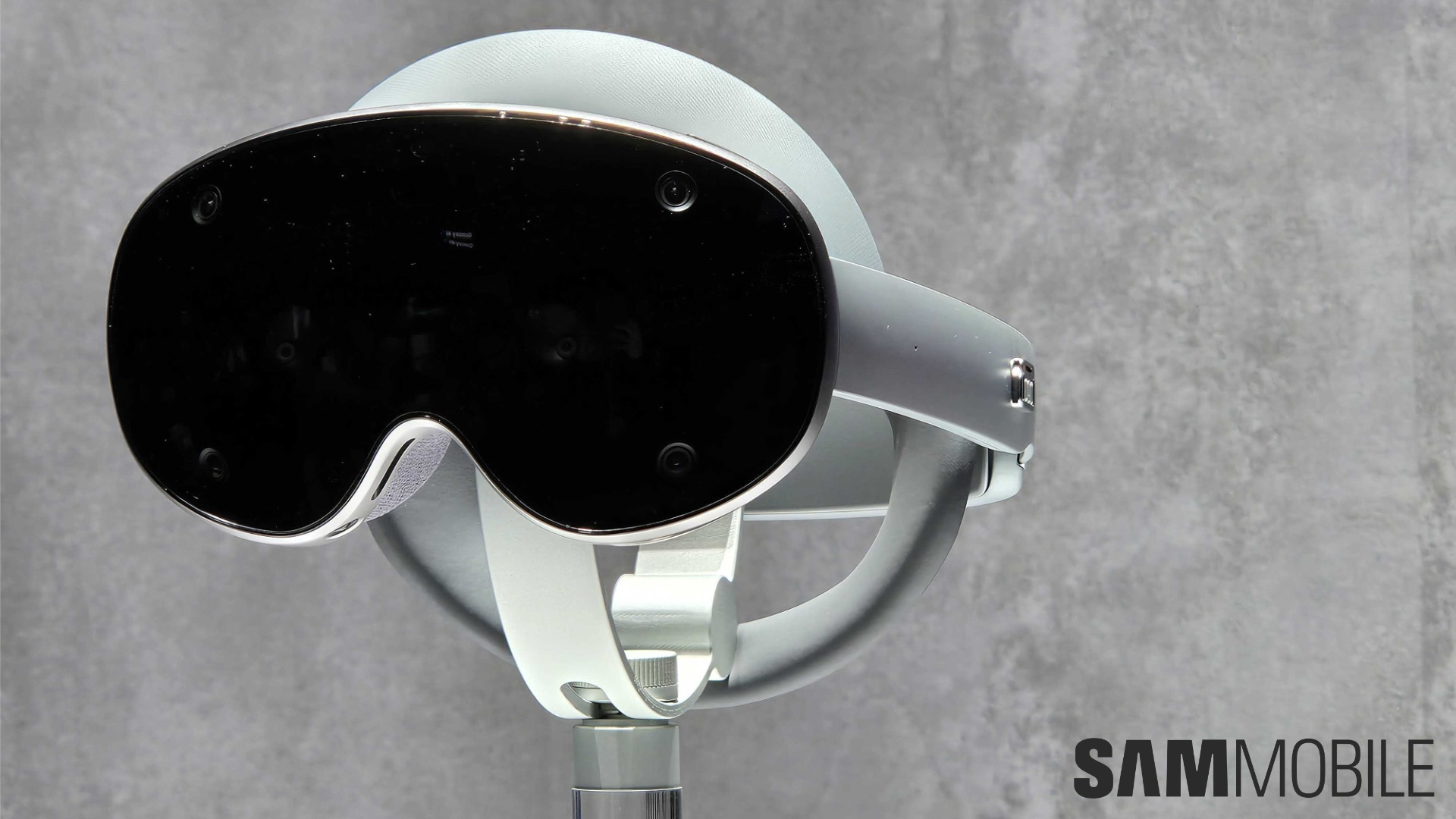
The Galaxy XR is Samsung’s first extended reality (XR) headset, and it’s also the world’s first device to run the Android XR operating system. In addition to running immersive apps and games locally, the headset can mirror your PC or smartphone’s screen for ultimate productivity.
Samsung has revealed that you can mirror your Galaxy Book's screen to the Galaxy XR via an app called PC Link. You need to install that app on your Galaxy Book and then pair them to the feature to work. Both the PC and the Galaxy XR need to be on the same Wi-Fi network and connected via Bluetooth.

Follow the steps below for PC screen mirroring:
You can take calls from your Galaxy phone on the Galaxy XR via the ‘Call On Other Devices' feature. You can also mirror the phone's screen on the XR headset via Smart View.
Follow the steps below for phone screen mirroring on the Galaxy XR:

Follow the steps below to take calls from your Galaxy phone on the Galaxy XR:

Asif is a computer engineer turned technology journalist. He has been using Samsung phones since 2004, and his current smartphone is the Galaxy S23 Ultra. He loves headphones, mechanical keyboards, and PC hardware. When not writing about technology, he likes watching crime and science fiction movies and TV shows.












