Last updated: February 21st, 2024 at 12:21 UTC+01:00
SamMobile has affiliate and sponsored partnerships, we may earn a commission.
Reading time: 2 minutes
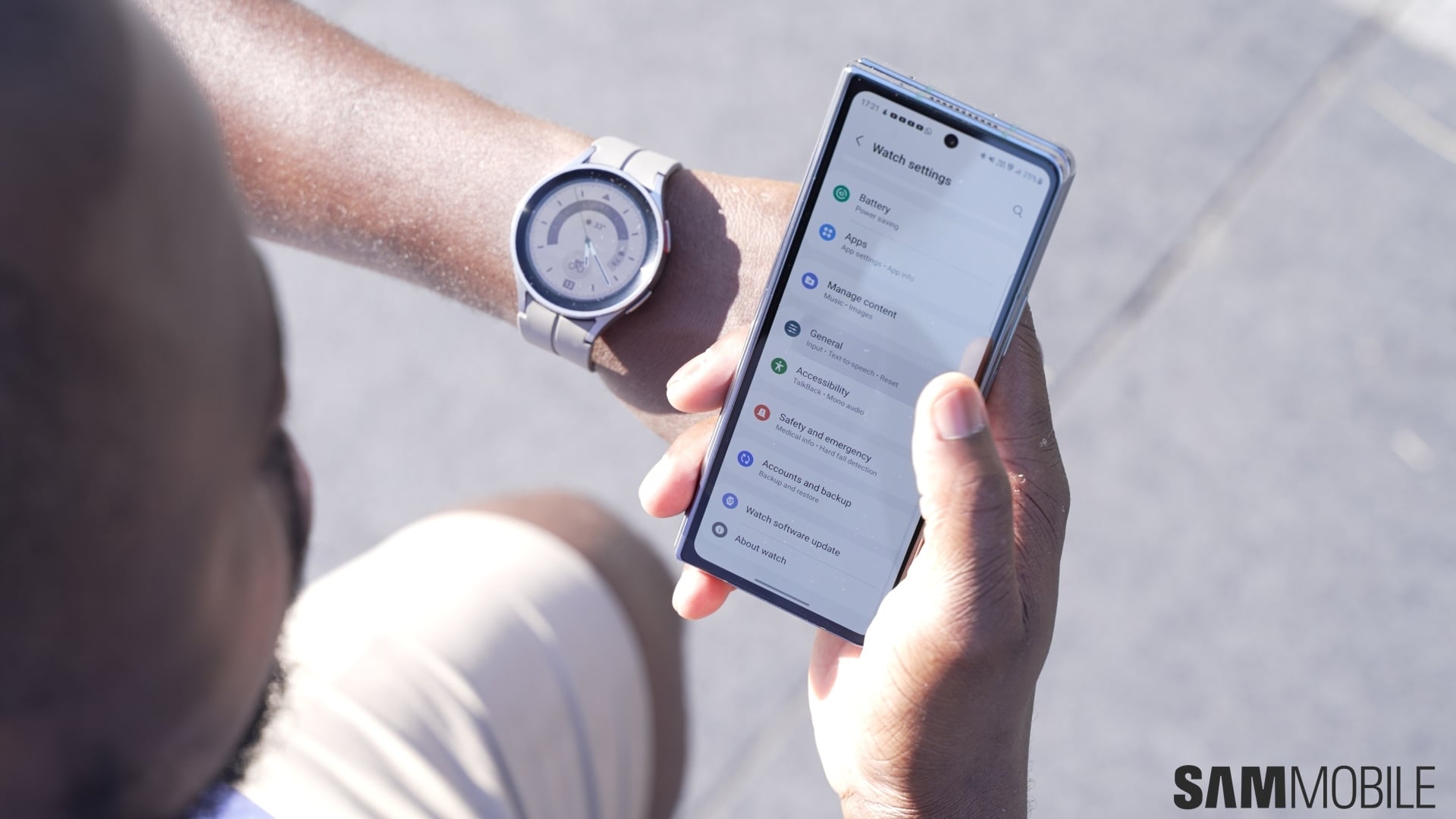
But here's a quick tip you might be unaware of. Did you know there's a much easier and faster way to control your SmartThings device ecosystem than by opening the SmartThings app? Here's all you need to know.
Once you have everything set in SmartThings, you can control devices, routines, scenes and more from your Galaxy phone's or tablet's quick panel. You don't even have to open the SmartThings app if you don't want to.
Here's how you can do this on mobile devices that run the latest One UI versions, such as the Galaxy S24.
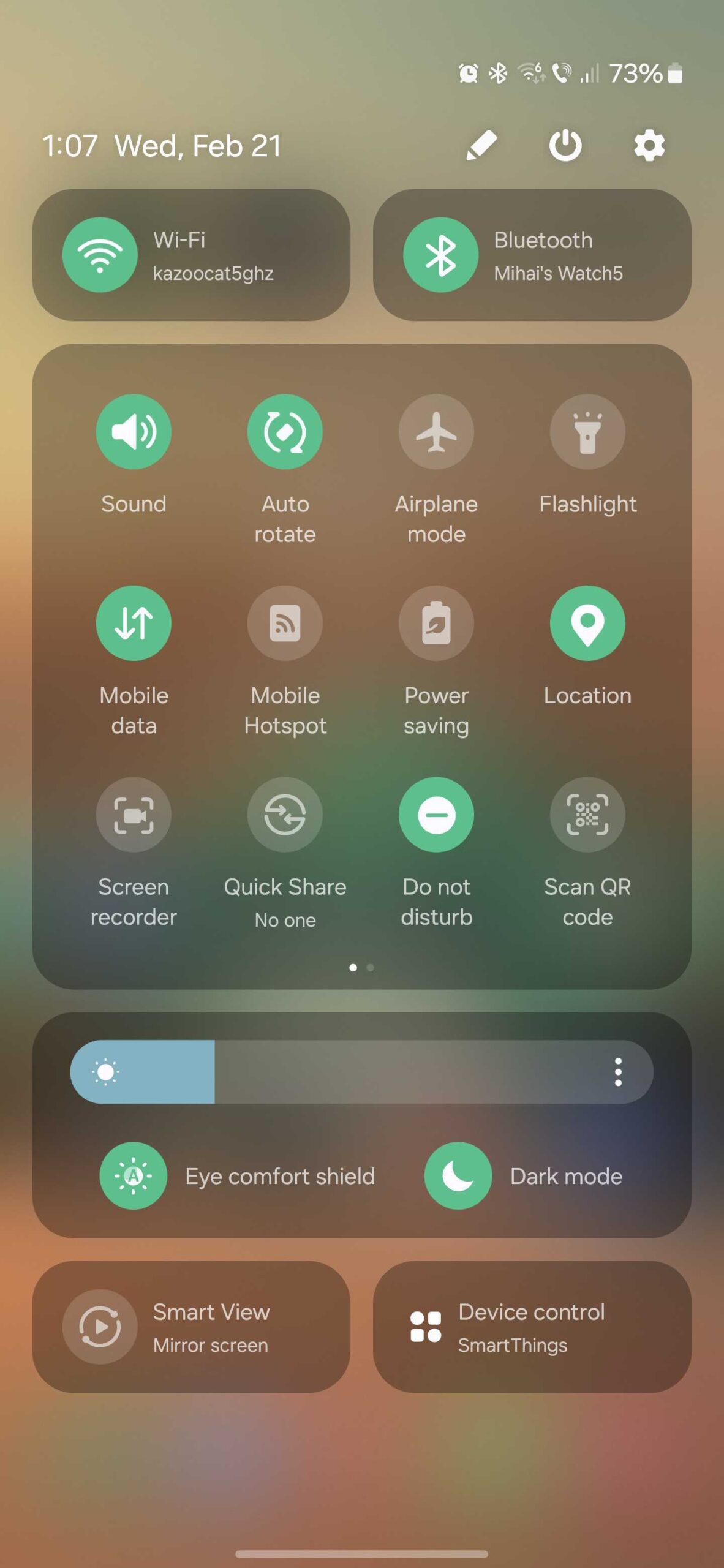
Swipe the status bar down twice (or once using two fingers) to access the quick toggle area. Then, tap the rectangular “Device Control” button. That's all! You can now control your SmartThings devices, routines, services, scenes, and more from this quick panel area. And there's a convenient “Open app” button if you really want to dive deeper into the SmartThings mobile app.
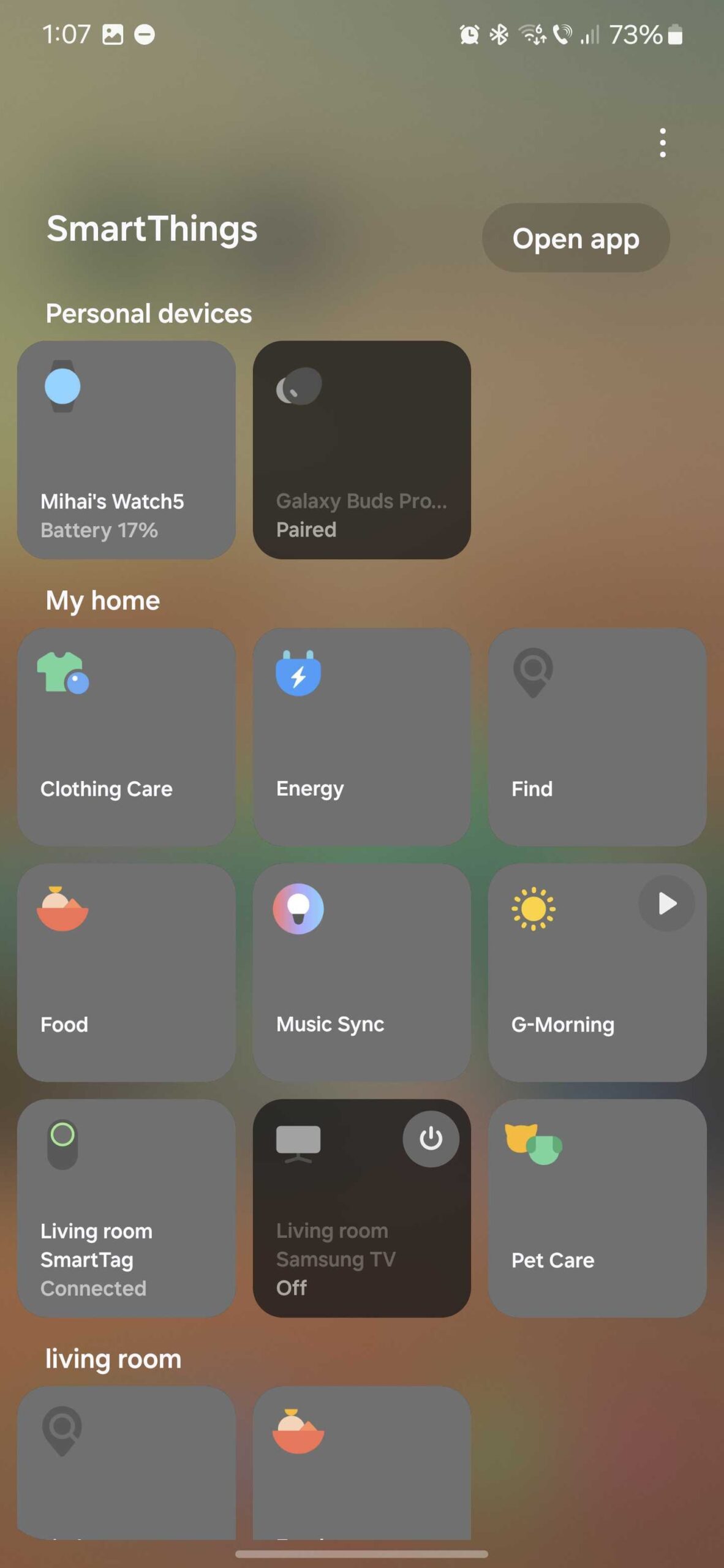
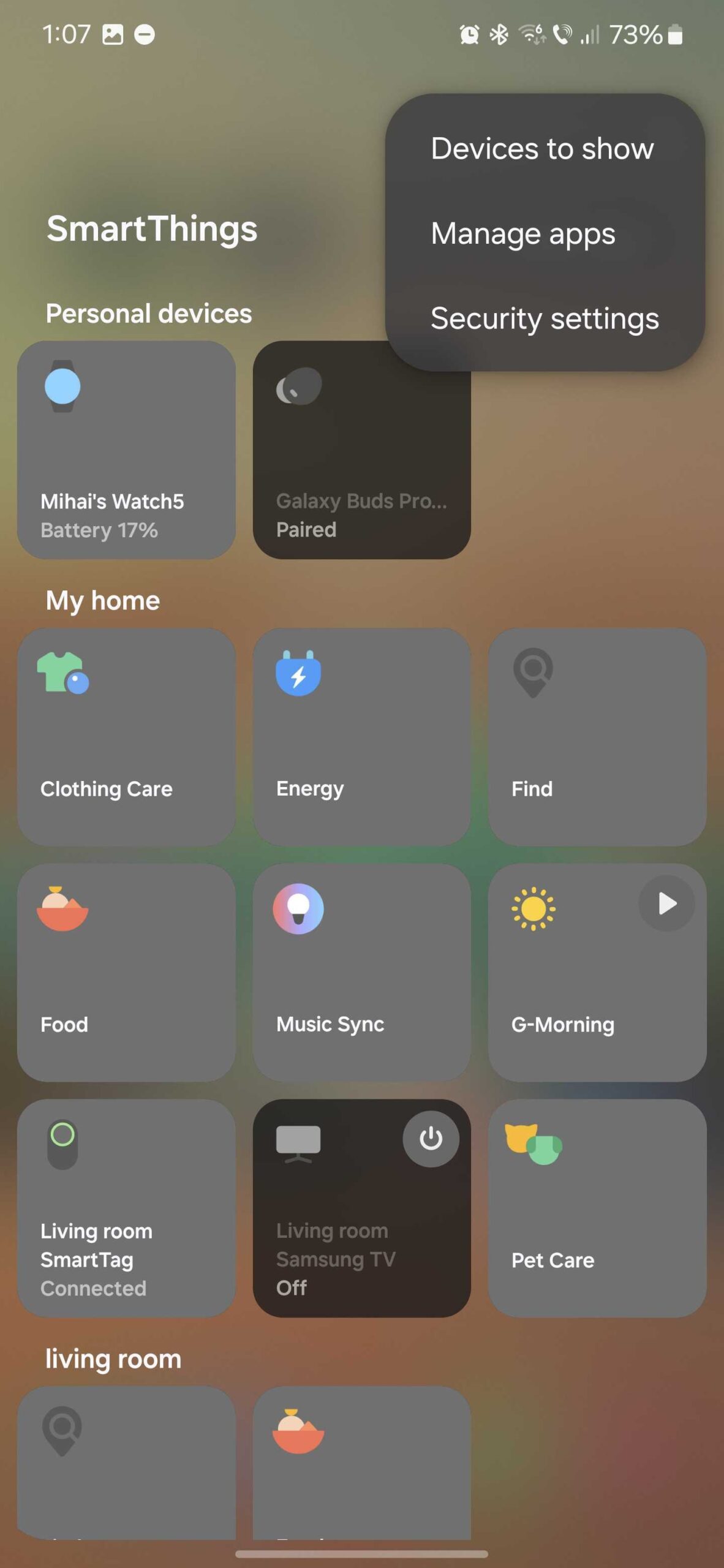
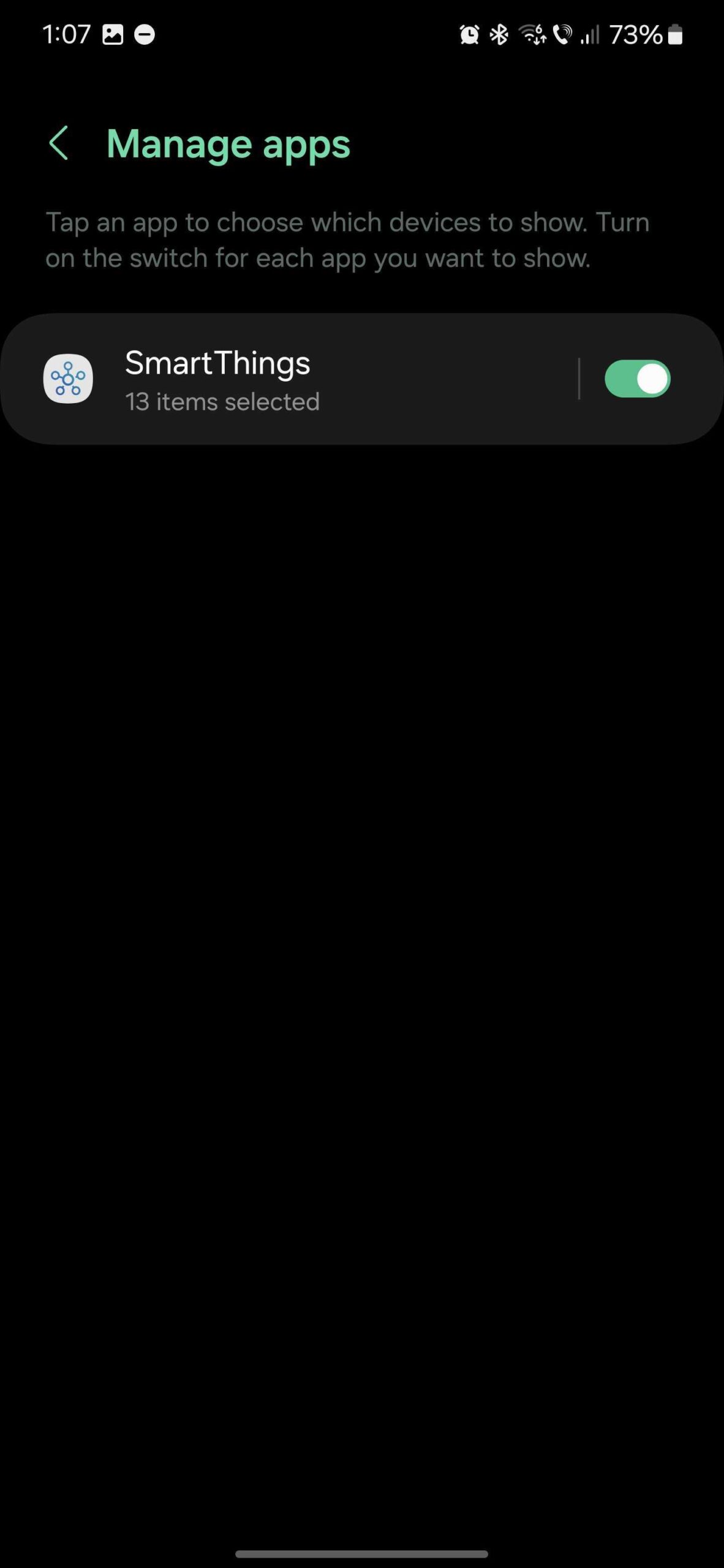
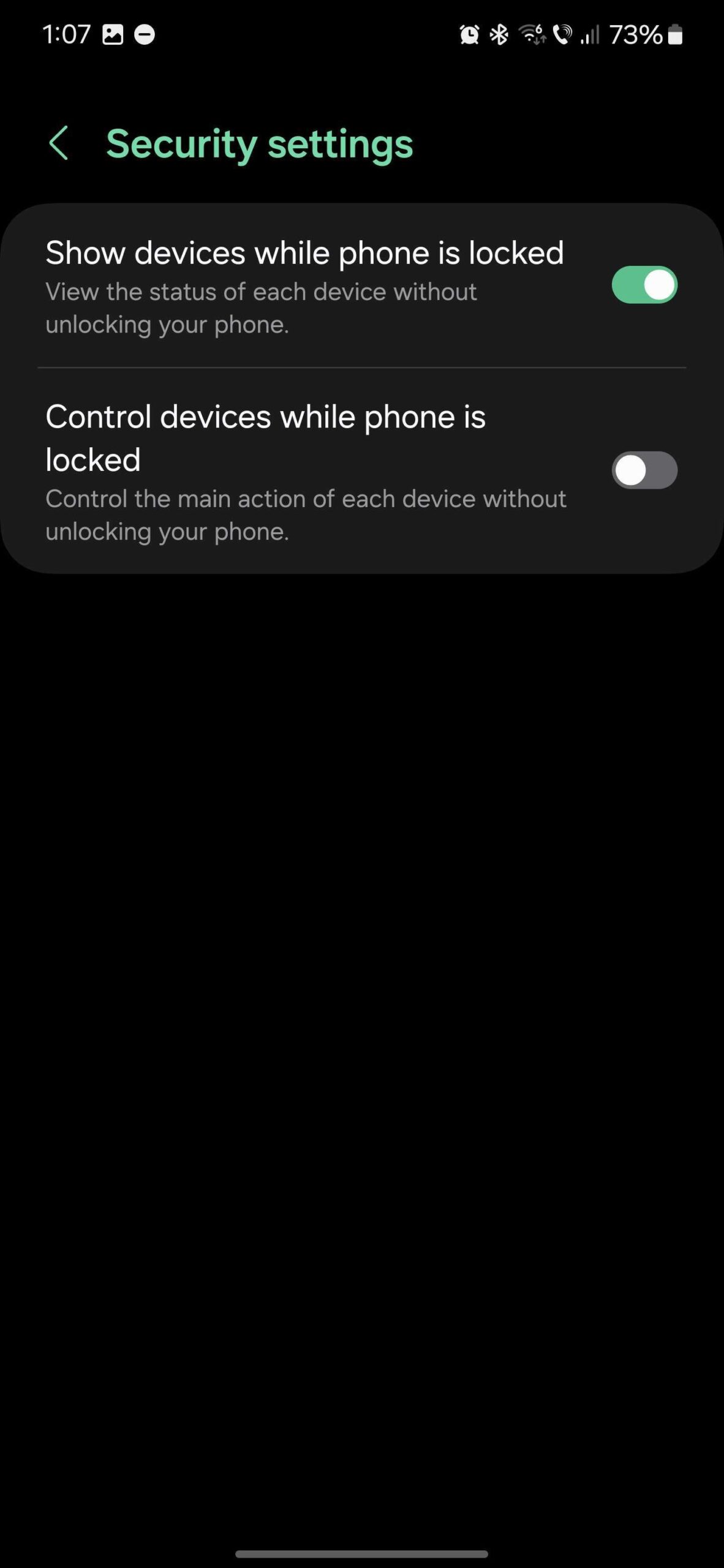
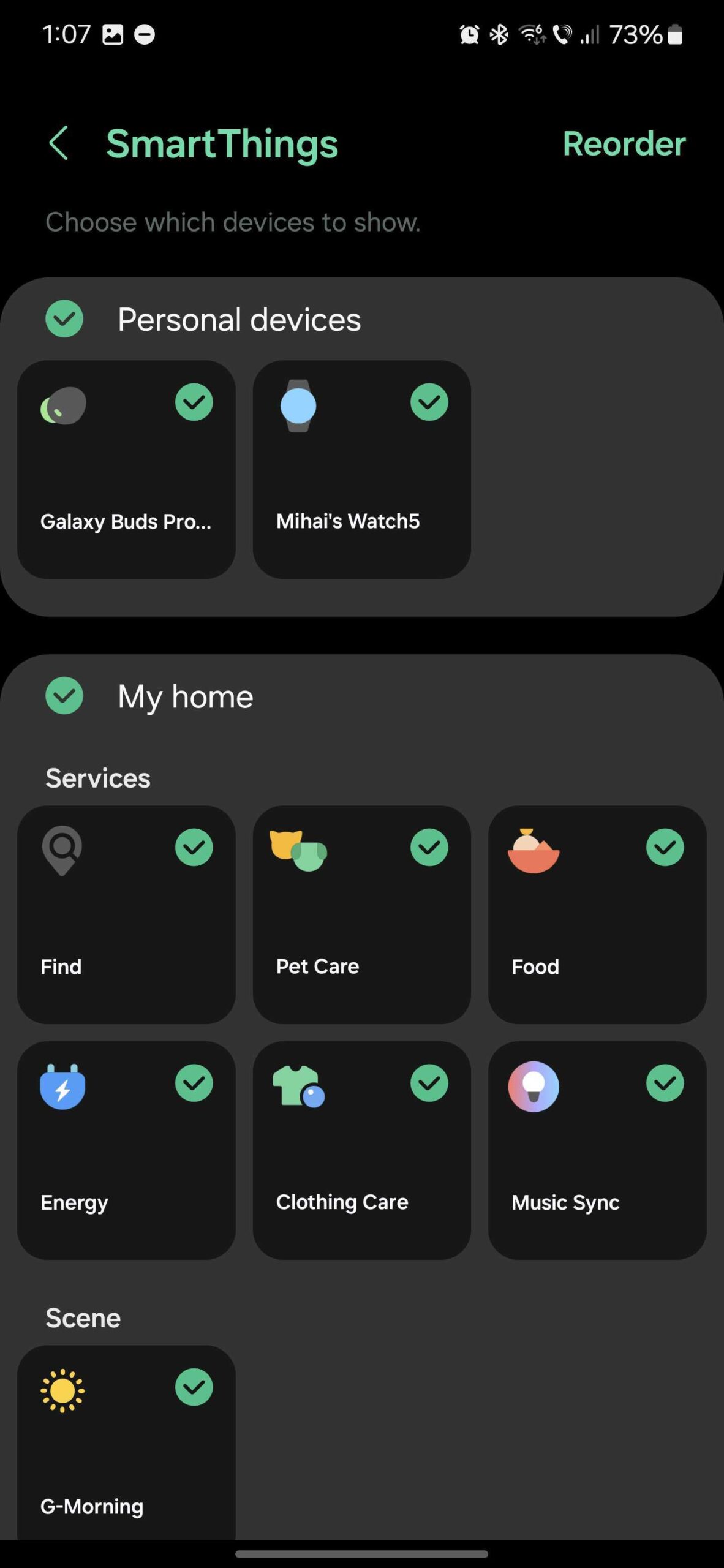
As you may have guessed, you can also customize this Device Control quick panel in One UI by adding other IoT platforms besides SmartThings, changing some security settings concerning the visibility of your SmartThings controls on the lock screen, and customizing which devices, scenes, services, and so on show up in the Device Control quick panel. Try experimenting with this feature and find your best setup.

Mihai is a blogger and column writer at SamMobile. His first Samsung phone was an A800 which took a lot of beating, and a part of him still misses the novelty of the clamshell design. In his free time, he enjoys watching shows, documentaries, and stand-up comedy; listening to music, taking walks, and occasionally playing old(er) video games.












