Last updated: February 14th, 2024 at 16:29 UTC+01:00
SamMobile has affiliate and sponsored partnerships, we may earn a commission.
Reading time: 3 minutes
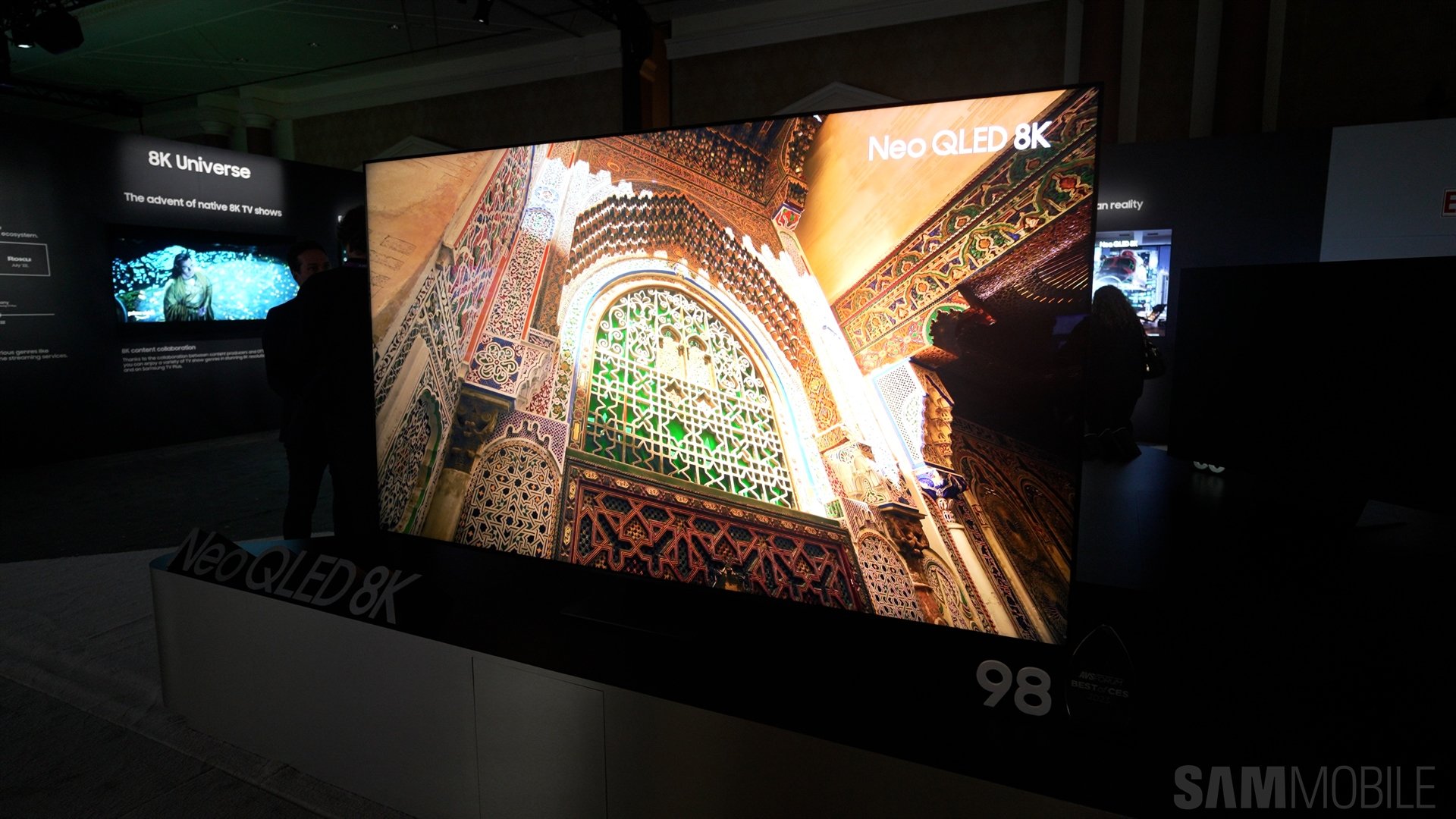
With this tool, you can use the rear-facing camera on your Galaxy device or iPhone to calibrate the display on your Samsung smart TV or Smart Monitor and optimize image quality for your particular device. Here's all you need to know to use this feature.
Before you can use the Smart Calibration tool on your smartphone, you need to make sure that your TV or Smart Monitor is synced with your SmartThings mobile app and is connected to the same Wi-Fi network as your phone.
Next, it's worth noting that Smart Calibration is available for select Samsung TVs and Smart Monitor, 2019 and later iPhones, and 2019 and later Galaxy S, Galaxy Note, and Galaxy Z smartphones. It's not available for lower-cost Galaxy A phones or any Galaxy tablets due to their weak cameras (relative to flagship phones).
In addition, some Samsung TVs support only the “Basic” calibration mode, while others support both “Basic” and “Professional.” We'll explain the difference between the two later.
Finally, the Smart Calibration tool won't change how every image preset works on your TV. It only calibrates the “Movie” picture preset for users to enjoy content as intended by creators and movie producers.
Now, let's get started with the calibration process.
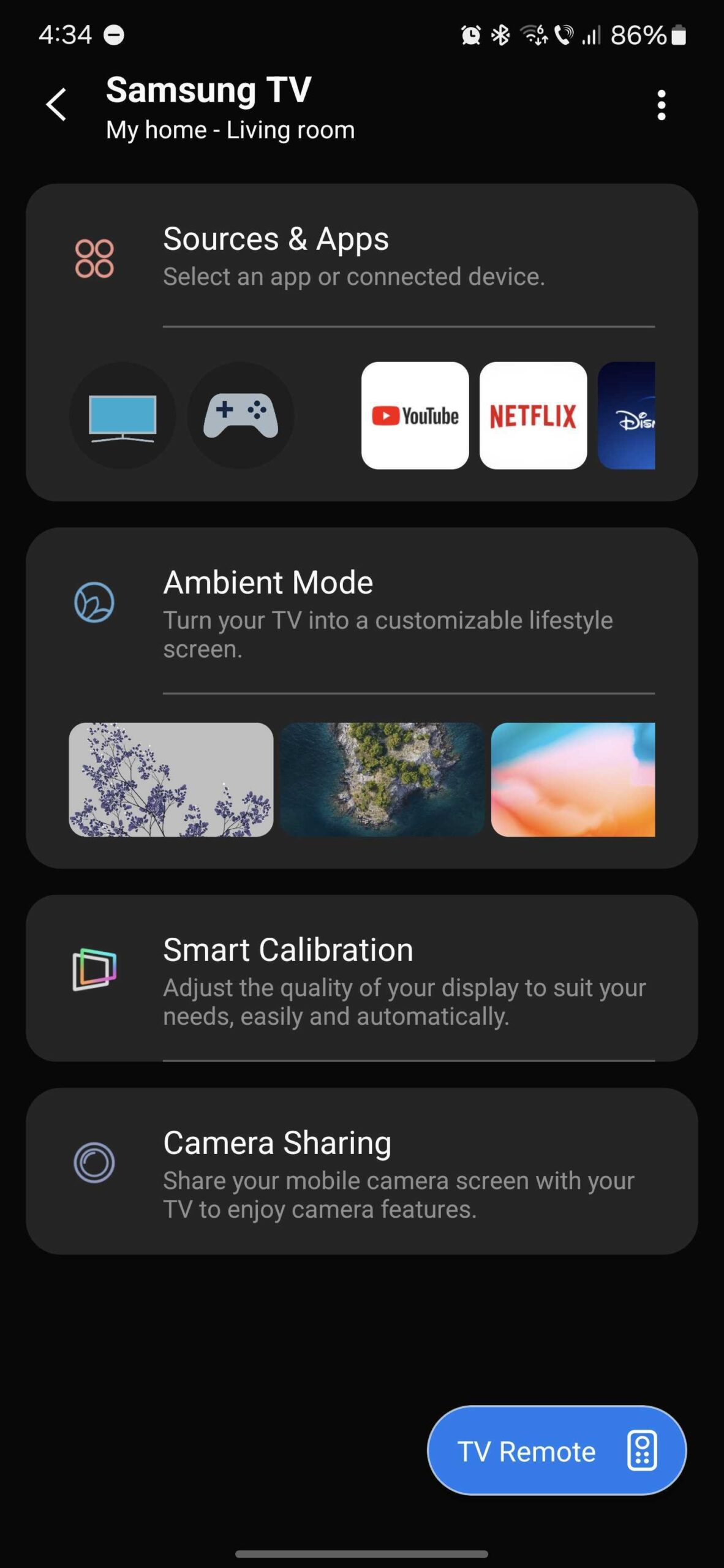
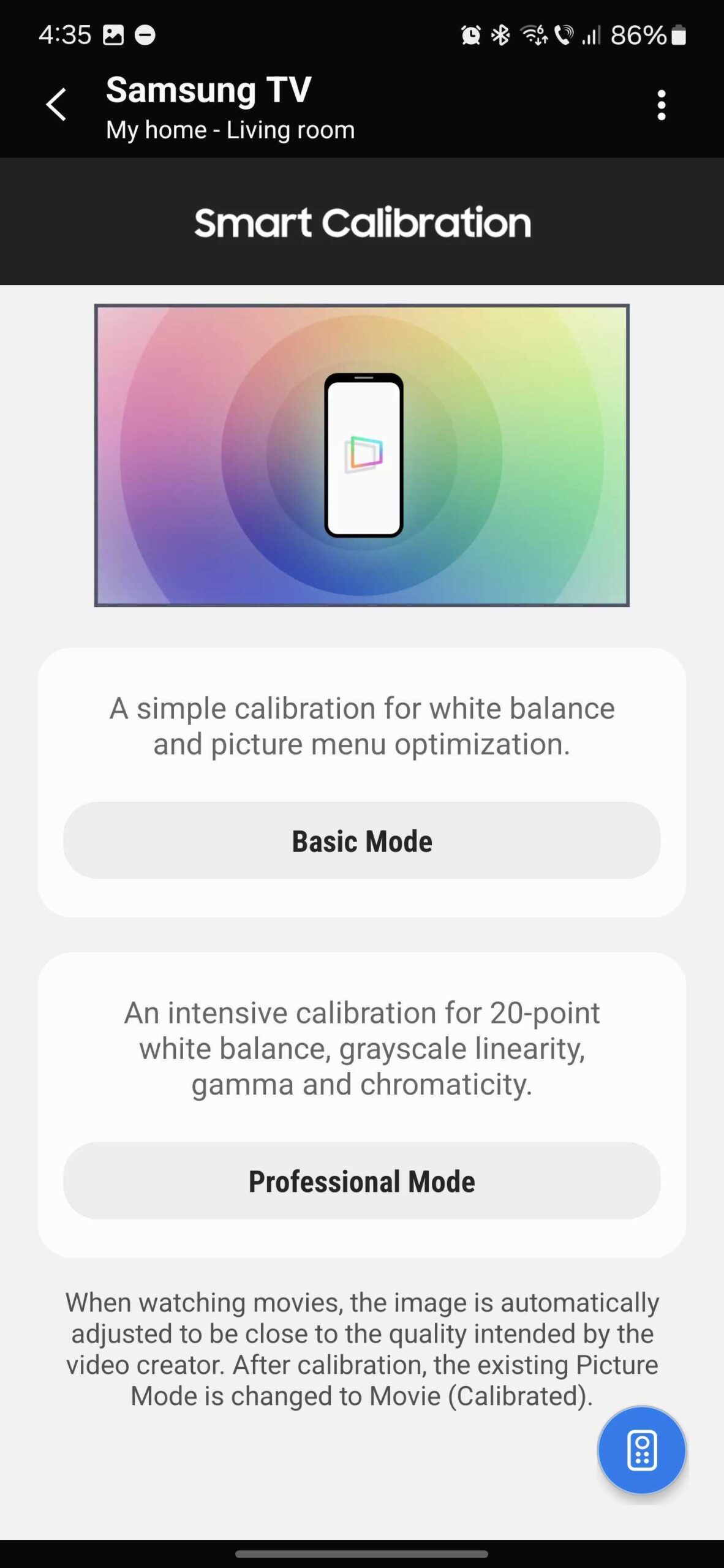
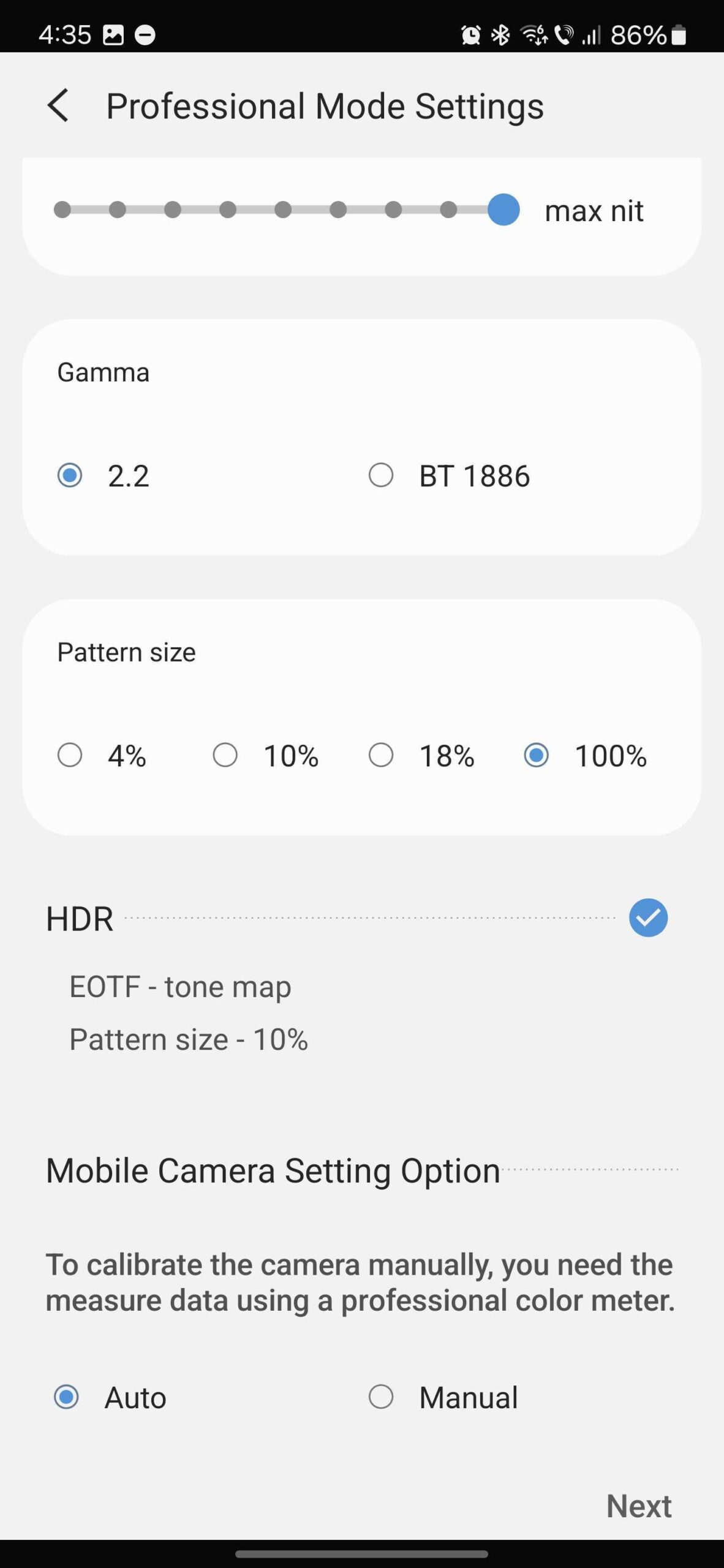
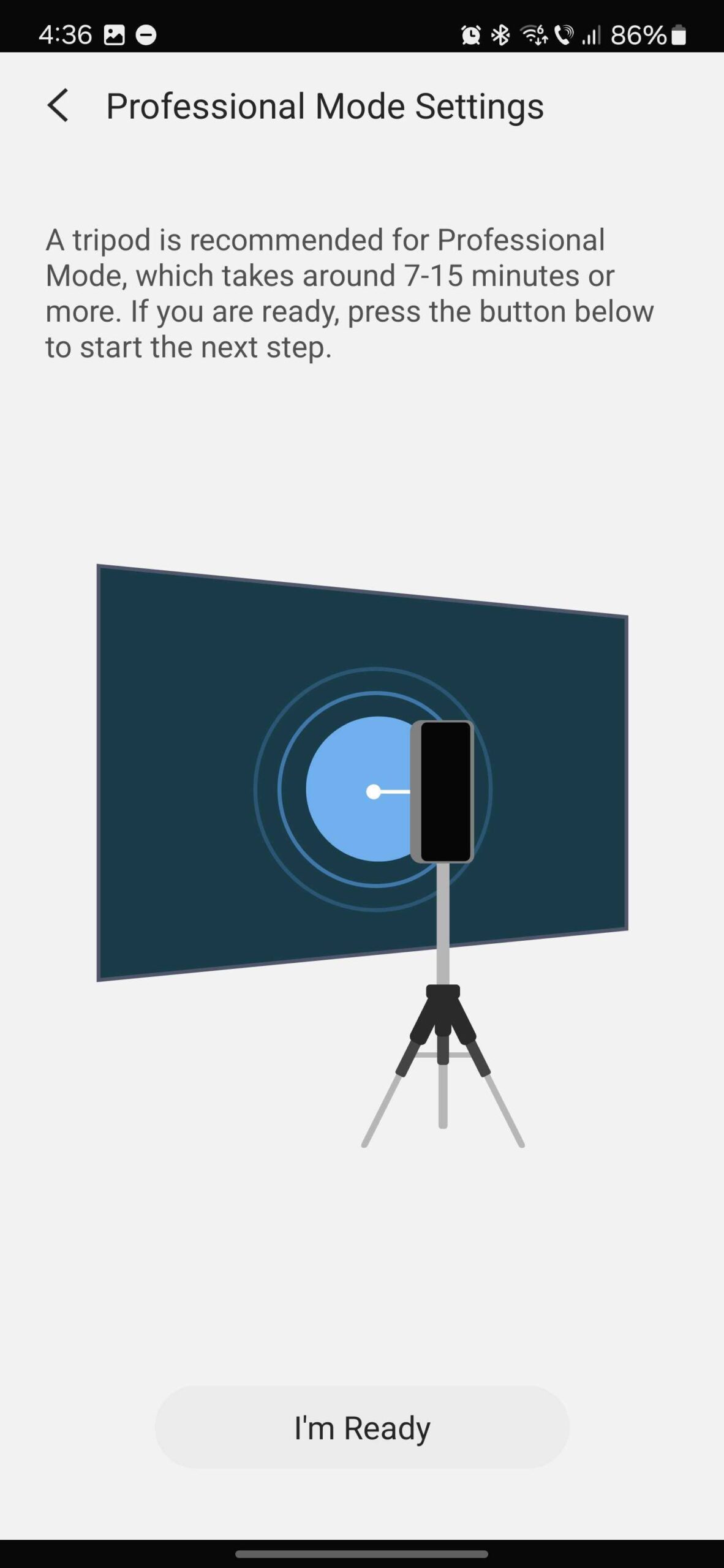
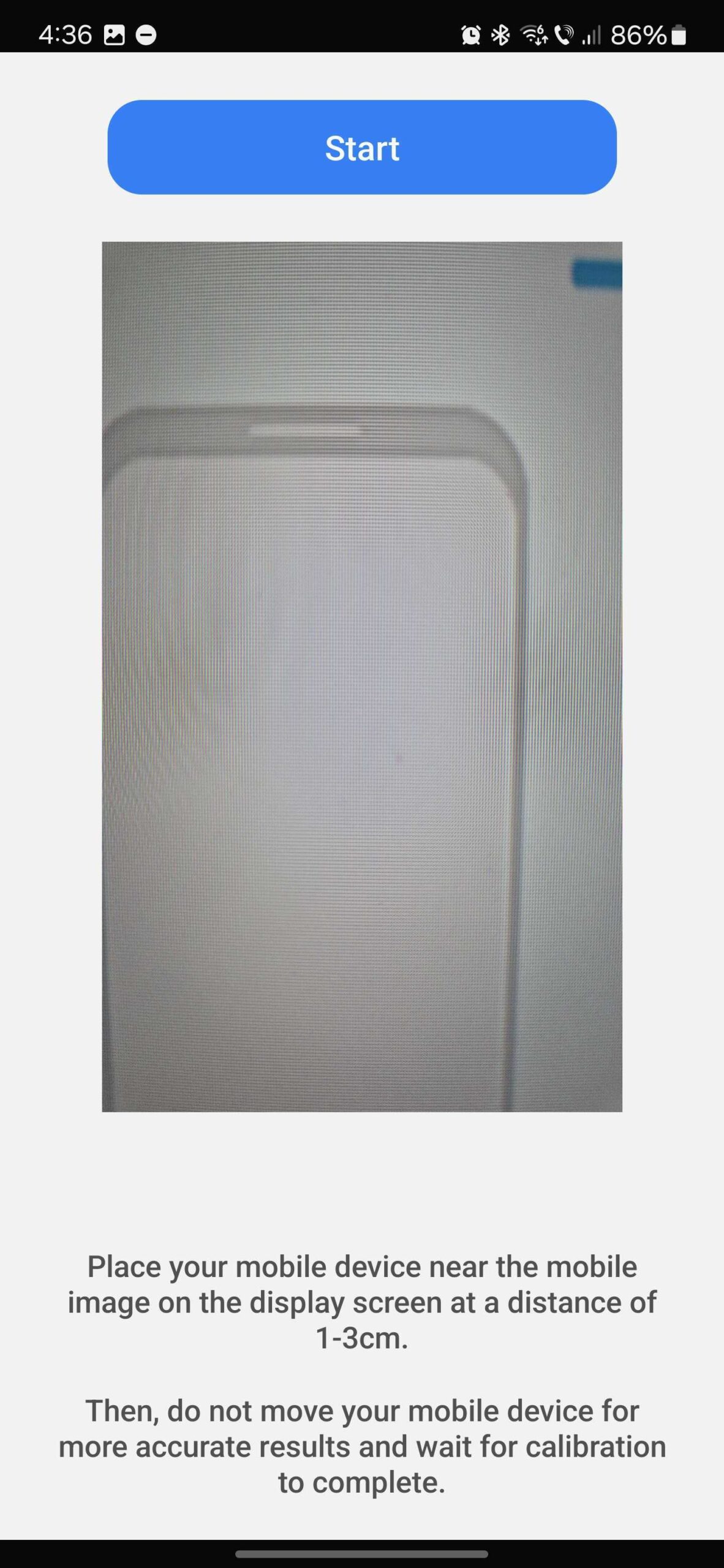
Note that the Professional Mode calibration will take up to 15 minutes to complete, and Samsung recommends using a tripod to keep your phone still during the TV's or Smart Monitor's calibration process.
Once the calibration is complete, you can review the full Calibration Report to see how the Smart Calibration tool has modified your TV screen or monitor's settings. To apply the new settings, tap “Next,” select “Apply to Calibrated,” and tap “Done.”
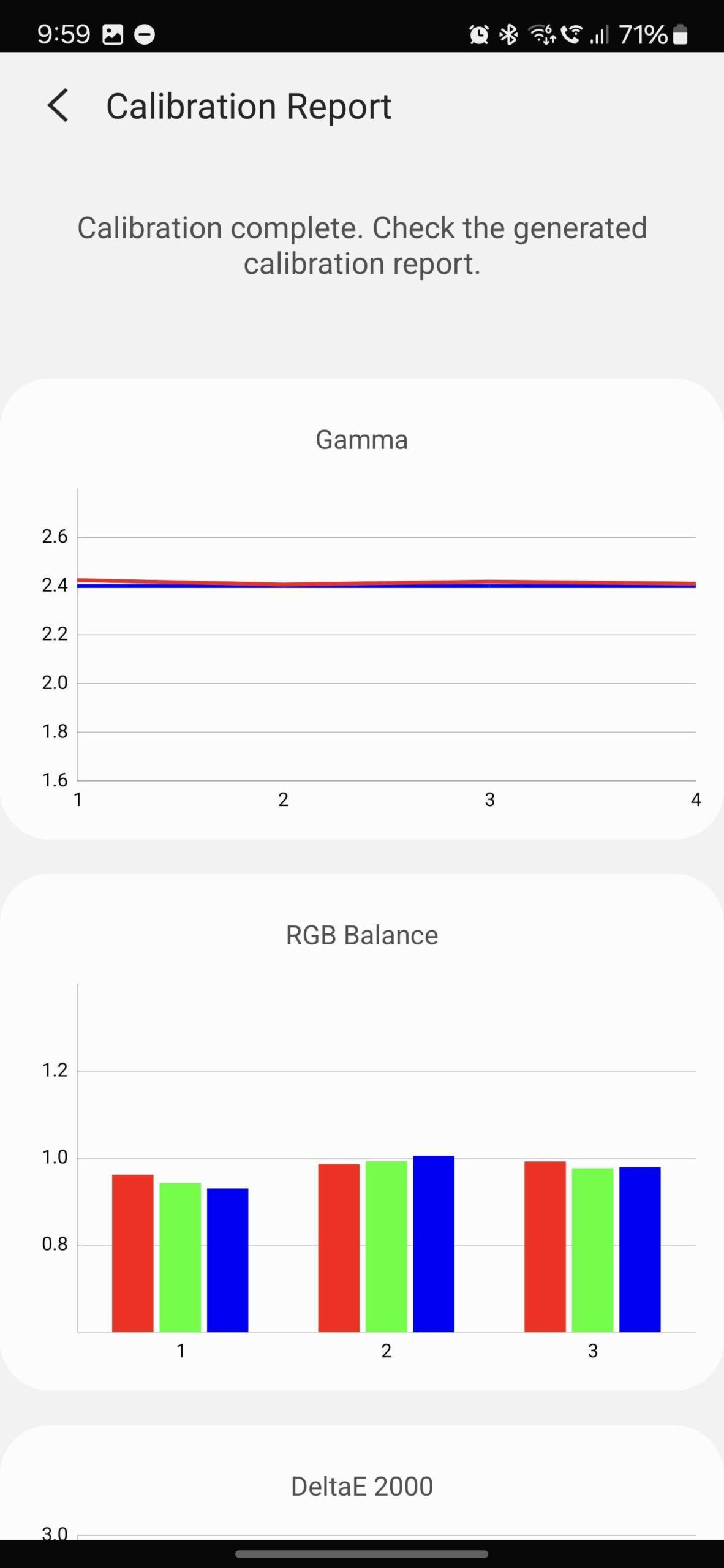

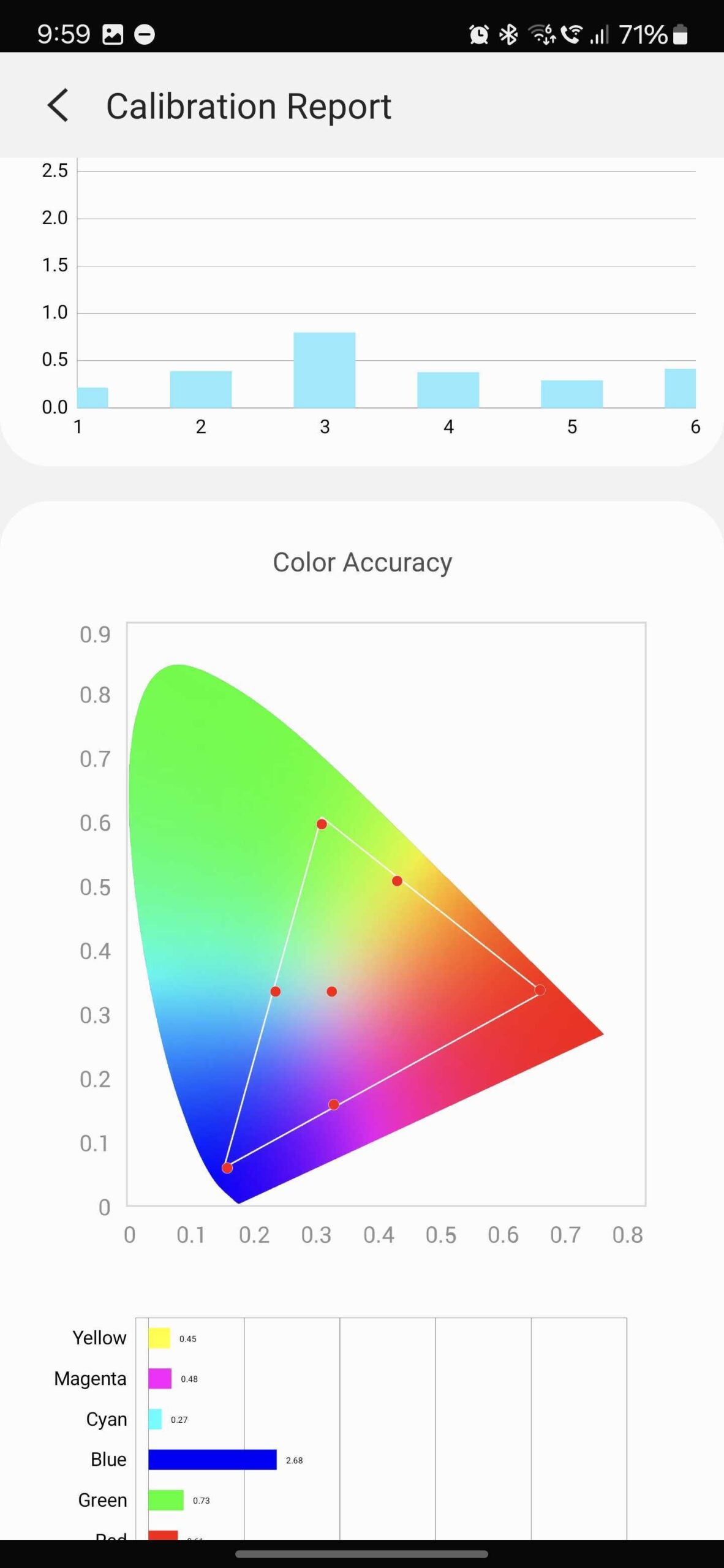
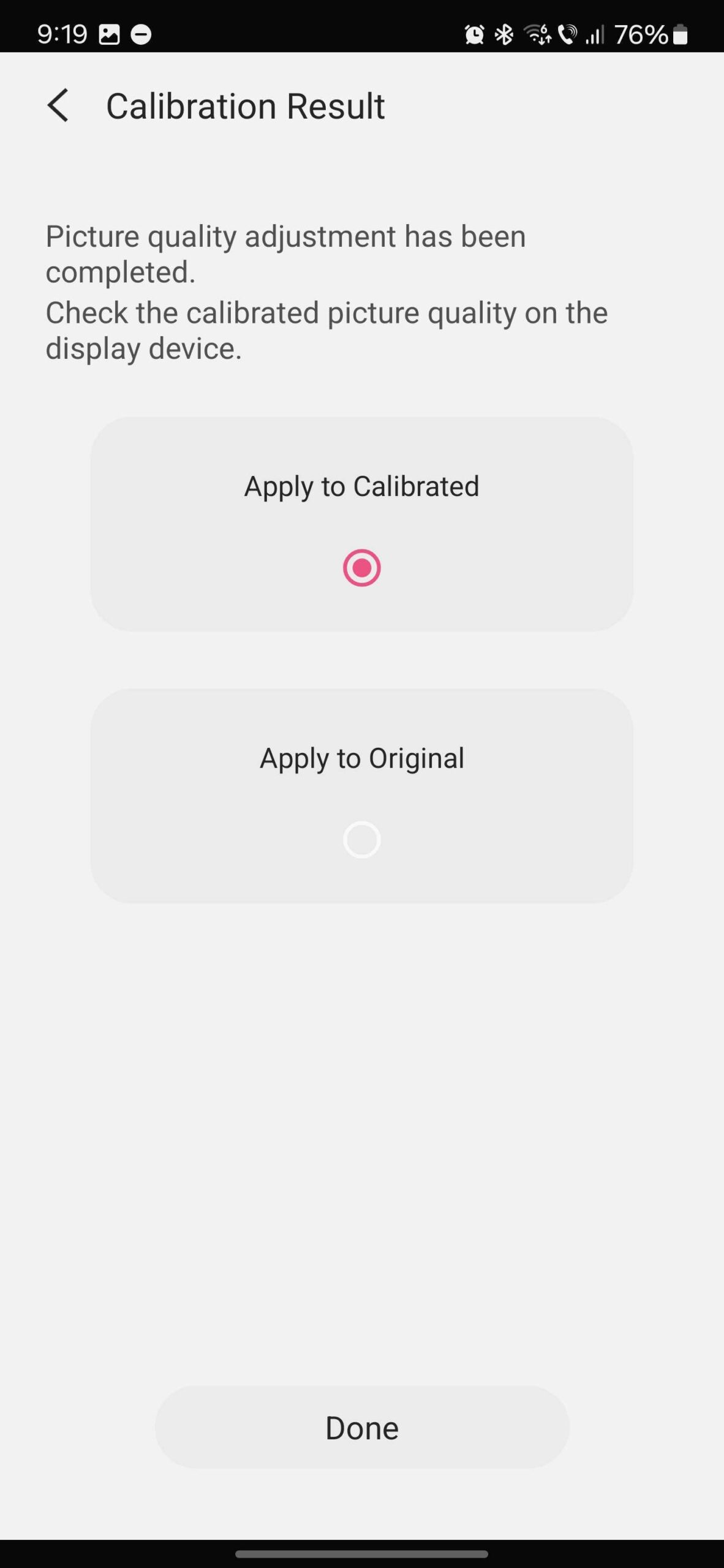
You can use these Smart Calibrated settings on your TV or monitor by selecting the new picture preset called “Movie (Calibrated).”

Mihai is a blogger and column writer at SamMobile. His first Samsung phone was an A800 which took a lot of beating, and a part of him still misses the novelty of the clamshell design. In his free time, he enjoys watching shows, documentaries, and stand-up comedy; listening to music, taking walks, and occasionally playing old(er) video games.













