Last updated: March 16th, 2016 at 08:34 UTC+01:00
SamMobile has affiliate and sponsored partnerships, we may earn a commission.
Reading time: 2 minutes
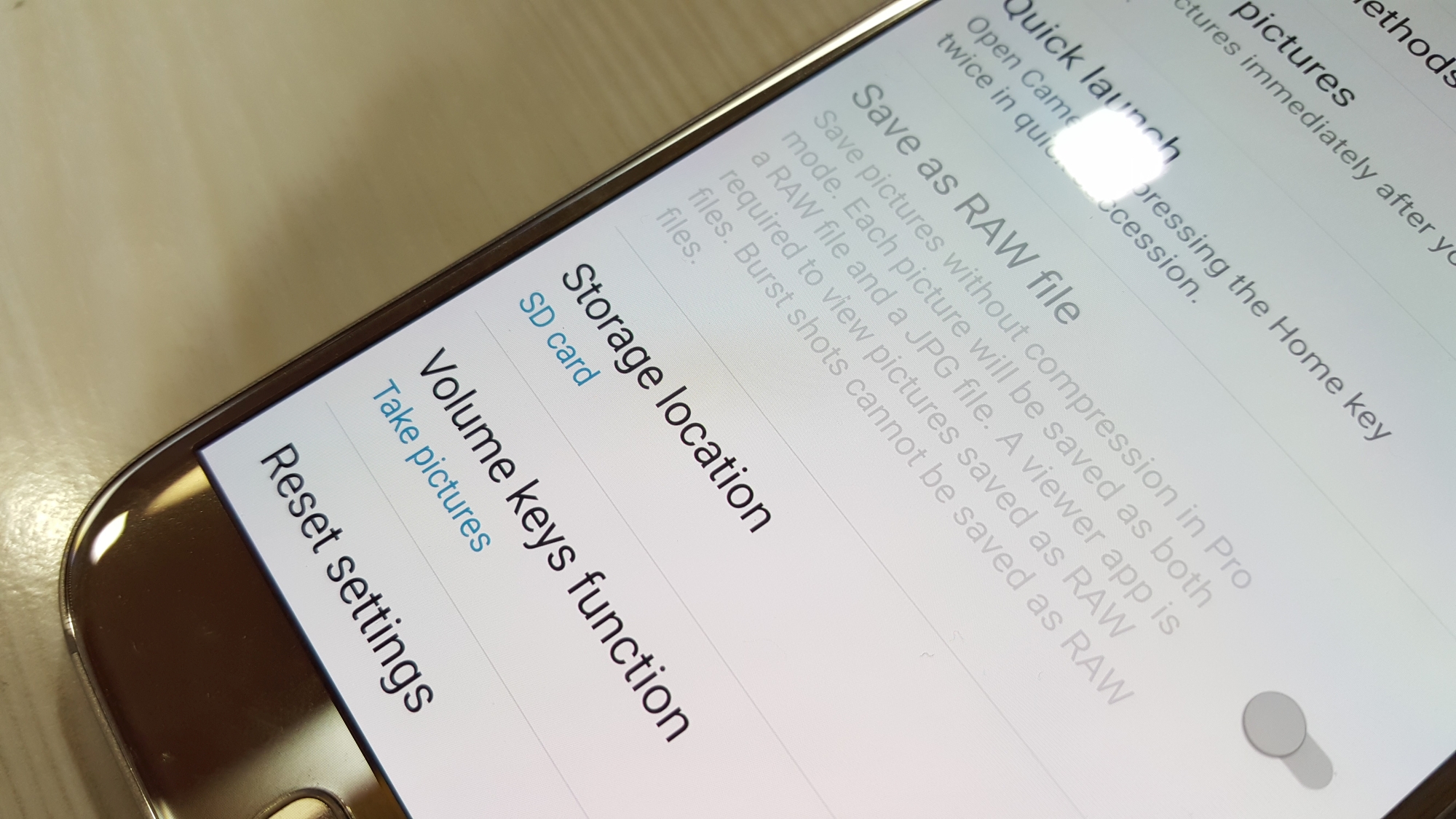
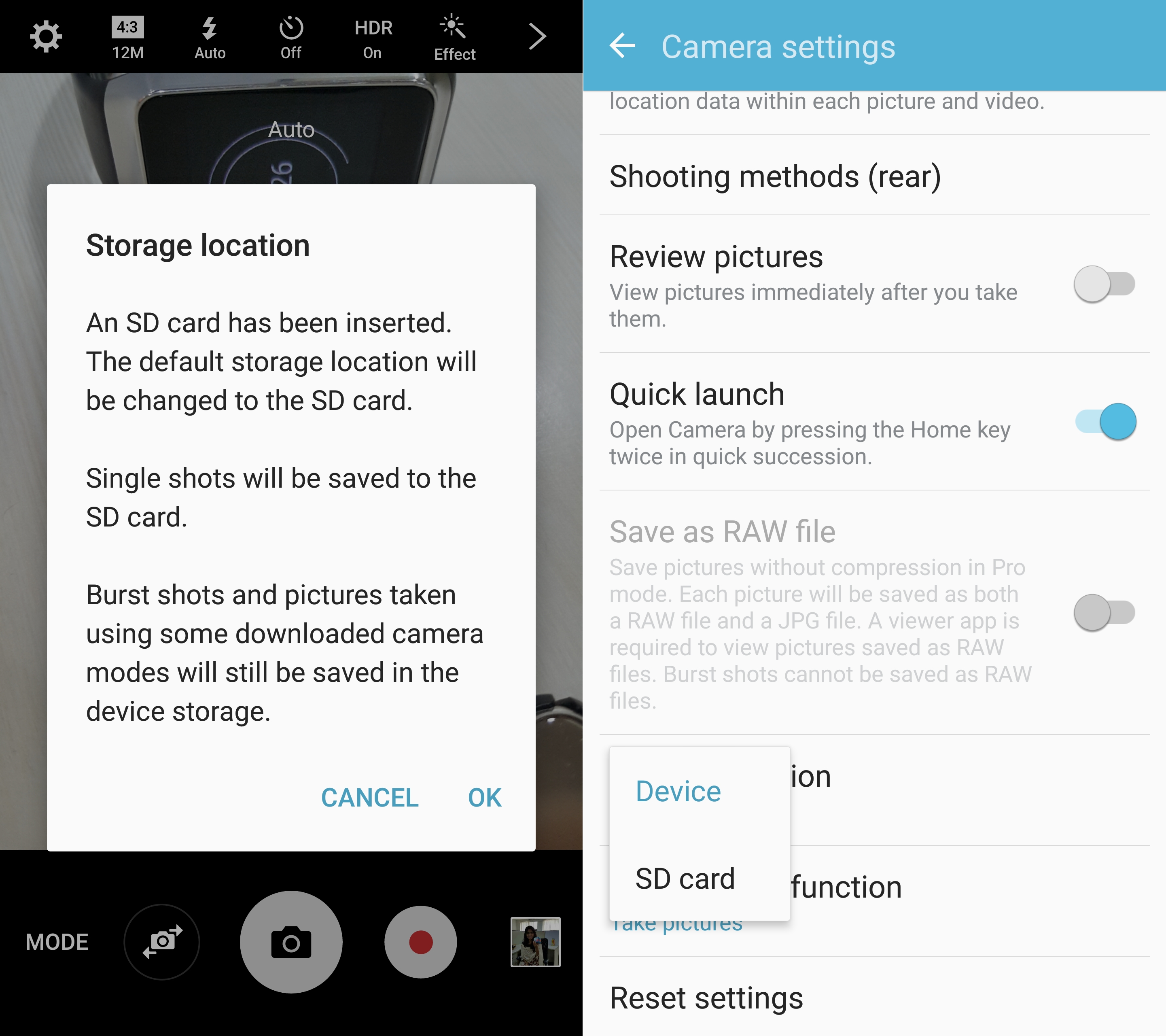
It's extremely simple, actually (as it should be). Once you've put in a microSD card on your Galaxy S7 or Galaxy S7 edge, opening the camera app will get you a pop-up that asks you whether you want to save photos and videos to the SD card. Selecting okay here will set the SD card as the default storage. If you don't get this notification, simply hit the settings button on the top left of the camera app, scroll down to find the Storage location option, and set it to SD card.
As the phone will notify you, burst shots will not be saved to the microSD card. The internal storage is a faster chip than any microSD card you will find, and is, therefore, preferable for saving burst shots as they are taken in extremely quick succession (burst shots are taken by holding down the shutter button in quick succession).
Check out more Galaxy S7 and Galaxy S7 tips to make the best of your new phone.

First Samsung device: SGH-D900
Danny is the proud founder of SamMobile.com. His first Samsung phone was the SGH-D900, which he considers to be the best slider phone ever. He likes football (Ajax/FC Barcelona) and Formula 1 (Red Bull).














